If you encounter issues while logging in to the Knowledge base portal using SSO, refer to the following common errors and their solutions:
User access not assigned in IdP
Error: Sorry, but we're having trouble signing you in. Your administrator has configured the application Document360 to block users unless they are specifically granted (assigned) access to the application.
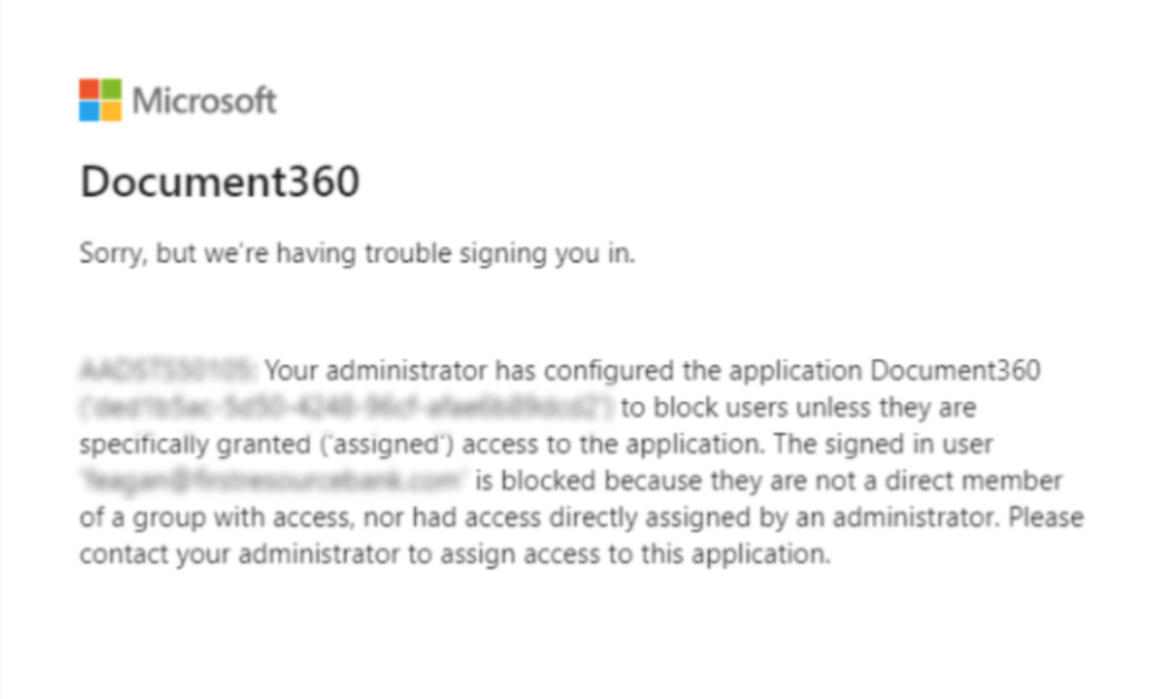
You may also see this error phrased as:
Error: You do not have assigned access.
This error indicates that the user or group attempting to log in is not assigned to the Document360 application in your organization's Identity Provider (IdP). Common IdPs include Microsoft Entra ID/Azure AD, Okta, and Google Workspace, but the steps below are generally applicable to any IdP.
Steps to resolve
To resolve this issue,
- Log in to your organization's Identity Provider (IdP) admin portal.
- Navigate to the Applications section and locate the Document360 application.
- Open the Document360 application settings.
- Assign the required users or groups to the Document360 application.
- Save the changes.
Once the users or groups are assigned, they should be able to access Document360 without encountering the error.
- The assignment of users or groups to the Document360 application is managed entirely within your organization's IdP. This process cannot be performed within Document360 itself.
- Ensure that the users or groups assigned have the appropriate permissions as per your organization's access policies.
No projects associated with email address
Error: There are no projects associated with this email address. Please contact your Project administrator.
This error indicates that the user’s account is not linked to any project in Document360. This can happen if the user has not been added or has been removed from Document360, but their account is linked to the Identity Provider (IdP).
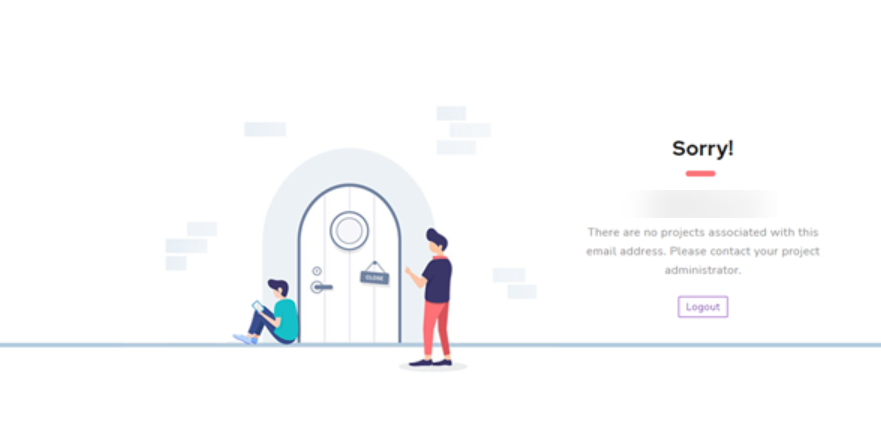
Steps to resolve:
To resolve this issue,
-
Log in to the Knowledge base portal as an administrator.
-
Select the project to which the user needs access.
-
Navigate to Settings () in the left navigation bar in the Knowledge base portal.
-
In the left navigation pane, navigate to Users & permissions > Users & groups.
-
Check if you have added the user as an SSO account.
- If the user's account exists but is not an SSO account, select the checkbox next to their account and click the Convert to SSO account option.
- If the user is not listed as an SSO account, click Add > Users and select the SSO user checkbox while creating the account.
Email address missing in SAML/ODIC response
Error: Email address is missing in SAML/ODIC response, please check your SSO configuration or contact support.
This error typically occurs when the email or name attributes in the SAML/ODIC response are not configured correctly in the Identity Provider (IdP). These attributes are case-sensitive, so it is important to ensure they match exactly as specified in the configuration.
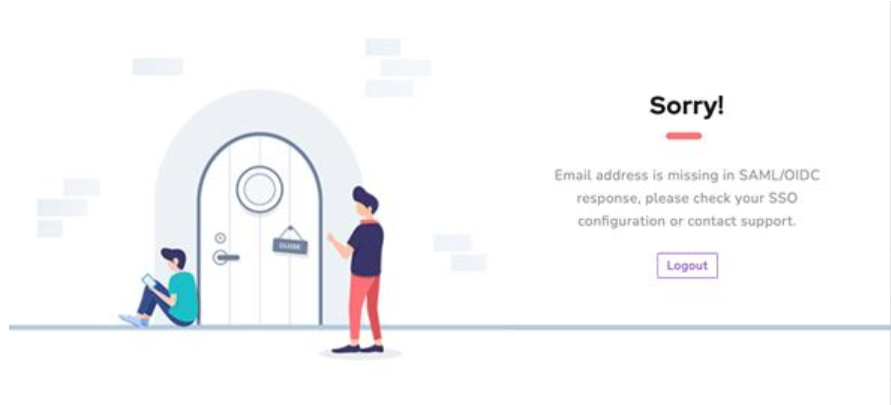
Steps to resolve:
To resolve this issue,
Check attribute mapping in the Identity Provider (IdP)
-
Log in to your Identity Provider (IdP) as an administrator.
-
Verify that the attributes for email and name are mapped correctly.
-
Confirm that the attribute names match exactly as specified in the Document360 documentation. For example,
- Correct: “email” and “name”.
- Incorrect: “Email”, “EMAIL”, “Name”, or “NAME”.
Update SSO configuration in Document360
- Log in to the Knowledge base portal as an administrator.
- Select the project where the SSO is configured.
- Navigate to Settings () in the left navigation bar in the Knowledge base portal.
- In the left navigation pane, navigate to Users & permissions > SSO Configuration.
- Select Edit () for the existing configuration.
- Navigate to the IdP configurations section and ensure the mapped attributes in Document360 correspond to those configured in the IdP.
- Save the updated configuration.
Now, test the SSO login to confirm that the issue is resolved.
Single sign-on is not enabled for this email
Error: An error occurred while handling the request and ‘Single sign-on isn’t enabled for this email’
This error indicates that the user's email is not correctly configured in the Identity Provider (IdP) or in Document360.
Steps to resolve:
To resolve this issue,
- Log in to the identity provider’s portal.
- In the identity provider’s portal, navigate to Applications, and select the Document360 application.
- Check if the users/readers are added to the Document360 application.
- If the user/reader is missing, add them and assign the necessary permissions.
Next, check if the SSO configuration has been completed correctly in Document360. To verify if the SSO configuration is correct, check the details from the SAML and OpenID articles.
If the issue persists, please contact the Document360 support team with the screenshots of the IdP configuration and Document360 SSO configuration.
Unable to login via SSO
Error: Single Sign-on is not enabled for this subdomain
This error occurs when the incorrect subdomain or knowledge base portal link is used during login. It commonly happens if the project is hosted on one domain (e.g., US) but is being accessed through a different domain (e.g., EU).
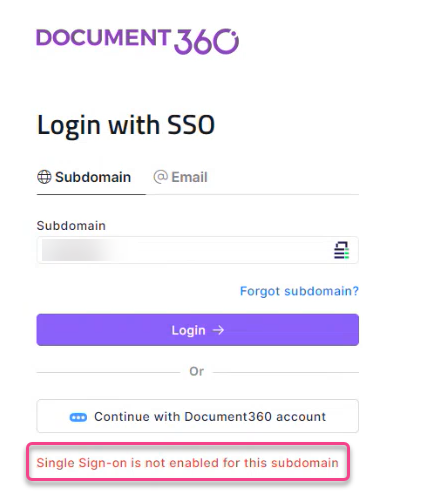
Steps to resolve:
Verify Your Subdomain and Portal URL
- Ensure you are using the correct subdomain and accessing the right Document360 portal.
- If your project is hosted in the US domain, use: https://portal.us.document360.io/
- If your project is hosted in the EU domain, use: https://portal.document360.io/
Check Your Subdomain
- Navigate to Settings () in the left navigation bar in the Knowledge base portal.
- In the left navigation pane, navigate to Knowledge base site > Custom domain.
- In the Custom domain page, you can view your project link. If your project link is
https://test1.document360.io, then your subdomain is "test1". - You can also find your subdomain on the Configure the Service Provider (SP) page under your SSO Configuration.
SSO login failure
Error: This page isn’t working - identity.us.document360.io is currently unable to handle this request. HTTP ERROR 500.
This issue occurs due to a change in the identity certificate. The signing certificate for authentication is rotated every three months, and if the updated certificate is not configured correctly in the Identity Provider (IDP), authentication may fail.
Steps to resolve:
Follow these steps to resolve the issue:
- Ensure that you configure the metadata URL correctly in the Identity Provider (IdP). This URL is available on the SSO page in Document360 and reflects the latest signing certificate information.
- If the issue persists, contact support@document360.com for assistance.
404 error during SSO configuration
Error: This identity.us.document360.io page can’t be found. No webpage was found for the web address. HTTP Error 404.
This issue might occur if the federation URL for the Identity Provider (IdP) was incorrectly configured or if the email address used had no associated projects in the system.
Steps to resolve:
-
Verify the federation URL of your SSO connection. The 404 error usually indicates that the URL is incorrect or inaccessible. To verify,
-
Navigate to your Identity Provider’s SSO configuration section.
-
Look for the federation metadata URL, login URL, or SAML endpoint URL. This URL must match exactly with what's configured in your Document360 SSO settings.
-
Double-check your credentials and ensure you have entered the correct federation URL in your IdP.
-
Once the federation URL is copied from your IdP, and related configurations are corrected, confirm that your email address is linked to at least one project.
-
If there are no projects associated with your email, you may need to be added as a new SSO user account.
-
Follow best practices when converting other users to SSO accounts.
- Always copy the federation URL directly from your IdP—avoid manual typing.
- Ensure that each user’s email is added to at least one active project in Document360 before enabling SSO.
- Confirm that the email domains of the users match your SSO setup.
- Add new users as SSO users in your project before they attempt to log in.
- Maintain a list of verified SSO users with proper role mappings in the system.
-
If the issue persists, contact support@document360.com for assistance.
500 error during SSO login to knowledge base portal
Error: 500 login error
Possible causes are an outdated or expired SAML certificate, or if the site is set to public (SSO is intended for secure, private portals).
Steps to resolve:
- Confirm that your Knowledge base portal is not set to public. SSO authentication requires the site to be private.
- Check the status of your SAML certificate. If it's outdated or expired, update it on your identity provider's end.
- Retry logging in using SSO after updating the certificate.
SSO login issue: HTTP 500 error
Error: This page isn’t working - identity.document360.io is currently unable to handle this request - HTTP 500 ERROR
Steps to resolve:
- Check if the issue is affecting all users associated with the project’s SSO Identity Provider.
- If the issue is isolated to a specific user, it may be related to browser or network settings.
- Try logging in using an incognito/private browsing panel.
- Switch to a different internet connection and attempt the login.
- Use a different device to log in and see if the issue persists.
If the issue persists after following these steps, please contact the Document360 support team for further assistance: Contact Document360 Support
If you use OpenID Connect SSO and the HTTP 500 error appears before your identity provider's login page opens, check the client authentication method in your identity provider. See OpenID SSO issues.
Provide the following details:
- SSO configuration details for the project and the associated Identity Provider.
- A generated product log file. For instructions, read the article on Generating a HAR File.
- A screen recording that demonstrates the issue in detail.
If you encounter any issue during SSO login after converting users, refer to the following common error and its solution:
Failed to parse token response body as JSON
Error: An error was encountered while handling the remote login. Failed to parse token response body as JSON. Status Code: 200. Content-Type: text/html; charset=UTF-8.
This error occurs with OpenID Connect SSO when your identity provider (IdP) returns an HTML page instead of a token. The most common cause is the client authentication method. Document360 sends the client ID and secret in the body of the token request (client_secret_post). It doesn't support client_secret_basic, which sends them in an HTTP Authorization header.
Steps to resolve:
- In your IdP, open the application you created for Document360.
- Set the token endpoint authentication method to Client Secret Post or
client_secret_post. - Save the application.
- Sign in again using SSO from a private browser window.
For other causes of this error, and for related OpenID Connect errors, see OpenID SSO issues.
FAQ
What are the prerequisites for inheriting an SSO configuration from an existing project?
To inherit an SSO configuration from an existing project, ensure that:
- The user performing the configuration has Admin or Owner access to both the parent and child projects.
- The same user account is associated with all projects involved in the inheritance process.
Note: In Document360, SSO and non-SSO user accounts are treated as separate accounts even if they use the same email address. To successfully inherit SSO settings across projects, ensure that the user is added as a non-SSO user in all relevant projects.