SP-initiated SSO fails with a Responder error
If IdP-initiated SSO works but SP-initiated SSO fails, it is likely because the Document360 signing certificate is not configured or trusted in ADFS. In SP-initiated SSO, Document360 sends a signed AuthnRequest that the IdP must validate. If the signing certificate is missing, the IdP returns a Responder error.
To resolve this:
Open the Properties of the Document360 relying party trust in ADFS.
Navigate to the Signature tab.
Upload the Document360 signing certificate.
You can obtain the Document360 signing certificate from the SAML metadata URL.
If you encounter error during Salesforce SAML setup, refer to the following common errors and their solutions:
“No Assertion found” or “AuthnFailed” error when using Salesforce as the Identity Provider (IdP)
Error: “No Assertion found” or “AuthnFailed”
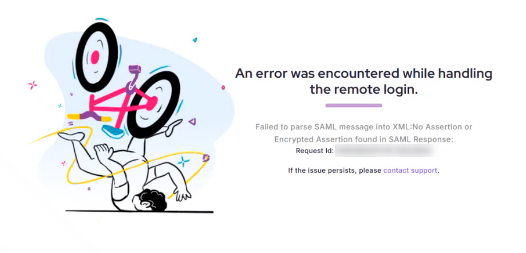
If you encounter a “No Assertion found” or “AuthnFailed” error while testing SAML SSO with Salesforce, this typically occurs because Salesforce is not sending the required SAML Assertion to Document360.
In most cases, this is due to the Connected App not being assigned to any user profile or permission set.
Steps to resolve
To resolve this error,
In Salesforce, open the Connected App configured for Document360.
Select Manage Profiles or Manage Permission Sets.
Assign the appropriate profile(s) or permission set(s) to grant users access to the app.
Save your changes and retry the SSO login.
Once the Connected App is associated with a profile, Salesforce will include the SAML Assertion in its response, and the SSO login will proceed successfully.