Connect Active Directory Federation Services (ADFS) to Document360 with OpenID Connect (OIDC) so your users and readers sign in to Document360 with their existing Active Directory credentials. You add Document360 as a relying party in ADFS, map the claims Document360 needs, and enter the ADFS client values in Document360. When you finish, your users sign in to the knowledge base portal and your readers sign in to the knowledge base site through ADFS.
When to use ADFS with OpenID Connect
Use this setup when:
- Your organization runs ADFS on premises and manages identities in Active Directory.
- You want to use the OpenID Connect protocol instead of SAML with ADFS.
- You want users and readers to sign in with their Active Directory credentials instead of separate Document360 passwords.
With ADFS as your OpenID Connect identity provider (IdP), you can use the following:
| Capability | Supported |
|---|---|
| User (portal) authentication | Yes |
| Reader (knowledge base site) authentication | Yes |
| SCIM provisioning | Yes (via third-party tools or custom integrations only) |
| SSO configuration inheritance (parent-child projects) | Yes |
Before you begin
- You have the Owner or Admin project role in Document360. Only these roles can configure SSO.
- You have administrative access to your ADFS server.
- You have the client identifier and client secret for Document360 from your ADFS application group. You enter them in Step 5.
- Open Document360 and the ADFS Management console side by side. You switch between them several times during setup.
How to set up OpenID Connect SSO with ADFS
Step 1: Add the relying party trust in ADFS
- Log in to the ADFS Management console on your ADFS server.
- Go to Relying Party Trusts.
- Right-click Relying Party Trusts and select Add Relying Party Trust.
- In the Add Relying Party Trust Wizard, select Claims aware and click Start.
- Select Enter data about the relying party manually and click Next.
- Enter a display name (for example, "Document360 OpenID SSO") and click Next.
- In the Configure Certificate step, click Next. You can skip this step if you don't use a certificate.
The wizard moves to the Configure URL step. Leave the wizard open while you get the values from Document360.
Step 2: Get the service provider parameters from Document360
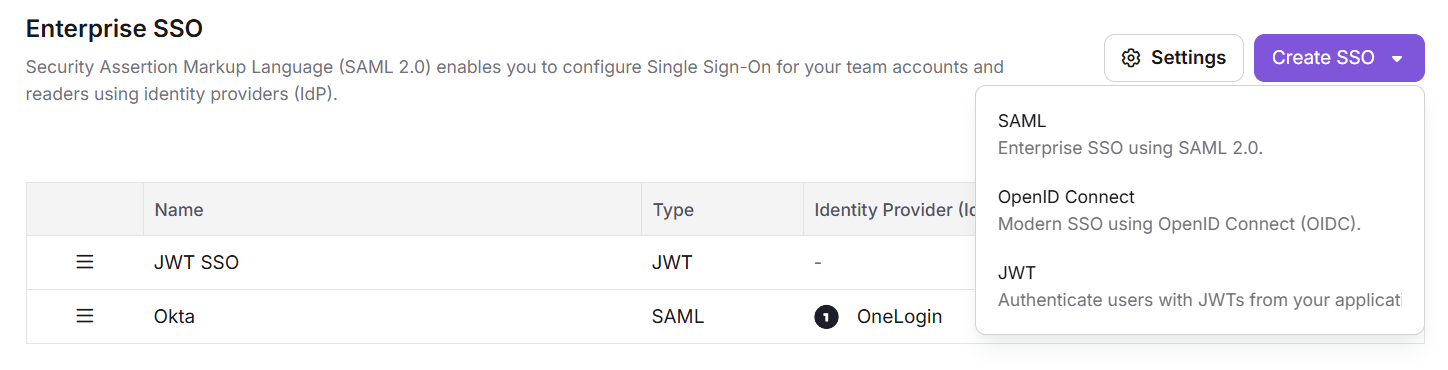
- In Document360, go to Settings () > Users & Permissions > Enterprise SSO.
- Click Create SSO, and then select OpenID Connect (Modern SSO using OpenID Connect (OIDC)).
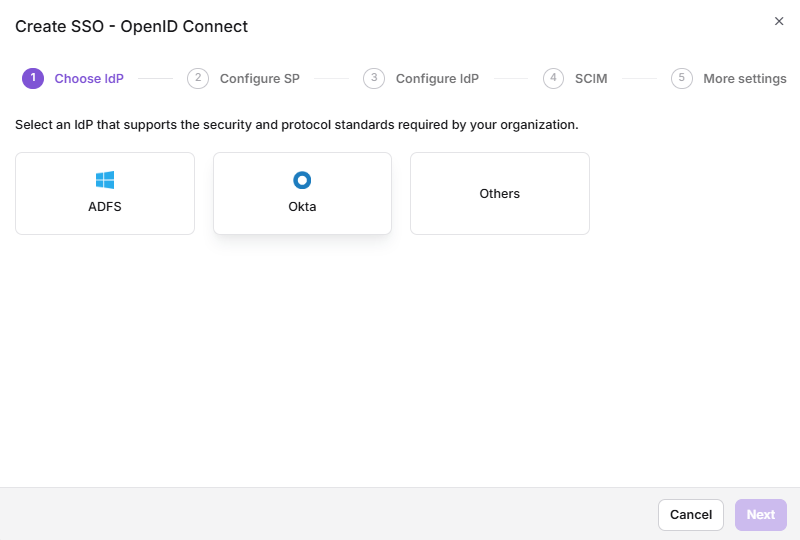
- On the Choose IdP step, select ADFS as your identity provider.
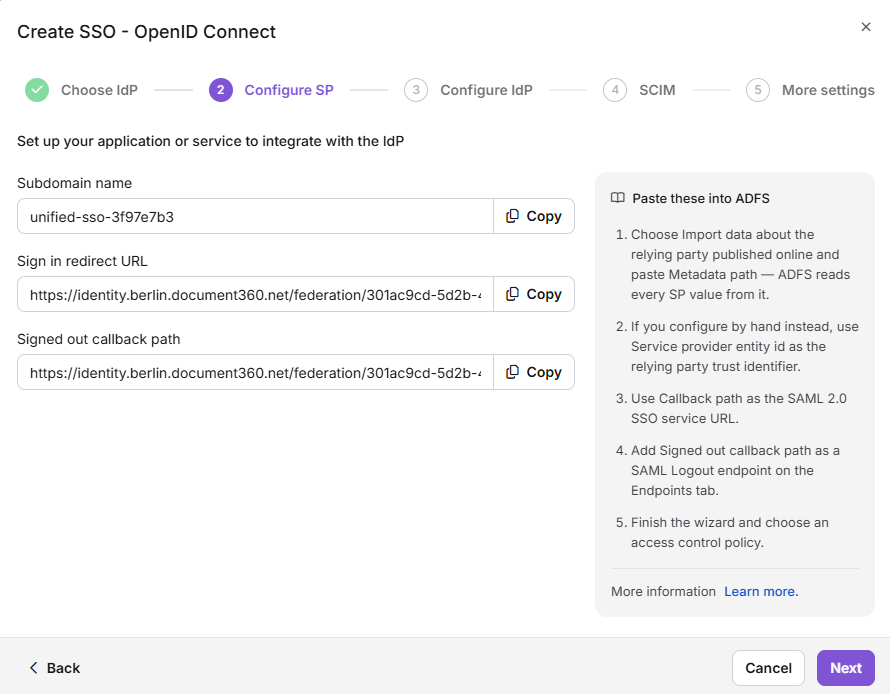
The Configure SP step opens and shows the parameters you need in ADFS.
Step 3: Enter the Document360 parameters in ADFS
- Switch to the ADFS Management console. In the Configure URL step, copy each Document360 value into the matching ADFS field.
| ADFS | Document360 |
|---|---|
| Relying Party Identifier | Subdomain name |
| Sign-On URL | Sign in redirect URL |
| Sign-Out URL | Sign out redirect URL |
- Click Next.
- If your organization requires multi-factor authentication, set it up in the wizard.
- Permit all users to access the application.
- Review your settings and click Next to add the relying party trust.
- On the final screen, select the Open the Edit Claim Rules dialog checkbox and click Close.
The Edit Claim Rules dialog opens.
Step 4: Add claim rules in ADFS
- In the Edit Claim Rules dialog, click Add Rule.
- Select Send LDAP Attributes as Claims as the rule template and click Next.
- Enter a name for the claim rule (for example, "Send LDAP Attributes").
- In Attribute Store, select Active Directory.
- Add the following mappings:
| LDAP Attribute | Outgoing Claim Type |
|---|---|
| User-Principal-Name | Name ID |
| E-Mail-Addresses | |
| Display-Name | Name |
- Click Finish to add the rule.
- Click Apply to save your changes and close the dialog.
ADFS now sends the user's name ID, email, and display name to Document360.
Step 5: Configure the identity provider in Document360
- Return to Document360 and click Next on the Configure SP step.
The Configure IdP step opens.
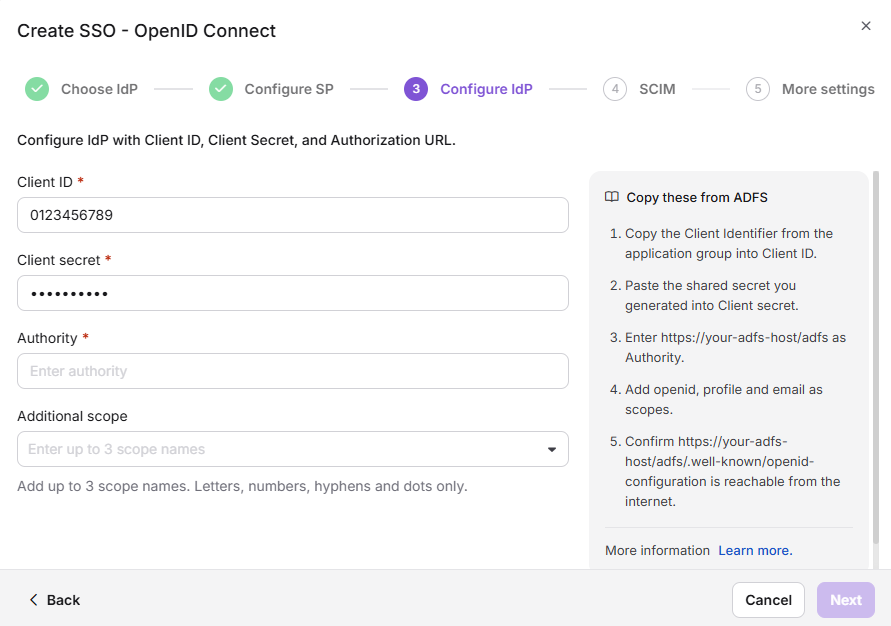
- Copy each value from your ADFS configuration into the matching Document360 field.
| ADFS | Document360 |
|---|---|
| Client Identifier (Client ID) | Client ID |
| Client Secret | Client Secret |
| Issuer URL | Authority (Authorization URL or Endpoint) |
You need the client identifier and client secret from your ADFS application group. The Client ID you enter in Document360 must match the Relying Party Identifier configured in ADFS.
- (Optional) In the Additional scope field, type a scope value and click + to add it as a chip. Scopes define what user information Document360 requests from ADFS. You can add up to 3 scopes.
- Click Next.
The SCIM provisioning step opens.
Step 6: Configure SCIM provisioning (optional)
If you don't need SCIM provisioning, leave Enable SCIM provisioning turned off, click Next, and go to Step 7.
SCIM provisioning in ADFS can be enabled using third-party tools or custom-built integrations only. ADFS does not natively support SCIM provisioning.
- Turn on the Enable SCIM provisioning toggle.
Document360 shows the SCIM parameters your provisioning tool needs.
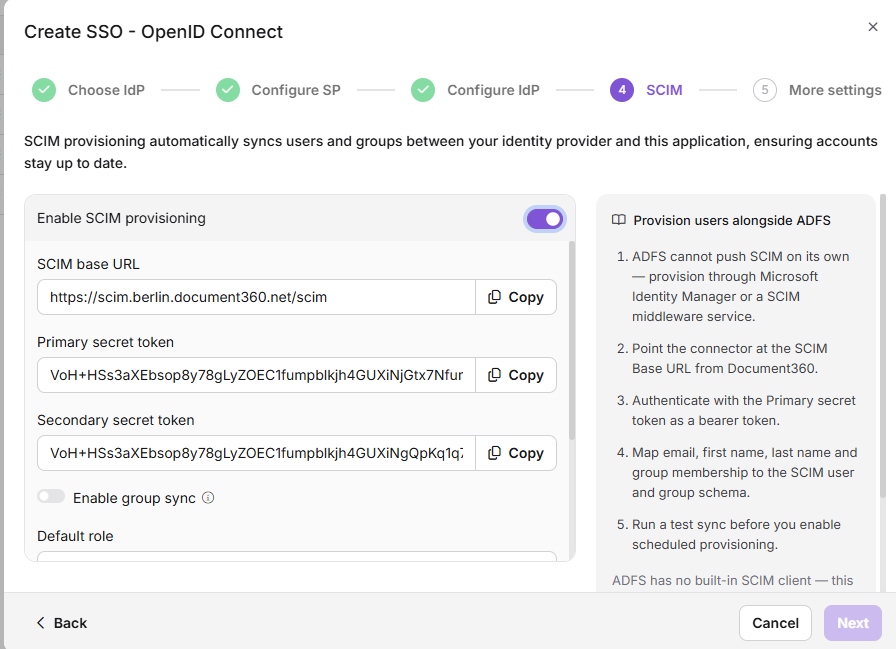
- Enter the SCIM parameters from Document360 (for example, the SCIM Base URL and secret token) into the matching fields in your third-party tool or custom integration.
- In the Default role field, keep Contributor (the default) or select another role. The default role applies to users only.
- In the User groups and Reader groups fields, select one or more groups. Users in the selected user groups get the default role. Readers in the selected reader groups always get read-only access.
- Click Next.
Step 7: Configure more settings and create the configuration
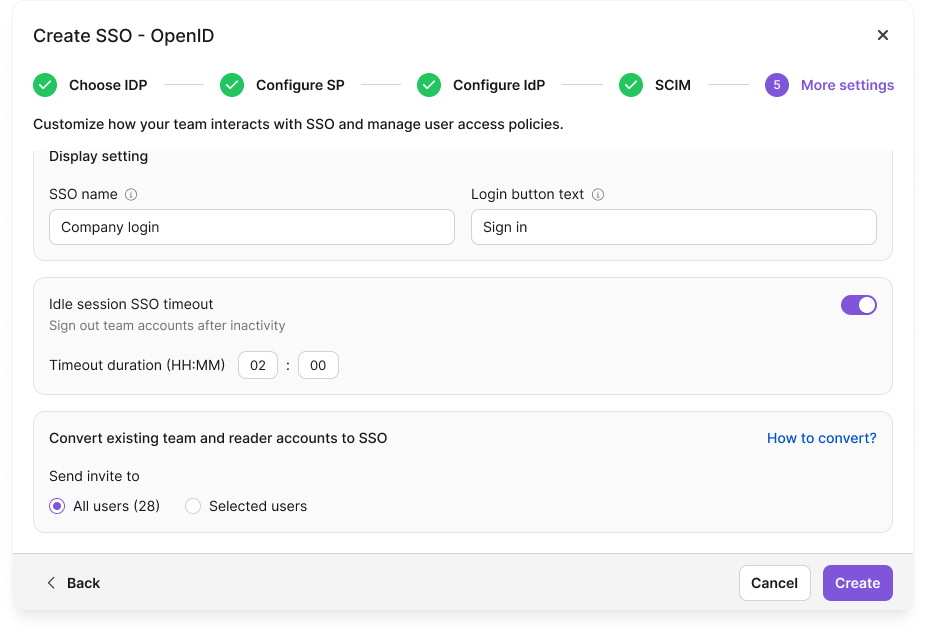
- In the SSO name field, enter a name for the SSO configuration.
- In the Login button text field, enter the text for the sign-in button. If you leave the default, the button reads Login with SSO.
- (Optional) Turn on Idle session SSO timeout and set the Timeout duration (HH:MM) after which Document360 signs out an idle SSO user.
- (Optional) To move existing accounts to SSO now, turn on Convert existing team and reader accounts to SSO. Then, under Send invite to, select All users or Selected users.
Converting an account switches that existing account to SSO. Document360 does not create a second account. Converted users and readers sign in through ADFS and can no longer use their Document360 password. To convert accounts later instead, see Convert user to SSO and Convert reader to SSO.
- Click Create.
Document360 creates the OpenID Connect SSO configuration and lists it on the Enterprise SSO page.
The Auto assign reader group toggle appears only when you edit an existing SSO configuration. It is hidden when you create a new one. Learn more in Managing SSO readers and reader groups.
Step 8: Test the sign-in
- Open the Document360 sign-in page in a private browser window.
- Enter your email or subdomain and click Login with SSO (or the custom button text you set in Step 7).
- Sign in with an Active Directory account that is permitted to access the relying party.
ADFS redirects you back to Document360 and you are signed in. If sign-in fails, see OpenID SSO issues.
Manage readers provisioned through SCIM
If you turned on SCIM provisioning, you can review the readers it adds and set their content access in Document360.
- Go to Settings () > Users & Permissions > Readers & groups.
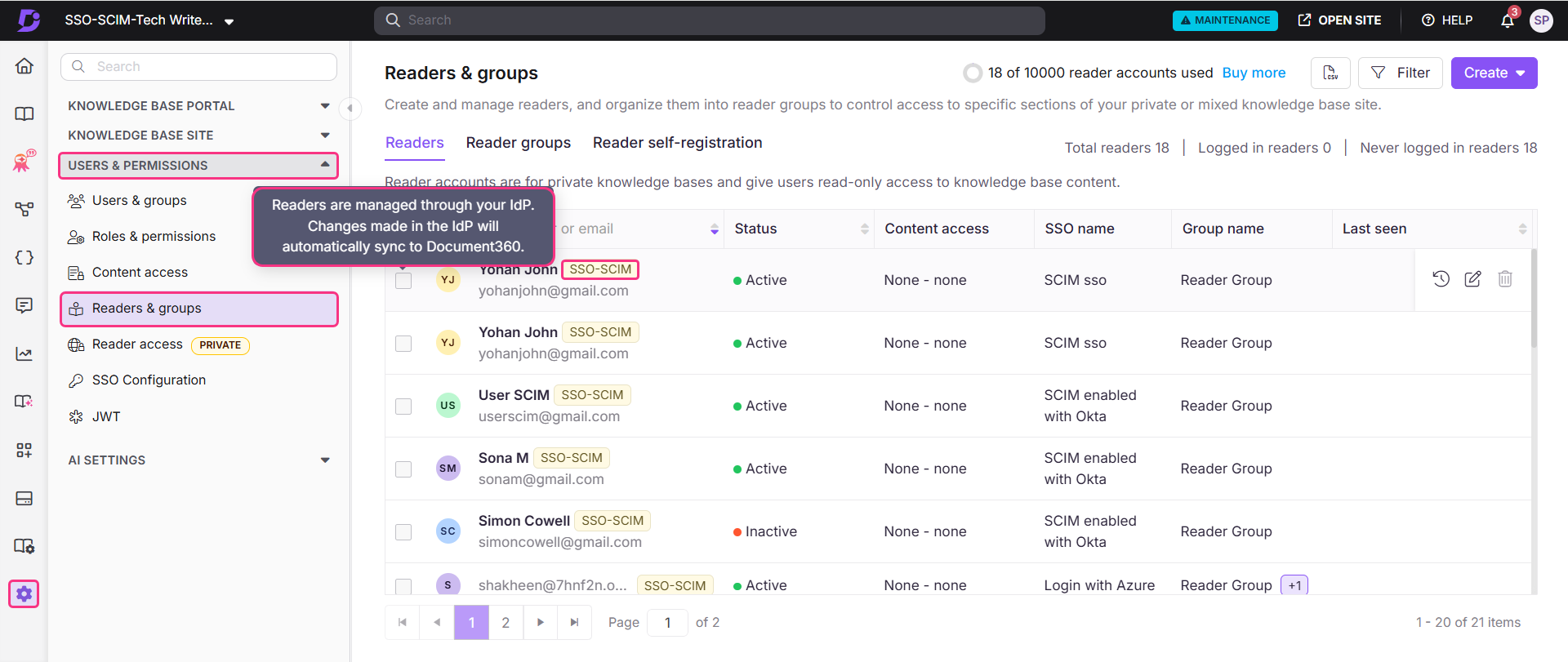
- Select a reader to open their profile. Readers provisioned through SCIM show an SSO-SCIM badge next to their name.
- Click Manage Content Access, choose an access level from the dropdown, and click Update. New users, readers, and groups start with content access set to None.
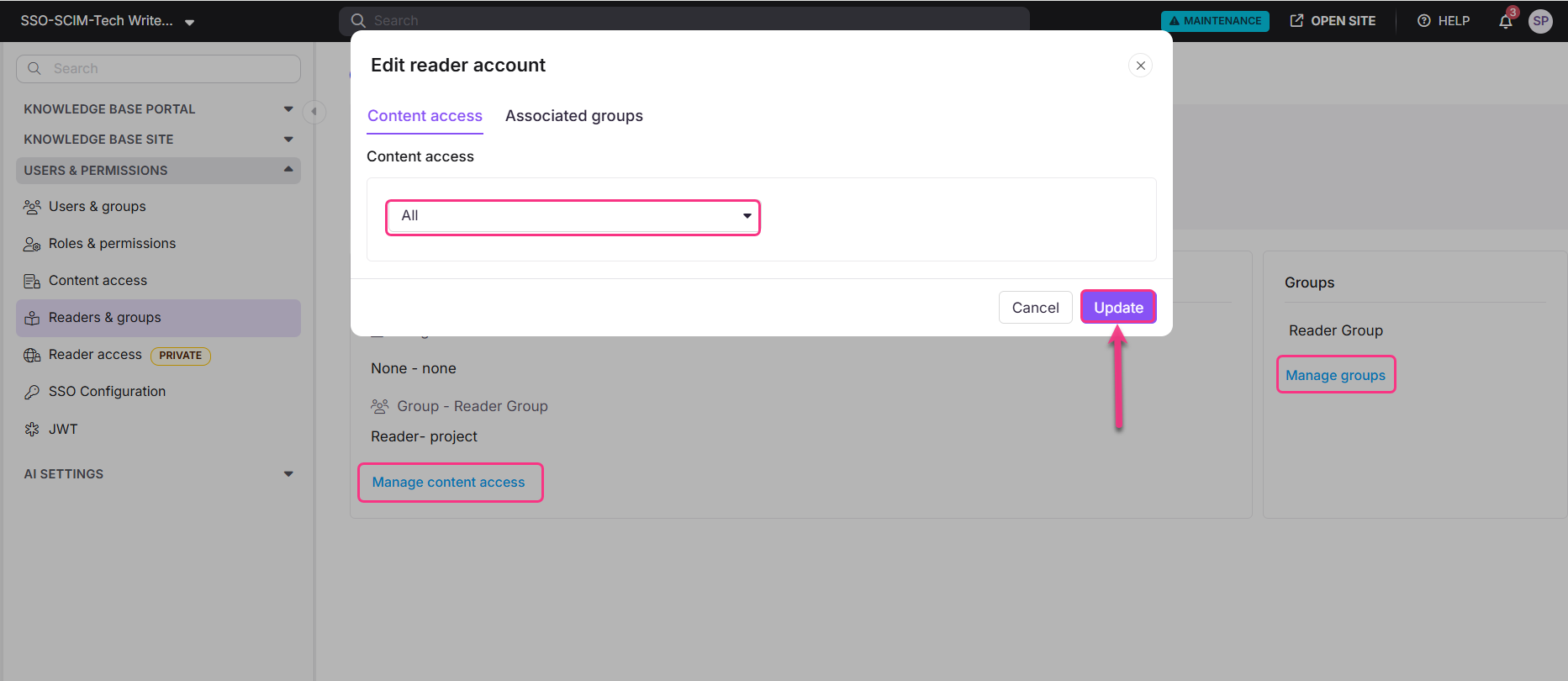
To manage a reader's groups, click Manage groups under the Reader Group section. For more on SCIM, see SCIM provisioning.
Limits and limitations
| Limit | Detail |
|---|---|
| Scopes | You can add up to 3 scopes on the Configure IdP step. |
| SCIM | ADFS does not natively support SCIM. You need a third-party tool or a custom integration. |
| Default role | Applies to users only. Readers always get read-only access. |
| People managed through SCIM | When SCIM is on, you can't change roles and permissions, edit a user's name, or delete a user in Document360. You can only manage content access. |
| Deleting people in ADFS | Deleting a profile in your IdP does not remove it from Document360. The profile stays with an Inactive status. |
| Auto assign reader group | Available only on existing SSO configurations. Hidden when you create a new one. |
| Last active configuration | If this is the only active SSO or JWT configuration and the default login page is disabled, Document360 blocks you from turning it off or deleting it. See Remove a configured OpenID SSO. |
Best practices
- Use the correct outgoing claim type for email. For OpenID Connect with ADFS, the outgoing claim type for email is Email, not Email-Addresses as in the SAML setup. The wrong claim type causes user identity errors.
- Plan provisioning before you turn on SCIM. Choose your third-party tool or custom integration before you enable SCIM in Document360.
- Rotate client secrets before they expire. The client secret configured in ADFS has an expiry date, and SSO sign-in fails when it expires. Track the date and rotate the secret in advance. For the error you see after expiry, see OpenID SSO issues.
- Test with one account first. Complete Step 8 with a test account before you convert existing accounts.
- Keep the default login page until SSO works. Disable it only after you confirm sign-in. See Deactivating Document360 login page.
Related articles
OpenID
Learn how OpenID Connect works in Document360 and compare supported identity providers.
OpenID overview →SCIM provisioning
Learn how SCIM provisions users and readers from your identity provider.
SCIM overview →OpenID SSO issues
Fix common errors when users sign in with OpenID Connect SSO.
Troubleshoot OpenID SSO →- Sign out idle SSO user
- Mapping an existing SSO configuration to other projects
- Log in using SSO - Knowledge base portal
FAQ
Why is SCIM not natively supported in ADFS?
ADFS is an on-premises federation service built on SAML and WS-Federation protocols. It does not include a built-in SCIM endpoint. To use SCIM with ADFS in Document360, you need a third-party provisioning tool or a custom integration that bridges ADFS with the SCIM protocol.
What happens to a user's profile in Document360 if I delete them in ADFS?
Deleting a user profile in your IdP does not remove it from Document360. The profile stays in Document360 with an Inactive status.
How is the ADFS OpenID claim rule mapping different from the SAML claim rule mapping?
The claim rule mapping for OpenID Connect with ADFS uses Email as the outgoing claim type for email addresses, while the SAML configuration uses Email-Addresses. Use the claim type that matches the protocol you are configuring.
Can I use OpenID Connect and SAML at the same time?
No. SAML and OpenID Connect are mutually exclusive in a project. Either one can be active alongside a JWT configuration.