
If your identity provider (IdP) supports OpenID Connect but isn't listed in Document360, you can still connect it so your users and readers sign in to Document360 with their existing IdP credentials. You create an OpenID Connect application in your IdP, exchange the redirect URLs, client credentials and authority between the two tools, and then choose the optional SCIM provisioning and sign-in settings. This guide covers any OpenID Connect-compatible IdP, such as PingOne. If you use Okta, Auth0 or ADFS, follow the provider-specific guide instead.
When to use another OpenID Connect provider
Use the Others option when:
- Your organization's IdP supports OpenID Connect but isn't one of the providers listed in Document360.
- You run a custom or self-hosted OpenID Connect identity service.
- You want users and readers to sign in with the credentials they already use for your other applications.
| Capability | Supported |
|---|---|
| User (portal) authentication | Yes |
| Reader (knowledge base site) authentication | Yes |
| SCIM user, reader and group provisioning | Yes, if your IdP supports SCIM |
Before you begin
- You have the Owner or Admin project role in Document360. Only these roles can configure SSO.
- You have administrator access to your IdP's admin console.
- Your IdP can accept the client secret in the body of the token request (
client_secret_post). Document360 doesn't supportclient_secret_basic. To check, open your IdP's discovery document (<issuer URL>/.well-known/openid-configuration) and look forclient_secret_postintoken_endpoint_auth_methods_supported. - You have Document360 and your IdP open in two separate browser tabs. You switch between them during setup.
How to configure OpenID SSO with another identity provider
Step 1: Add a new application in your IdP
- Log in to your IdP's admin console.
- Go to the section where you create or manage applications. It is often labeled Applications, Enterprise Applications or similar.
- Select the option to create a new application.
- Configure the basic settings:
- Application Name: Enter a name, for example "Document360 OpenID SSO".
- Application Type: Select OpenID Connect as the sign-in method.
- Save the application settings.
Your IdP creates the application. Keep this tab open; you return to it in Step 3.
Step 2: Get the SP parameters from Document360
- Switch to the Document360 tab.
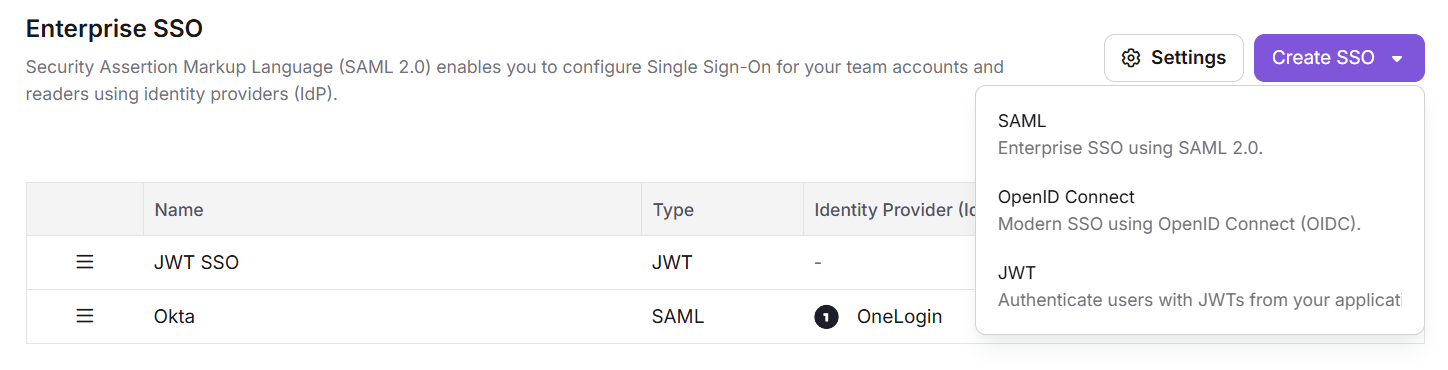
- Go to Settings () > Users & Permissions > Enterprise SSO.
- Click Create SSO and select OpenID Connect (Modern SSO using OpenID Connect (OIDC)).
- On the Choose IdP step, select Others.
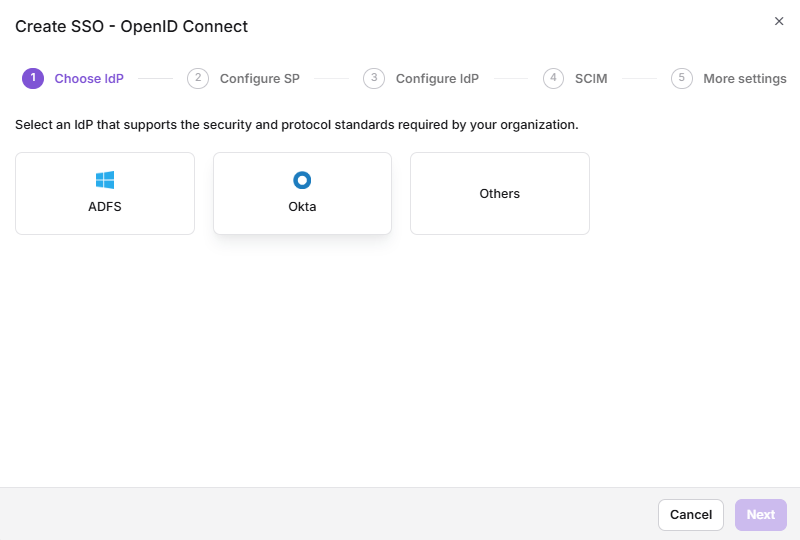
Document360 opens the Configure SP step, which shows the parameters you enter in your IdP.
Step 3: Enter the Document360 parameters in your IdP
In your IdP's OpenID Connect application settings, enter the values from the Document360 Configure SP step. Field names vary by provider; use the mapping below to find the matching field.
| Document360 | Your IdP |
|---|---|
| Subdomain name | Subdomain name |
| Sign in redirect URL | Redirect URI or callback URL (sign-in) |
| Sign out redirect URL | Redirect URL (sign-out), sometimes called sign-off or post-logout URL |
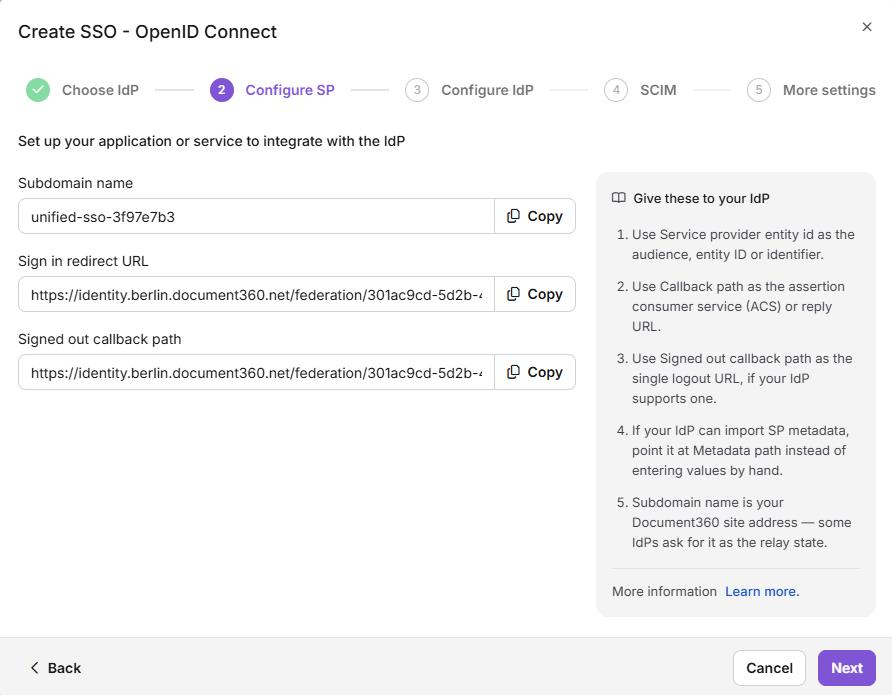
Then set how your IdP application authenticates Document360:
-
In your IdP application, find the token endpoint authentication method. It is often labeled Token Endpoint Authentication Method or Client authentication.
-
Select the option that sends the client secret in the request body. It is usually labeled Client Secret Post or
client_secret_post.For example, in PingOne, open the application's Configuration tab, edit it and set Token Endpoint Authentication Method to Client Secret Post.
-
Save the application settings.
Enter the sign-in redirect URL only in your IdP's redirect URI or callback URL field. Don't enter it in a field meant for a custom login page, such as Signon URL in PingOne. If you do, your IdP skips its own login page and sign-in fails with the error message.State is null or empty.
Step 4: Configure scopes and claims in your IdP
- Make sure your IdP application includes these scopes:
| Scope | Purpose |
|---|---|
| openid | Required for OpenID authentication |
| Access to the user's email | |
| profile | Access to the user's basic profile information |
- Map these claims in your IdP:
| Claim | Value |
|---|---|
| sub | The user's unique ID or identifier |
The user's email address (for example, user.email) |
|
| name | The user's name (for example, user.name) |
- Review your settings and save the configuration in your IdP.
Your IdP application now sends the user details Document360 needs to sign people in.
Step 5: Configure the identity provider in Document360
-
Return to Document360 on the Configure SP step and click Next.
Document360 opens the Configure IdP step.
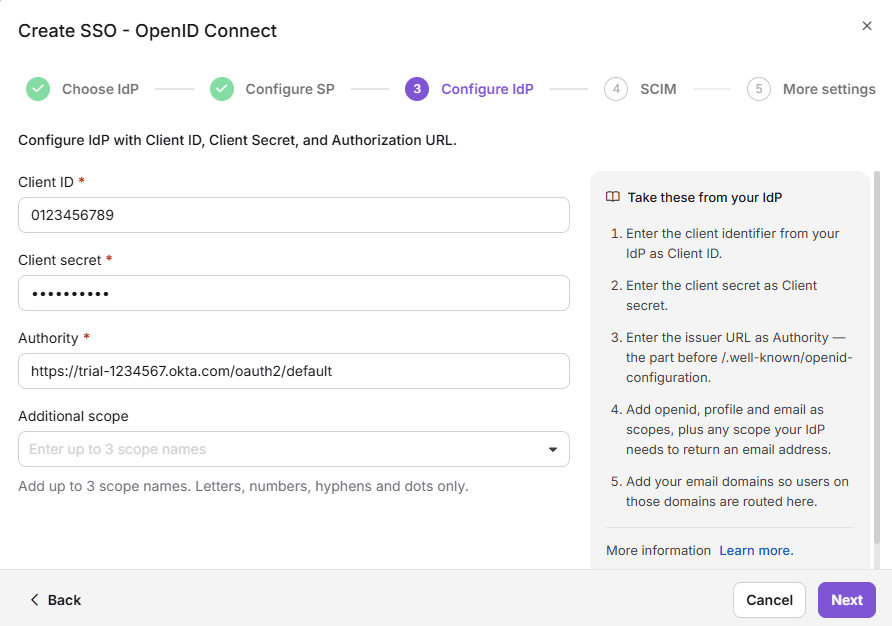
- Enter the values from your IdP application using the mapping below.
| Document360 | Your IdP |
|---|---|
| Client ID | Client ID |
| Client secret | Client secret |
| Authority | Issuer URL. This is the issuer value in your IdP's discovery document: the part of the discovery URL before /.well-known/openid-configuration. |
For example, if your discovery URL is https://auth.example.com/as/.well-known/openid-configuration, enter https://auth.example.com/as as the Authority. Don't enter an endpoint URL, such as one ending in /authorize or /token. If your IdP uses a custom domain, use the issuer value exactly as the discovery document shows it.
- (Optional) In the Additional scope field, enter up to 3 more scope names. Use letters, numbers, hyphens and dots only. Scopes define what user information Document360 requests from your IdP.
- Click Next to go to the SCIM provisioning step.
Step 6: Configure SCIM provisioning (optional)
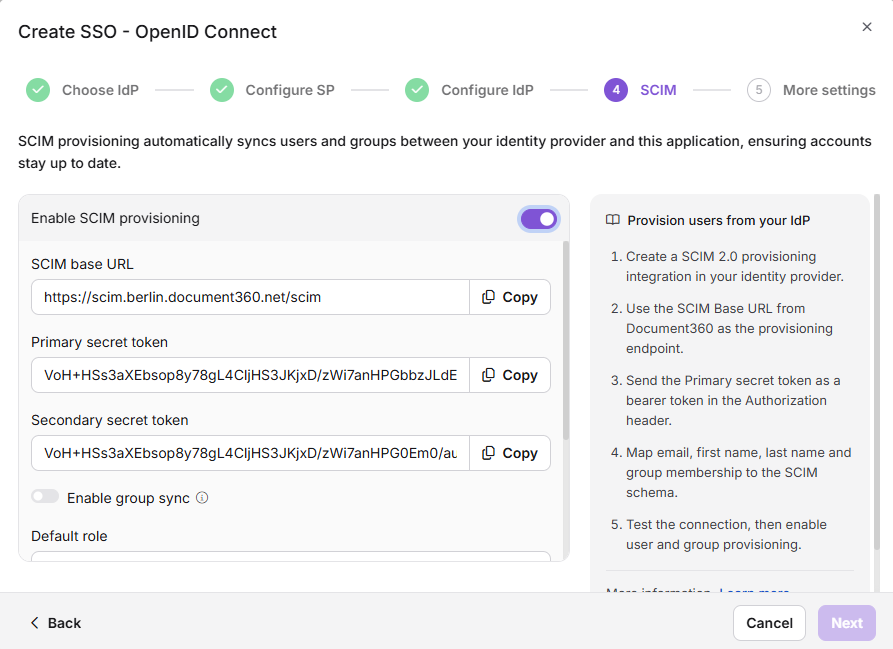
SCIM provisioning keeps users and readers in Document360 in sync with your IdP. Use it only if your IdP supports SCIM. If you don't need SCIM, skip to Step 7: Configure SSO name and login options.
- Turn on the Enable SCIM provisioning toggle.
-
In the confirmation dialog, review the terms, select the checkbox and click Agree.
Document360 displays the SCIM parameters.
-
Use these parameters to turn on SCIM provisioning in your IdP.
-
Turn on the Enable group sync toggle if you want users and readers assigned to groups based on your IdP group mappings.
-
In the Default role field, keep the default Contributor role or select another role from the dropdown. The default role applies to users only.
-
In the User groups and Reader groups fields, select the groups to add. You can select more than one group. Users in the selected user groups get the default role. Readers in the selected reader groups always get read-only access.
-
Click Next to go to the More settings page.
Step 7: Configure SSO name and login options
-
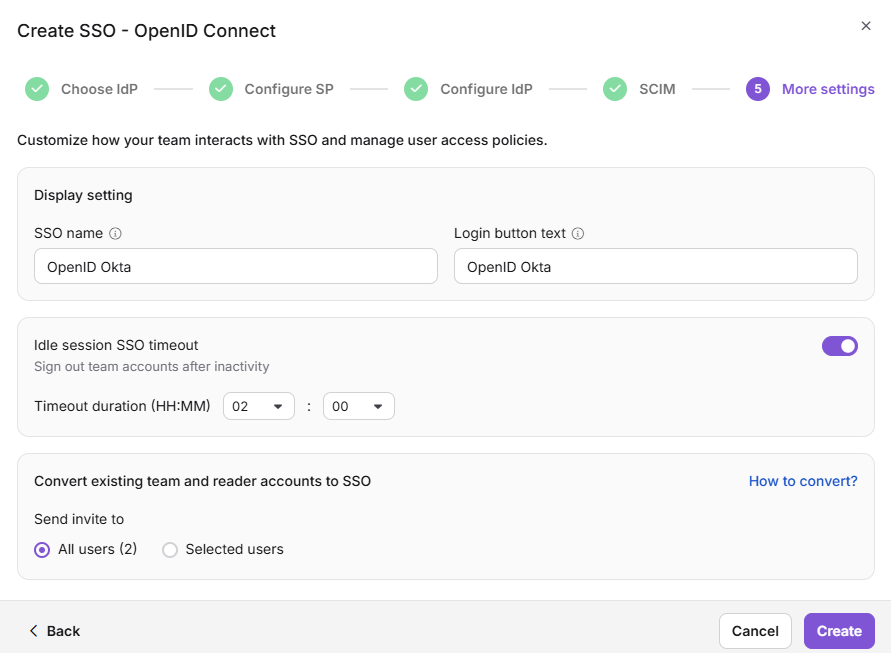
In the SSO name field, enter a name for the SSO configuration.
-
In Customize login button, enter the text for the login button. If you leave the default, the button reads Login with SSO.
-
Turn the Sign out idle SSO user toggle on or off based on your requirements.
-
To move people who already have Document360 accounts to SSO, turn on Convert existing team and reader accounts to SSO. Then, under Send invite to, select All users or Selected users.
This converts their existing accounts to SSO. It does not create a second account.
- Click Create.
The OpenID SSO configuration is now active in Document360 with your identity provider.
The Auto assign reader group toggle doesn't appear when you create a configuration. It appears only when you edit an existing SSO configuration. To convert accounts after setup, see Convert user to SSO and Convert reader to SSO.
Step 8: Test the sign-in
- Open the Document360 login page in a private browser window.
- Enter your email address or project subdomain and click Login with SSO, or the button text you set in Step 7.
- Sign in with your IdP credentials.
You are signed in to Document360 through your IdP. If the sign-in fails, see OpenID SSO issues.
View and manage SCIM-provisioned readers
If you turned on SCIM, readers your IdP provisions appear in Document360.
- Go to Settings () > Users & Permissions > Readers & groups.
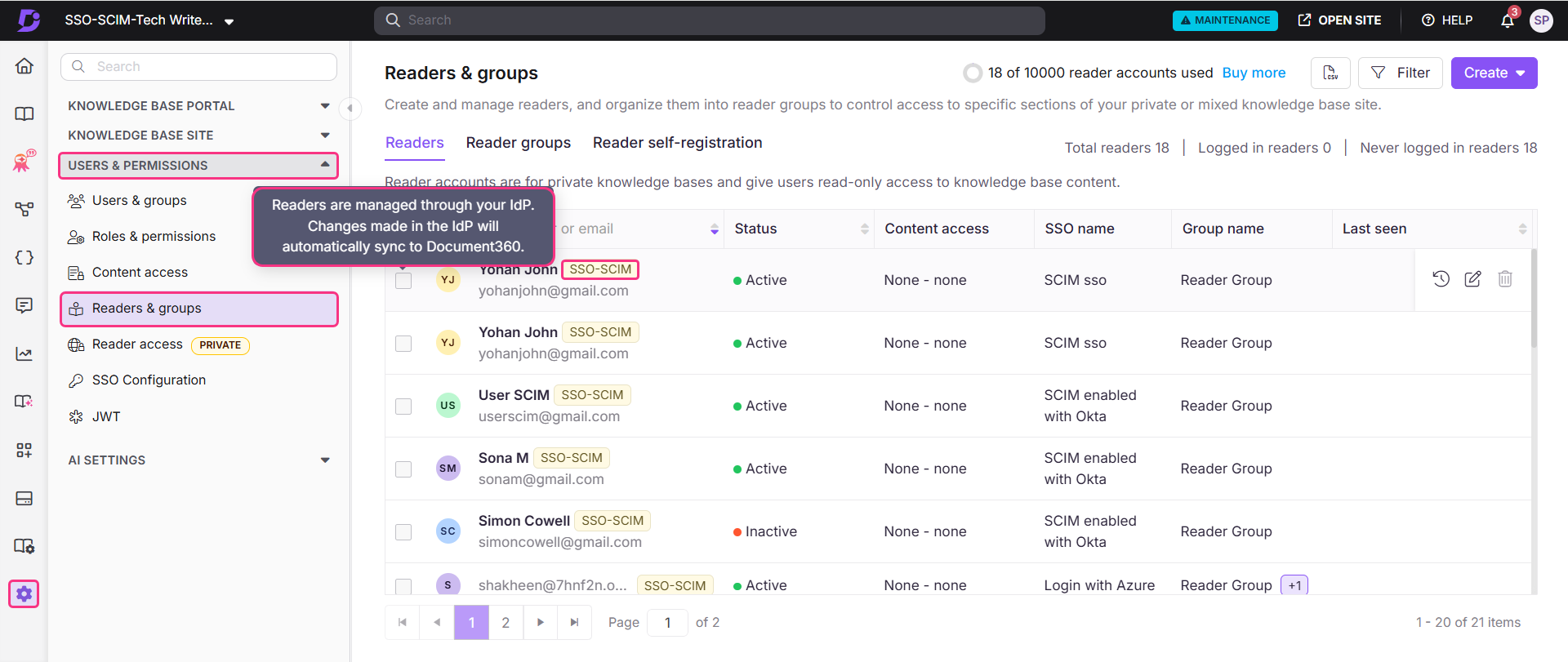
- Select a reader to open their profile. Readers provisioned through SCIM show an SSO-SCIM badge next to their name.
- To change what a reader can see, click Manage Content Access, choose the access level from the dropdown and click Update. New users, readers and groups start with the content access set during SCIM setup; permissions are None by default.
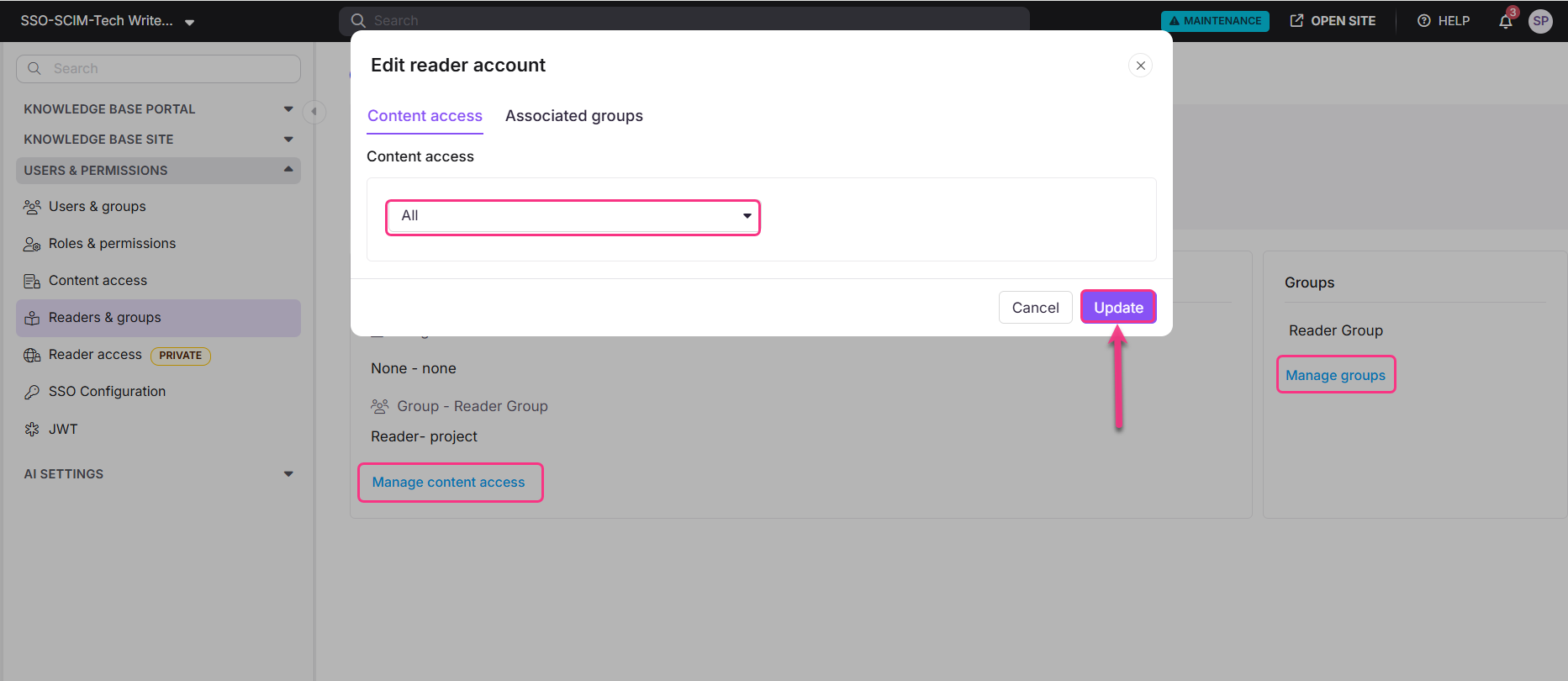
- To change a reader's groups, click Manage groups under the Reader Group section.
Considerations
| Item | Detail |
|---|---|
| Client authentication | Document360 sends the client ID and secret in the body of the request (client_secret_post). It doesn't support client_secret_basic, which sends them in an HTTP Authorization header. |
| Pushed authorization requests (PAR) | If your IdP's discovery document lists a PAR endpoint (pushed_authorization_request_endpoint), Document360 sends the sign-in request to that endpoint before it redirects the user. This request also uses client_secret_post. |
| Authority | Must match the issuer value in your IdP's discovery document. |
| Scopes | You can add up to 3 scopes in the Additional scope field. |
| SCIM | Available only if your IdP supports SCIM. |
| Changes when SCIM is on | You can't edit a person's name, change roles and permissions, or delete a person in Document360. Manage these in your IdP. You can still manage content access in Document360. |
| Deleting people in your IdP | Deleting a profile in your IdP doesn't remove it from Document360. The profile stays with an Inactive status. |
| Reader access | Readers always get read-only access. The default role applies to users only. |
| Auto assign reader group | Hidden when you create a configuration; available only on existing configurations. |
| Last active configuration | If this is the only active SSO or JWT configuration and the default login page is disabled, Document360 blocks you from turning it off or deleting it. |
Best practices
- Check your discovery document first. Open
<issuer URL>/.well-known/openid-configurationin a browser. Copy theissuervalue for the Authority field, and confirm thattoken_endpoint_auth_methods_supportedincludesclient_secret_post. - Copy redirect URLs exactly. Paste the sign-in and sign-out redirect URLs from the Configure SP step without edits, so your IdP returns people to the correct Document360 address.
- Treat the client secret like a password. Store it in a password manager or secrets vault, not in shared documents.
- Test with a small group first. Confirm that sign-in and claim mapping work before you convert all existing accounts with Convert existing team and reader accounts to SSO.
- Keep the default login page on until SSO works. Only deactivate the Document360 login page after you have tested the SSO sign-in.
- Turn on SCIM only if your IdP supports it. Without SCIM support in your IdP, skip Step 6 and manage users and readers in Document360.
FAQ
Can I use an identity provider that isn't listed in Document360?
Yes, if it supports OpenID Connect. Select OpenID Connect when you create the SSO configuration, then select Others on the Choose IdP step.
Does Document360 support client_secret_basic?
No. Document360 sends the client ID and secret in the request body (client_secret_post). Set your IdP application's token endpoint authentication method to Client Secret Post or the equivalent option. If it stays on Client Secret Basic, your IdP rejects the sign-in request. To fix that error, see OpenID SSO issues.
Does converting existing accounts to SSO create duplicate accounts?
No. Convert existing team and reader accounts to SSO converts each existing account to an SSO account. It does not create a second account.
Why don't I see the Auto assign reader group toggle?
The toggle is hidden when you create a configuration. It appears only when you edit an existing SSO configuration.
My identity provider doesn't support SCIM. Can I still use it for SSO?
Yes. Skip the SCIM provisioning step. Users and readers still sign in through your IdP, and you manage their accounts in Document360.