Reader import issues
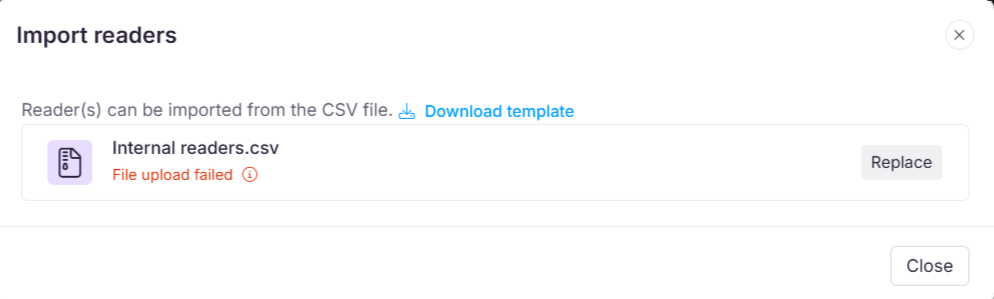
Error: File upload failed
This error typically occurs due to formatting issues, duplicate email addresses, or unsupported characters in the uploaded file.
When using the Import readers feature, if the upload fails, you will see a failure notification and a list of rejected entries.
Steps to resolve
Use the correct CSV format: Ensure the reader data is structured according to the provided CSV template.
Check for duplicate email addresses: Email addresses must be unique. Remove or update any duplicates.
Avoid special characters in name fields: The First name and Last name fields should not contain special characters or numbers. Use only letters (A–Z/a–z).
Clean and re-upload: After making corrections, save the updated CSV file and upload it again. This should resolve the error and successfully import the readers.
Reader is unable to access a published article or category
Readers might encounter this issue when they lack the necessary permissions to access the category or article. This could be due to security settings that restrict access for the Reader or their associated Reader Group.
Steps to resolve
Verify reader permissions: Ensure the reader has the correct permissions to access the category or article.
Check article security settings:
Navigate to the article.
Click the More () icon next to the Edit or Publish button.
Click Security > Knowledge base site.
Confirm that the reader is not explicitly denied access in the article’s security settings.
Check reader group permissions:
Go to the Reader group tab within the security settings of the article.
Verify that the reader group associated with the reader is not denied access to the specific article or category.
If the issue persists after following these steps, please contact the Document360 support team for further assistance: Contact Document360 Support
Resolving access restriction issues
Error: Sorry! You are not authorized to access.
This error occurs when the reader's access to the article is restricted due to security settings.
Steps to resolve
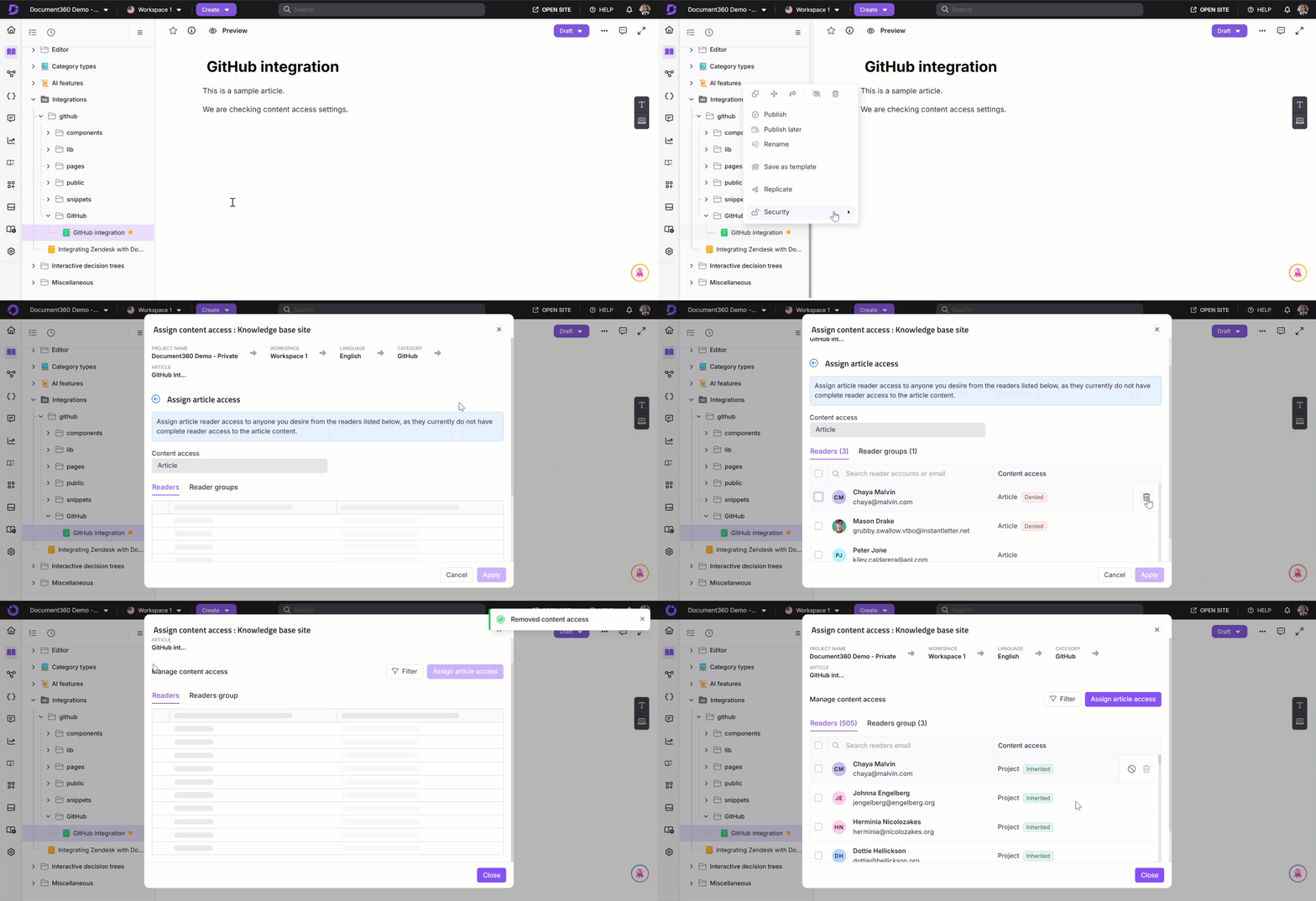
Locate the article in the category tree.
Click the More () icon next to the article name.
Select Security > Knowledge base site.
Click Assign article access.
Remove the reader from the Reader’s list by clicking the Delete () icon.
Go back and confirm that the reader is now labelled with the Inherited tag.
Now, the selected reader will be able to access the article.
Unable to access the associated projects
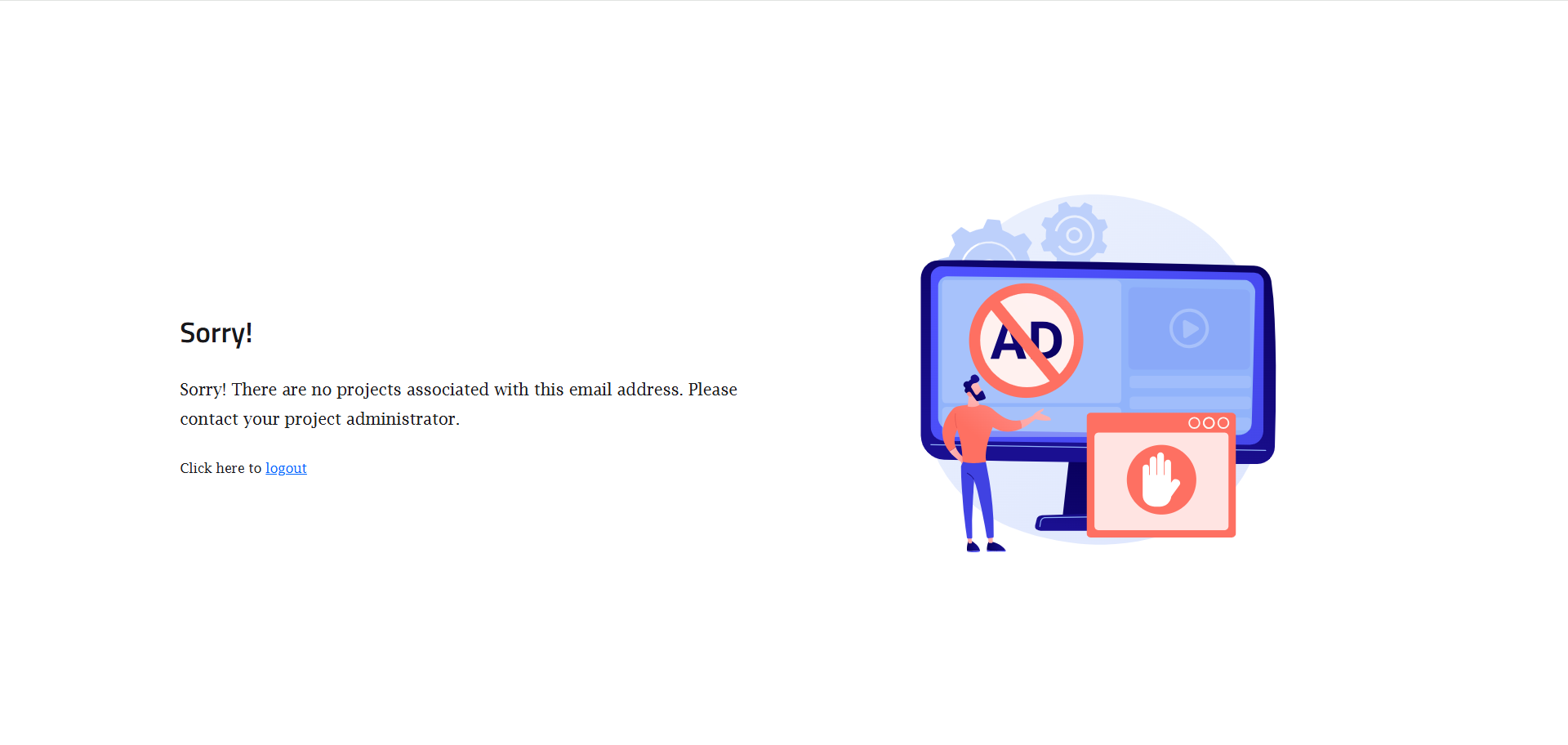
Error: Sorry! There are no projects associated with this email address. Please contact your project administrator.
This error occurs when a reader is not created as an SSO reader or has not been assigned the necessary content access in the project.
Steps to resolve
Convert to an SSO reader
Navigate to Settings () > Users & permissions in the left navigation bar in the Knowledge base portal.
In the left navigation pane, navigate to Readers & groups > Readers.
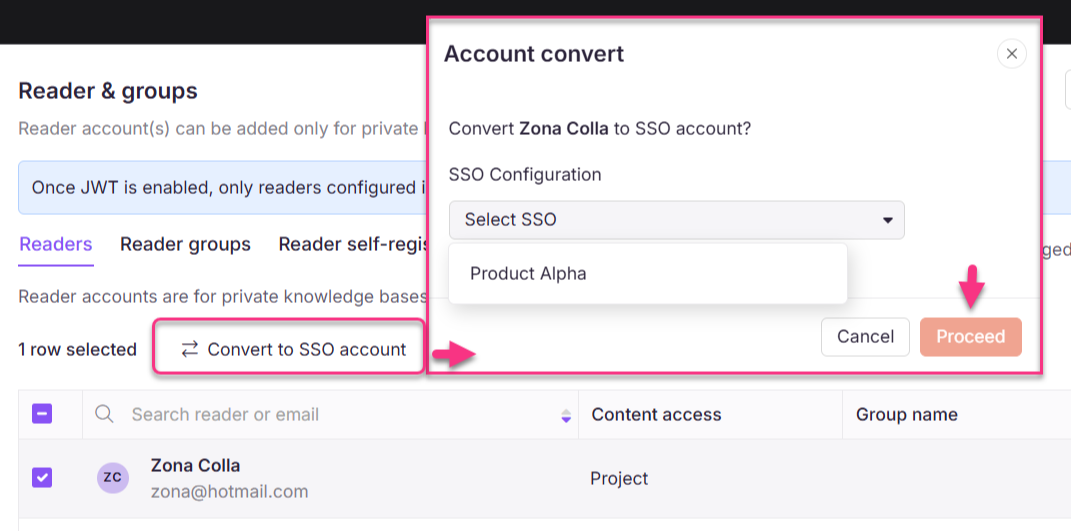
Select the desired reader and click Convert to SSO account to add them as an SSO reader.
Select the appropriate SSO configuration and click Proceed.
Assign content access
Hover over the desired reader and click the Edit () icon.
Click Manage content access and assign the required content access to the reader.
Click Update.
Once the reader is assigned the correct permissions, they will be able to access the project without any issues.