Reader management in Document360 lets you control who can access your private or mixed-access knowledge base. From the Readers & groups page, you can add individual or bulk readers, manage their content access, organise them into groups, convert them to users or SSO accounts, and export their details for auditing. Reader management is only available when your project's reader access is set to Private or Mixed.
What you can do with reader management
The Readers & groups page is the central hub for all reader-related tasks in your Document360 project. The table below summarises what each area covers.
| Task | What it does |
|---|---|
| Add a reader | Create up to 5 reader accounts at a time |
| Import readers | Bulk-add up to 500 readers via CSV |
| Edit a reader | Update name, content access, and group membership |
| Delete a reader | Permanently remove one or more reader accounts |
| Activate and deactivate a reader | Suspend or restore access without deleting the account |
| View email activity history | See email notification status and events for the past 30 days |
| Convert a reader to a user | Upgrade a reader to a portal contributor role |
| Convert a reader to an SSO account | Move a reader to SSO-based authentication |
| Filter and export readers | Narrow the reader list and download it as CSV |
| Enable inherited permissions | Migrate to automatic sub-category access inheritance |
Readers & groups page overview
To reach the Readers & groups page:
- Navigate to Settings () > Users and security in the left navigation bar of the knowledge base portal.
- In the left navigation pane, navigate to Readers & groups > Readers.
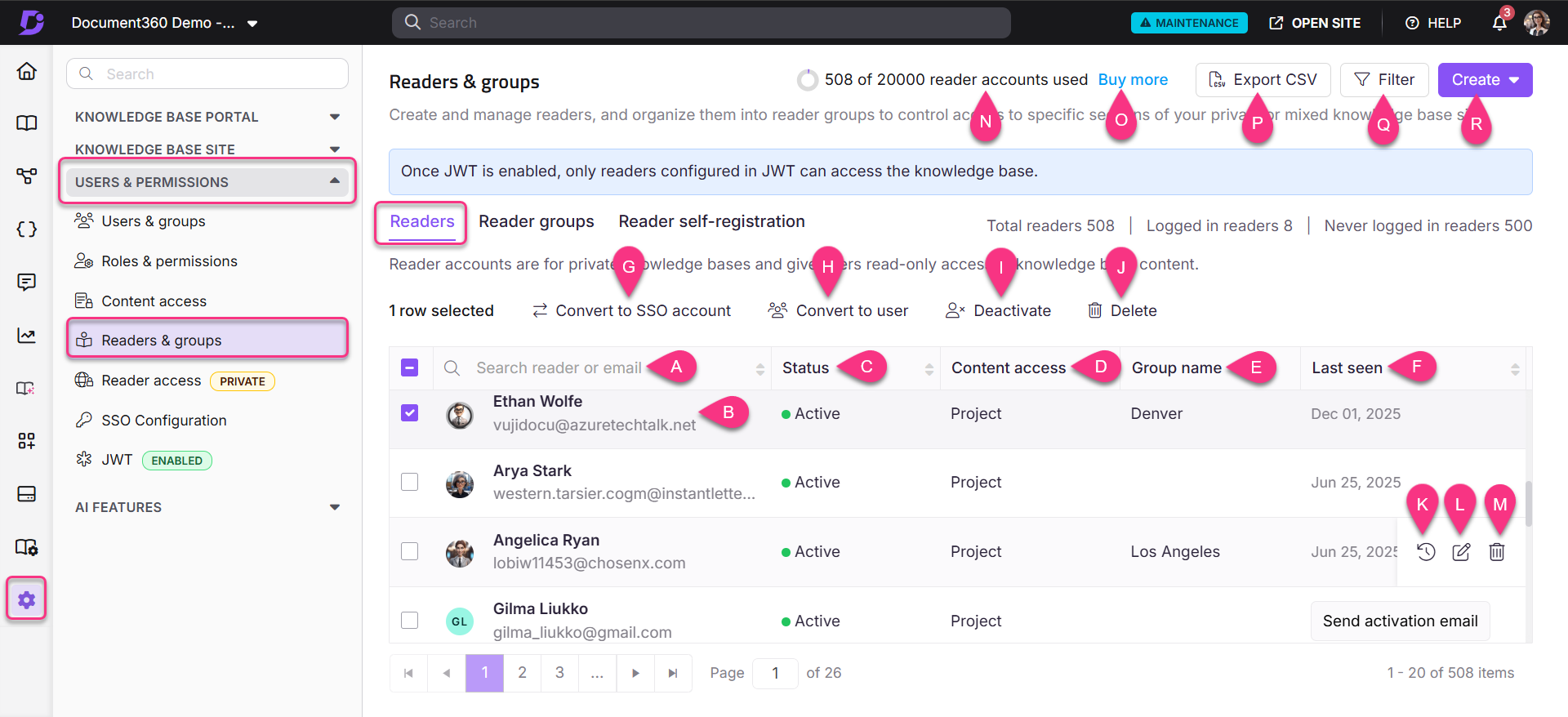
The page includes the following elements:
| Element | Description |
|---|---|
| Reader search | Search for a reader by name or email address |
| Reader list | Displays all readers for the project |
| Status | Shows whether the account is active or inactive. An inactive status indicates the account has been deactivated. |
| Content role & access | Shows the content role and content access assigned to the account |
| Group name | Shows the reader group the account belongs to, if any |
| Last seen | Date when the reader last accessed the knowledge base site |
| Reader account utilization | Shows the total reader accounts included in your plan and how many are currently in use |
| Buy more | Purchase additional reader accounts |
| Export CSV | Download the filtered reader list as a CSV file |
| Filter | Narrow results by login status, last login date, account type, or status |
| Create | Create a new reader or import readers in bulk |
When you select one or more readers, the following bulk actions appear at the top of the list:
| Action | Description |
|---|---|
| Convert to SSO account | Convert selected readers to SSO-authenticated accounts |
| Convert to user | Upgrade selected readers to portal user accounts |
| Deactivate / Activate | Suspend or restore access for selected readers |
| Delete | Permanently remove selected reader accounts |
When you hover over an individual reader row, the following quick-action icons appear:
| Icon | Description |
|---|---|
| Email notifications () | View email activity history for the past 30 days |
| Edit () | Open the reader's configuration panel |
| Delete () | Delete the reader account |
Before you begin
- Reader management is only available when your project's reader access is set to Private or Mixed.
- Only users with the Admin or Owner portal role, or a custom role with Manage user permission, can add, edit, or delete readers.
FAQ
How does reader session and logout behaviour work?
Reader accounts do not have a 2-hour inactivity timeout like portal users. Reader sessions follow a 24-hour rolling cookie expiry:
On initial login, a cookie is set with a 24-hour expiry.
Every interaction on the knowledge base site refreshes the cookie expiry back to 24 hours.
After 24 hours of continuous inactivity, the cookie expires and the reader must log in again.
Portal users have a built-in 2-hour inactivity timeout. If a user is inactive for 2 hours, they are automatically logged out.
How does content access permissions work for a reader?
The highest level of content access assigned is granted to readers.