Adding a reader in Document360 creates an account that can access your private or mixed-access knowledge base site. Readers are distinct from portal users — they can view content but cannot contribute to or manage the knowledge base. You can add up to 5 readers at a time using the Create reader account panel, or use Import readers to add up to 500 at once.
When to add a reader
- A new customer, partner, or employee needs access to your private knowledge base.
- You want to grant read-only access without giving the person a portal contributor role.
- You need to add a reader as an SSO-authenticated account tied to an existing SSO configuration.
Before you begin
- Your project's reader access must be set to Private or Mixed.
- You must have the Admin or Owner portal role, or a custom role with Manage user permission.
- You can add up to 5 email addresses in a single creation. For more than 5, use Import readers.
- Have the SSO configuration name ready if you are adding an SSO reader.
How to add a reader
- Navigate to Settings () > Users and security in the left navigation bar of the knowledge base portal.
- In the left navigation pane, navigate to Readers & groups > Readers.
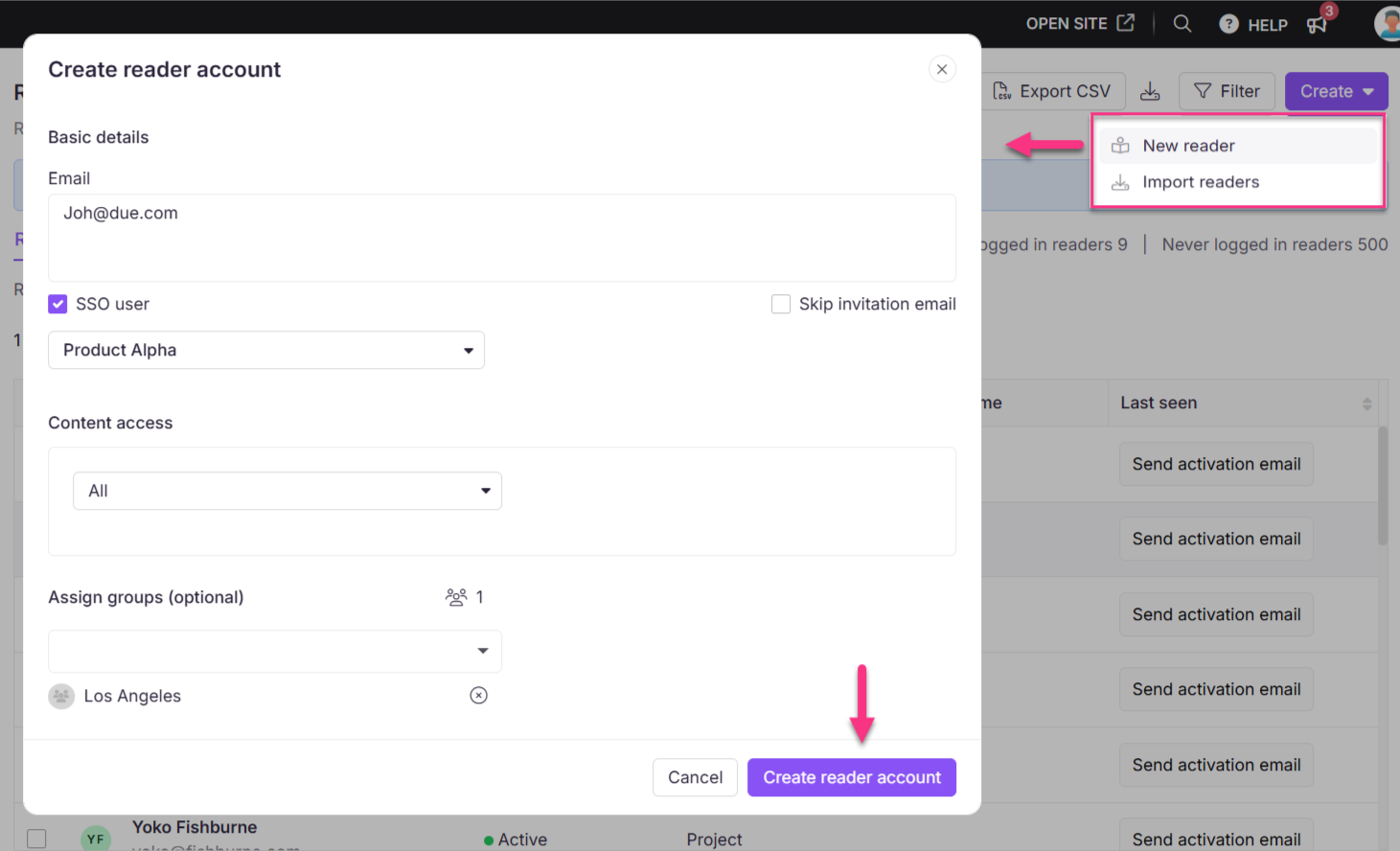
- Click the Create dropdown at the top right and choose New Reader to open the Create reader account panel.
- In the Email field, enter the desired email addresses of the accounts you wish to add.
NOTE
You can add up to 5 emails separated by a comma at the same time.
- Select the SSO user checkbox to add the reader as an SSO user.
- If you selected the SSO user checkbox, select an SSO configuration from the Select SSO dropdown menu.
- Click the Skip invitation mail checkbox if you don't want your new readers to receive an invitation email.
- Select the desired Content access for the new readers:
| Option | What the reader can access |
|---|---|
| None | Cannot access any knowledge base content |
| All | Can access all knowledge base content in any workspace and language |
| Workspace / Language | Can access content in specific workspaces and languages |
| Category | Can access certain categories in specific workspaces and languages |
- This behavior applies only to projects that have migrated to inherited permissions for readers. In projects that haven't migrated yet, the category tree doesn't cascade, and you must select each category individually. See Inherited permissions for readers for more information.
- Selecting a parent category automatically selects all its subcategories, shown with an Inherited badge.
- If Block Inheritance has been applied to a specific category or subcategory, that will be excluded from the automatic selection. It appears unchecked with an Inheritance blocked badge, and you can manually select it to grant explicit access to that category.
- The category tree only displays categories you have access to.
- In Assign groups, assign the readers to any existing reader groups. This field is optional.
- Click Create reader account.
NOTE
Users with Admin and Owner portal roles in a project can add and delete a reader. Also, custom roles with Manage user permission can also add readers.
Limitations
| Limit | Detail |
|---|---|
| Emails per creation | Up to 5 email addresses at a time |
| Bulk creation | Use Import readers for more than 5 |
| Dual roles | A person cannot hold both a reader role and a user role simultaneously. To give an existing reader portal access, use Convert a reader to a user. |
Best practices
- Assign the most restrictive content access that meets the reader's needs. Use Category access for readers who should only see specific sections of the knowledge base.
- Use Skip invitation mail only when you are coordinating access manually — readers cannot log in until they receive and act on the invitation or are added via SSO.
- Add readers to a reader group at creation time rather than editing them individually afterward. This is more efficient when onboarding multiple readers with the same access requirements.
- If your organization uses SSO, add readers as SSO users from the start to avoid needing to convert accounts later.
FAQ
Can I add a person as a user if they have already been assigned as a reader?
In Document360, a user cannot hold both a reader and a user role at the same time. To convert a reader into a user, use the Convert to user option.
What happens if I enter an email address that already belongs to an existing reader?
Document360 will flag the duplicate email and will not create a second account for it.
Can I change the content access level after creating the reader?
Yes. Hover over the reader and click the Edit () icon, then use Manage content access to update their access level. See Edit a reader for full steps.
What to do if the long verification link expires?
Inform the project owner to send the verification email, as they are the only ones who handle access.