Converting a reader to a user in Document360 upgrades their account from read-only knowledge base access to a portal contributor role. After conversion, the person can log into the Document360 portal and perform actions according to the portal role and content role you assign. All analytics data and feedback previously submitted by the reader are retained after conversion.
When to convert a reader to a user
- A reader needs to start contributing to, editing, or managing content in the knowledge base portal.
- A team member was initially given reader access and now requires a full portal role.
NOTE
If you select an SSO reader, the account will be converted to an SSO user.
Before you begin
- You must have the Admin or Owner portal role.
- A person cannot hold both a reader and a user role simultaneously — conversion replaces the reader role entirely.
How to convert a reader to a user
-
Navigate to Settings (
) > Users and security in the left navigation bar of the knowledge base portal. -
In the left navigation pane, navigate to Readers & groups > Readers.
-
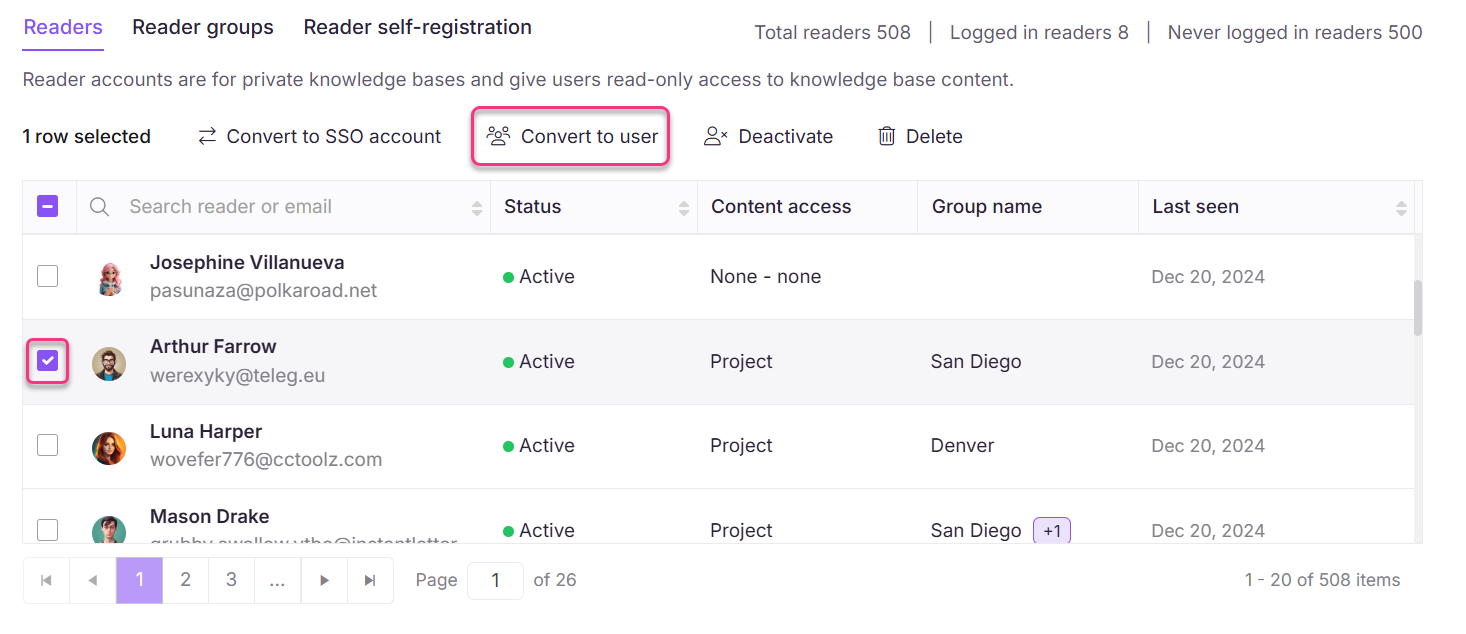
Select the desired readers and click Convert to user.
-
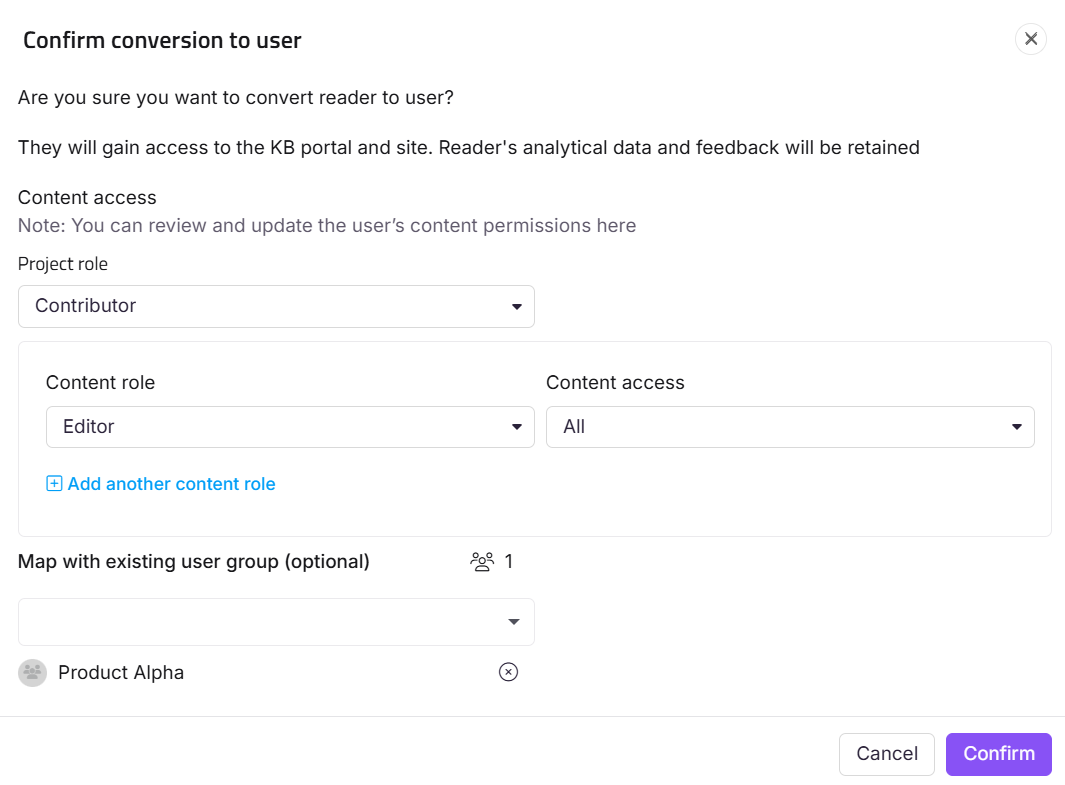
Assign portal access permissions from the Portal role dropdown.
-
Assign content access permissions from the Content role and Content access dropdowns.
-
As an optional step, map the reader to any existing reader groups from the Map with existing user group dropdown.
-
Click Confirm to convert the reader to user.
NOTE
When a reader is converted to a user, all contributions made by the reader (e.g., analytics data and feedback) will be retained.
Limitations
| Limit | Detail |
|---|---|
| Role exclusivity | A person cannot hold both a reader and a user role at the same time. Conversion replaces the reader role. |
| Data retention | All analytics data and feedback from the reader's previous activity are retained after conversion. |
| SSO readers | An SSO reader is converted to an SSO user. |
| Reversibility | Converting a reader to a user cannot be automatically undone. You would need to manually create a new reader account for that person if needed. |
Best practices
- Assign the least-privileged portal role that meets the person's needs. You can always increase permissions later.
- Map the converted user to an existing user group if one with the right permissions already exists — this is faster than configuring permissions individually.
- Convert readers to users in small batches so you can verify role assignments before proceeding to the next group.
FAQ
Can I add a person as a user if they have already been assigned as a reader?
In Document360, a user cannot hold both a reader and a user role at the same time. To convert a reader into a user, use the Convert to user option.
Can I convert multiple readers to users at the same time?
Yes. Select multiple readers using the checkboxes and click Convert to user. The same portal role, content role, and content access settings will be applied to all selected readers.
What happens to the reader's content access settings after conversion?
The reader's previous content access is replaced by the content role and content access you assign during conversion. Review and assign these carefully before confirming.