Converting a user to a reader downgrades their account from portal access to read-only access on the published knowledge base site. After conversion, the person can no longer log in to the knowledge base portal to create, edit, or manage content. Instead, they become a reader — they can access the published knowledge base site based on the content access level you assign. All contributions the user made while in the user role are retained.
Why convert a user to a reader
Use this when a team member no longer needs to author or manage content but should retain access to the published knowledge base — for example, when someone moves from a content team to another department, or when a contractor's authoring work is complete but they still need to reference the documentation.
Converting is preferable to deleting because it preserves the user's contribution history and gives them continued access to the knowledge base site without portal permissions.
Before you begin
- You must have the Owner or Admin project role.
- Only non-SSO (standard Document360) users can be converted using the primary method. If you select an SSO user, they will be converted to an SSO Reader.
- Ensure your project's reader access is set to Private or Mixed. Reader accounts are only applicable in these access modes.
How to convert a user to a reader
You can convert a user to a reader using one of two methods.
From the user list
- Navigate to Settings () > Users and security in the left navigation bar in the knowledge base portal.
- In the left navigation pane, navigate to Users and groups.
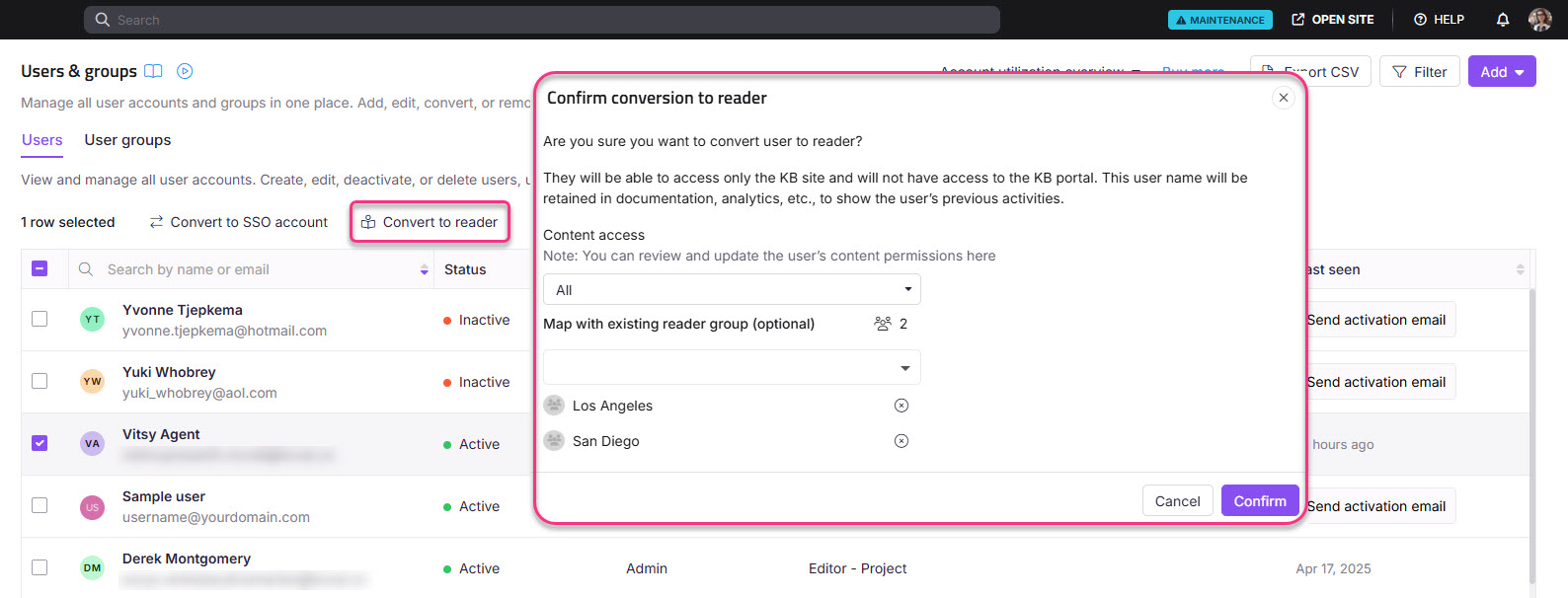
- Select one or more Document360 users (non-SSO) and click Convert to reader.
Via the Deactivate dialog
- Navigate to Settings () > Users and security in the left navigation bar in the knowledge base portal.
- In the left navigation pane, navigate to Users and groups.
- Select the desired user, click Deactivate, and select Convert to reader in the dialog box.
NOTE
If you select an SSO user when converting users to readers, the user will be converted to an SSO Reader.
- Assign the desired content access permissions from the Content access dropdown.
- As an optional step, map the user to any existing reader groups from the Map with existing reader group dropdown.
- Click Confirm to convert the user to a reader.
NOTE
When a user is converted to a reader, all contributions made while they were in the user role will be retained.
Limitations
| Limit | Detail |
|---|---|
| Dual roles | A user cannot hold both a reader and a user role at the same time. |
| SSO users | Converting an SSO user results in an SSO Reader, not a standard reader account. |
| Reversibility | The conversion can be reversed by converting the reader back to a user. All prior contributions are retained. |
| Reader access mode | Reader accounts are only applicable when the project's reader access is set to Private or Mixed. |
Best practices
- Assign the most restrictive content access that meets the person's needs at the time of conversion. You can always edit their reader access afterward. See Edit a reader.
- Map the converted reader to an existing reader group if one with the right permissions already exists — this is faster than configuring individual access and ensures consistency with other readers in the same group.
- If you are unsure whether the person will need portal access again in the future, consider deactivating the account instead of converting it. Reactivating a deactivated user restores their original portal role without requiring a new conversion.
FAQ
Is it possible to assign a user who is already assigned to a reader account?
In Document360, a user cannot hold both a reader and a user role at the same time. However, you can convert between these roles efficiently.
To convert a user to a reader
Navigate to Settings () > Users and security in the left navigation bar in the knowledge base portal.
In the left navigation pane, navigate to Users and groups.
Select the desired user and click Convert to reader.
Choose the appropriate Content access, then click Confirm to complete the process.
To convert a reader to a user
Navigate to Settings () > Users and security in the left navigation bar in the knowledge base portal.
In the left navigation pane, navigate to Users and groups > Users.
In the left navigation pane, navigate to Readers & groups.
Select the desired reader and click Convert to user.
Choose the appropriate project role, content role, and content access.
Click Confirm.