Editing a reader in Document360 lets you update their basic profile details, adjust their content access level, and manage which reader groups they belong to.
When to edit a reader
- A reader's name needs to be updated.
- You need to expand or restrict a reader's access to specific content, workspaces, or categories.
- You want to add or remove a reader from a reader group.
- You need to review when the reader last accessed the knowledge base or when their account was created.
Before you begin
- You must have the Admin or Owner portal role, or a custom role with Manage user permission.
How to edit a reader
-
Navigate to Settings (
) > Users and security in the left navigation bar of the knowledge base portal. -
In the left navigation pane, navigate to Readers & groups > Readers.
-
Hover over the desired reader and click the Edit (
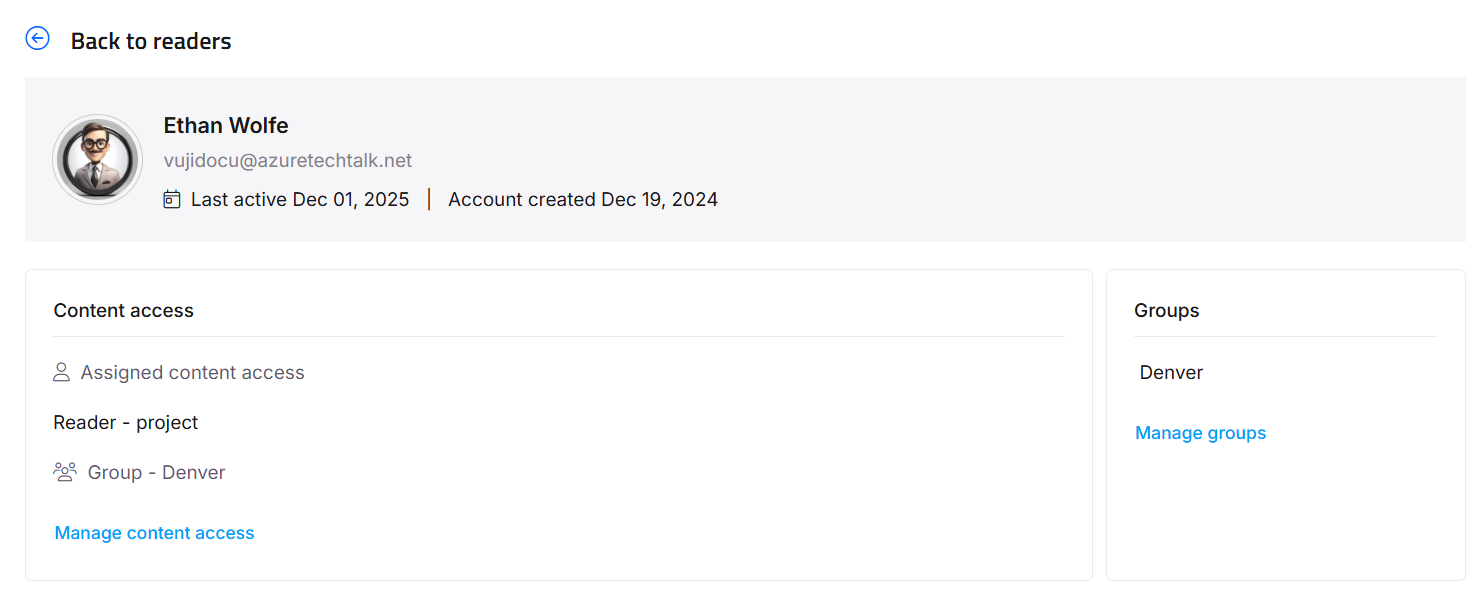
) icon.A page appears with detailed information.
-
Hover over the reader name and click the Edit (
) icon to configure basic details such as the first name and last name. -
You can view the Last active date and Reader account created date under the reader name.
-
Click Manage content access to manage content access for the reader.
-
Select the desired content access:
| Option | What the reader can access |
|---|---|
| None | Cannot access any knowledge base content |
| All | Can access all knowledge base content in any workspace and language |
| Workspace / Language | Can access content in specific workspaces and languages |
| Category | Can access certain categories in specific workspaces and languages |
- This behavior applies only to projects that have migrated to inherited permissions for readers. In projects that haven't migrated yet, the category tree doesn't cascade, and you must select each category individually.
- Selecting a parent category automatically selects all its categories and subcategories, shown with an Inherited badge.
- If Block Inheritance has been applied to a specific category or subcategory, that will be excluded from the automatic selection. It appears unchecked with an Inheritance blocked badge, and you can manually select it to grant explicit access to that category.
- The category tree only displays categories you have access to.
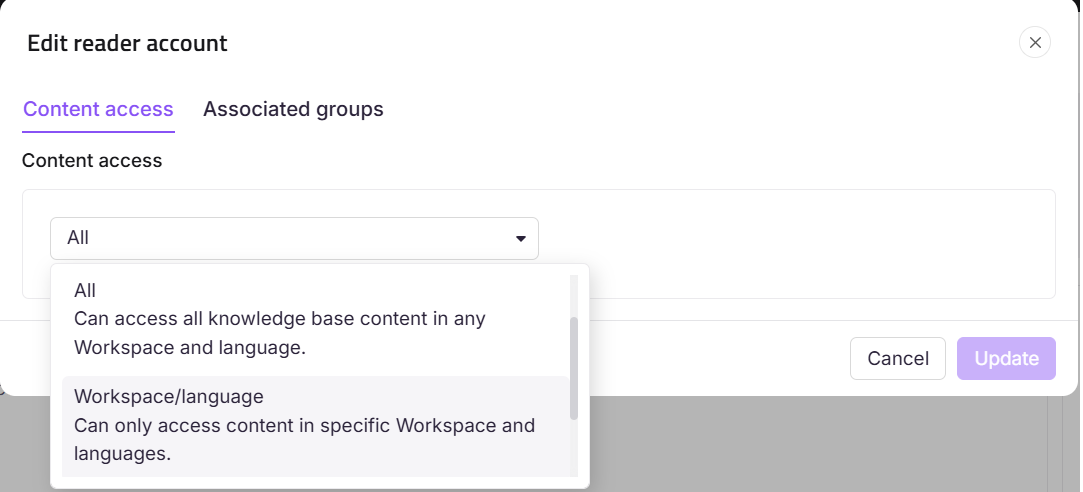
- Click Update.
- In the Associated groups tab, add the reader to any reader groups.
NOTE
For projects that have not yet migrated to inherited permissions, readers can only see the specific categories they are given access to.
Limits and limitations
| Limit | Detail |
|---|---|
| Email address | A reader's email address cannot be changed after account creation. |
| Content access — highest level wins | When a reader belongs to multiple groups with different access levels, the highest level of content access is granted. |
| Simultaneous roles | A reader cannot be assigned a user role at the same time. To upgrade, use Convert a reader to a user. |
Best practices
- Review the Last active date before making access changes. If a reader has not logged in recently, consider deactivating the account instead of editing it. See Activate and deactivate a reader.
- Use Category access for readers who should only see a subset of your content.
- Manage access through reader groups rather than editing individual readers where possible. Group-based access is easier to audit and update at scale.
FAQ
Can I change a reader's email address?
No. Email addresses are set at account creation and cannot be edited afterward. If the reader's email has changed, delete the old account and create a new one with the updated address.
If a reader is in multiple groups with different access levels, which level applies?
The highest level of content access assigned across all groups and direct assignments is granted to the reader.
Can I see the reader's login history from the edit panel?
The edit panel shows the Last active date only. For email notification history, use the Email notifications () icon on the Readers list page. See View email activity history.