Deactivating a reader in Document360 suspends their access to the knowledge base site without deleting their account. Deactivated readers retain their profile, content access settings, analytics data, and feedback. You can reactivate a deactivated reader at any time to restore their access.
When to activate or deactivate a reader
Deactivate when:
- A reader is on extended leave and should not have access during that period.
- A reader's access needs to be suspended temporarily pending a review.
Activate when:
- A previously deactivated reader needs access restored.
- A reader's suspension period has ended and access should resume.
Before you begin
- You must have the Admin or Owner portal role, or a custom role with Manage user permission.
- Deactivation is reversible — the reader's account settings are fully preserved and can be restored.
- If you want to permanently remove an account, use Delete a reader instead.
How to deactivate a reader
-
Navigate to Settings (
) > Users and security in the left navigation bar of the knowledge base portal. -
In the left navigation pane, navigate to Readers & groups > Readers.
-
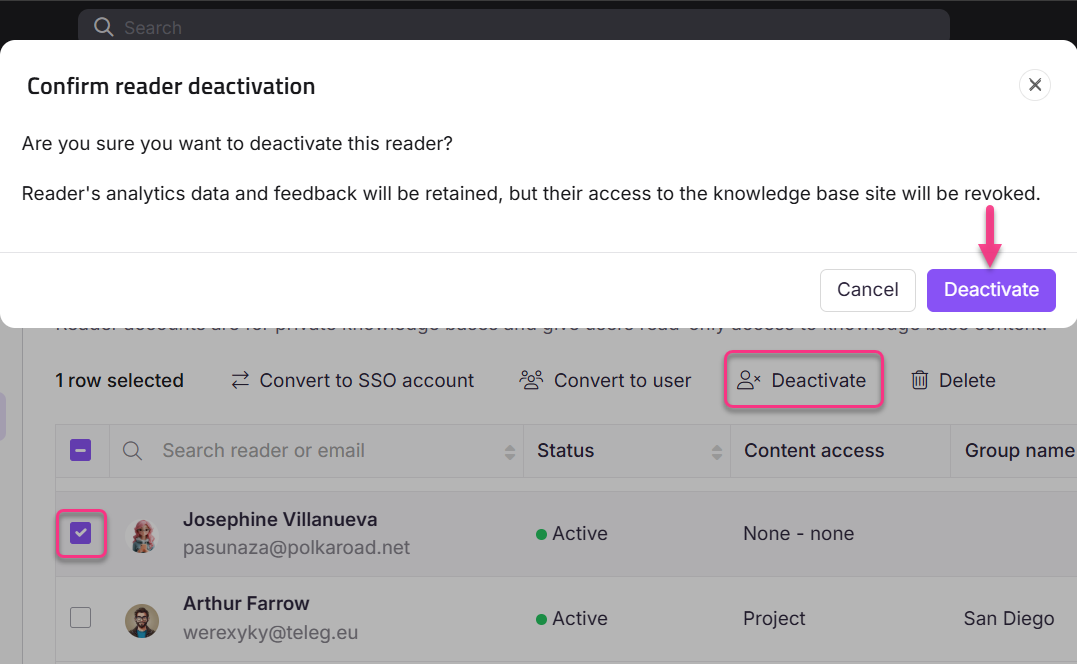
Select the desired reader and click Deactivate at the top.
The Confirm reader deactivation panel appears.
-
Click Deactivate.
NOTE
When a reader is deactivated, their analytical data and feedback are retained, but access to the knowledge base site is revoked.
How to reactivate a reader
- Select one or more deactivated readers.
- Click Activate.
- Click Confirm in the Confirm reader activation panel.
Limitations
| Limit | Detail |
|---|---|
| Data retention | Analytics data and feedback are retained when a reader is deactivated. |
| Account settings | All content access settings and group memberships are preserved during deactivation. |
| Account slot | A deactivated reader still occupies a reader account slot on your plan. To free the slot, delete the account. |
Best practices
- Prefer deactivation over deletion for readers who may need access again in the future. Reactivating a deactivated reader is faster than recreating an account and reassigning access.
- Use the Filter feature to find all inactive readers before performing bulk actions. Filter by Status: Inactive to see all deactivated accounts at once. See Filter and export readers.
FAQ
Does a deactivated reader still count toward my reader account limit?
Yes. A deactivated reader still occupies a slot on your plan. Delete the account if you need to free that slot.
Can a deactivated reader still log in?
No. Access to the knowledge base site is revoked when a reader is deactivated. They cannot log in until the account is reactivated.
What is the difference between deactivating and deleting a reader?
Deactivation suspends access while keeping the account intact — it can be undone at any time. Deletion permanently removes the account and cannot be reversed. Use deactivation when access may need to be restored later.