The Manage content access section on the Reader access page lets you control which readers and reader groups can access specific content in your knowledge base site. You can assign, deny, remove, and restore reader access at the workspace, language, category, or article level.
This section is visible only if your project is set to Private or Mixed access.
Before you begin
- You must have the Owner or Admin portal role.
- Your project must be set to Private or Mixed access.
Accessing the Manage content access section
- Navigate to Settings () > Users and Permissions in the left navigation bar in the knowledge base portal.
- In the left navigation pane, navigate to Reader access.
- Scroll to the Manage content access section.
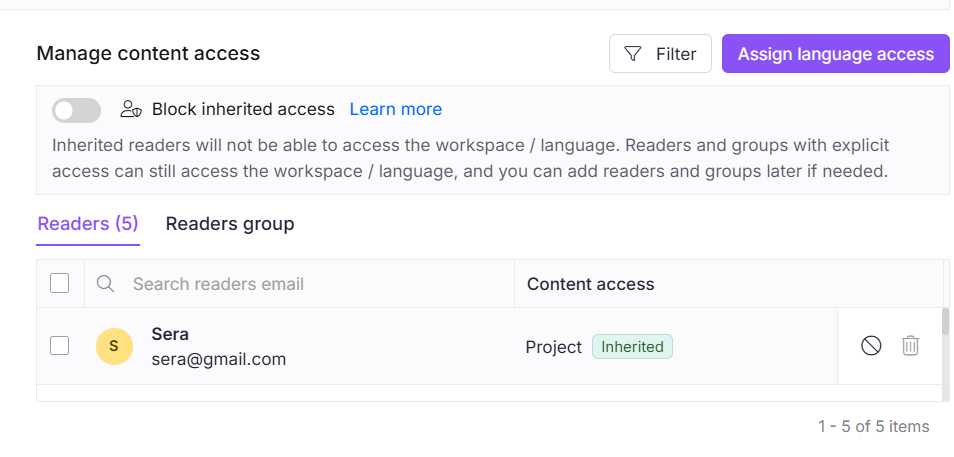
At the top, you will find two tabs:
- Readers: Lists all reader accounts.
- Reader groups: Lists all reader groups.
Managing individual readers
In the Readers tab, select a reader to access these actions:
| Action | Icon | What it does |
|---|---|---|
| Deny | Restricts the reader's access to specific content. If access is denied at any level, the reader cannot access that content even if they have inherited access from a parent category. | |
| Remove | Removes the reader's explicit access at this level. The reader may still have access through inheritance from a parent level. See Understanding permission precedence. |
NOTE
If your content access level is configured beyond project level (such as workspace or language), you can deny access to specific readers accordingly.
Your knowledge base can include both private and public articles, depending on the reader access configuration.
Understanding individual versus group access precedence
When a reader belongs to a reader group and also has individual content access configured, Document360 applies the reader's individual-level access setting, not the group's setting.
For example, if a reader's individual content access is set to All, that reader has access to the entire knowledge base even if the reader group they belong to is limited to a single category.
Conversely, if a reader's individual content access is set to None, the reader will not gain additional access through a reader group.
Setting individual access to None does not defer to the group's permissions.
To let a reader group's category permissions apply to a reader, do not set that reader's individual content access to None. Instead, leave their individual access aligned with the group's intended access level, and manage individual-level settings only for readers who genuinely need an exception from the group.
For more information on setting up groups, see Create reader group and Edit reader group.
Filtering readers
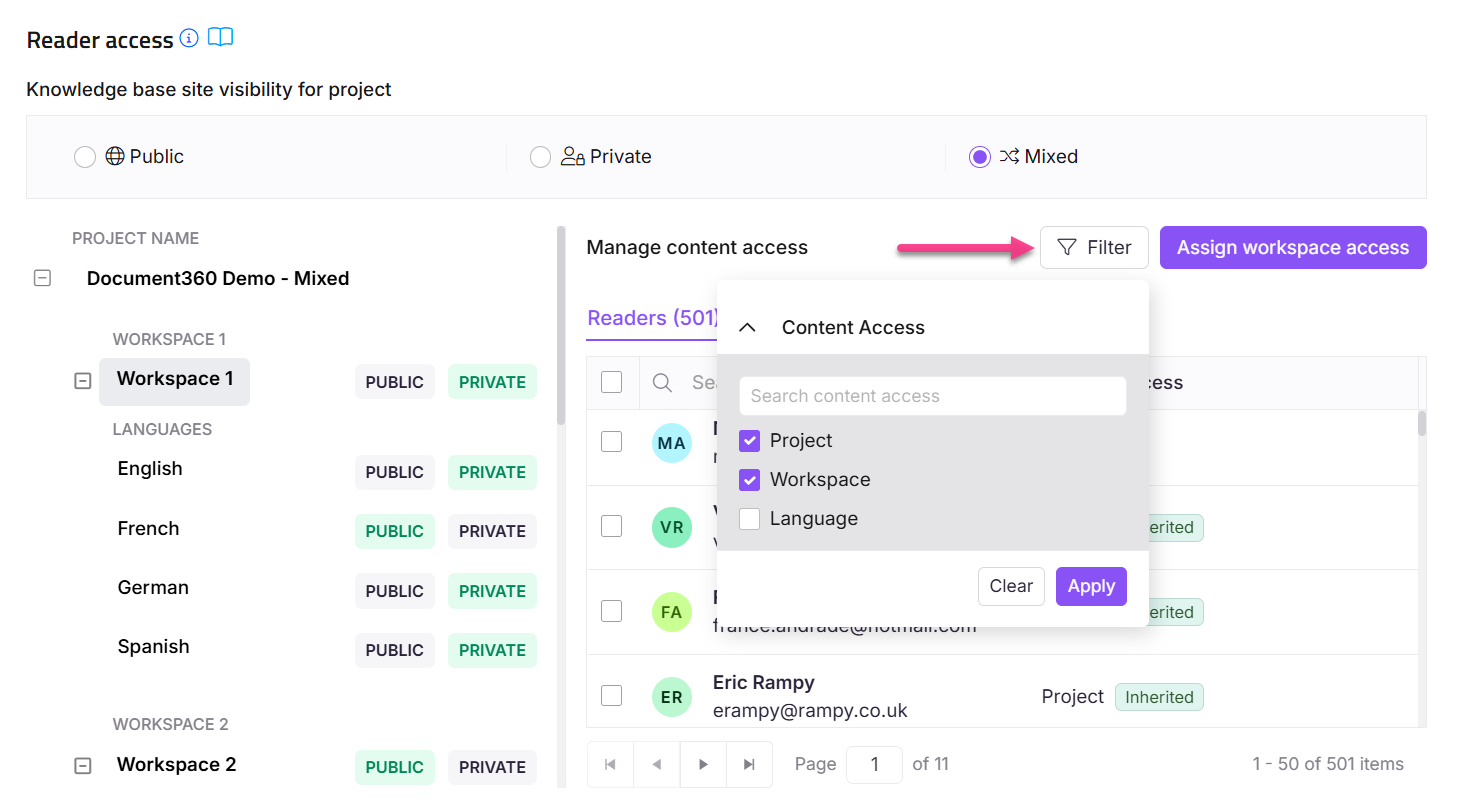
You can filter the readers on this page based on their access level:
- Project
- Workspace
- Language
Assigning reader access
You can explicitly assign reader access at any level — workspace, language, category, or article — to control who can view specific content.
NOTE
This is especially important after using Block inheritance, as all previously inherited access is removed and readers must be added back explicitly at that level.
At workspace or language level
- Go to Settings () > Users & permissions > Reader access.
- Select the workspace and language where you want to assign access.
- Click Assign access and select the readers or reader groups who need access.
- Click Apply.
Only the readers you explicitly add at workspace or language level will be able to see that content on the knowledge base site.
At category or article level
- Go to Documentation () and hover over the category or article.
- Click More () > Security > Knowledge base Reader access control.
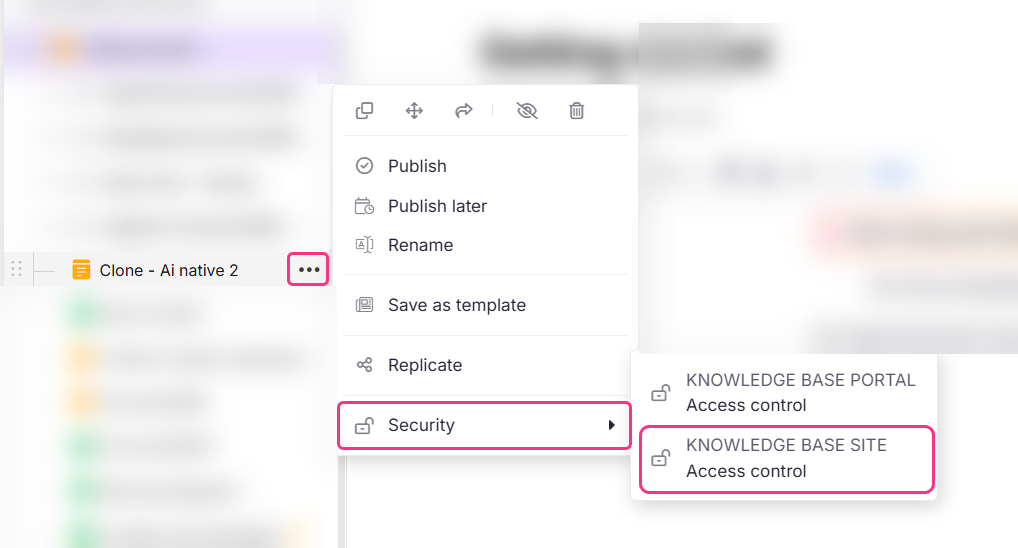
- In the panel, click Assign access.
- Select the readers or reader groups and click Apply.
Only the readers you explicitly add at category or article level will be able to see that content on the knowledge base site.
Block inherited access
The Block inherited access toggle is available only when a specific workspace or language is selected in the tree view on the left.
When enabled, inherited and future readers or reader groups will no longer have access to the selected workspace or language. Readers or reader groups added directly at that level will continue to retain access.
For full details on how block inheritance works for readers, see Block reader and reader group access inheritance.
Restore access to a denied reader
To restore access to readers whose access was previously denied:
-
Navigate to Settings () > Users and security in the left navigation bar in the knowledge base portal.
-
In the left navigation pane, navigate to Reader access.
-
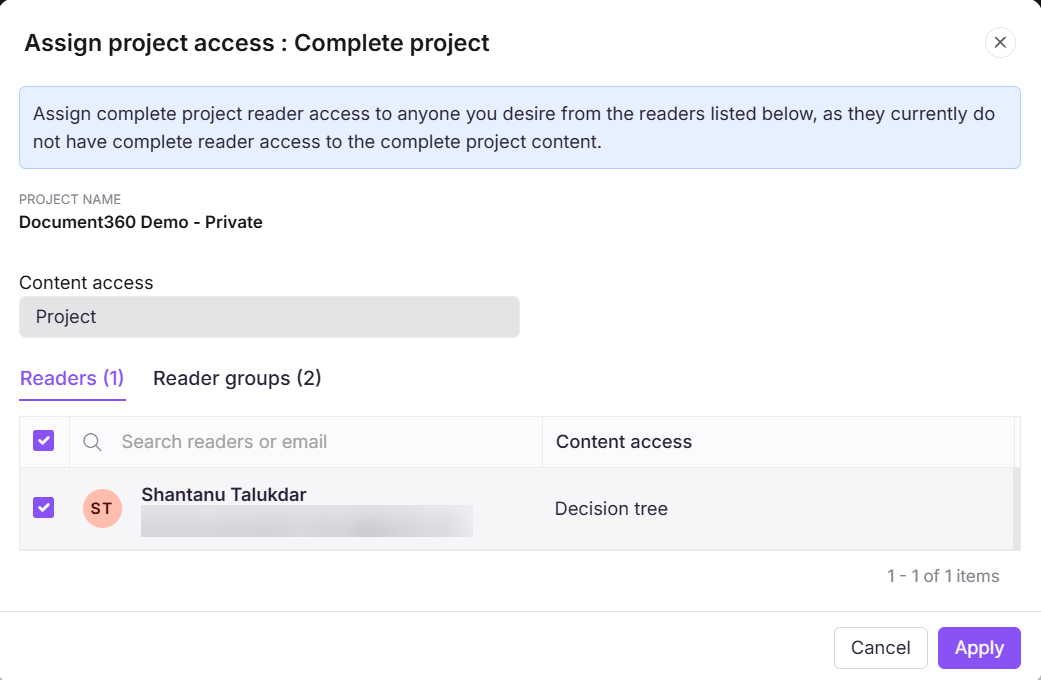
In the Reader access page, click Assign project access.
The Assign project access: Complete project dialog appears.
-
Use the Search bar to find the desired readers.
-
Select the readers or reader groups.
-
Click Apply.
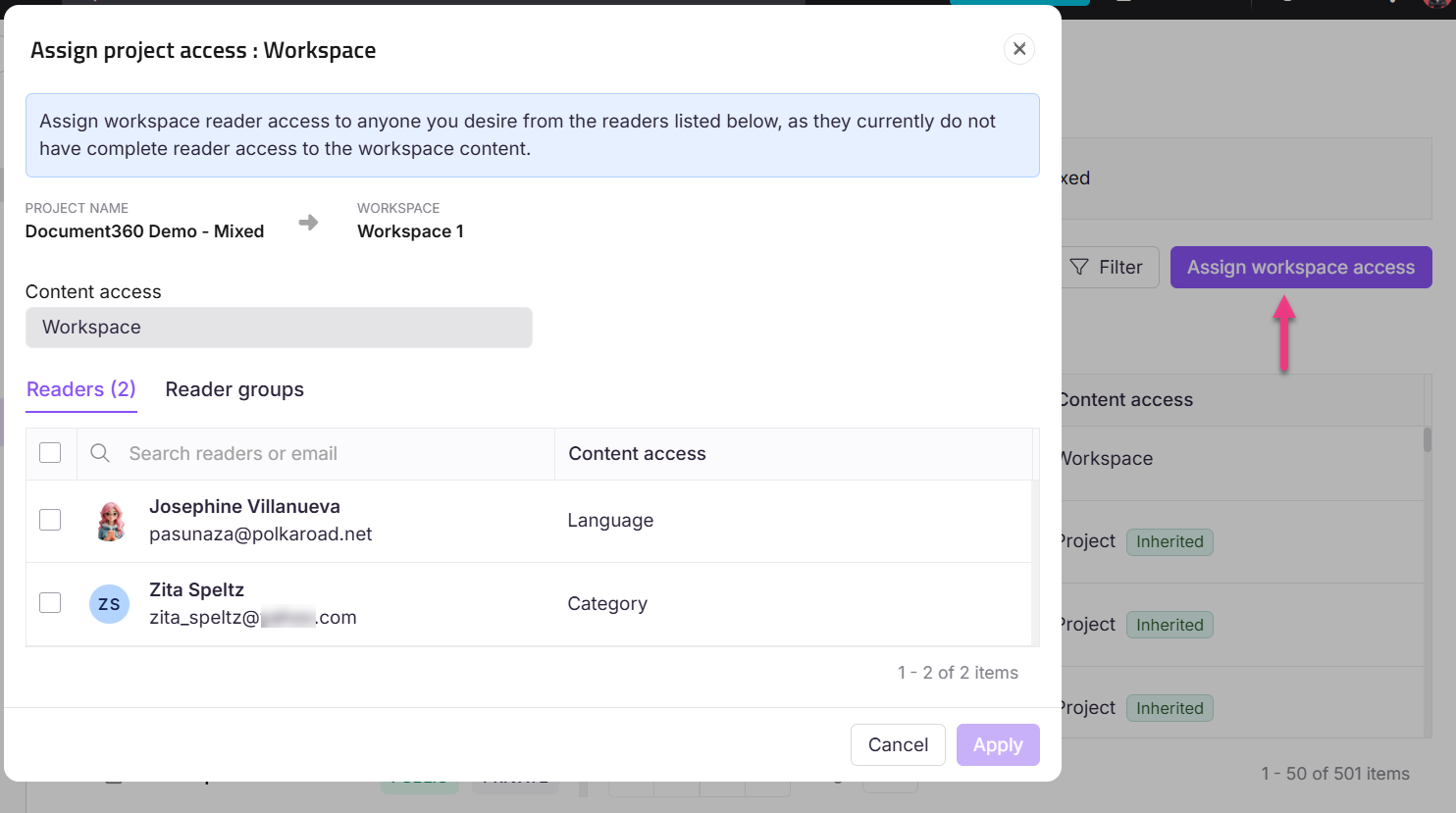
Once assigned, these readers will gain access to the entire knowledge base.
Understanding permission precedence for readers
Reader permissions follow the same hierarchy as user permissions:
Project → Workspace → Language → Category → Article
- When a reader is given access at a higher level, that access automatically applies to everything below it. This is called inherited access.
- If you later give the same reader access directly at a lower level, that direct permission takes priority over the inherited one. This is called explicit access.
For the full explanation with examples, see Understanding permission precedence.
Best practices
- Use Deny when you want to actively block a reader from a specific piece of content regardless of inherited access. Use Remove only when you want to clear explicit access while allowing inherited access to remain.
- After blocking inheritance, explicitly assign readers before the change takes effect to avoid interrupting their access unexpectedly.
- Use the filter by Project, Workspace, or Language to scope your view before making changes — this prevents accidental edits at the wrong level.
- Content access and feature restriction are separate controls. Use this section to manage which content a reader can view; to manage which Eddy AI features a reader group can use, see Restrict reader group access.