Editing a reader group in Document360 lets you update the group's name, adjust its content access level, and add or remove associated reader accounts. Changes to a reader group apply to all readers in that group.
When to edit a reader group
- The group's name or description needs to be updated.
- You need to change the content access level for all readers in the group.
- You want to add new readers to the group or remove existing ones.
Before you begin
- You must have the Admin or Owner portal role, or a custom role with Manage user permission.
How to edit a reader group
-
Navigate to Settings () > Users and security in the left navigation bar in the knowledge base portal.
-
In the left navigation pane, navigate to Readers & groups > Reader groups.
-
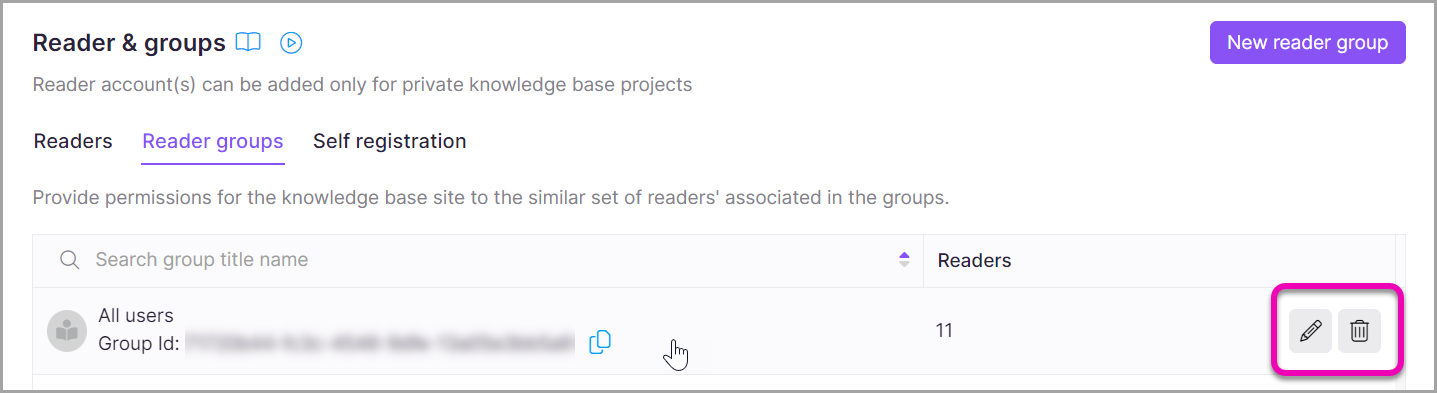
Hover over the desired reader group. The Edit () icon and Delete () icon appear.
-
Click the Edit () icon.
The reader group detail page opens.
-
Update any of the following as needed:
- Name — update the group name.
- Content access — change the access level assigned to the group.
- Associated readers — add new reader accounts to the group or remove existing ones.
- This behavior applies only to projects that have migrated to inherited permissions for readers. In projects that haven't migrated yet, the category tree doesn't cascade, and you must select each category individually.
- Selecting a parent category automatically selects all its categories and subcategories, shown with an Inherited badge.
- If Block Inheritance has been applied to a specific category or subcategory, that will be excluded from the automatic selection. It appears unchecked with an Inheritance blocked badge, and you can manually select it to grant explicit access to that category.
- The category tree only displays categories you have access to.
- Click Update to save your changes.
NOTE
When content access is assigned to a reader at both the individual level and the group level, the reader gets the highest level of access from all sources. Individual and group access are combined; neither overrides the other.
Limitations
| Limit | Detail |
|---|---|
| Maximum readers per group | 5000 readers |
| Individual vs group access | When a reader has access assigned at both the individual level and through the group, the reader gets the highest level of access from both. Neither overrides the other. |
Best practices
- Review the associated readers list when changing a group's content access level to confirm all readers in the group should receive the new access level.
- If only a subset of readers in the group needs a different access level, manage those exceptions at the individual reader level rather than splitting the group.
FAQ
What happens if I assign content access to a reader at both the individual and reader group levels?
The reader gets the highest level of access from their individual setting and all the reader groups they belong to. Individual and group access are combined; neither overrides the other.
For example, if a reader is granted access to the entire knowledge base at the individual level but only to a specific category as part of a reader group, they have access to the entire knowledge base.