Creating a reader group in Document360 lets you assign a shared content access level to multiple readers at once. Instead of configuring access for each reader individually, you can group readers with similar access needs and manage their permissions from a single place.
When to create a reader group
- Multiple readers need access to the same set of categories, workspaces, or languages.
- You want to manage content access at a group level rather than per individual reader.
- You are onboarding a cohort of readers who all need the same access.
Before you begin
- Your project's reader access must be set to Private or Mixed.
- You must have the Admin or Owner portal role, or a custom role with Manage user permission.
- Reader accounts must already exist in the project before you can add them to a group from this page. See Add a reader or Import readers. When you import readers, you can optionally add them to an existing reader group in the same import.
- Reader groups are created one at a time from this page. You cannot create reader groups through a CSV import.
How to create a reader group
-
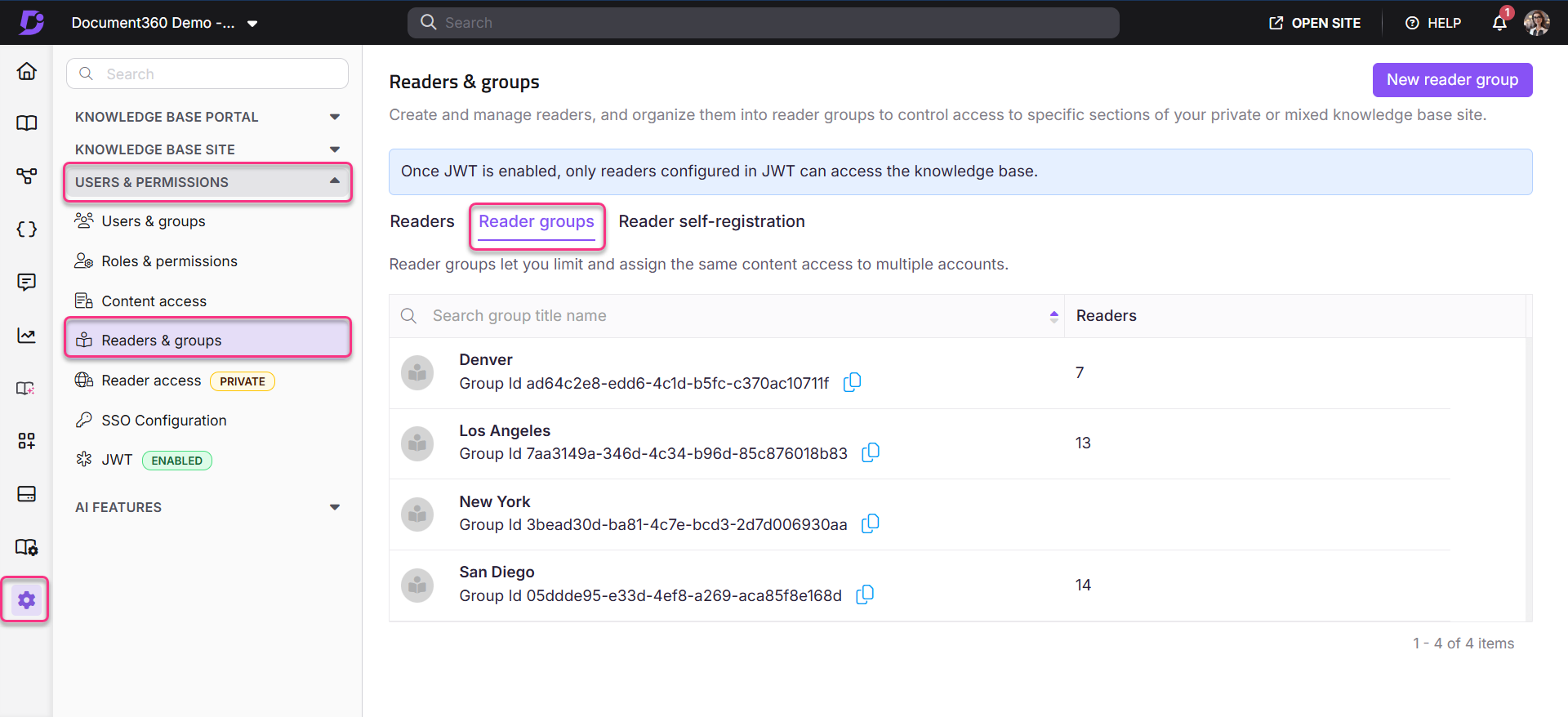
Navigate to Settings () > Users and security in the left navigation bar in the knowledge base portal.
-
In the left navigation pane, navigate to Readers & groups > Reader groups.
-
Click New reader group. The Create reader group panel opens.
-
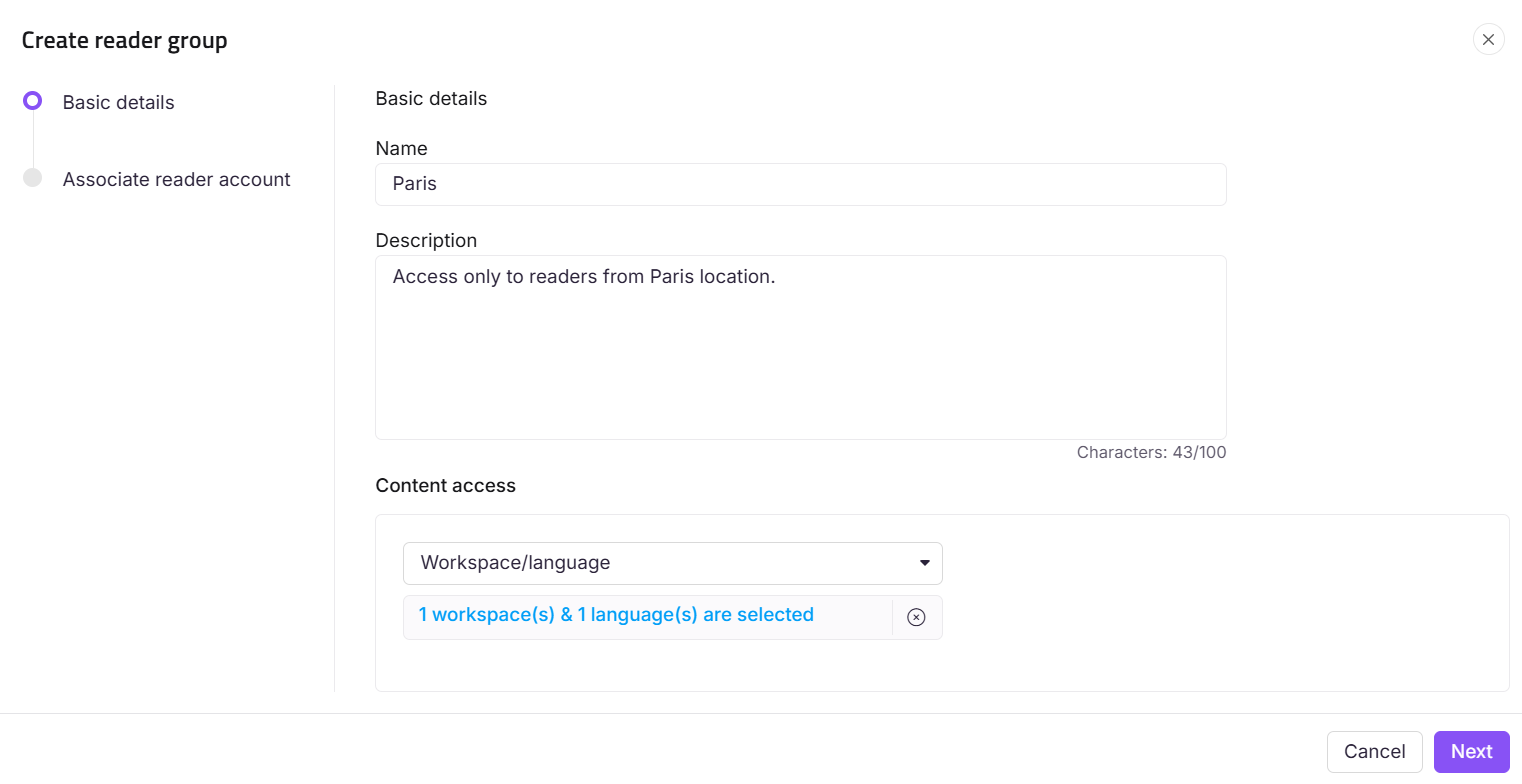
Enter the name and description of the group in their respective fields.
-
Choose the content access level you want the associated reader accounts to hold. The available levels are:
| Option | What readers in the group can access |
|---|---|
| None | No knowledge base content |
| All | All content across all workspaces and languages |
| Workspace / Language | Content in specific workspaces and languages |
| Category | Specific categories within selected workspaces and languages |
- This behavior applies only to projects that have migrated to inherited permissions for readers. In projects that haven't migrated yet, the category tree doesn't cascade, and you must select each category individually.
- Selecting a parent category automatically selects all its subcategories, shown with an Inherited badge.
- If Block Inheritance has been applied to a specific category or subcategory, that will be excluded from the automatic selection. It appears unchecked with an Inheritance blocked badge, and you can manually select it to grant explicit access to that category.
- The category tree only displays categories you have access to.
-
Click Next.
-
Add the reader accounts you want to associate with the reader group.
-
Click Create reader group.
- By default, users in reader groups are organised alphabetically based on their email IDs.
- JWT readers do not appear in the Document360 portal as they are authenticated through a JSON Web Token (JWT).
Limits and limitations
| Limit | Detail |
|---|---|
| Maximum readers per group | 5000 readers |
| JWT readers | JWT-authenticated readers do not appear in the portal and cannot be added to groups through the UI. As a result, reader groups made up entirely of JWT readers cannot be exported as CSV, since there is no portal-stored reader data to export. In mixed-authentication groups, only the Normal and SSO reader data can be exported. See Export reader group for details. |
Best practices
- Give reader groups descriptive names that reflect their access level or the team they represent (for example, "External Partners - API Docs" or "Support Team - All Access"). This makes auditing easier.
- Set content access at the group level to keep individual reader access settings clean. Reserve individual-level access for exceptions only.
- Add readers to a group at creation time if they share the same access requirements, rather than configuring them individually afterward.
FAQ
How many readers can be added to a reader group?
A reader group can hold a maximum of 5000 readers.
What happens if I assign content access to a reader at both the individual and reader group levels?
The reader gets the highest level of access from their individual setting and all the reader groups they belong to. Individual and group access are combined; neither overrides the other.
For example, if a reader is granted access to the entire knowledge base at the individual level but only to a specific category as part of a reader group, they have access to the entire knowledge base. If the reader group is later deleted, the reader keeps their individual access.