Restricting reader group access in Document360 lets you turn off specific Eddy AI features for selected reader groups on your knowledge base site. This is useful when a single workspace serves audiences with different AI needs - for example, when one reader group must be kept out of AI processing while other groups continue using AI features as usual.
Restrictions can be applied per feature. For each Eddy AI feature, you can choose the reader groups that should be excluded from it. A restricted feature is then hidden from readers in those groups everywhere on the knowledge base site.
Before you begin
- Your project's reader access must be set to Private or Mixed. This feature is not available for public projects.
- You must have the Admin or Owner portal role.
- At least one reader group must already exist. Access cannot be restricted while creating a reader group — create the group first, then restrict its access. See Create reader group.
Features you can restrict
You can restrict the following Eddy AI features on the knowledge base site:
| Feature | Where it applies |
|---|---|
| AI assistive search (Ask Eddy) | KB site, API documentation, Chatbot, and Widget (including AI federated search/external sources) |
| AI article summarizer | KB site |
| Dynamic related article recommendation | KB site |
| MCP server | KB site |
| Listen (text to voice functionality) | KB site |
How to restrict reader group access
- Navigate to Settings () > Users & permissions in the left navigation bar in the knowledge base portal.
- In the left navigation pane, navigate to Readers & groups > Reader groups.
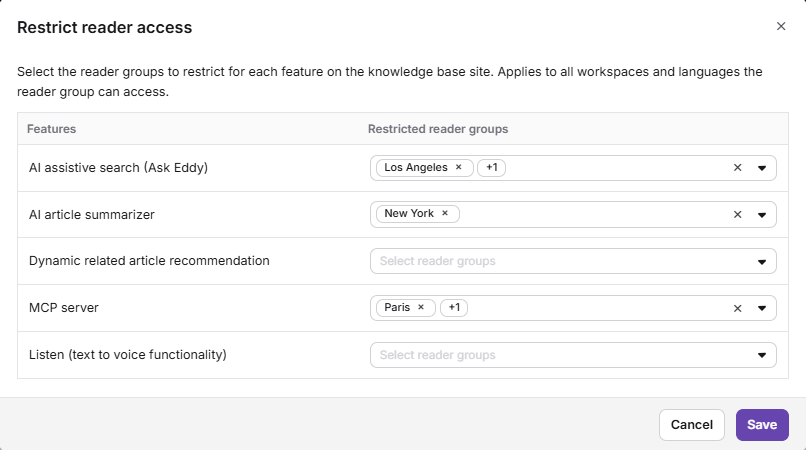
- Click Restrict access. The Restrict reader access window opens.
.png)
- In the features table, locate the feature you want to restrict.
- In the Restricted reader group dropdown for that feature, select the reader groups that should be excluded from it. You can search for a group and also select multiple groups, then click Apply.
- Repeat for any other features you want to restrict.
- Click Save. A confirmation message appears indicating that it has been updated.
The selected reader groups can no longer see or use the restricted features anywhere on the knowledge base site.
NOTE
By default, all features are enabled for every reader group. A feature is restricted only for the groups you explicitly select. Existing reader groups are not affected until you set a restriction.
How restrictions are applied
- Restrict takes precedence. If a reader belongs to more than one reader group and any one of those groups is restricted for a feature, the reader loses access to that feature. A restriction in one group overrides allowed access from another.
- Feature restrictions apply on top of your existing project and workspace AI settings. They can only further restrict access, not grant it.
- Restrictions apply across all workspaces and languages the reader group can access.
Viewing restricted access
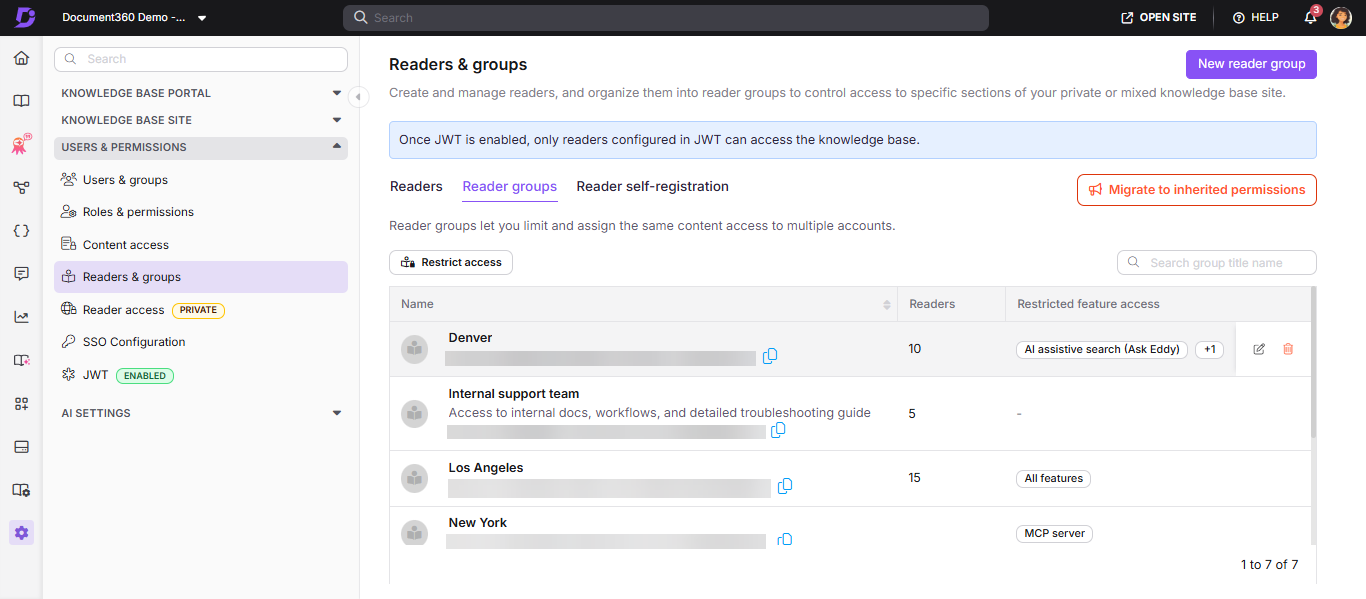
After you save, the reader group list shows a Restricted feature access column so you can see, at a glance, what each group is restricted from:
- "–" — no features are restricted for the group.
- All features — every feature is restricted for the group.
- Otherwise, the first restricted feature is shown, with any additional ones bundled as +N. Hover over the bundle to see the full list.
Best practices
- Map out which reader groups have compliance or data-sensitivity requirements before you start, so you restrict the right features for the right groups in one pass rather than adjusting repeatedly.
- Because restriction takes precedence across groups, review every group a reader belongs to when troubleshooting missing access — a restriction on any one group is enough to hide a feature.
- Keep reader group names descriptive of their access needs (for example, "Banking — No AI") so the Restricted feature access column is easy to audit at a glance.
- Restrict only the features a group genuinely needs turned off. Leaving unaffected features enabled keeps the AI experience intact for readers who can use it.
- Re-check restrictions after adding new Eddy AI features or new reader groups, since new groups start with all features enabled by default.
FAQ
What is the difference between content access and reader group access restriction?
Content access controls which articles and categories a reader can see. Reader group access restriction controls which Eddy AI features a reader group can use on the knowledge base site. They are managed separately — restricting a feature does not change what content a group can view.
A reader belongs to two groups. One is restricted from AI assistive search and the other is not. What happens?
The reader loses access to AI assistive search. When a reader belongs to multiple groups, a restriction on any one of those groups takes precedence over allowed access from the others.
Does this affect readers on a public knowledge base site?
No. This feature is available only for private and mixed projects. Public knowledge base sites with anonymous readers are not affected.