Self-registration lets users create their own reader accounts without needing an invitation from a project team member. To enable self-registration, share your knowledge base URL with users, allowing them to create their accounts independently.
Once registered, readers are automatically added to the Readers list. Project members with access to User & permissions settings can edit or remove these readers as needed.
The Readers self-registration feature is available only if your Document360 project's Reader access is set to Private or Mixed.
What you can do with reader self-registration
| Task | What it does |
|---|---|
| Enable and disable self-registration | Turn self-registration on or off for your project |
| Self-register on a knowledge base site | How readers create their own accounts from the knowledge base site |
| Add a domain restriction | Allow or block self-registration for specific email domains |
| Import multiple domains | Bulk-add domain restrictions via CSV |
| Edit and delete a domain restriction | Modify or remove existing domain restrictions |
| Understand domain restrictions | Reference guide for how restriction type and status affect self-registration |
Reader self-registration page overview
To access the reader self-registration page:
- Navigate to Settings () > Users and security in the left navigation bar of the knowledge base portal.
- In the left navigation pane, navigate to Readers & groups > Readers.
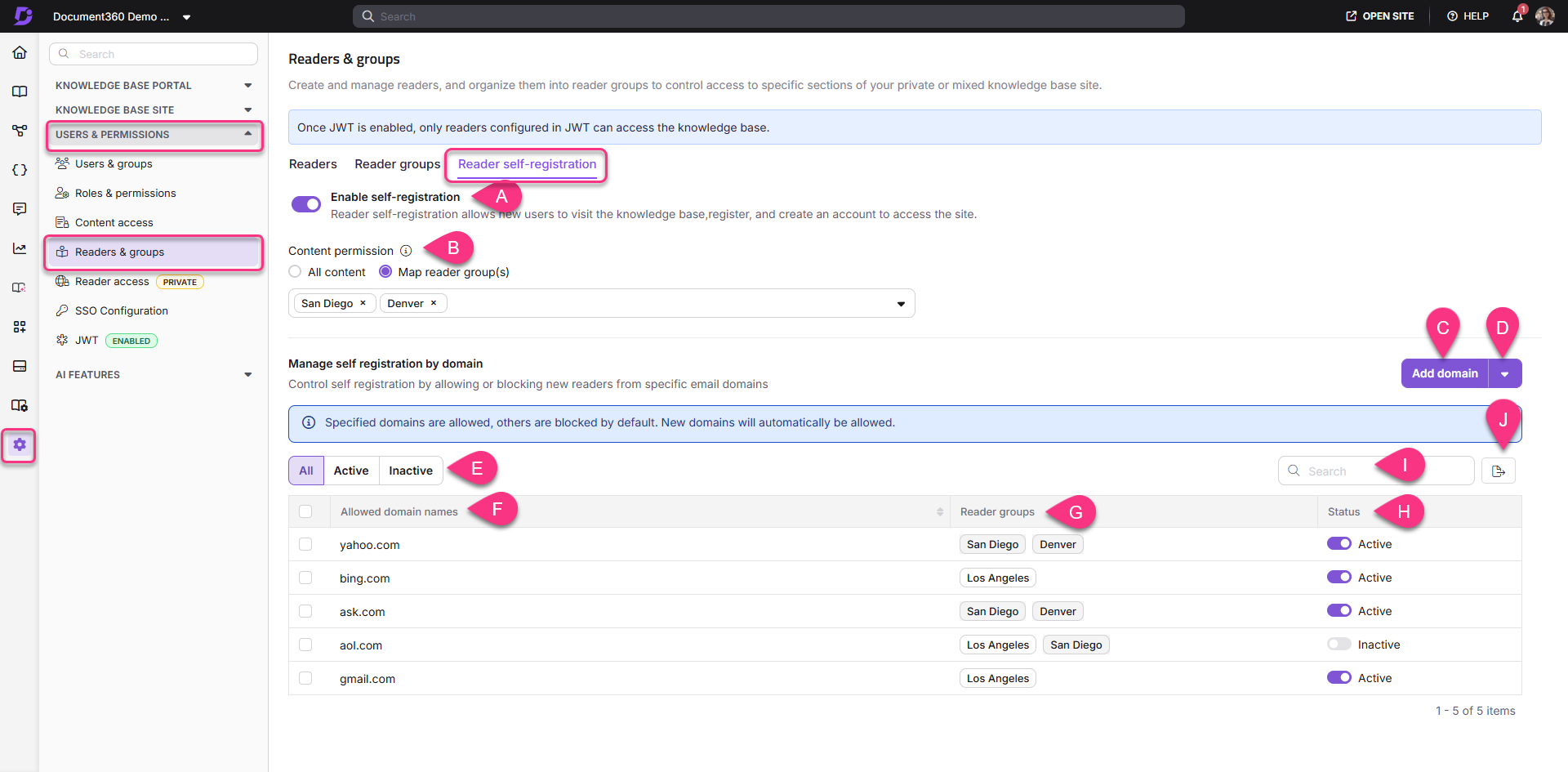
Key elements of the Reader self-registration page:
| Element | Description |
|---|---|
| A. Enable reader self-registration | Turn on the toggle to allow readers to self-register |
| B. Content permission | Select the default content access for self-registered readers: All content or Map reader group(s) |
| C. Add domain | Add a new domain for domain restriction |
| D. Import domain | Import multiple domains for domain restrictions |
| E. Filter options | View domains filtered as All, Active, or Inactive |
| F. Allowed / Blocked domains | Displays all domains for the project. Click the column header to sort alphabetically; click again to reverse the order. |
| G. Reader groups | Shows reader groups mapped to domains |
| H. Status | Indicates whether domains are Active or Inactive |
| I. Search | Search for specific domain names |
| J. Export | Export the list of domains as a CSV file |
Before you begin
Reader self-registration is only available when your project's reader access is set to Private or Mixed.
FAQ
What access do readers with multiple group memberships get?
When a reader is part of multiple groups, the highest level of access for each content item is granted.
For instance, if a reader belongs to Group A (which has access to all languages in workspace 'V1') and Group B (which has access to only English in 'V1'), the reader will receive access to all languages in workspace 'V1'.
Does individual content access override reader group access?
No, individual content access does not override group access. The reader always receives the highest privilege from both individual and group settings.
For example, if a reader is individually set to access only English in workspace 'V2' but is also part of a group that has access to all languages in 'V2', the reader will have access to all languages in 'V2'.
How is reader access prioritized?
Access is determined by the highest privilege assigned at each content level. Readers only gain access to the content they have been specifically granted.
Why is self-registration not working for my project?
Self-registration requires the Document360 login page to be active, because the Sign up link is available on this page. Self-registration is unavailable when Disable default login page is turned on. Configuring SSO alone does not affect self-registration.
If your readers sign in only through SSO, use Auto assign reader group to give new SSO readers access to the right content when they first sign in.