Domain restrictions let you control which email domains are allowed or blocked from self-registering on your knowledge base site. You can allow specific domains so only readers from those domains can register, or block domains to prevent readers from those domains from registering while allowing all others.
When to add a domain restriction
- You want to limit self-registration to readers with a specific company email domain (for example,
@yourcompany.com). - You want to block public or generic email domains (for example,
@gmail.com) from self-registering. - You want to map readers from a specific domain to a particular reader group automatically on registration.
Before you begin
- You must have the Admin or Owner portal role, or a custom role with Manage user permission.
- The Enable reader self-registration toggle must be turned on before you can add domain restrictions. See Enable and disable self-registration.
- You can add up to 5 domain names in a single operation, separated by commas.
How to add a domain restriction
-
Navigate to Settings () in the left navigation bar of the knowledge base portal.
-
In the left navigation pane, navigate to Users and security > Readers & groups > Readers.
-
Turn on the Enable reader self-registration toggle to allow readers to self-register.
-
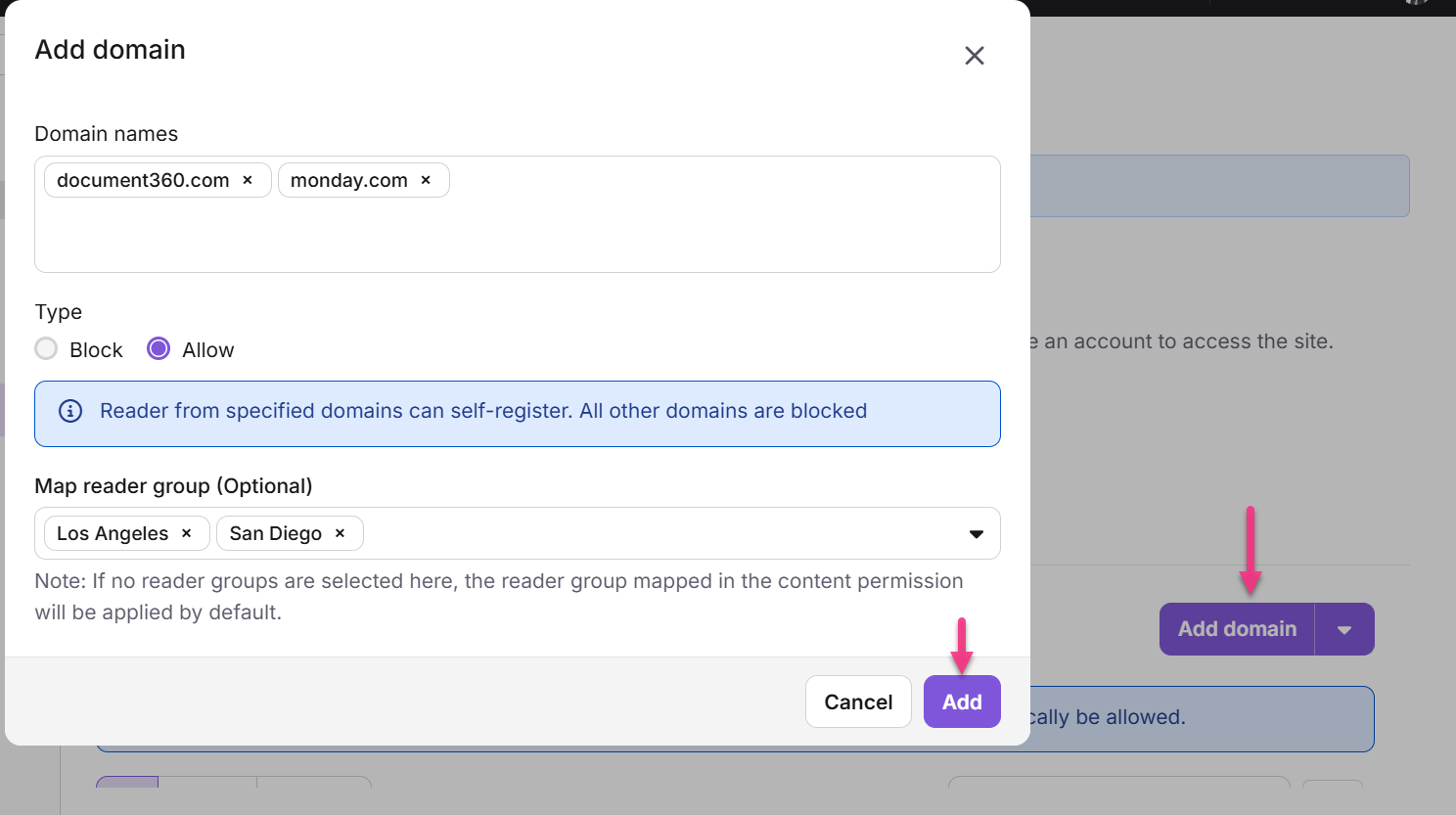
Click Add domain.
The Add domain panel appears.
-
Enter the desired domain names (everything after the @ symbol, for example
@genericmail.comor@randomdomain.com) and press Enter.
NOTE
You can add up to five domain names, separated by commas.
-
To remove a domain entry before saving, click the icon to clear the entry.
-
Select the restriction type:
| Restriction type | What it does |
|---|---|
| Block | Readers from the specified domains are restricted from self-registering. All other domains can self-register. |
| Allow | Readers from the specified domains can self-register. All other domains are blocked. |
- If selecting Allow, optionally map the domain to a reader group.
NOTE
- If no reader groups are selected, the reader group mapped in the content permission will be applied by default.
- If both the Map reader group(s) in the content permission and the domain-specific reader group(s) are enabled, the domain-specific settings will take precedence over the default reader groups.
-
Click Add to save the restriction.
Considerations
| Item | Detail |
|---|---|
| Domains per operation | Up to 5 domain names at a time, separated by commas |
| Bulk import | Use Import multiple domains for more than 5 domains |
| Reader group mapping | Only available when the restriction type is set to Allow |
| Domain-specific vs default group | Domain-specific reader group settings take precedence over the default content permission reader group |
Best practices
- Use Allow with specific company domains to ensure only your intended audience can self-register.
- Use Block for common public email providers to prevent unrestricted sign-ups.
- Map domains to reader groups at the time of adding the restriction, so newly registered readers are automatically assigned the correct access level without manual intervention.
- Review the Understand domain restrictions reference to confirm how your restriction type and status settings interact before saving.
FAQ
What happens if no default reader group is selected?
If no default reader group is selected, self-registered readers will have unrestricted access to the entire knowledge base, without any group-specific restrictions.
What is the difference between Allow and Block restriction types?
Allow permits readers from the specified domains to self-register while blocking all other domains. Block prevents readers from the specified domains from self-registering while allowing all other domains. Choose Allow when you want a closed list of approved domains, and Block when you want to exclude specific domains only.