After adding domain restrictions to your reader self-registration settings, you can edit them to change the domain name, restriction type, or reader group mapping, or delete them when they are no longer needed.
When to edit or delete a domain restriction
Edit when:
- You need to change a domain name (for example, if your company domain has changed).
- You want to switch a domain from Allow to Block or vice versa.
- You want to update or remove the reader group mapped to a domain.
Delete when:
- A domain restriction is no longer needed and should be removed entirely.
- You are restructuring your domain restrictions and need to clean up outdated entries.
Before you begin
- You must have the Admin or Owner portal role, or a custom role with Manage user permission.
How to edit a domain restriction
-
Navigate to Settings () > Users and security in the left navigation bar of the knowledge base portal.
-
In the left navigation pane, navigate to Readers & groups > Readers.
-
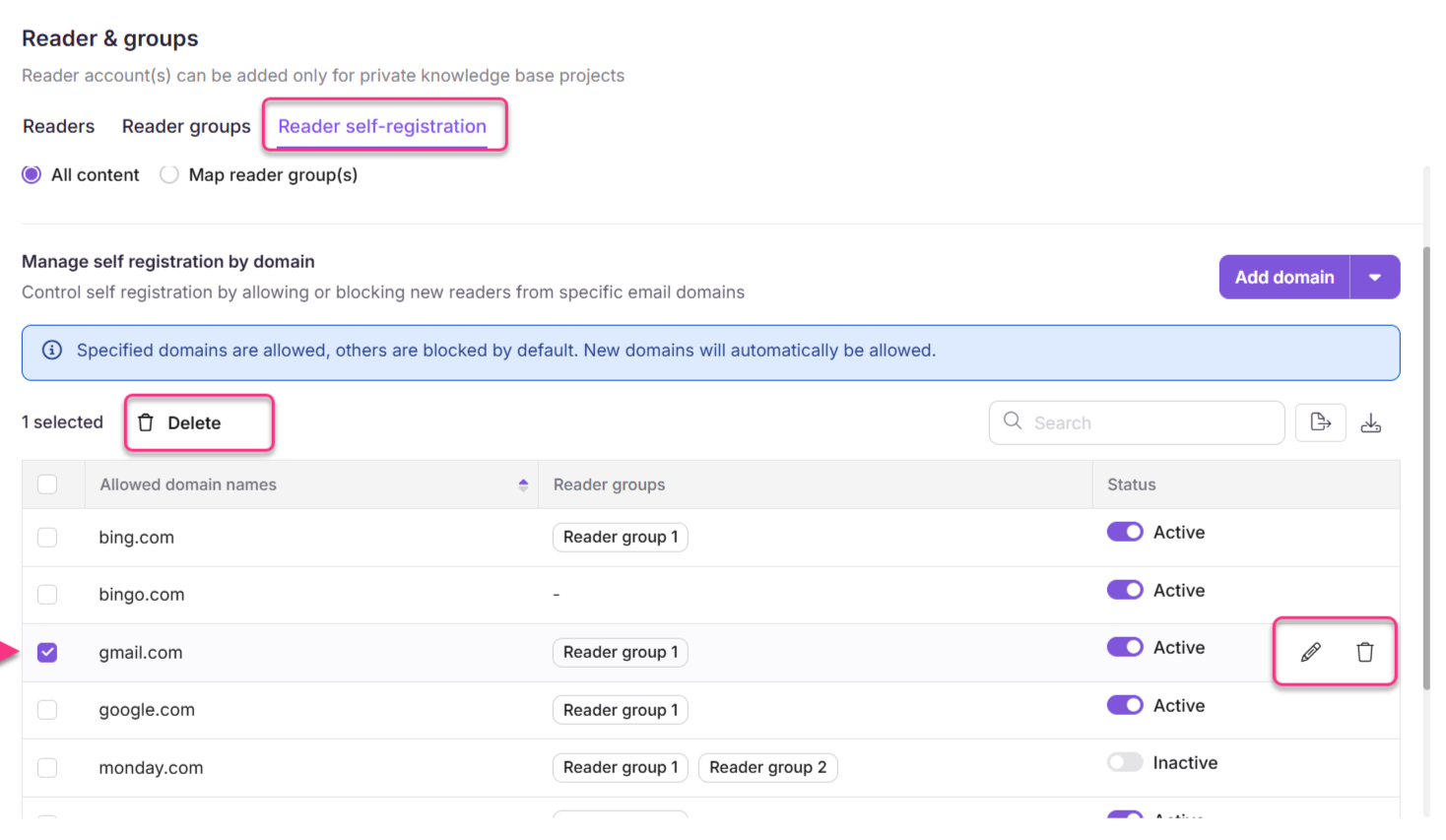
Hover over the desired domain name on the Reader self-registration page.
-
Click the Edit () icon.
The edit panel opens.
-
Update any of the following as needed:
- Domain name — change the domain (everything after the @ symbol).
- Type — switch between Block and Allow.
- Map reader group — add, change, or remove the reader group mapped to this domain (optional, available for Allow domains only).
NOTE
If no reader groups are selected, the reader group mapped in the content permission will be applied by default.
- Click Save to apply the changes.
How to delete a domain restriction
Delete a single domain restriction
- Navigate to Settings () > Users and security in the left navigation bar of the knowledge base portal.
- In the left navigation pane, navigate to Readers & groups > Readers.
- Hover over the desired domain name on the Reader self-registration page.
- Click the Delete () icon.
Delete multiple domain restrictions
- Navigate to Settings () > Users and security in the left navigation bar of the knowledge base portal.
- In the left navigation pane, navigate to Readers & groups > Readers.
- Select the checkbox next to each domain name you want to delete.
- Click Delete () at the top of the list.
Considerations
| Item | Detail |
|---|---|
| Reader group mapping | Reader group mapping is only available when the restriction type is set to Allow. |
| Default group fallback | If no reader group is mapped to a domain, the reader group set in the content permission applies by default. |
Best practices
- Before deleting an Allow domain restriction, verify that readers currently using that domain will still have an appropriate access path — either through another domain restriction or individual reader access settings.
- When changing a domain's restriction type from Allow to Block, any reader group mapping on that domain will no longer apply. Review the reader group mapping before switching types.