Converting a reader to an SSO account moves their authentication from Document360's built-in login to a Single Sign-On (SSO) configuration you have set up in the portal. After conversion, the reader logs in using your organisation's SSO provider instead of a Document360-managed password. Their existing content access, group memberships, analytics data, and feedback are all retained.
When to convert a reader to an SSO account
- Your organisation has adopted SSO and you need to migrate existing readers to SSO-based authentication.
- A reader currently uses a Document360 password but should log in through your organisation's identity provider.
- You want to centralise reader authentication under a single SSO configuration.
Before you begin
- You must have the Admin or Owner portal role.
- At least one SSO configuration must already be set up in your Document360 project.
- Have the name of the target SSO configuration ready before starting.
How to convert a reader to an SSO account
-
Navigate to Settings (
) > Users and security in the left navigation bar of the knowledge base portal. -
In the left navigation pane, navigate to Readers & groups > Readers.
-
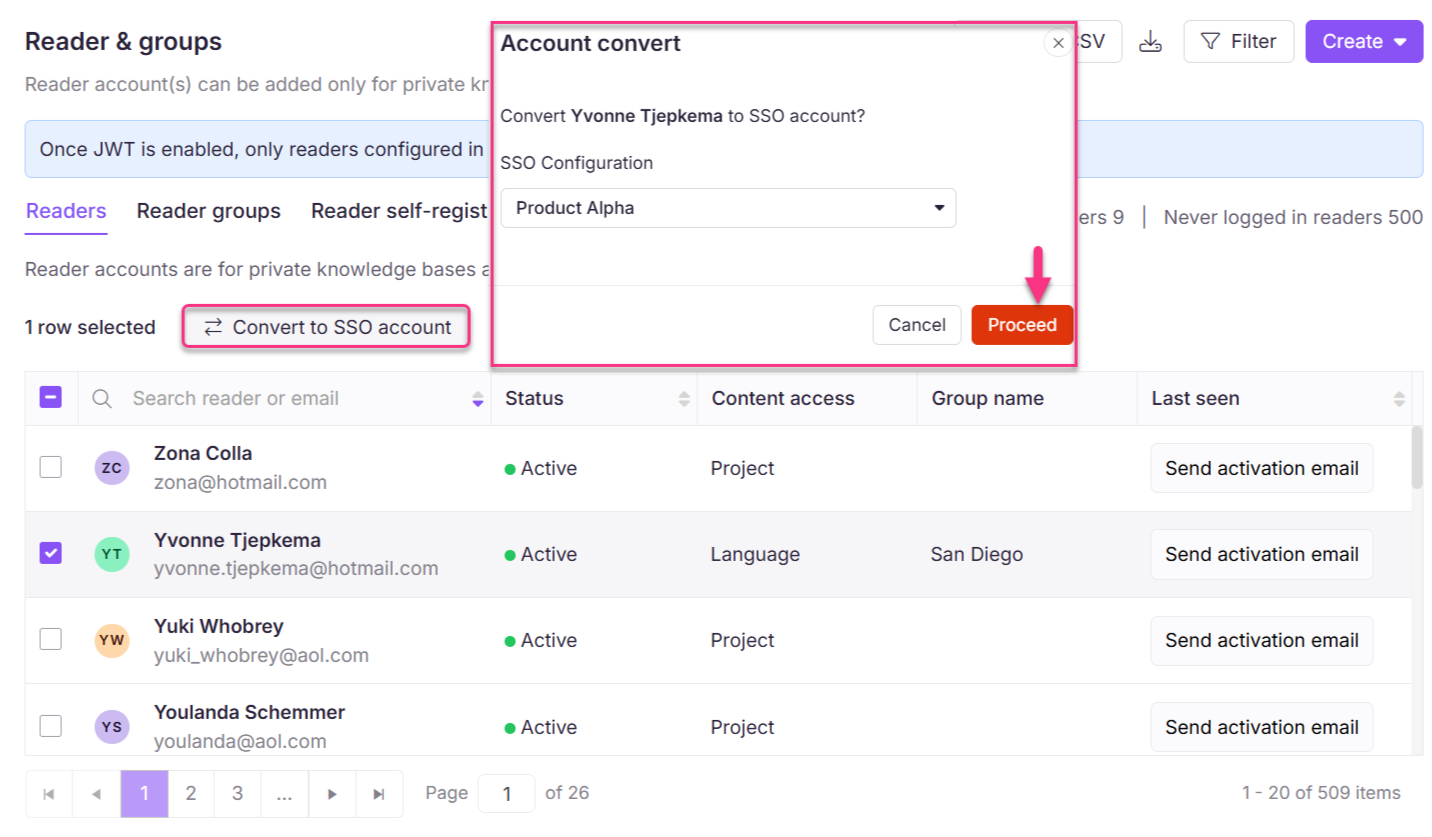
Select the desired readers and click Convert to SSO account.
The Account convert panel appears.
-
Select the desired SSO Configuration.
-
Click Proceed.
The SSO accounts can be identified with an SSO badge next to the username.
Limitations
| Limit | Detail |
|---|---|
| SSO configuration required | At least one SSO configuration must exist in the project before conversion is possible. |
| Single SSO configuration per batch | All readers selected in one conversion operation are assigned to the same SSO configuration. Convert in separate batches to use different configurations. |
| Authentication change | After conversion, the reader can no longer log in with their previous Document360 password. They must log in via the SSO provider. |
Best practices
- Notify readers before converting their account to SSO so they are not surprised when their login method changes.
- If you have readers across multiple SSO configurations, convert them in separate batches — one batch per SSO configuration.
- After converting, confirm the SSO badge appears next to the reader's username before informing them of the change.
FAQ
Can I assign different SSO configurations to different readers in the same batch?
No. All readers selected in one conversion operation are assigned the same SSO configuration. Convert in separate batches to use different configurations.
Is there a way to tell which readers are SSO accounts on the Readers list?
Yes. SSO accounts display an SSO badge next to the reader's username in the Readers list.
What happens if a reader tries to log in with their old password after conversion?
After conversion to an SSO account, Document360 password-based login is no longer available for that reader. They must log in through the SSO provider.