The filter and export features on the Document360 Readers page let you narrow the reader list to a specific subset of accounts and download the results as a CSV file. Use filters to find readers by login activity, account type, or status — then export the filtered list for auditing, reporting, or offline review.
When to filter and export readers
- You want to identify readers who have never logged in so you can follow up or clean up unused accounts.
- You need to audit active readers for a specific SSO configuration.
- You are preparing a report of all inactive readers for a periodic access review.
- You want to export reader data for use in an external system or spreadsheet.
Before you begin
- You must have the Admin or Owner portal role, or a custom role with Manage user permission.
How to filter readers
- Navigate to Settings () > Users and security in the left navigation bar of the knowledge base portal.
- In the left navigation pane, navigate to Readers & groups > Readers.
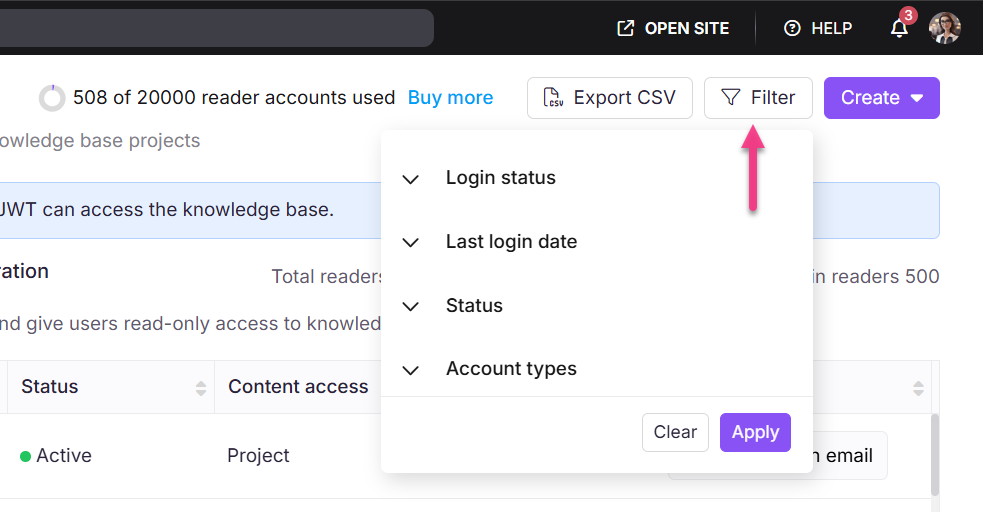
- Click the Filter button at the top right.
- Use the following parameters to refine your search, then click Apply:
| Filter | Options |
|---|---|
| Login status | Logged readers, Never logged readers |
| Last Login data | 7 days, 30 days, 3 months, 1 year, Custom date |
| Account type | SSO user, Document360 user |
| Status | All, Active, Inactive |
NOTE
Selecting SSO Users filter displays a list of available SSO configurations.
How to export readers
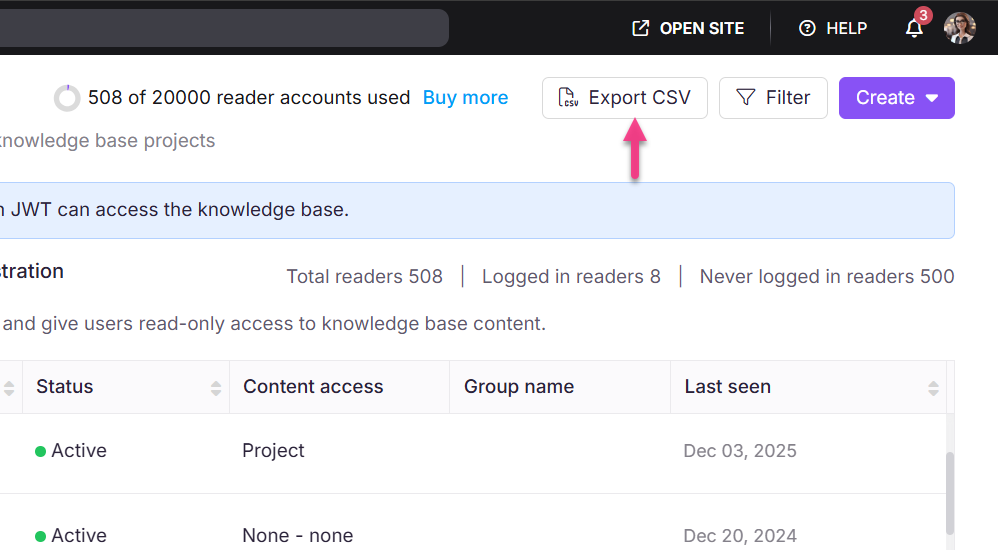
- Apply any filters you want reflected in the export (optional — exporting without filters downloads the full reader list).
- Click Export CSV to download the filtered list of readers as a CSV file to your device's local storage.
Limitations
| Limit | Detail |
|---|---|
| Export scope | The CSV export reflects the currently filtered view. Without filters, the full reader list is exported. |
| File format | Export is CSV only. |
Best practices
- Apply filters before exporting to keep the CSV focused. A full export of a large reader list can be difficult to work with in a spreadsheet.
- Use the Never logged readers filter to identify stale accounts that have never been used — these are good candidates for deactivation or deletion.
- Run a periodic export (monthly or quarterly) to maintain an offline record of who has access to your knowledge base.
- Use the Status: Inactive filter to verify all deactivated readers before performing bulk deletions.
FAQ
Does the CSV export include deactivated readers?
By default, the export includes all readers. Apply the Status: Inactive filter before exporting if you want only deactivated readers.
Will applying filters affect bulk actions like delete or deactivate?
No. Filters narrow the visible list but bulk actions (delete, deactivate) apply only to the readers you explicitly select with checkboxes, not to all filtered results automatically.