Inherited permissions for readers is a one-time migration that changes how sub-category access works in your Document360 project. After migration, any reader or reader group with access to a parent category automatically gains access to all its sub-categories — both existing ones and any created in the future — without requiring manual assignment.
This migration applies only to projects created before 1 June 2026. New projects created after this date already use inherited permissions by default and do not require migration.
When to enable inherited permissions
- Your project has a multi-level category structure and you are frequently updating reader permissions when new sub-categories are added.
- You want parent-level access to cascade automatically to all child categories.
- You are setting up a new content structure and want consistent access without manual step-by-step category assignment.
Inherited permissions control how access cascades from a parent category to its sub-categories. This is a separate concept from individual versus group access precedence. When a reader has individual access and also belongs to reader groups, they get the highest level of access from all of these sources, whether inherited or directly assigned. See Manage reader content access for details on precedence.
Before you begin
- Only a Project Owner or Admin can perform the migration. Other roles cannot trigger it.
- This migration is a one-time change for your project and cannot be undone.
- Review your existing reader and reader group category access settings before migrating. After migration, any reader or group with parent category access will automatically gain access to all sub-categories under that parent.
- All Project Owners and Admins will receive an email notification when the migration is triggered.
How to migrate to inherited permissions
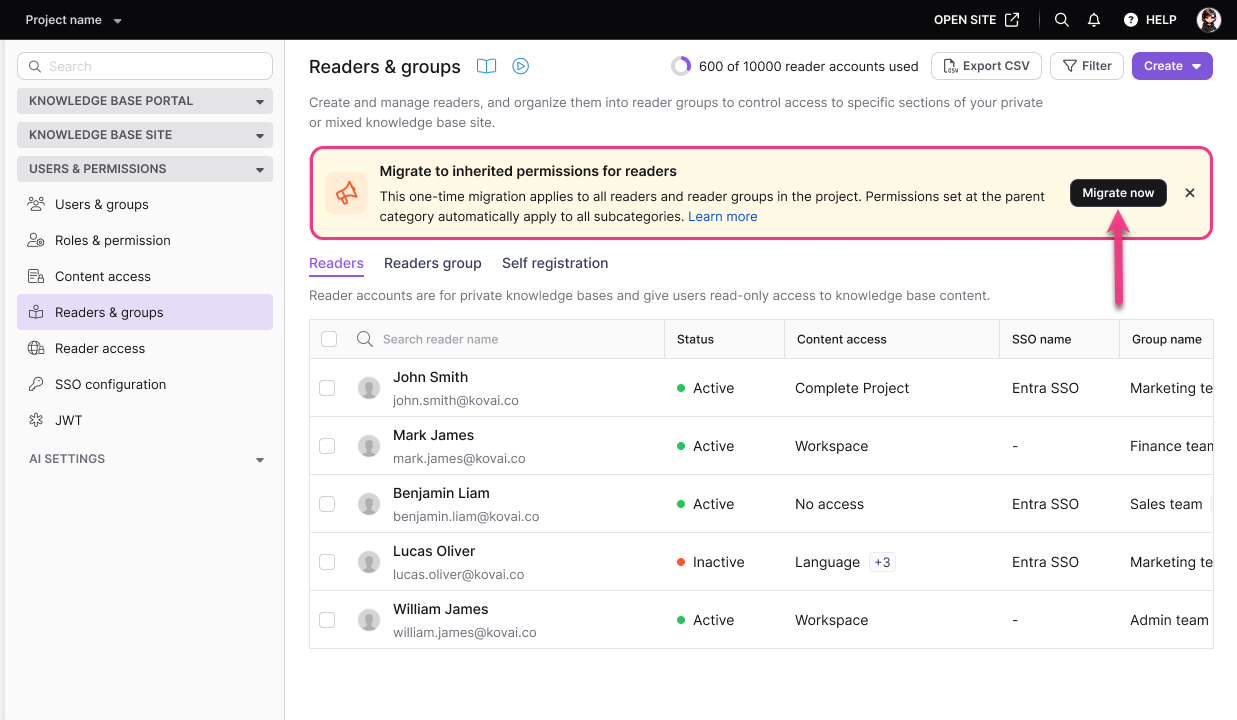
-
Navigate to Settings (
) > Users and security in the left navigation bar of the knowledge base portal. -
In the left navigation pane, navigate to Readers & groups.
A banner titled Migrate to inherited permissions for readers will appear. Click Migrate now.
If the banner was dismissed by clicking the close icon, the Migrate to inherited permissions button will remain available in the Readers & groups page header.
- In the confirmation dialog, enter your project subdomain.
- Click Confirm to complete the migration.
Once the migration is complete, inherited permissions are automatically applied across all readers, reader groups, and sub-categories. Any new sub-categories created in the future will also inherit access from their parent category. At this point, the migration banner and button are permanently removed.
To prevent a specific sub-category from automatically inheriting permissions from its parent, use Block Inheritance.
All Project Owners and Admins will receive an email notification when the migration is triggered.
What changes after migration
| Before migration | After migration |
|---|---|
| Readers see only the specific categories they are explicitly given access to | Readers with parent category access automatically see all sub-categories under that parent |
| New sub-categories require manual permission assignment | New sub-categories automatically inherit access from their parent category |
| Reader group access is managed per category at each level | Reader group access cascades from parent to all sub-categories automatically |
UI display for pre-migration items
Permissions configured before the migration remain fully intact and continue to grant access exactly as before. However, categories or articles that existed before the migration may not appear as selected in the Reader Group settings screen, even though the reader group still has access to them. This is expected display behavior, not a loss of access. Do not assume that an item is inaccessible simply because it does not appear as selected in the Reader Group UI.
Adjusting access for pre-migration items
Because pre-migration categories and articles may not appear as selected in the Reader Group settings screen, you may want to align the UI with your intended access configuration. To do this, open the affected Reader Group settings and manually select the categories or articles that were created before the migration. This does not change the access those items already have; it simply updates the Reader Group UI so that selections accurately reflect current access. This step is optional and is intended for administrators who want the Reader Group screen to visually match actual permissions.
Limitations
| Limit | Detail |
|---|---|
| Reversibility | The migration is permanent and cannot be undone. |
| Who can migrate | Project Owner or Admin only. |
| Scope | Applies to the entire project — all readers, reader groups, and categories. It cannot be applied selectively. |
| Applicable projects | Only for projects created before 1 June 2026. |
Categories or articles that existed before the migration may not display as selected in the Reader Group settings screen, even though the reader group retains access to them through the preserved pre-migration permissions. This display behavior does not indicate that access has been blocked or removed. If you want the Reader Group screen to visually reflect these items as selected, you can manually select them in the Reader Group settings. This is a cosmetic adjustment only and does not change the underlying access.
Best practices
- Before migrating, audit your category access assignments to identify any sub-categories that should not be visible to readers who have parent access. Set up Block Inheritance on those sub-categories immediately after migration.
- Communicate the change to your team before triggering the migration. All Admins and Owners receive an email notification, so they should be aware the change is planned.
- While not mandatory, performing the migration during low-traffic or non-business hours can help minimize disruption to readers accessing the knowledge base during the transition.
FAQ
Can I test inherited permissions before committing to the migration?
No. The migration is applied to the entire project at once and cannot be reversed. Review your category structure and reader access assignments carefully before proceeding.
Does the migration affect reader groups as well as individual readers?
Yes. Inherited permissions apply to both individual reader access and reader group access. Any group with parent category access will automatically inherit access to sub-categories.
Who receives the email notification when the migration is triggered?
All Project Owners and Admins in the project receive an email notification when the migration is triggered, regardless of who initiated it.