You can search your Knowledge base site to find articles, categories, and attachments from the search bar above the article list. Search ranks results by relevance and shows each result's name, a preview of the matching text, and its breadcrumb path. With advanced search, you can filter results and search across multiple workspaces and languages at once. With attachment search, you can also find text inside PDF files.
When to use advanced search and filters
Use advanced search and filters when a simple keyword match returns too many results or misses content you need.
- You search a common term like "login" and want to limit results to one workspace or language.
- Your knowledge base spans multiple workspaces, including API documentation, and you want a single search that covers all of them.
- You need to find content inside PDF attachments, not just in article text.
Before you begin
To configure search settings, you need the Owner or Admin portal role, or a custom content role that includes the Site article settings & SEO permission. For more information, see Custom content roles.
How to configure search settings
You configure all search settings in Settings () > Knowledge base site > Article settings & SEO > Article settings tab, under the Search settings accordion.
Enable advanced search
- Navigate to Settings () > Knowledge base site in the left navigation bar of the Knowledge base portal.
- Navigate to Article settings & SEO.
- Select the Article settings tab.
- Expand the Search settings accordion and turn on the Enable advanced search toggle.
- (Optional) Select the Include all workspaces in site searches checkbox to set the default Workspace filter in advanced search to All workspaces (including API documentation) instead of Current workspace.
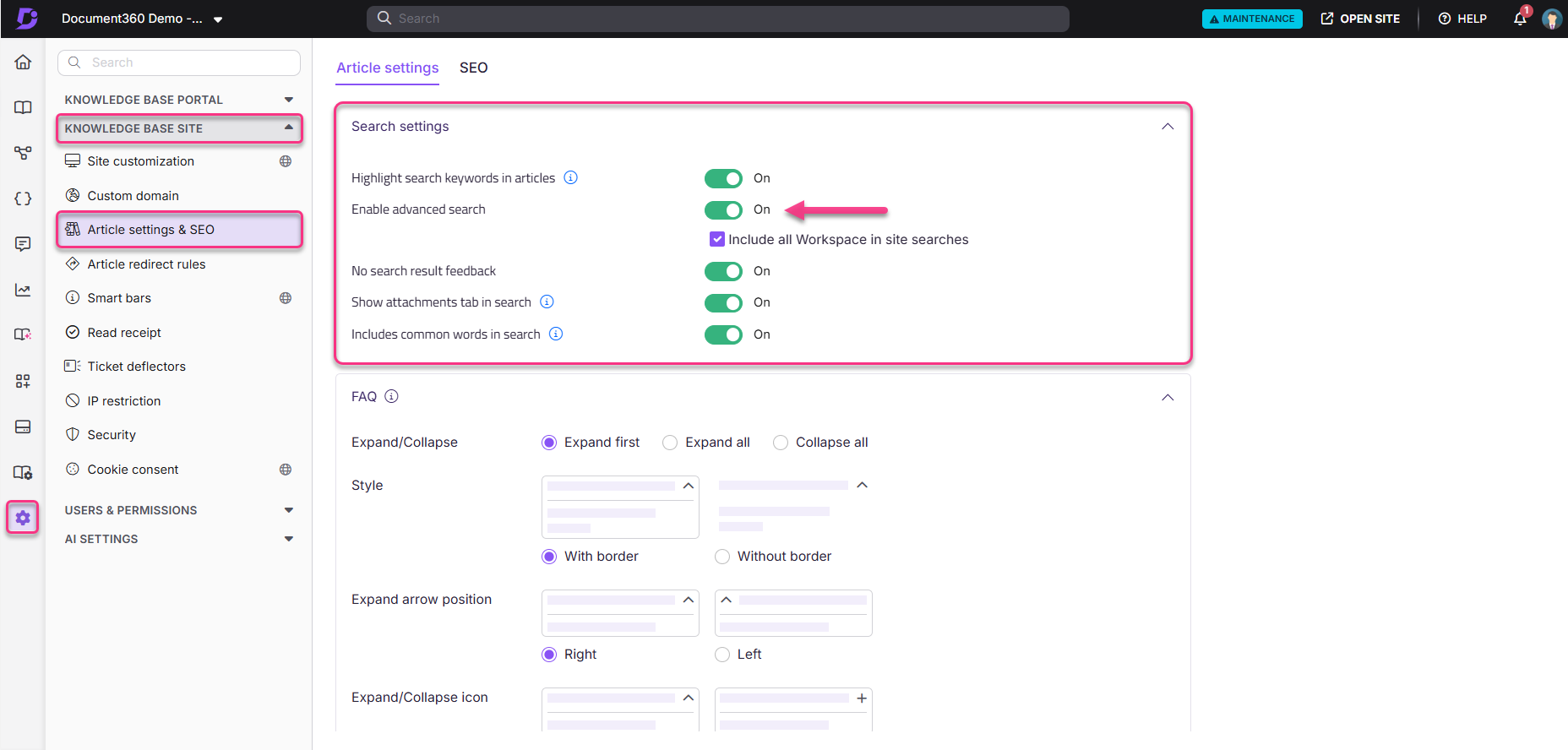
If you turn off Enable advanced search, the Go to advanced search option and its filters don't appear on the Knowledge base site. The Filter option on the search bar remains available.
Enable the attachments tab in search
- Navigate to Settings () > Knowledge base site in the left navigation bar of the Knowledge base portal.
- Navigate to Article settings & SEO.
- Select the Article settings tab.
- Expand the Search settings accordion and turn on the Show attachments tab in search toggle.
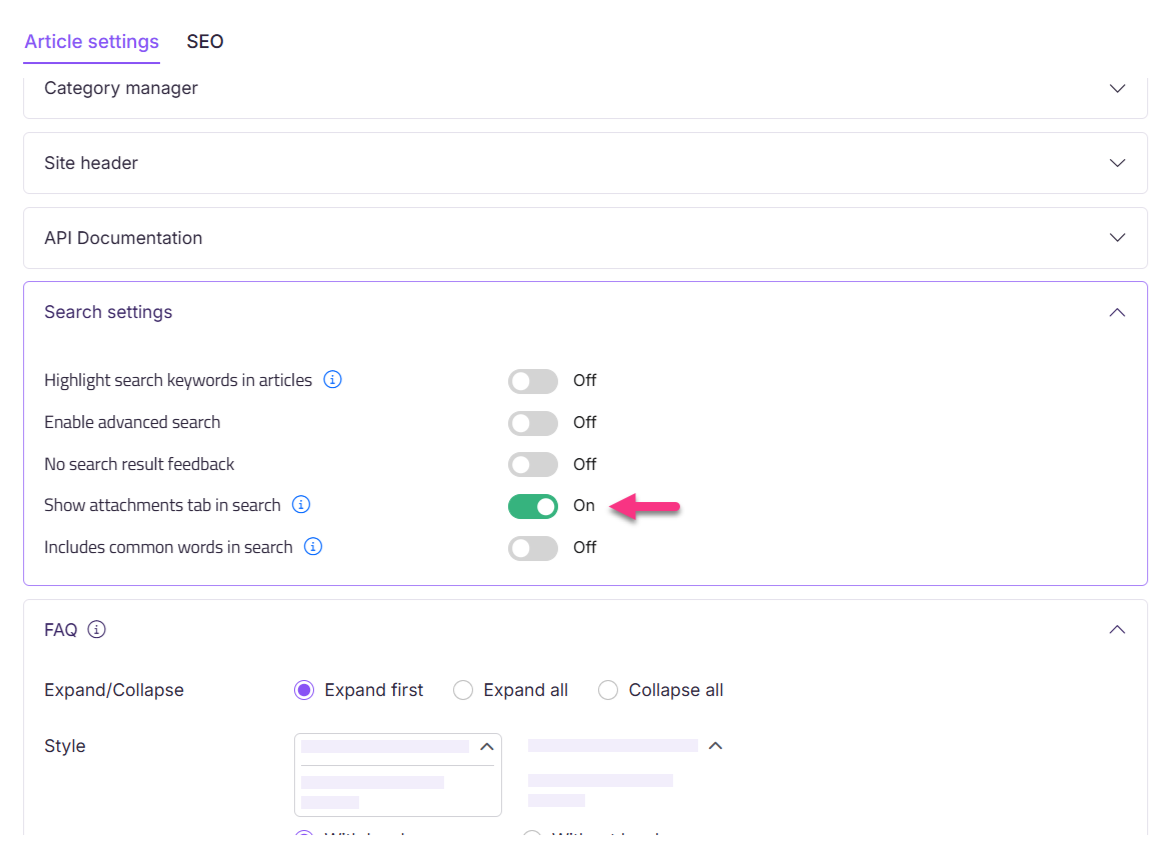
You can't access Show attachments tab in search while the Show article files toggle is off. Turn on Show article files in the Article right accordion first. When Show attachments tab in search is off, the Files tab doesn't appear in search results, and search covers only article and category elements such as title, slug, tags, and content.
Enable no search result feedback
- Navigate to Settings () > Knowledge base site in the left navigation bar of the Knowledge base portal.
- Navigate to Article settings & SEO.
- Select the Article settings tab.
- Expand the Search settings accordion and turn on the No search result feedback toggle.
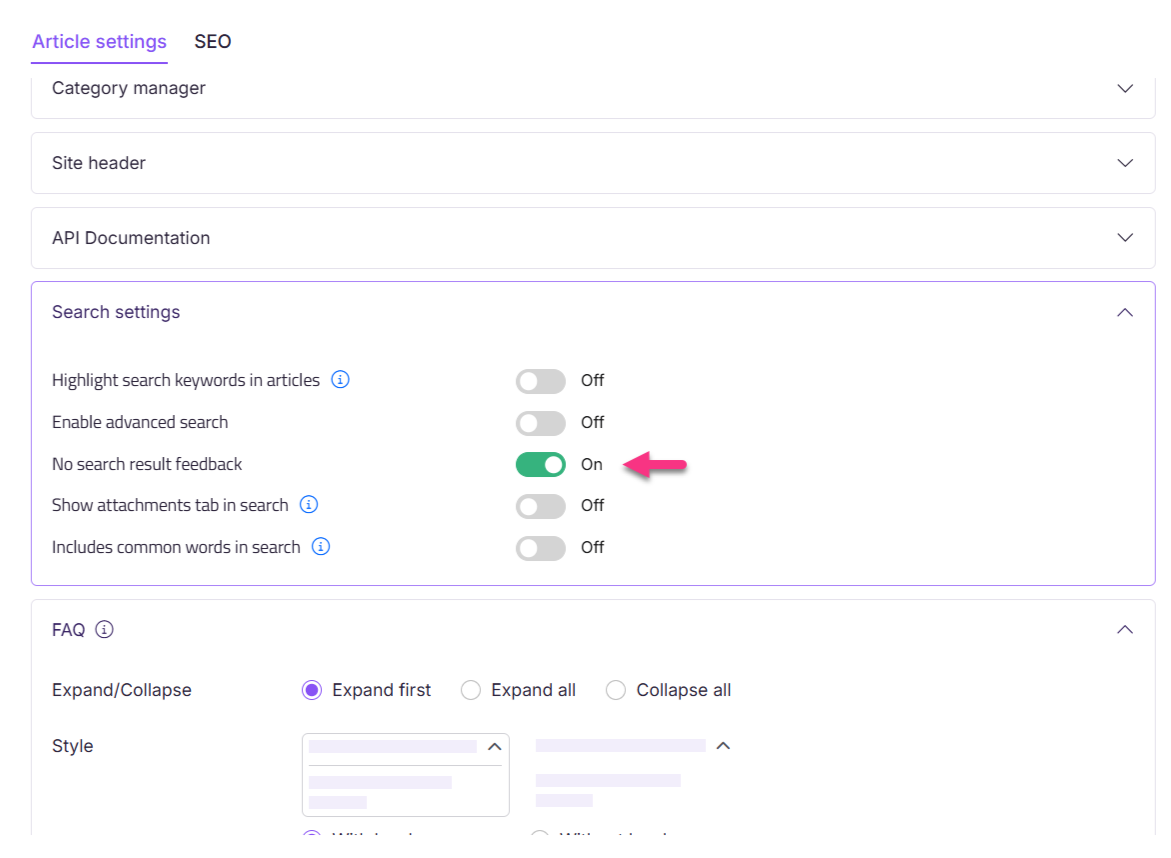
When a search returns no articles, readers now see a feedback form instead of a blank results page. You can review their submissions in the Search analytics module. If you turn the toggle off, no-result searches show a blank results page.
Search settings are now configured for advanced search, attachment search, and no-result feedback.
How to search the Knowledge base site
Search and filter results
- Click the search bar, or press
Ctrl+K. - Enter at least 2 characters of your search term. Results appear as you type.
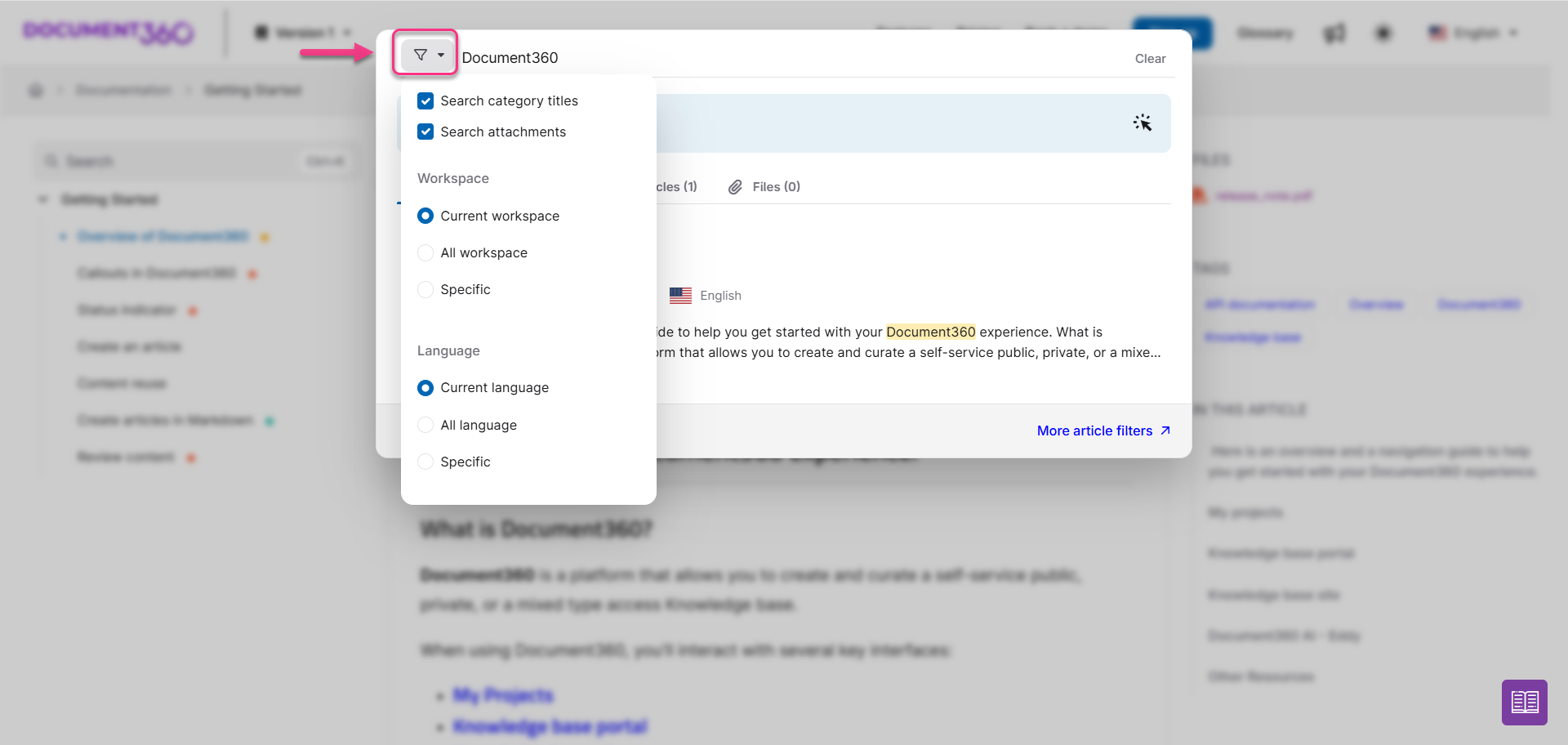
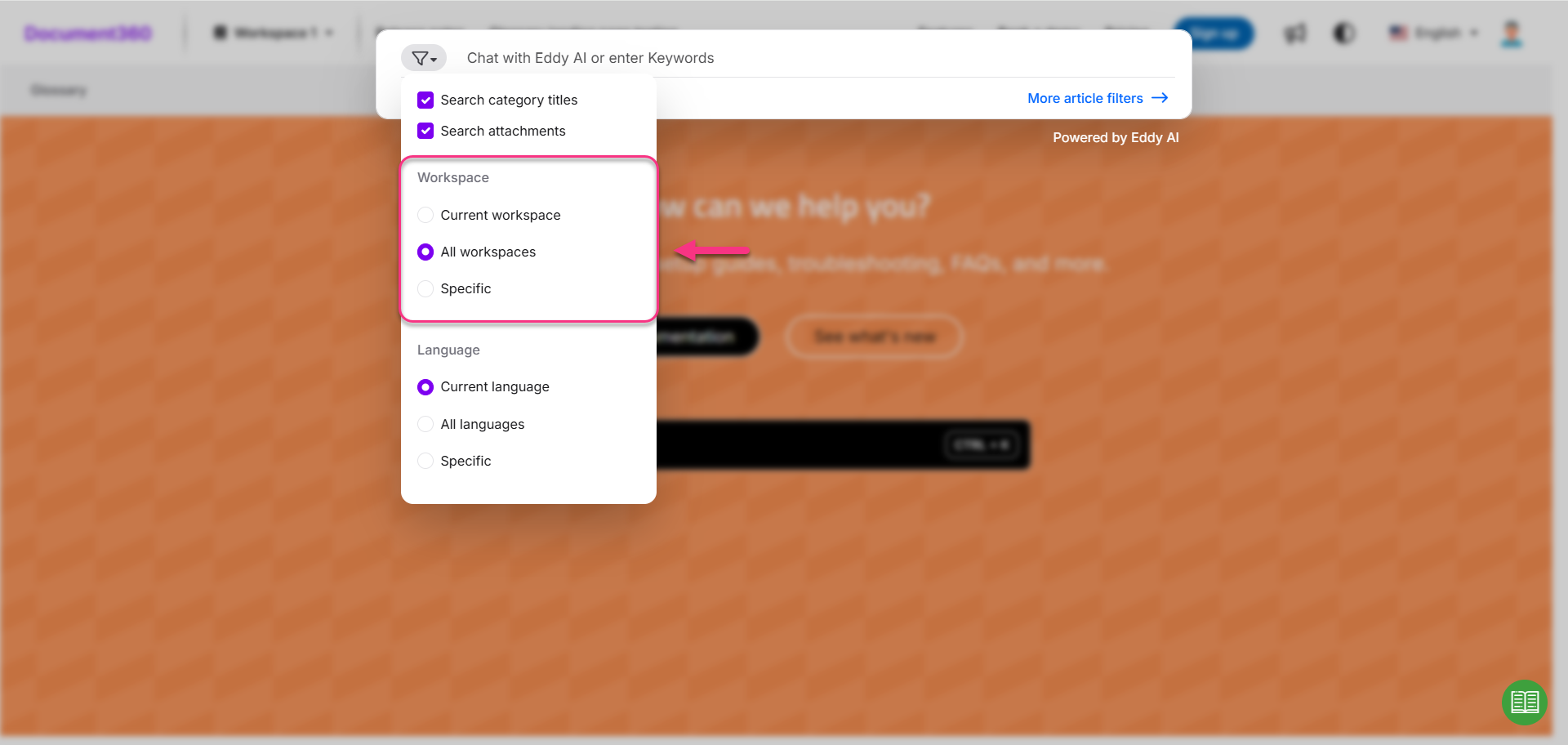
- (Optional) Click the Filter option to the left of the search bar and select the filters you need:
- Search category titles: Returns category titles and articles that contain your search keyword.
- Language: Select Current language to see results in the active language only, All languages to see results across all supported languages, or Specific to see results from one or more languages you select.
Review results by tab
Search results appear under the following tabs:
- Articles (): Results within articles.
- Decision trees (): Results within decision tree guides.
- API Docs (): Results within API documentation.
- Categories (): Results within categories.
- Files (): Results within PDF attachments. This tab appears only when Show attachments tab in search is turned on.
If your keyword returns no article results, switch to the Files tab to find matching PDF attachments and view them alongside the article. Each attachment result shows the full breadcrumb path, including the article name, so you know which article the attachment belongs to without opening the file. In the Knowledge base portal, you can use the same capability to scan PDF files in Drive for a keyword, even if the file name doesn't match.

Use advanced search
- Click the search bar, or press
Ctrl+K. - Select Go to advanced search.
- Use the following filters to refine your results.
| Filter | Description |
|---|---|
| Workspace | Current workspace: Shows results from the active workspace only. All workspaces: Shows results across all workspaces, including API documentation. Specific: Shows results from one or more workspaces you select. |
| Language | Current language: Shows results in the active language only. All languages: Shows results across all supported languages. Specific: Shows results from one or more languages you select. |
| Tags | Narrows results to articles that contain the tags you select. |
| Contributor | Narrows results to content by the contributors you select. |
| Date | Filters results by last modified date: Last 7 days, Last 30 days, Last 90 days, or a custom range. |
| Categories | Narrows results to articles or pages within the categories you select. |
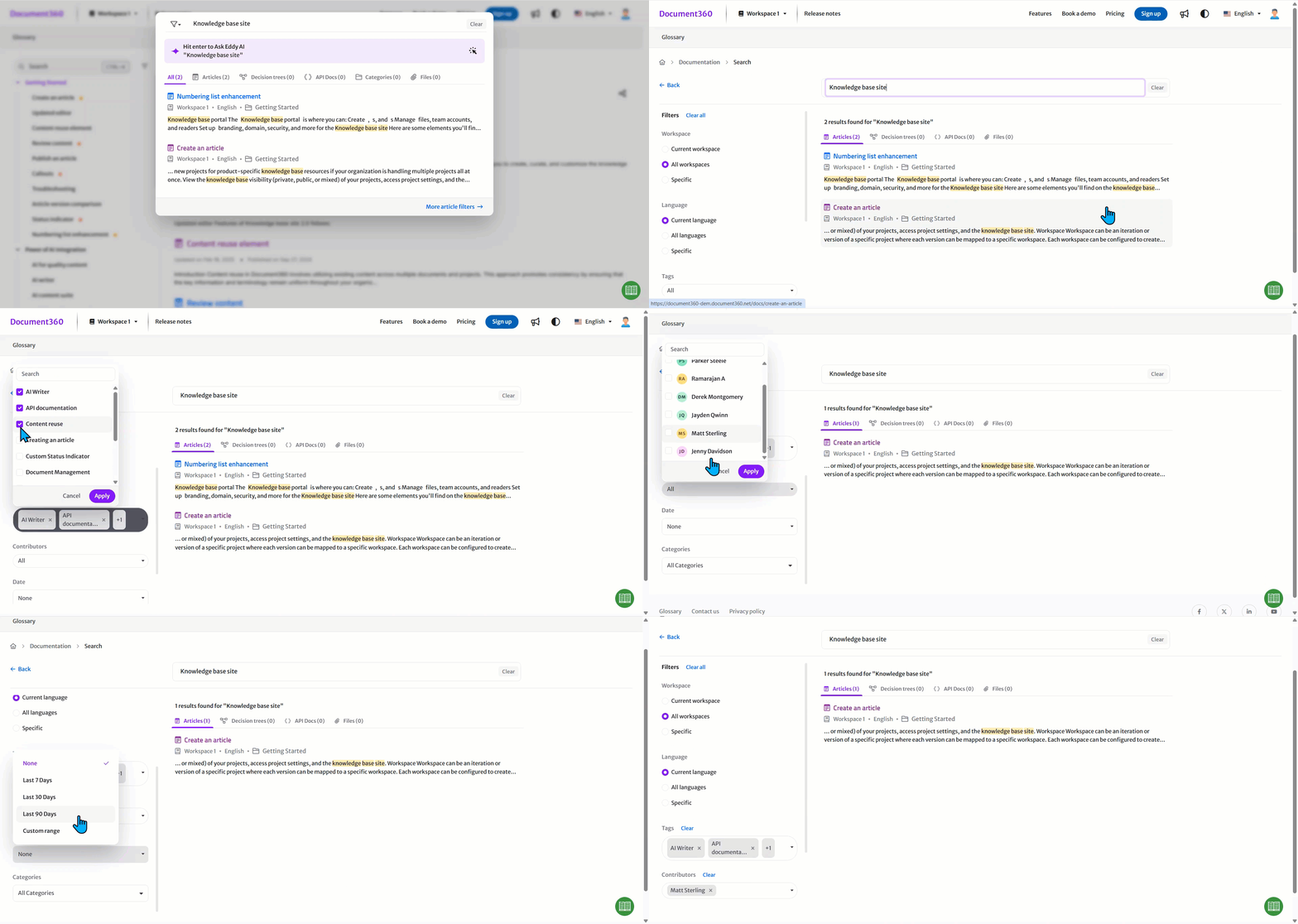
When you select Current workspace, results appear in individual tabs (Articles, Categories, API Docs) and in a unified All tab, ranked by relevance. When you select All workspaces, search scans every workspace, including API documentation, and the All tab ranks results by relevance across them.
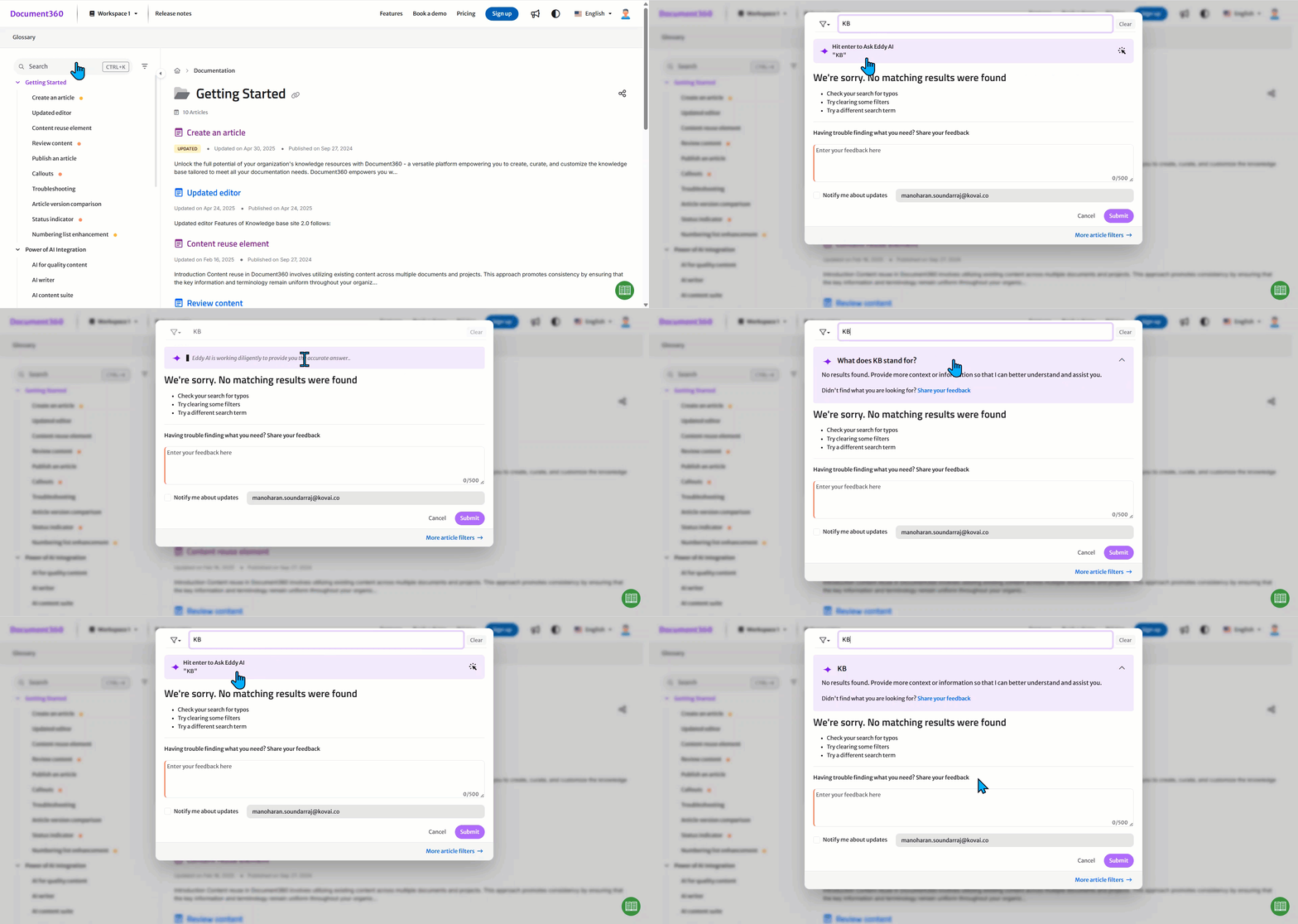
What happens when a search returns no results
When No search result feedback is on and your keyword search returns no results, the No search result feedback form appears. This works whether or not Ask Eddy AI is turned on.
If Ask Eddy AI is turned on, the Hit enter to Ask Eddy AI banner prompts you to press Enter. When you press Enter, Eddy AI attempts to fetch relevant results:
- If you entered a keyword, Eddy AI asks a follow-up question to confirm your intent.
- If you entered a complete query, Eddy AI fetches the answer directly.
How search ranks results
Search matches your query against article and category titles, tags, slugs, breadcrumbs, and the text content of articles and categories.
Search ranks results using the following relevance factors, in this order. It compares each factor only when results are tied on the factors before it.
- Typo tolerance: Results that match your search terms with fewer typos or spelling variations rank higher.
- Number of matched words: Results that match more of your search terms rank higher.
- Proximity of search terms: Results where the matched words appear closer together rank higher.
- Matching field: Results that match in a higher-priority field rank higher. Fields are prioritized in this order: Title > Tags > Slug > Breadcrumbs > Content/Description.
- Exact match: Results that contain an exact match for your search query rank higher.
Proximity is evaluated before the matching field. A result where your search terms appear close together in the article body can rank higher than a result where the same terms appear in the title but farther apart. A title match doesn't always guarantee the top position for a multi-word query. When you search for a single word, proximity doesn't apply, so title matches rank higher.
When multiple content types (Articles, Decision trees, API documentation) match your query, the most relevant result appears highest regardless of content type. If a Decision tree's relevance score is higher than or equal to an Article's, the Decision tree appears higher in results.
How to use search operators
Use search operators to build more precise queries. Search operators apply to keyword search results only. They don't apply to Ask Eddy AI responses.
- Double quotes (
""): Search for an exact phrase. Words inside double quotes must match in that exact order. - Minus sign (
-): Exclude a word from results. Place the minus sign directly before the word, with no space.
| Query | Result |
|---|---|
search -recipe |
Results that contain search but not recipe. |
search-recipe |
Results that contain both search and recipe. No exclusion happens because the minus sign is mid-word. |
-recipe |
Every result except those that contain recipe. |
-recipe pasta |
Results that contain pasta but not recipe. |
"-recipe" |
Results that contain the literal phrase -recipe. No exclusion happens. |
Considerations
| Item | Value | Notes |
|---|---|---|
| PDF attachment size for search indexing | Up to 10 MB | PDF attachments larger than 10 MB aren't indexed for keyword search. |
| Search terms | Minimum 2 characters | Search results appear only after you enter at least 2 characters. |
Document360 search is powered by Algolia, which balances speed and relevance. Algolia may return an approximate result count instead of an exhaustive one to keep response times fast, so the count for the same query can occasionally vary. This is expected behavior and isn't configurable from Document360.
Best practices
- Turn on Include all workspaces in site searches if your knowledge base spans multiple workspaces, including API documentation, so readers don't need to switch the filter manually.
- Turn on Show attachments tab in search if your knowledge base relies on PDF attachments for reference content that readers search for directly.
- Turn on No search result feedback to capture what readers were searching for, then review submissions in Search analytics to close content gaps.
- Document the search operator syntax (
""and-) for power users who need precise, repeatable queries.
FAQ
How does Algolia search work in fetching responses?
Algolia first looks for articles that contain all the words in your query. If it finds no exact matches, it broadens the search to include articles that contain any of the terms. This way, you still see relevant content even when no article matches every term exactly. Results are then ordered using the relevance factors described in How search ranks results.
How do I hide the search bar on the Home page?
The Home page search bar is visible by default. You can hide it without affecting search on the rest of the Knowledge base site. Navigate to {{variable.Settings}} () > {{variable.Knowledge base site}}, then go to Site customization > Customize site. Select the Header & Footer dropdown, choose Home, click the Hero section, select Search, and then click the Hide icon.
How do I exclude an article from search?
You can exclude an article from search within your knowledge base or from external search engines. For more information, see Search visibility. Hidden articles don't appear on the Knowledge base site and readers can't search for them, though your team members can still find them in the Knowledge base portal. You can hide categories and page categories the same way.
Will my search include API documentation results?
Advanced search uses the Current workspace filter by default. To search your regular documentation and API documentation together, open advanced search and select All workspaces in the Workspace filter.
How does the search bar behave with RTL languages, such as Hebrew and Arabic?
When you select an RTL language, the search bar aligns text to the right and accepts right-to-left input. If you select multiple languages and all are RTL, the search bar keeps right-to-left input and alignment. If your selection mixes RTL and LTR languages, behavior follows the default language: input starts from the right if the default is RTL, or from the left if the default is LTR.
Can I localize or customize the UI text in advanced search?
Yes, using Localization variables. Navigate to {{variable.Settings}} () > {{variable.Knowledge base portal}} > {{variable.Localization n Workspaces}}. In the Localization variables tab, expand the Advanced search accordion, update elements such as Go to advanced search, Workspace, and Language, and then click Save.