This article covers how to enable Ask Eddy AI for your knowledge base, configure where it appears, use it as a reader, set up PDF search, and localize its UI text.
Before you begin
- You must have Admin or Owner level access to your Document360 portal.
- Your knowledge base content must be Published. Draft, unpublished, and archived articles are not indexed by Eddy AI.
- If you want PDF attachments indexed, ensure the files are 40 MB or smaller and are embedded, attached, or linked from external drives within an article.
Enable Ask Eddy AI
-
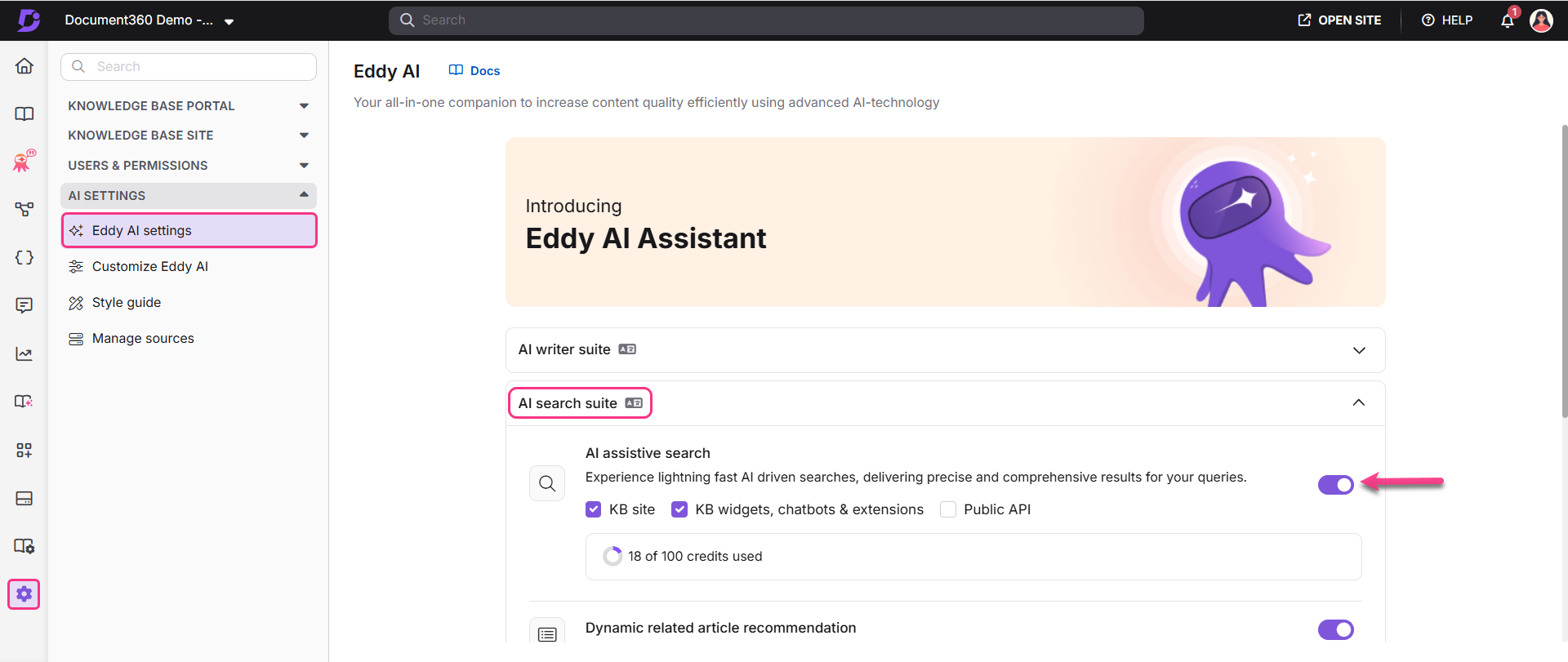
In the Knowledge Base portal, select Settings in the left navigation bar.
-
In the left navigation pane, go to AI settings > Eddy AI settings.
-
Expand the AI search suite accordion and turn on the AI assistive search toggle.
Document360 will begin indexing your knowledge base content. Once indexing is complete, the Ask Eddy AI button appears on your KB site search bar and home page.
Choosing where to enable Ask Eddy AI
After enabling the AI assistive search toggle, select where Ask Eddy AI is available:
| Option | What it does |
|---|---|
| KB site (default) | Enables Eddy AI for searches on the Knowledge Base site |
| KB widgets, chatbots & extensions | Enables Eddy AI for embedded widgets and third-party integrations |
| Public {{ glossary.API}} | Activates Eddy AI for all API endpoints using a single API token |
Content scope: By default, Eddy AI answers from all workspaces and languages in your project. To limit it to specific workspaces, languages, and categories, go to Settings > AI settings > Manage sources and set Content access to Allow selected. To exclude a single article, go to its Article settings > Search visibility and select Exclude from Eddy AI assistive search.
Use Ask Eddy AI as a reader
Once enabled, here is what the experience looks like for anyone visiting your knowledge base site.
- Click the Search bar at the top of the page, or press
Ctrl+Kon the Knowledge Base site. - Start typing a keyword. General search results appear as you type.
If Ask Eddy AI is not enabled in the Knowledge Base portal, only the standard search bar will be available on the Knowledge Base site.
-
Press Enter. Ask Eddy AI generates a response. Eddy provides answers in the language in which the question is asked.
The generated response includes citations with reference numbers indicating which parts of the response were sourced from which articles. Click a reference number to open the corresponding source article in a new tab.
-
Click the Copy icon to copy the generated response if needed.
-
Provide feedback by clicking the Like or Dislike icon. Selecting Dislike opens a feedback form where you can add comments on why you disliked the response.
Eddy AI's response is contextual and is based on the last five queries in the session. Eddy responds in the language the question is asked in, for queries of three or more words. For one- or two-word queries, Eddy responds in the knowledge base site's default language.
- After the first query and answer, click the Continue conversation with Eddy AI text field to enter your next query and press Enter or click the Send icon.
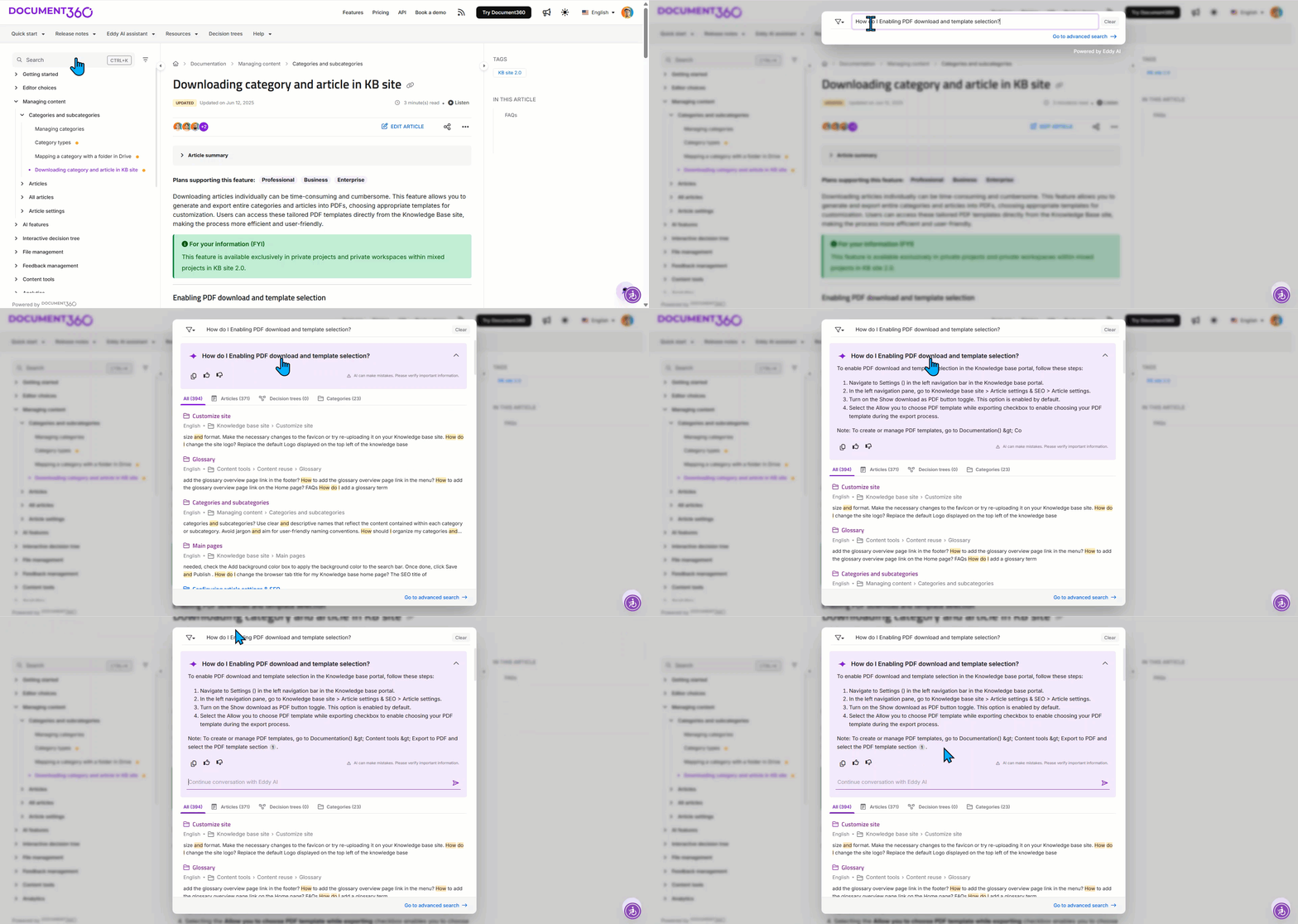
You can select a specific workspace or all workspaces from the filter (⚗) dropdown to fetch relevant results based on the selected context. If you change the workspace filter during an Ask Eddy AI conversation, the generated results will be reset.
Searching within PDF attachments
Ask Eddy AI can search and index content within PDF files attached to your knowledge base articles.
What Eddy AI indexes in PDFs
- PDF files that are embedded, attached, or inserted as links from external drives.
- Documents written in any language supported by Eddy AI.
- Files that are 40 MB or smaller in size.
How citations work for PDFs
- When an answer is sourced from a PDF attachment, it appears as a separate citation from the article itself.
- The citation includes the name of the article the attachment belongs to.
- If the same PDF is linked to multiple articles, Eddy displays whichever article either contributes to the same answer or has the closest content match to your query.
- Clicking a PDF citation will open or download the file, depending on your browser settings.
What Eddy AI will not index from PDFs
| Excluded content | Reason |
|---|---|
| Multi-column layouts | Layout parsing not supported |
| Non-selectable (scanned/image-only) text | No OCR on image-based text |
| Code blocks, LaTeX, tables, lists within PDFs | Structured content extraction not supported in PDFs |
| Files over 40 MB | Size limit |
| Files with no article dependency (0 dependencies) | Not associated with any article |
| Files when AI search is turned off at project level | Global setting override |
Excel files — Ask Eddy AI does not index or retrieve information from Excel (.xlsx) files uploaded in articles. Only PDF attachments are supported.
Localize and customize Eddy AI UI text
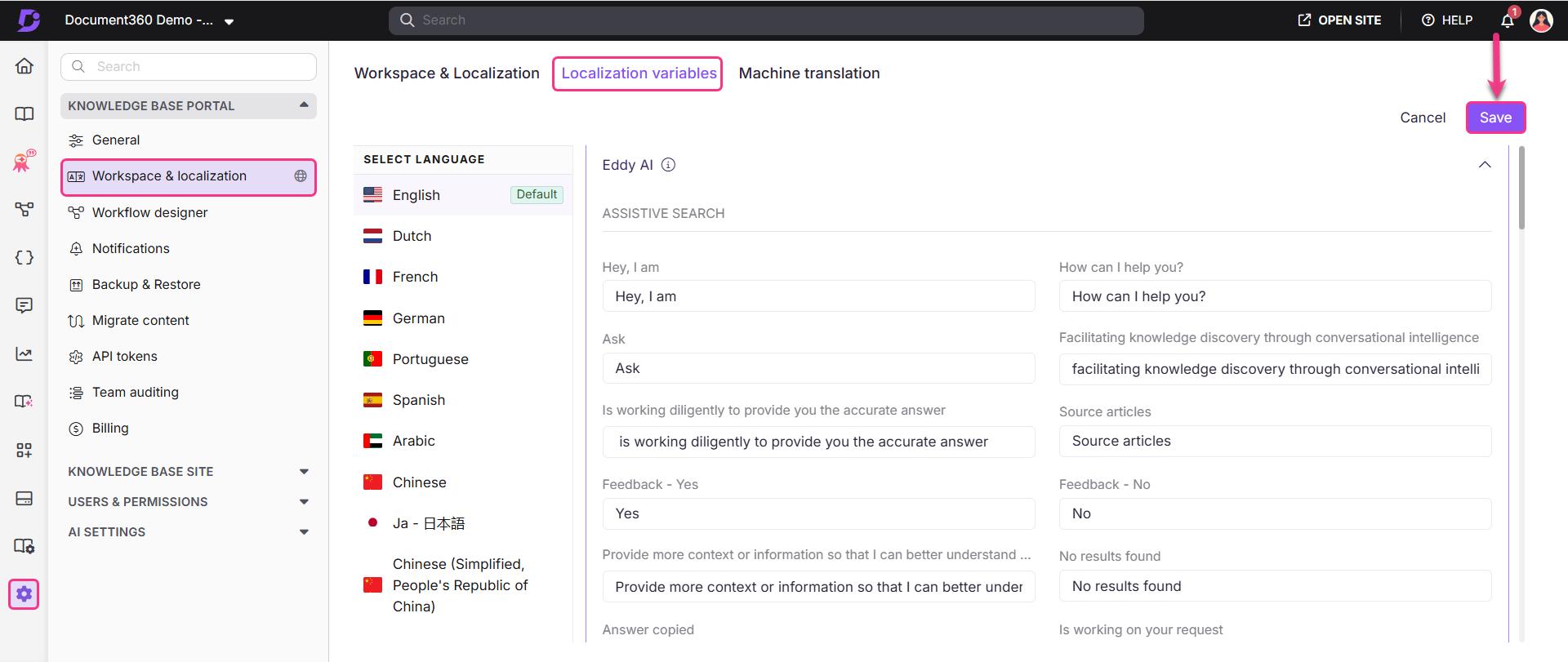
You can customize the labels, prompts, and UI text that appear in Eddy AI's assistive search interface using the Localization variables feature. This is useful for localizing to a specific language or aligning with your brand's tone of voice.
-
In the Knowledge Base portal, select Settings in the left navigation bar.
-
In the left navigation pane, go to Knowledge base portal > Workspace & localization.
The Workspace & localization tab is selected by default.
-
Select the Localization variables tab.
-
In the Eddy AI accordion, update the variable values to your desired language or custom text.