The Article summarizer is an AI-powered feature in Document360 that generates a condensed summary of any article, letting readers quickly grasp the key points without reading the full content. It uses natural language processing (NLP) to extract the most relevant information while preserving the original context. The summary appears at the top of the article on your Knowledge Base site and can be expanded or collapsed by the reader.
When to use the Article summarizer
- Long technical articles — help readers decide whether the article is relevant before committing to reading it in full.
- Multilingual knowledge bases — provide a quick orientation in the reader's language before they dive into detailed content.
- High-traffic support articles — reduce time-to-answer for readers who need a fast resolution.
Before you begin
The preprocessed word count of the article must exceed 250 words.
What is a preprocessed word count?
Preprocessing filters out non-text elements before counting words. The following are excluded from the word count:
- HTML tags
- Images
- URLs and links
- Code blocks
The word count shown at the bottom of the Document360 editor includes HTML tags, links, code blocks, and other elements. The preprocessed count will be lower. Ensure the preprocessed content exceeds 250 words for the summarizer to generate a summary.
Enable the Article summarizer
- In the Knowledge Base portal, select Settings () in the left navigation bar.
- In the left navigation pane, go to AI settings > Eddy AI settings.
- Expand the AI search suite accordion.
- Turn on the Article summarizer toggle.
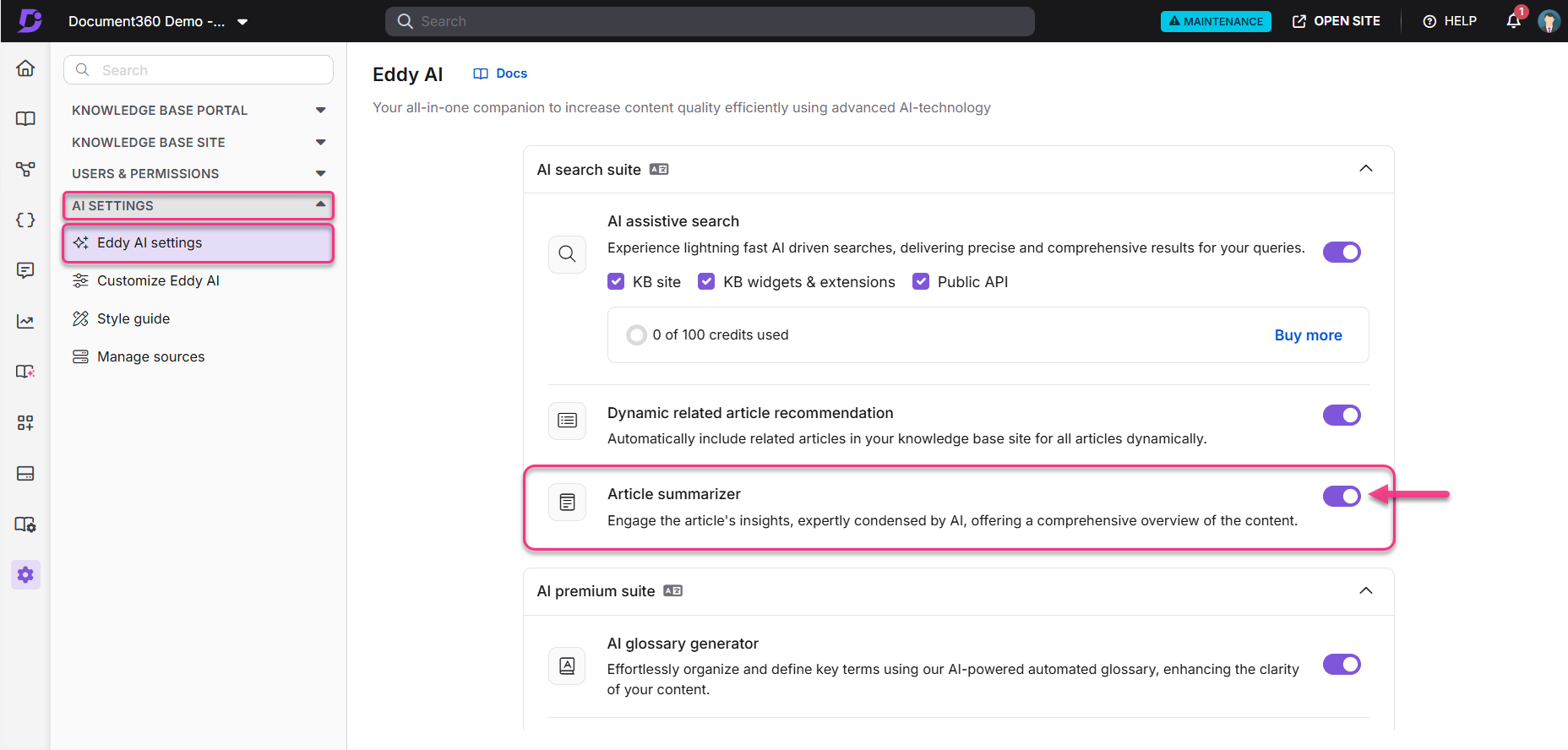
Once enabled, a Summary section appears at the top of each qualifying article on the Knowledge Base site. Readers can click Summary to expand and read it.
.png)
Localize the Article summarizer UI text
You can translate or customize the labels displayed in the Article summarizer using Localization variables.
- In the Knowledge Base portal, select Settings () in the left navigation bar.
- In the left navigation pane, go to Knowledge base portal > Workspace & localization.
- Select the Localization variables tab and expand the Eddy AI accordion.
- Update the text for any of the following elements: Article summary, Summarized, Suggestions for improvements.
- Click Save.
By default, the system localizes variables to the respective language. For a full list of languages supported by Eddy AI, see Multilingual support for Eddy AI Search Suite.
Data privacy
The Article summarizer uses an OpenAI integration to generate summaries. OpenAI does not use data submitted through the API to train its models or improve its services. For full details, read the OpenAI API data usage policies and the Document360 privacy policy.
Best practices
- Check preprocessed word count before enabling — if most of your articles are under 250 preprocessed words, summaries will not generate. Review article length across your knowledge base first.
- Review generated summaries after enabling — spot-check summaries on your highest-traffic articles to confirm the NLP output is accurate and reflects the article's intent.
- Localize summary labels for multilingual knowledge bases — update the Localization variables for each language version so readers see labels in their own language, not the default English.
- Use summaries as a quality signal — if a generated summary is vague or inaccurate, it often indicates the article itself lacks clear structure. Use it as a prompt to improve the source content.
FAQ
Why is no summary appearing on my article even though the toggle is on?
Two conditions must be met: the article must have been published on or after May 27, 2023, and its preprocessed word count must exceed 250 words. The editor word count includes HTML, links, and code blocks — the preprocessed count will be lower. See Before you begin for details.
Can readers dismiss or hide the summary?
Yes. The summary is collapsed by default and only expands when the reader clicks Summary. Readers can collapse it again at any time.
Can I edit or override the generated summary?
No. The summary is generated automatically by the AI and cannot be manually edited within Document360. If the summary is inaccurate, improving the structure and clarity of the article body will produce a better result.
Why article summary isn't visible for a particular workspace?
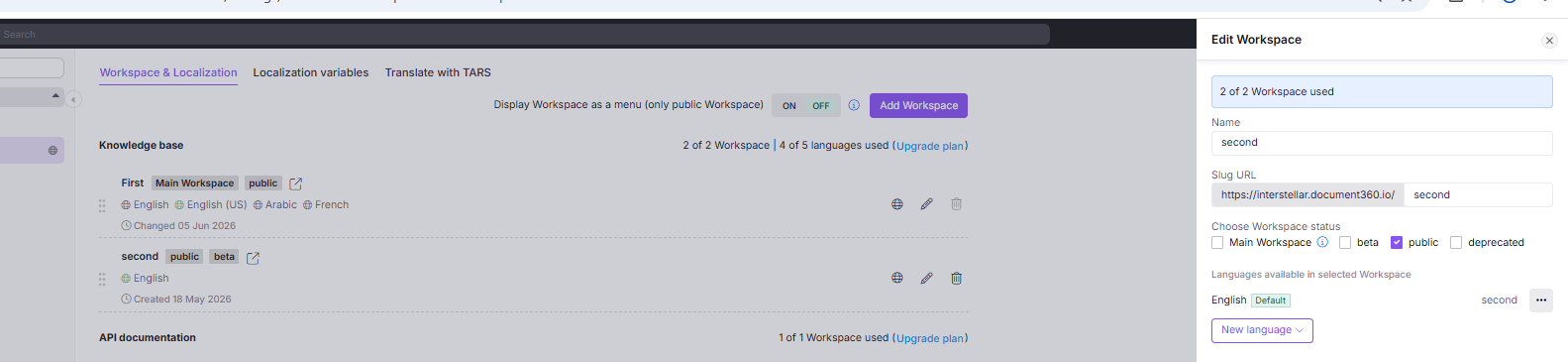
Article summaries are displayed only for articles within a Public workspace. If the workspace is not set to Public, users will see only the article preview, and the article summary will not be shown on the site.
Can I preview the summary before publishing an article?
No. The summary is generated for published articles and appears only on the Knowledge Base site. To review a summary, publish the article and check it on the site. If the summary is inaccurate, improving the structure and clarity of the article body will produce a better result on the next update.