The Eddy AI Public API lets you embed Eddy AI's assistive search directly into your own platform or service, so users can query your knowledge base without visiting your documentation site. You call the API endpoint with a prompt and receive an AI-generated answer drawn from your knowledge base content. This gives you full control over the search interface — including how it looks, where it appears, and how it behaves within your product. The API is available through the Document360 API hub.
For a full list of languages supported by Eddy AI, see Multilingual support for Eddy AI Search Suite.
When to use the Eddy AI Public API
- Embedded search in your product — surface knowledge base answers inside your application UI, without redirecting users to a separate documentation site.
- Custom search interfaces — build a search experience that matches your brand's color scheme, terminology, and layout.
- Automated support workflows — integrate Eddy AI into chatbots, ticketing systems, or onboarding flows that query your knowledge base programmatically.
Before you begin
- The Eddy AI Public API must be enabled in your project settings (see How to enable the Public API below).
- You need an API token with the POST method enabled (see How to create an API token below).
- The AI assistive search toggle requires at least one delivery checkbox (Public API or others) to remain selected — deselecting all checkboxes will automatically turn off the toggle.
Enable the Public API
- In the Knowledge Base portal, select Settings () in the left navigation bar.
- In the left navigation pane, go to AI settings > Eddy AI settings.
- Expand the AI search suite accordion.
- In the AI assistive search section, select the Public API checkbox.
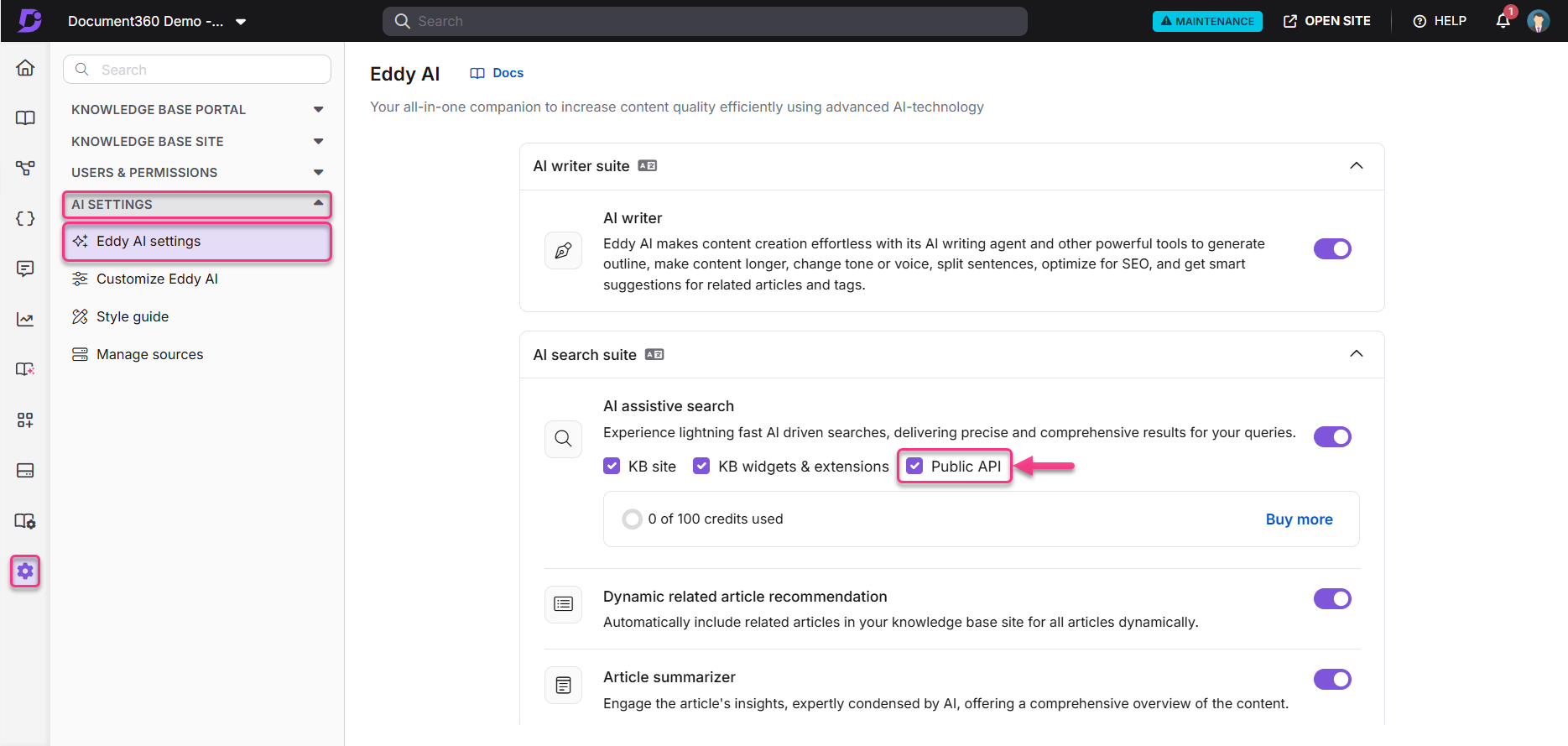
If the Public API is not enabled, all API calls will return a 500 (service error) or 400 (API access disabled) response. Ensure the checkbox is selected before making any API calls.
Create an API token
You need an API token to authenticate requests to the Eddy AI Public API.
- In the Knowledge Base portal, select Settings () in the left navigation bar.
- In the left navigation pane, go to Knowledge base portal > API Tokens.
- Click Create API Token, enter a token name, and set the method to POST.
- Click Create, then copy the generated API token and store it securely.
Test the API
You can test the Eddy AI Public API in two ways — through the Document360 API documentation or through the Swagger API hub.
Test via API documentation
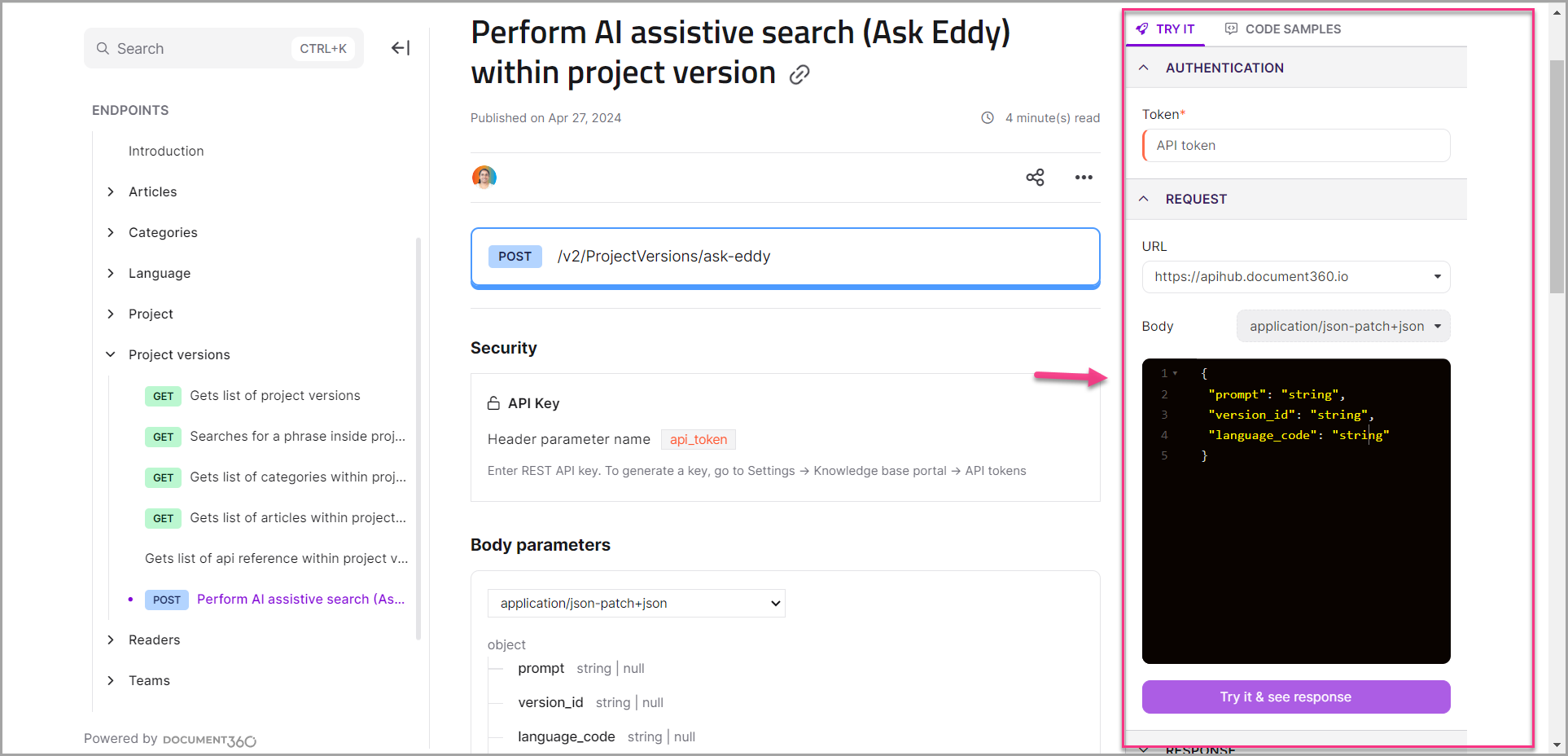
- Go to the Document360 API documentation.
- On the right side of the page, select the Try it section.
- In the Token field, enter your API token.
- Fill in the Body fields:
| Field | Description |
|---|---|
| Prompt | The question or query to send to Eddy AI |
| Version ID | The ID of your knowledge base project version |
| Language code | The language code for the query (e.g. en) |
- Click Try it & see response. The AI-generated response appears below.
Test via Swagger
-
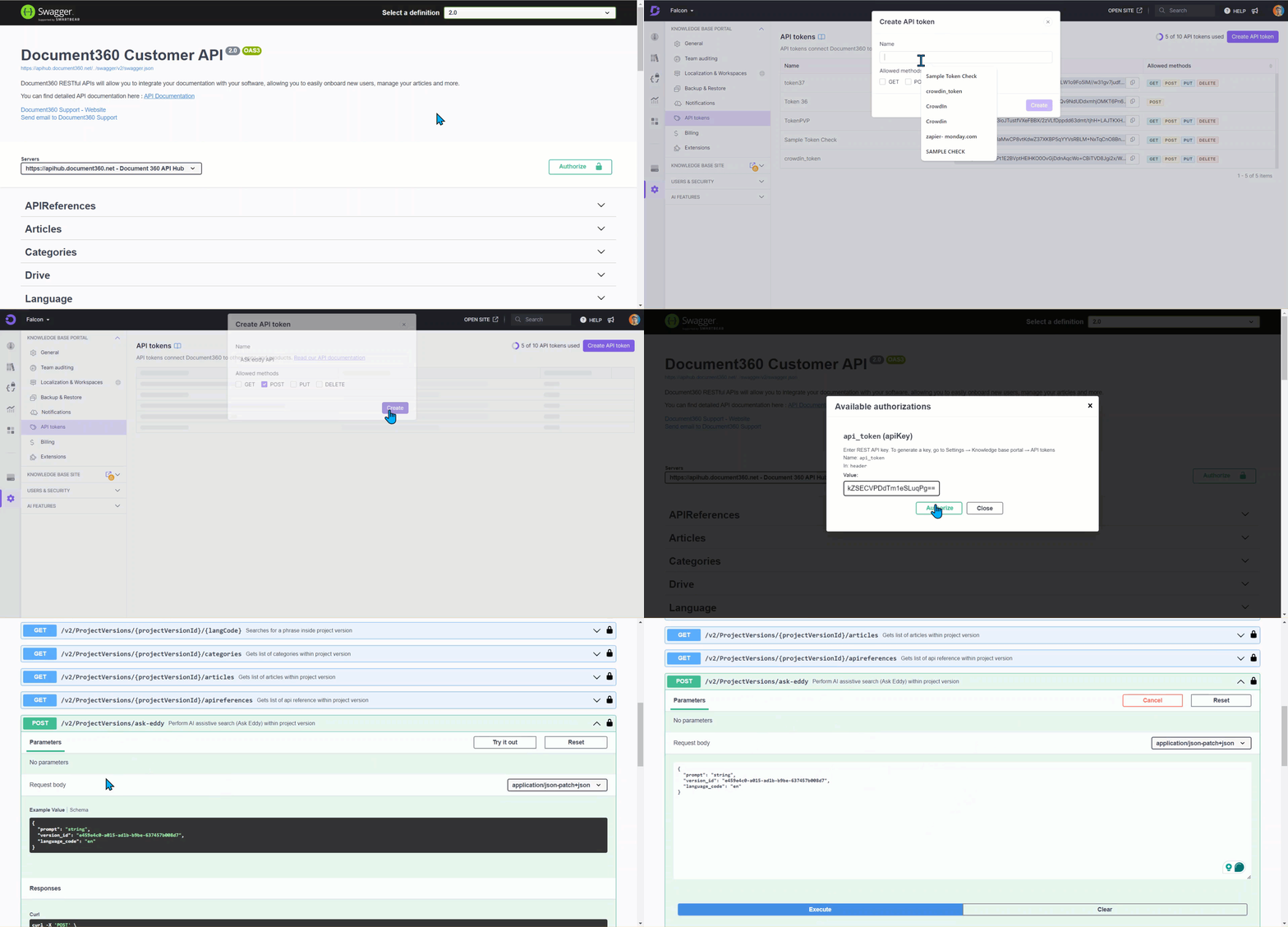
Go to the Swagger API hub. The Ask Eddy AI API is listed under Project versions.
-
In the top-right corner, click Authorize.
-
In the Available authorizations panel, paste your API token and click Authorize.
-
Navigate to Project versions >
/v2/ProjectVersions/ask-Eddy AIand click Try it out.The default request box appears with the following fields to complete:
| Field | Description |
|---|---|
| Prompt | The question or query to send to Eddy AI |
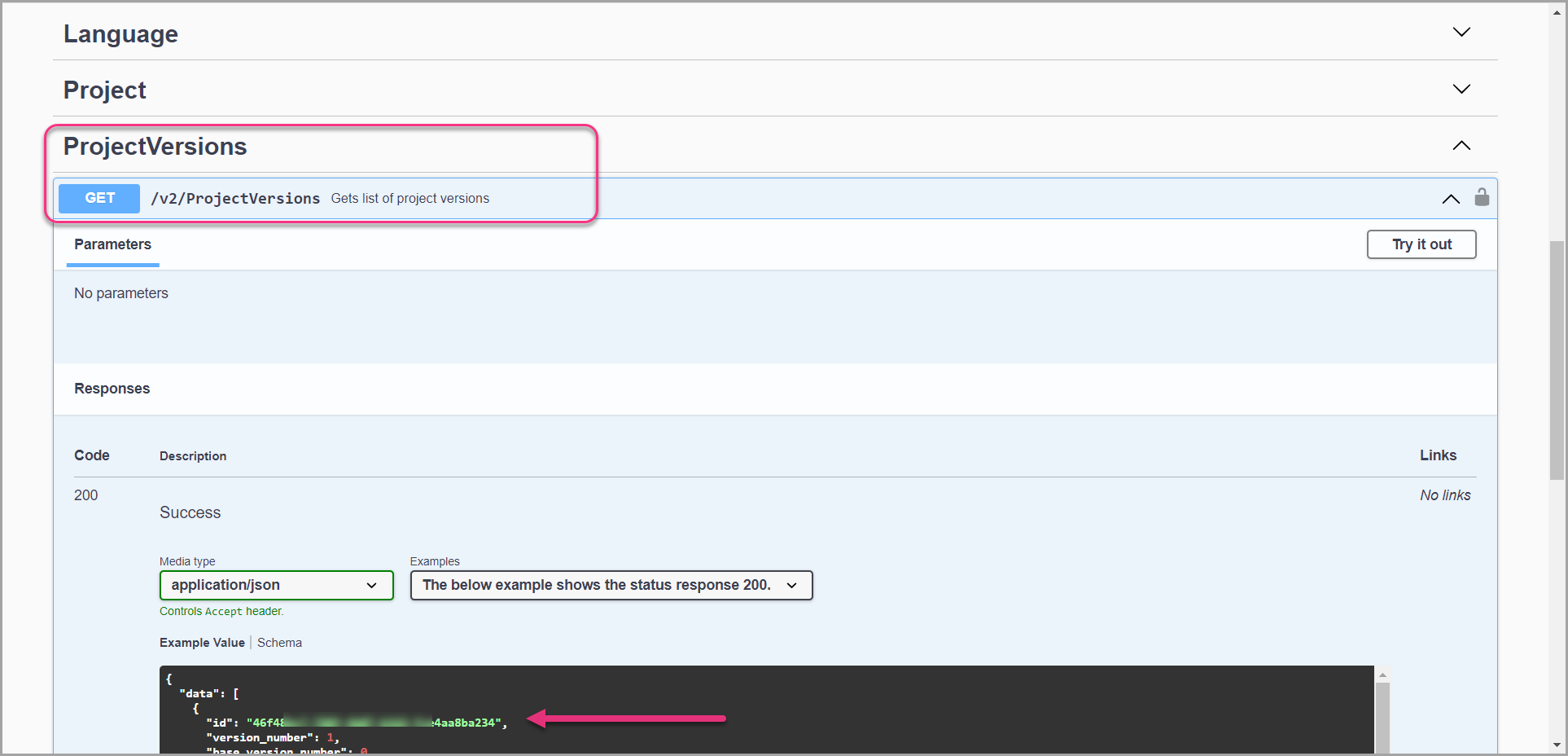
| Version ID | Retrieve this from the /v2/ProjectVersions endpoint |
| Language code | The language code for the query |
To retrieve your Version ID, call the /v2/ProjectVersions endpoint first:
- Click Execute. A successful response contains the AI-generated answer and source article details.
If you receive a "service unavailable" error in Swagger, verify that the Public API checkbox is selected in Settings > AI
settings > Eddy AI settings > AI search suite.
Best practices
- Store API tokens securely — treat your API token as a secret. Do not expose it in client-side code or public repositories. Rotate it if it is compromised.
- Use the correct ID type for your content — standard articles use
articleID, but Pagecategory articles requirecategoryID. Using the wrong ID returns null fields in the response. See the FAQ for details. - Specify the language code explicitly — always pass the correct language code in the request body to ensure Eddy AI searches the right language version of your knowledge base.
- Handle error responses — implement error handling for
400(API access disabled) and500(service error) responses. Both typically indicate the Public API checkbox is not enabled.
FAQ
Why do source article fields return null in the API response?
This happens when you query a Pagecategory article using an articleID. For Page category content, the article_id, article_title, and article_slug fields return null because the content is category-level, not article-level. Use the categoryID instead to retrieve the correct details. A Page category API response looks like this:
{
  "category_id": "_categoryid",
  "category_title": "Title",
  "category_slug": "slug",
  "version_name": "v1",
  "version_slug": "v1",
  "article_id": null,
  "article_title": null,
  "article_slug": null,
  "version_display_name": null
}
Why am I receiving a 400 or 500 error when calling the API?
A 400 (API access disabled) or 500 (service error) response means the Public API is not enabled in your project. Go to Settings > AI settings > Eddy AI settings > AI search suite and confirm the Public API checkbox is selected.
Can the Documentation be integrated with a third-party tool or Chatbot?
Yes, you can use the Ask Eddy AI endpoint to retrieve answers from the documentation and provide responses through the third-party tool or chatbot.