This article covers how to monitor and manage your Ask Eddy AI credit balance, purchase additional credits, and configure credit usage notifications.
Managing credits
One Eddy AI credit equals one question (prompt) asked by a user.
Checking your credit balance
Go to Settings > AI settings > Eddy AI settings > AI search suite > AI assistive search to see your remaining credits. Only admins and owners can view this.
Reach out to support@document360.com for additional credits.
Credits cannot be purchased during a trial period.
Why is the Ask Eddy AI button greyed out?
If the button appears inactive, it means your monthly credit limit has been reached. You need to purchase additional credits or wait for the monthly renewal to resume using the feature.
Set up credit usage notifications
You can configure notifications to alert you when your Ask Eddy AI credit balance is running low. Alerts can be delivered via email, webhook, Microsoft Teams, or Slack, depending on your existing notification configuration.
All credit notifications are delivered in English.
Once enabled, Document360 sends reminders when the credit balance drops to 20%, 10% of the total allotted balance, and when the balance expires.
Enable the credit usage alert
-
In the Knowledge Base portal, select Settings in the left navigation bar.
-
In the left navigation pane, go to Knowledge base portal > Notifications.
The Notification channels tab is selected by default.
-
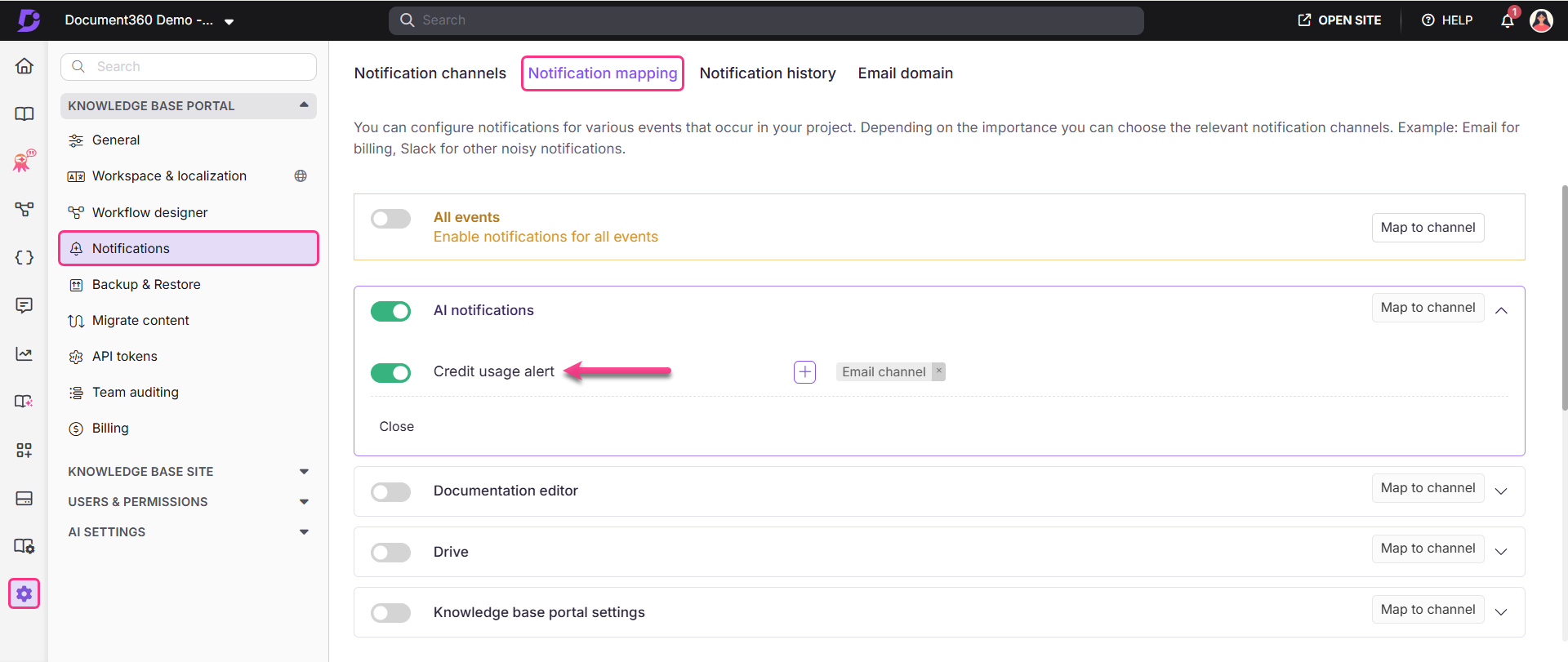
Select the Notification mapping tab.
-
In the Eddy AI notifications accordion, turn on the Credit usage alert toggle.
Configure email notifications for credit alerts
- After enabling the credit usage alert, go to Settings > Notifications > Notification channels.
- Select New channel and select SMTP.
- Click Next.
- Configure the details and click Save.
- Enter the channel name and the destination email address. Add CC or BCC addresses if needed.
Email domain — if you have not configured a custom email domain, credit notifications will be sent from product@document360.io by default. To configure your own domain, go to Settings (⚙) > Notifications > Email domain. For more information, read the article on the SMTP notification channel.