SMTP (Simple Mail Transfer Protocol) is a standard protocol for sending email messages. In Document360, configuring an SMTP notification channel lets you automatically send email alerts to your team whenever specific events occur in your Knowledge base — such as article updates, new comments, or content changes. Notifications can be triggered from the Knowledge base portal, Knowledge base site, and Knowledge base widget.
When to use the SMTP notification channel
Use the SMTP notification channel when you need to keep team members informed about Knowledge base activity via email. Common scenarios include:
- Article change alerts — Notify editors or reviewers whenever a critical article is updated, so they can review and act promptly.
- Team-wide announcements — Send notifications to a group of stakeholders whenever new content is published.
- Compliance and audit trails — Ensure designated recipients receive a record of changes to sensitive or regulated documentation.
How to set up the SMTP notification channel
-
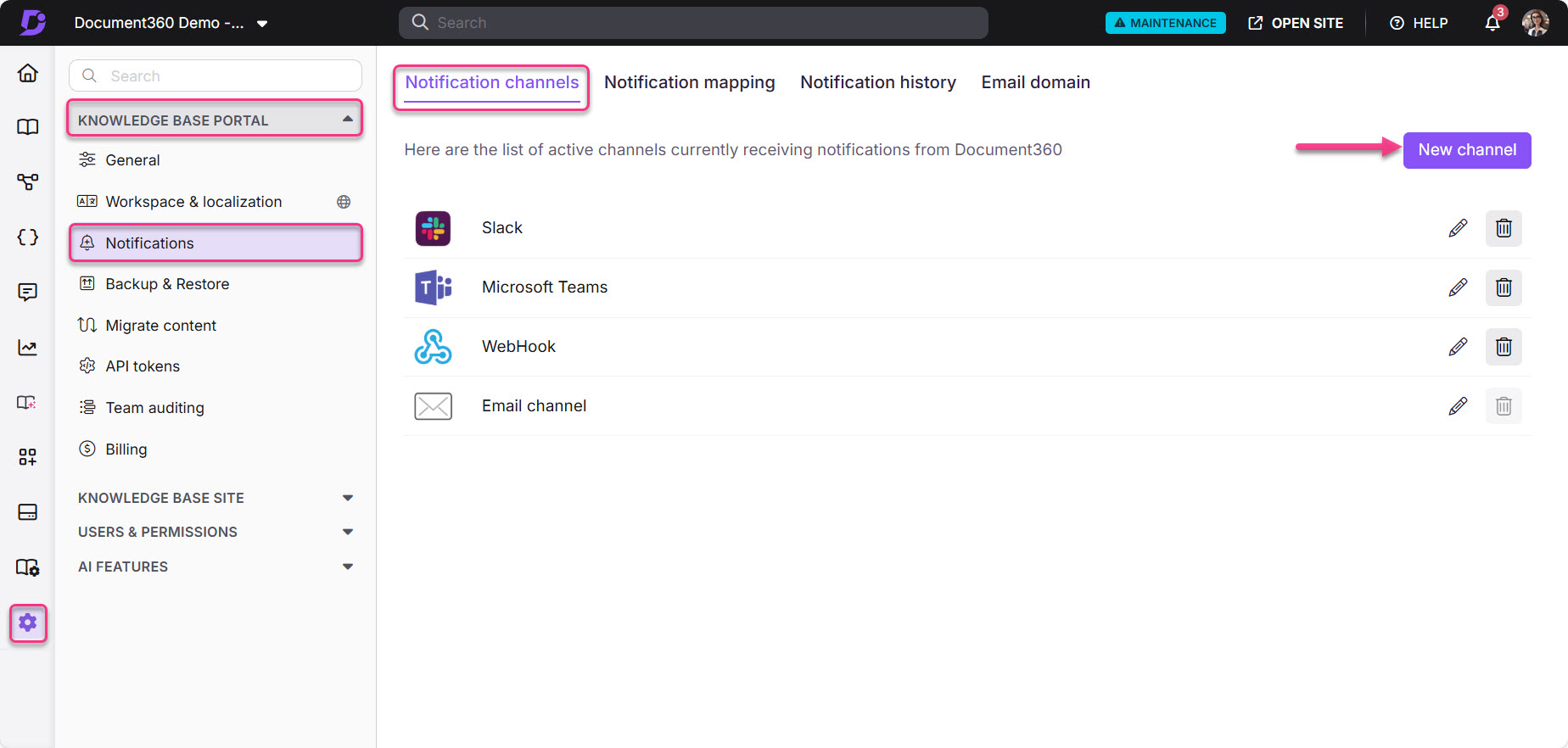
Navigate to Settings () > Knowledge base portal in the left navigation bar of the Knowledge base portal.
-
In the left navigation pane, select Notifications.
The Notification channels tab is selected by default.
-
Click New channel.
-
In the Available channels panel, select SMTP and click Next.
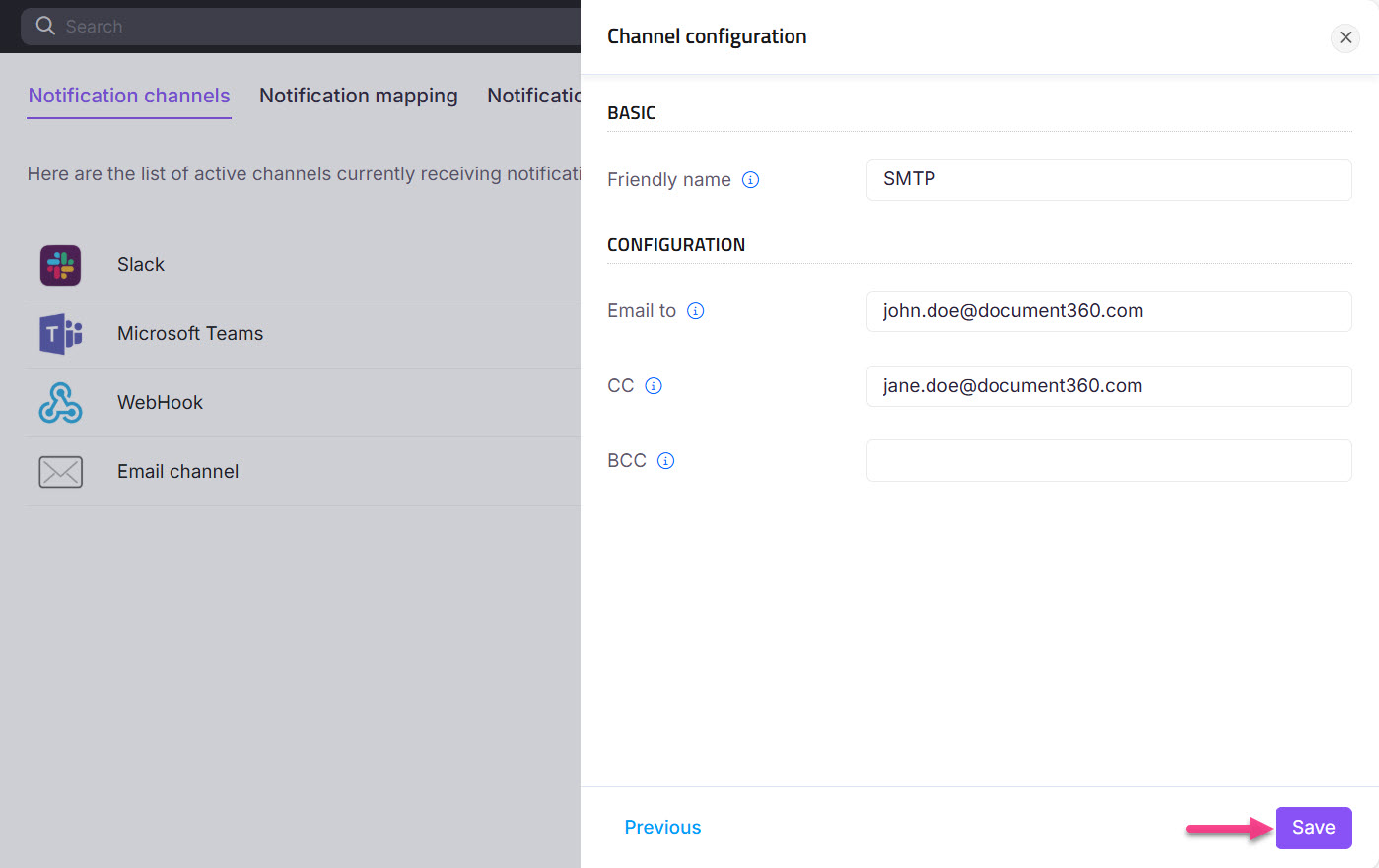
The Channel configuration panel appears.
-
In the Friendly name field, enter a display name for this SMTP channel.
-
In the Email to field, enter the email addresses of the primary recipients.
Separate multiple email addresses with a semicolon (;) and no spaces. Do not add a semicolon after the last email address.
Example: xyz@gmail.com;abc@gmail.com;mno@gmail.com
-
Optionally, enter additional email addresses in the CC field for copied recipients.
-
Optionally, enter additional email addresses in the BCC field for blind-copied recipients.
-
Click Save.
Your SMTP notification channel is now created. To activate it, go to the Notification mapping tab and map the events that should trigger email notifications to this channel.
Best practices
- Give channels descriptive friendly names (for example, "Support Team - SMTP" or "Engineering Alerts - SMTP") so they are easy to identify when configuring notification mapping.
- Create separate SMTP channels for different teams rather than using one channel for all recipients — this gives you precise control over which team gets notified about which events.
- Complete notification mapping immediately after setup — a newly created SMTP channel sends no notifications until at least one event is mapped to it in the Notification mapping tab.
- Review your mapped events periodically to ensure only meaningful events trigger emails, reducing alert fatigue and keeping notifications actionable.
FAQ
Can I add multiple recipient email addresses to a single SMTP channel?
Yes. In the Email to field, enter multiple addresses separated by a semicolon (;) with no spaces. You can also use the CC and BCC fields for additional recipients. Do not add a trailing semicolon after the last address.
What is the difference between the "Email to", "CC", and "BCC" fields?
Email to sets the primary recipients who receive the notification directly. CC (carbon copy) sends a visible copy to additional recipients. BCC (blind carbon copy) sends a hidden copy — BCC recipients cannot see each other's addresses or the addresses of other recipients.
Do I need to complete notification mapping after creating the SMTP channel?
Yes. Creating the SMTP channel is only the first step. You must navigate to the Notification mapping tab and map specific Knowledge base events (such as article updates or new comments) to this channel before any notifications are sent.
I have configured the SMTP channel correctly, but some recipients say they are not receiving notifications. What should I check?
Ask the recipient to check their spam or junk folder, since email providers sometimes filter automated notification emails. If the message still cannot be found, confirm the recipient's email address was entered correctly in the Email to, CC, or BCC field, and use the Notification history tab to verify whether the notification was marked as Sent or Failed.