Notification channels in Document360 let you receive real-time alerts about project changes through email (SMTP), Slack, Microsoft Teams, or webhooks. You must configure and authenticate each channel before it can deliver alerts. For example, a project manager overseeing multiple contributors can configure Slack as a notification channel to receive updates directly in their team's workspace, without having to check the portal constantly.
How to access and manage notification channels
- Navigate to Settings () > Knowledge base portal in the left navigation bar.
- In the left navigation pane, go to Notifications > Notification channels.
The page displays a list of all active channels currently receiving notifications from Document360. - To edit an existing channel, click the Edit () icon next to the channel.
- To remove a channel, click the Delete () icon.
- To add a new channel, click New channel.
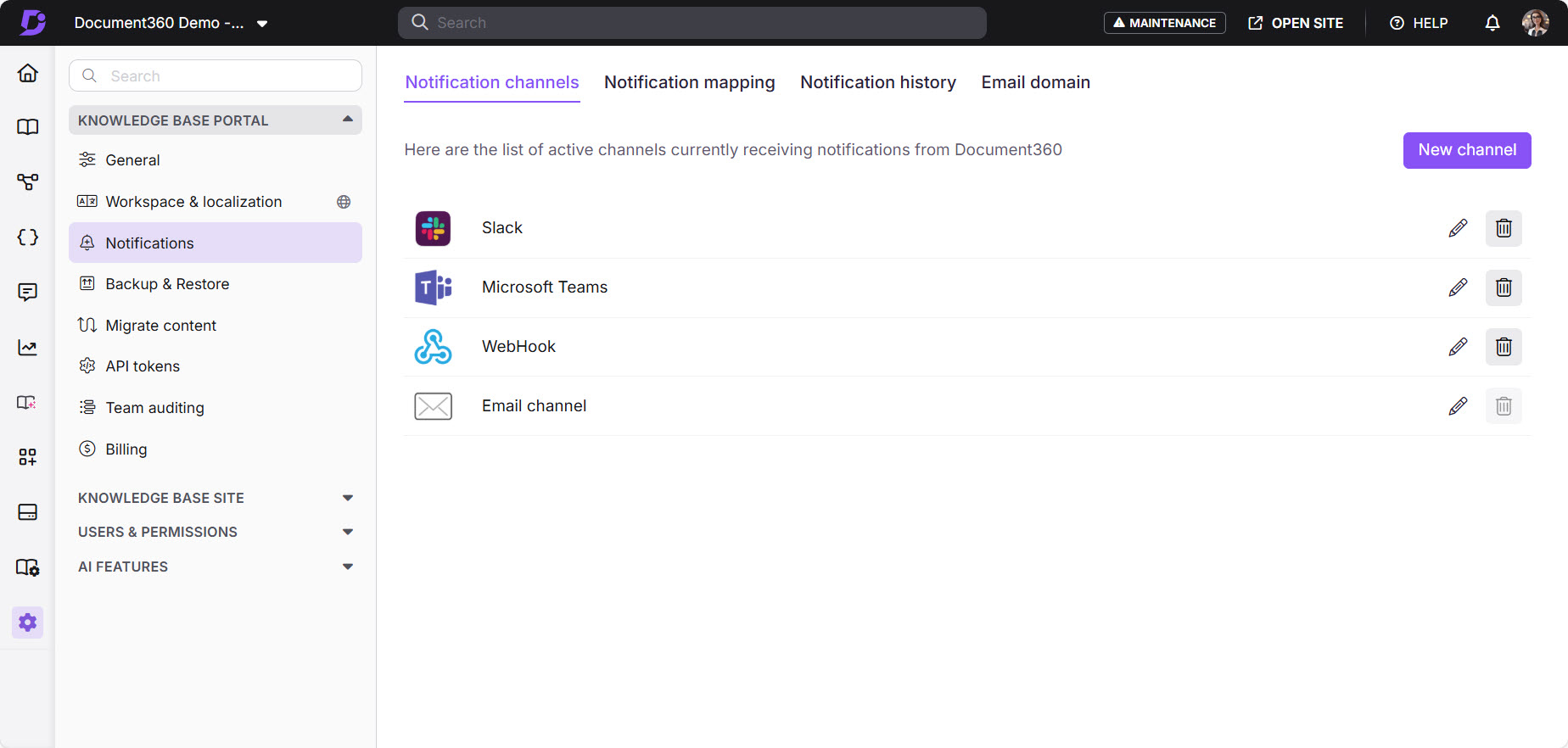
By default, an Email channel (SMTP) is automatically configured for every project and cannot be deleted. You can customise its email settings at any time.
Supported notification channels
Document360 supports the following notification channel types:
| Channel | Setup guide |
|---|---|
| Email (SMTP) | SMTP notification channel |
| Slack | Slack notification channel |
| Microsoft Teams | Microsoft Teams notification channel |
| Webhook | Webhook notification channel |
FAQ
Can I delete the default email (SMTP) notification channel?
No. The default email (SMTP) channel is automatically configured for every project and cannot be deleted. However, you can customise its SMTP settings at any time from Notifications > Notification channels.