Slack is a team collaboration platform that centralizes communication, file sharing, and project updates. You can connect Document360 to Slack so that notifications from your Knowledge base portal, site, and widget are automatically posted to a designated Slack channel, keeping your team informed in real time without switching tools.
When to use Slack notifications
Set up a Slack notification channel when your team needs real-time alerts for knowledge base activity directly in Slack. Common scenarios include:
- A customer support team wants to be notified when new articles are published or existing ones are updated, so agents always work from current documentation.
- A content team wants to track review and approval activity on articles without logging into Document360.
- A product team wants to monitor knowledge base changes related to a specific project or release.
Before you begin
- You must have a Slack account and an existing Slack workspace. If you don't have one, create a Slack account first.
- You must have admin access to a Slack app (or permission to create one) in your workspace.
- You must have access to Settings in the Document360 Knowledge base portal.
You will need the Slack Incoming Webhook URL before configuring the channel in Document360. Complete Steps 1 and 2 in Slack before proceeding to Document360.
How to set up a Slack notification channel
Setting up Slack notifications in Document360 involves three stages: creating or accessing a Slack app, retrieving the webhook URL, and configuring the channel in Document360.
Step 1: Access your Slack app
- Log in to Slack and navigate to your workspace.
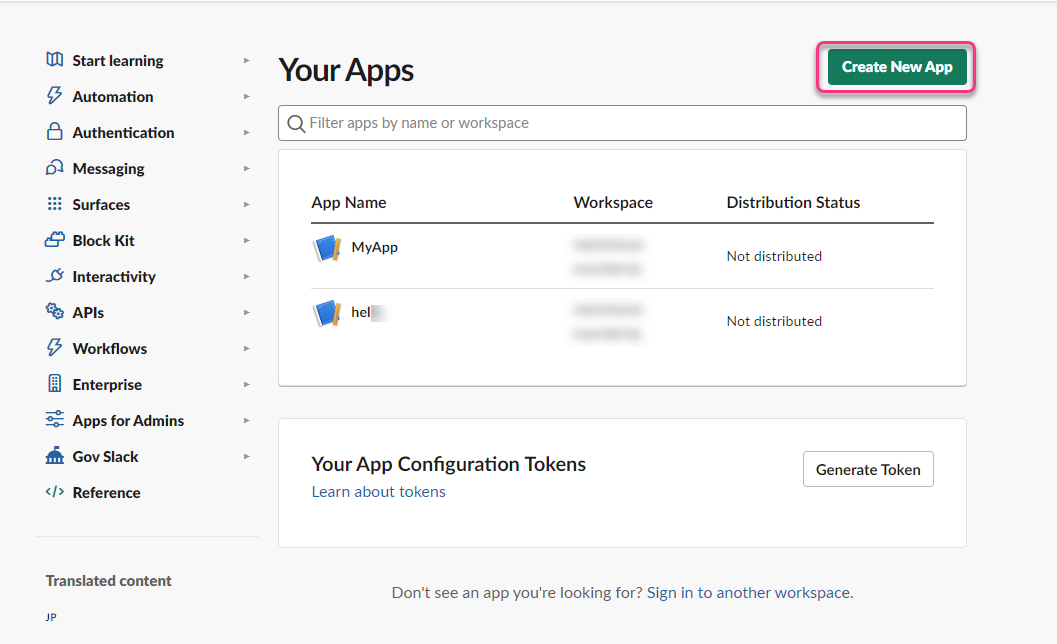
- If you already have an app configured, proceed to Step 2. If not, go to the Slack API portal and select Create New App to set one up.
Step 2: Get the webhook URL
-
In the Slack API portal, your existing apps appear in a list.
-
Select the app you want to use for Document360 notifications.
-
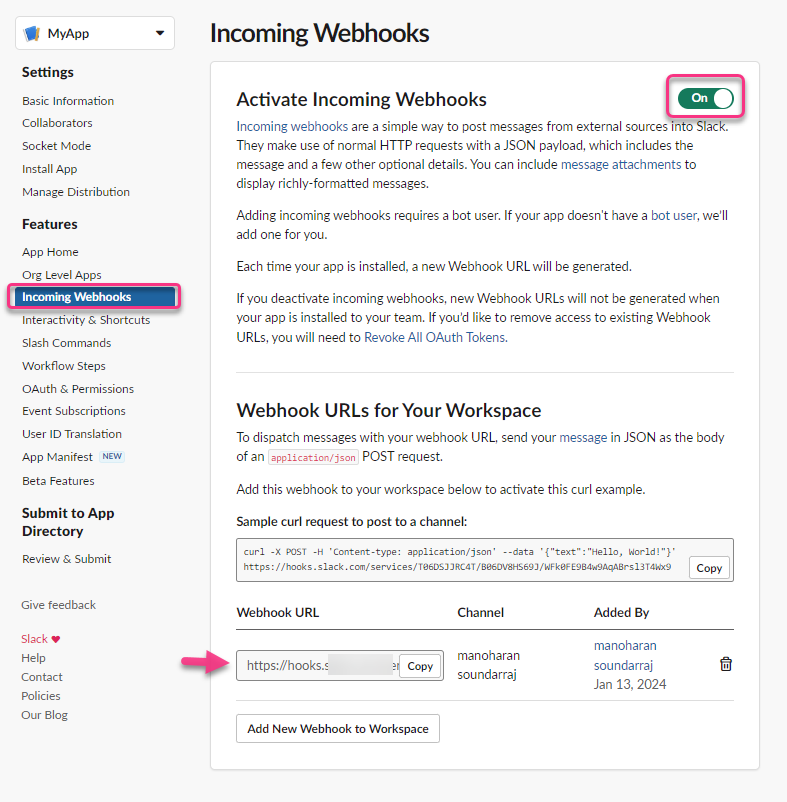
Navigate to Features > Incoming Webhooks and toggle Activate Incoming Webhooks to ON.
-
In the Webhook URLs for your Workspace section, locate the webhook URL for your target channel.
-
Click Copy to copy the webhook URL.
Generating a new webhook
If no webhook URL is listed:
- Click New Webhook to Your Workspace.
- Select the Slack channel where you want notifications to appear and click Allow.
- The new webhook URL appears in the list. Click Copy to copy it.
Step 3: Configure the Slack channel in Document360
-
In the Knowledge base portal, navigate to Settings > Knowledge base portal in the left navigation bar.
-
In the left navigation pane, select Notifications.
The Channels tab is selected by default. -
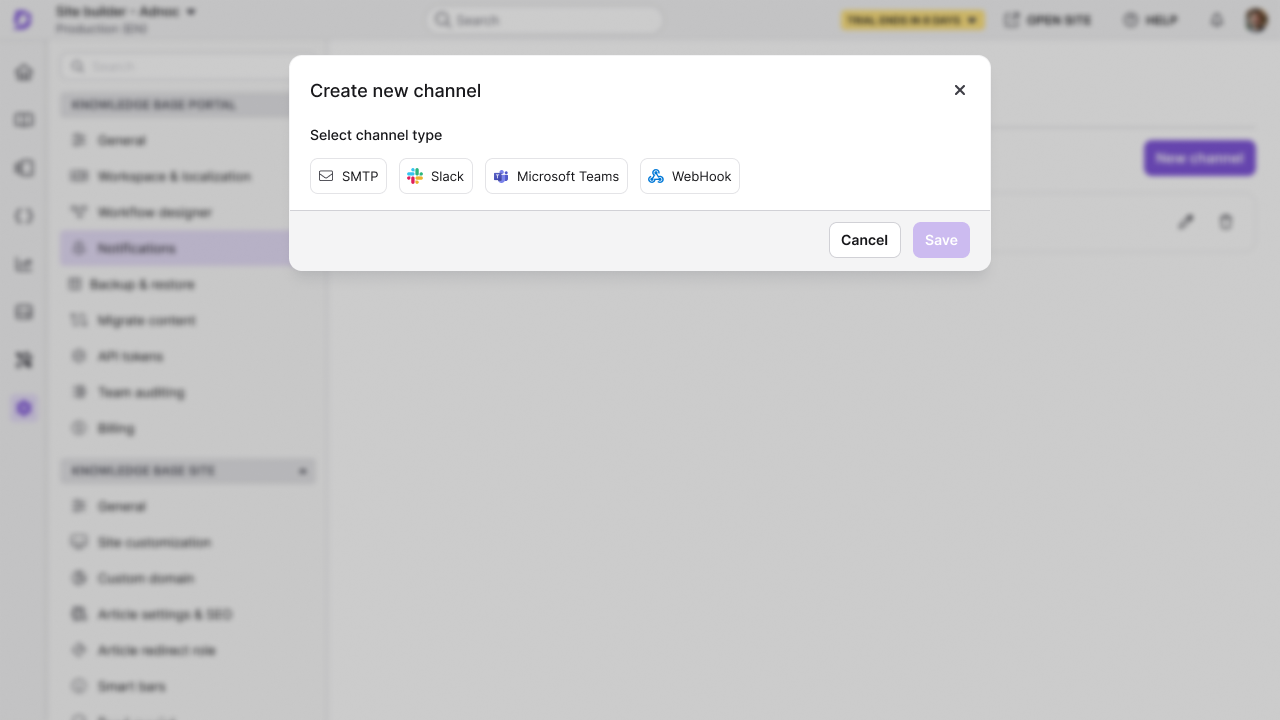
Click New channel.
-
Select Slack.
Configure the channel options appears in the same panel once you click on the channel type.
-
In the Friendly name field, enter a name for this notification channel (for example,
Support Team Alerts). -
In the Webhook URL field, paste the webhook URL you copied from Slack.
-
Click Save.
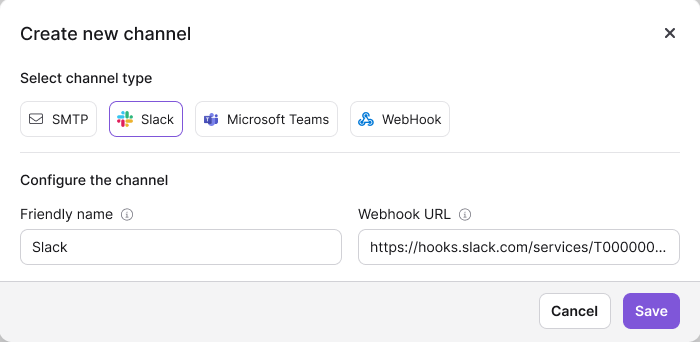
Your Slack notification channel is created. Navigate to the Notification mapping tab to link specific notification events to this channel.
Best practices
- Use descriptive friendly names — Name channels by team or purpose (for example,
Support-KB-AlertsorProduct-Docs-Updates) so they are easy to identify when mapping notifications. - Create separate webhooks per channel — Use a dedicated Slack channel and webhook for each notification type (portal activity, site feedback, widget queries) to avoid cluttering a single channel.
- Test after setup — Trigger a test notification after saving the configuration to confirm the webhook is active and messages are appearing in the correct Slack channel.
- Rotate webhooks when team members leave — Webhook URLs grant posting access without authentication. If a team member with access to the Slack app leaves the organisation, revoke the existing webhook from the Slack API portal and generate a new one, then update the Webhook URL field in Document360.
FAQ
Can I connect multiple Slack channels to Document360?
Yes. You can create multiple notification channels in Document360, each with a different Slack webhook URL pointing to a different Slack channel. Use notification mapping to control which events are sent to each channel.
What types of notifications can be sent to Slack?
Notifications from the Knowledge base portal, Knowledge base site, and Knowledge base widget can all be routed to Slack. The specific events are configured in the Notification mapping tab after you create the channel.
What should I do if the webhook URL stops working?
If notifications stop arriving in Slack, the webhook may have been revoked or the Slack app may have been removed. Return to the Slack API portal, generate a new webhook URL for the same channel, and update the Webhook URL field in the Document360 channel configuration.