External sources for Eddy AI Assistive Search lets you configure Eddy AI to retrieve answers from URLs and sitemaps outside your Document360 knowledge base, enabling federated search across multiple content sources. Once configured, Eddy AI searches both your internal knowledge base articles and the external sources simultaneously, returning a unified response with numbered references that link back to the originating page. This is available in the Manage sources section under AI settings in your Knowledge base portal.
For a full list of languages supported by Eddy AI, see Multilingual support for Eddy AI Search Suite.
When to use external sources
- Cross-platform support teams — agents can pull answers from internal knowledge base articles, public documentation sites, blogs, and product release notes without switching platforms.
- Distributed content — when your authoritative content lives across multiple sites and you want Eddy AI to surface answers from all of them in one response.
- Supplementary reference material — add external resources such as third-party guides or partner documentation to enrich Eddy AI's answers without migrating that content into Document360.
Before you begin
- You can add up to 50 webpages and 1 sitemap per project.
- Webpages must be in HTML5 format and include
<article>or<main>tags. - Only server-side rendered (SSR) webpages are supported. Client-side rendered pages may not index correctly and can return empty search results.
- Webpages with bot detection or crawl-blocking mechanisms cannot be indexed — a Forbidden error will occur.
- Sitemaps must be under 1 MB, in XML format, and must not use nested sitemaps with the
<sitemapindex>tag. - Sources sync automatically every 24 hours. Manual sync is available up to 4 times per day.
Add an external source
-
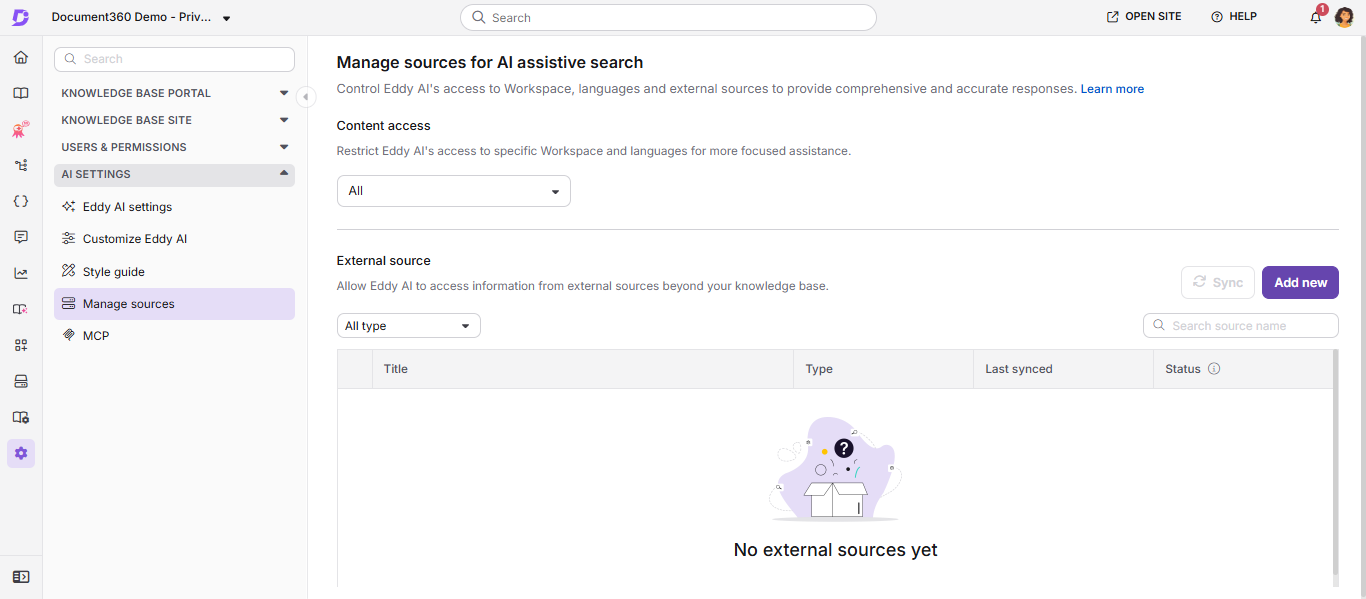
In the Knowledge Base portal, select Settings in the left navigation bar.
-
In the left navigation pane, go to AI settings > Manage sources.
The Manage sources page displays all currently configured external sources.
-
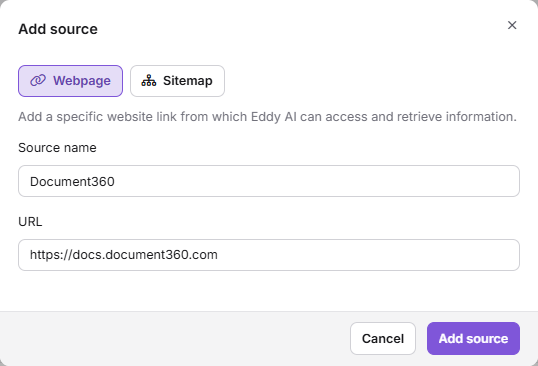
Click Add new.
The Add source panel appears.
-
Select the source type: Webpage or Sitemap.
-
Enter a source name.
-
Enter a valid URL.
-
Click Add source.
Manage sources overview
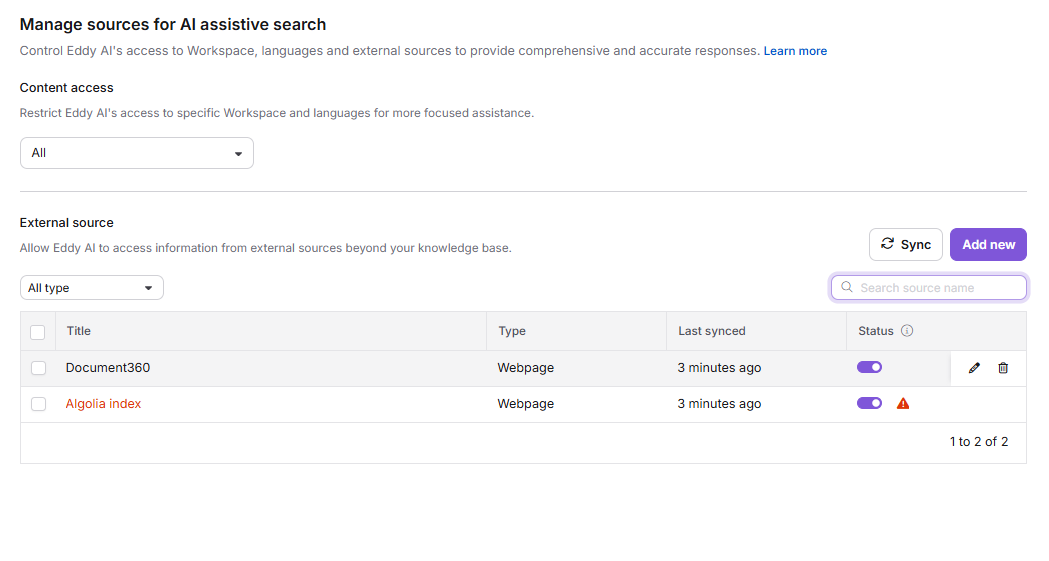
The Manage sources page lists all indexed external sources and provides the following controls:
| Option | Description |
|---|---|
| Content access | Restrict Eddy AI to specific workspaces, languages, and categories. Options: All or Allow selected. |
| Filter | Filter the source list by type: All, Sitemap, Webpage, or Failed sources. Failed sources shows all entries that have encountered errors. |
| Sync | Manually sync all sources. Available up to 4 times per day. Sources are synced automatically every 24 hours. |
| Add new | Add a new source for indexing. |
| Search | Search for a source by name. |
| Type | Displays whether the source is a Webpage or Sitemap. |
| Last sync | Shows the date of the last sync. Hover to see the exact time. |
| Status | Toggle to activate or deactivate a source. Deactivating a source stops Eddy AI from fetching content from it. |
| Error | Appears when a source URL has encountered an error. Click to view affected URLs. |
| Edit | Modify the source name or URL. |
| Delete | Remove a source permanently. |
Restrict Eddy AI to specific workspaces, languages, and categories
By default, Eddy AI searches across all workspaces and languages. You can restrict this to specific workspaces, languages, and categories using the Content access control on the Manage sources page.
-
On the Manage sources page, click the Content access dropdown (shown as All by default).
-
Select Allow selected.
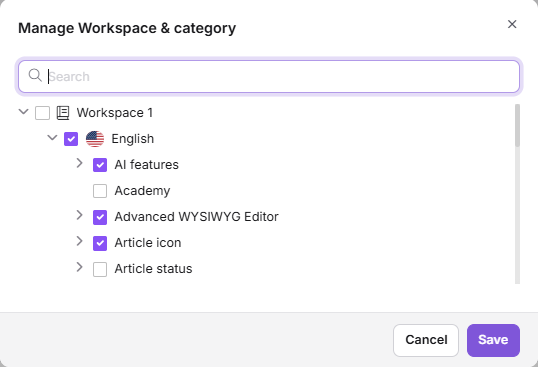
The Manage workspace & category popup appears.
-
Select the workspaces, languages, and categories you want Eddy AI to search.
A Manage button appears alongside the Allow selected dropdown.
-
Click Manage to review and confirm your selections, then click Save.
A confirmation message — AI search sources updated — appears. The Save button is only enabled when changes have been made.
-
To close the popup without saving, click Cancel or press Esc.
If you switch from Allow selected back to All and then return to Allow selected, your previous selections are retained. This content access setting applies across all areas where AI Assistive Search is enabled.
Handle errors in external sources
If a webpage encounters an error (unsupported HTML format, unsupported language, or HTTPS issue), Eddy AI stops fetching from that page until the error is resolved. For sitemaps, Eddy AI continues fetching from all valid URLs in the sitemap even if individual pages within it have errors.
-
Click the Error (⚠) icon next to the source's status toggle.
The Edit panel opens and displays all affected URLs and their error details.
-
Hover over a URL and click the Open site icon to inspect the external source directly.
-
Click Remove to delete a specific URL from the sitemap's URL list.
-
Click Remove all to delete all URLs with errors at once.
If a webpage has bot detection or crawl-blocking mechanisms enabled, Eddy AI cannot index it and will return a Forbidden error. Only server-side rendered (SSR) pages are supported — client-side rendered pages may not index correctly and can produce empty search results.
How external source results appear on your Knowledge Base site
When Eddy AI returns an answer that draws from external sources:
- Each response includes numbered reference markers indicating which parts of the answer came from which source.
- Hovering over a reference number shows the webpage title and a short description of the source.
- Clicking the reference number or the Open in a new tab icon opens the source page in a new tab.
FAQ
How do I manually sync external sources?
Go to Settings > AI settings > Manage sources and click Sync at the top of the page. You can manually sync up to four times per day. Sources also sync automatically every 24 hours.
How do I delete an external source?
Go to Settings > AI settings > Manage sources. Hover over the source and click the Delete icon to remove a single source. To delete multiple sources at once, select their checkboxes and click Delete at the top of the page.
How do I view analytics for external sources?
Go to Analytics in the left navigation bar, then navigate to Eddy AI. In the Most referenced articles section, external sources are listed alongside internal knowledge base articles.
Can I deactivate an external source without deleting it?
Yes. On the Manage sources page, turn off the Status toggle next to any source to deactivate it. Eddy AI will stop fetching content from that source until you re-enable the toggle.