The Articles - Full portal search feature provides a dedicated search space to find articles and category pages across your entire Document360 project. You can perform a combined search across all workspaces and languages simultaneously, making it faster to locate, preview, and navigate to any article without switching between workspaces manually.
When to use Articles - full portal search
- Locate a specific article across multiple workspaces without knowing which workspace it belongs to
- Search in multiple languages at the same time and compare results
- Quickly preview an article's content before navigating to it
- Filter search results by status, visibility, contributors, or tags to narrow down a large result set
How to search articles using full portal search
-
Click the Search () field in the top navigation bar.
NOTEPress the Escape key to close the search screen.
-
Click the Search all dropdown to the left of the search bar and select Articles.
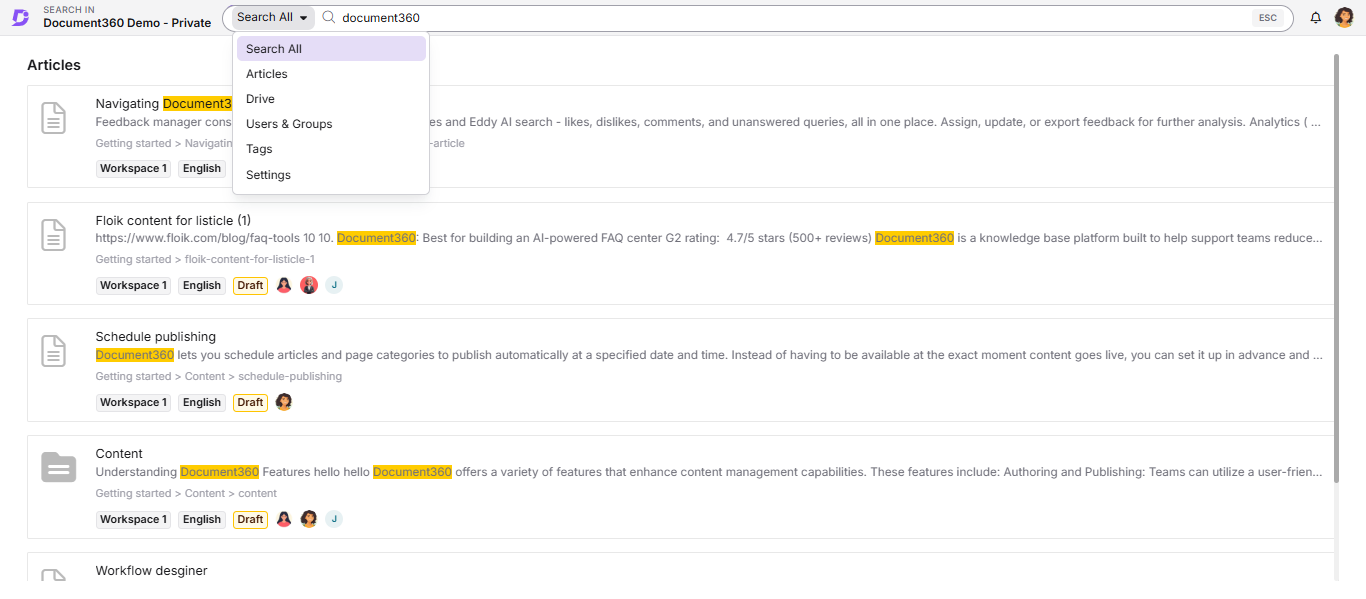
-
Type a keyword to begin your search.
-
Matching articles and category pages appear as you type. Each search result displays the following:
Field Description Article title The name of the article or category page Breadcrumb The category path the article belongs to Workspace The workspace the article is in Language The language version of the article Status Current publish status (Draft, Published, or Unpublished) -
To narrow your results, click the Filter () option on the right side below the navigation bar. See Filters for details.
-
Click any result to preview its content in the preview panel.
-
Click the full screen () icon to expand the preview. Use the < (previous) and > (next) buttons to navigate between results.
-
Click Go to article at the top of the preview panel to open the full article.
Filters
Use filters to narrow down search results. Click the Filter () option to access the following filter options.
a. Workspace/Language
Click the dropdown and select one or more Workspace(s) and Language(s). Language options appear when you expand a workspace in the dropdown. To search across all workspaces and languages, select the Workspace checkbox or leave this filter unapplied.
b. Visibility
Filter results by article visibility. Available options:
| Option | Description |
|---|---|
| None | No filter applied (default) |
| Visible | Shows only visible articles |
| Hidden | Shows only hidden articles |
c. Status
Filter results by article publish status. Available options:
| Option | Description |
|---|---|
| None | No filter applied (default) |
| Draft | Articles in draft state |
| Published | Live, published articles |
| Unpublished | Previously published articles that have been unpublished |
d. Contributors
Filter results by the article contributors. Click the Contributors dropdown to see the list of contributors. Use the search by username field to find a specific contributor.
e. Tags
Filter results by one or more tags associated with articles or category pages. Use the search tags bar to find the tag you need. You can select multiple tags.
f. Updated on
Filter results by the date the article was last updated. Available date ranges:
- 7 days
- 30 days
- 3 months
- 1 year
- Custom date range
Select the desired filter and click Apply. To remove all filters and reset the search, click Clear.
Best practices
- Use the Workspace/Language filter when you know the article is in a specific workspace to reduce result noise.
- Combine the Status and Contributors filters when reviewing articles that need attention from a specific team member.
- Use the Updated on filter with a custom date range during audits to identify articles that have not been updated recently.
- Use the Tags filter to group and review articles belonging to a particular product area or feature set.
- Use the preview panel to quickly scan article content before navigating to it, saving time during large search sessions.
FAQ
Can I search across all workspaces at the same time?
Yes. The full portal search searches across all workspaces and languages simultaneously by default. You can use the Workspace/Language filter to restrict results to specific workspaces or languages if needed.
What information is displayed in each search result?
Each result shows the article title, breadcrumb (category path), workspace, language, and the current status of the article (Draft, Published, or Unpublished).
How do I clear all applied filters?
Click the Clear button in the filter panel to remove all applied filters and reset the search results.
Can I preview an article before opening it?
Yes. Click any search result to open a preview panel. You can also expand the preview to full screen using the icon. Use the < and > buttons to navigate between results in the preview.