The Drive - Full portal search lets you search across all files stored in your project's Drive from a single, dedicated search interface. Instead of browsing folder by folder, you can locate any file instantly by keyword, then filter results by type, status, uploader, tags, or upload date — making it easy to find, audit, and manage Drive assets at scale.
When to use Drive - Full portal search
- Locate a specific file quickly — search by name or keyword across the entire Drive without manually navigating folders.
- Audit file usage — find which articles or category pages reference a particular file using the View dependencies option.
- Filter by file type or uploader — narrow large result sets when multiple team members upload files regularly.
- Manage starred or deleted files — surface files by status without leaving the search interface.
How to search Drive across the full portal
-
Click the Search () field in the top navigation bar.
NOTEPress the Escape key to close the search overlay at any time.
-
From the Search all dropdown to the left of the search bar, select Drive.
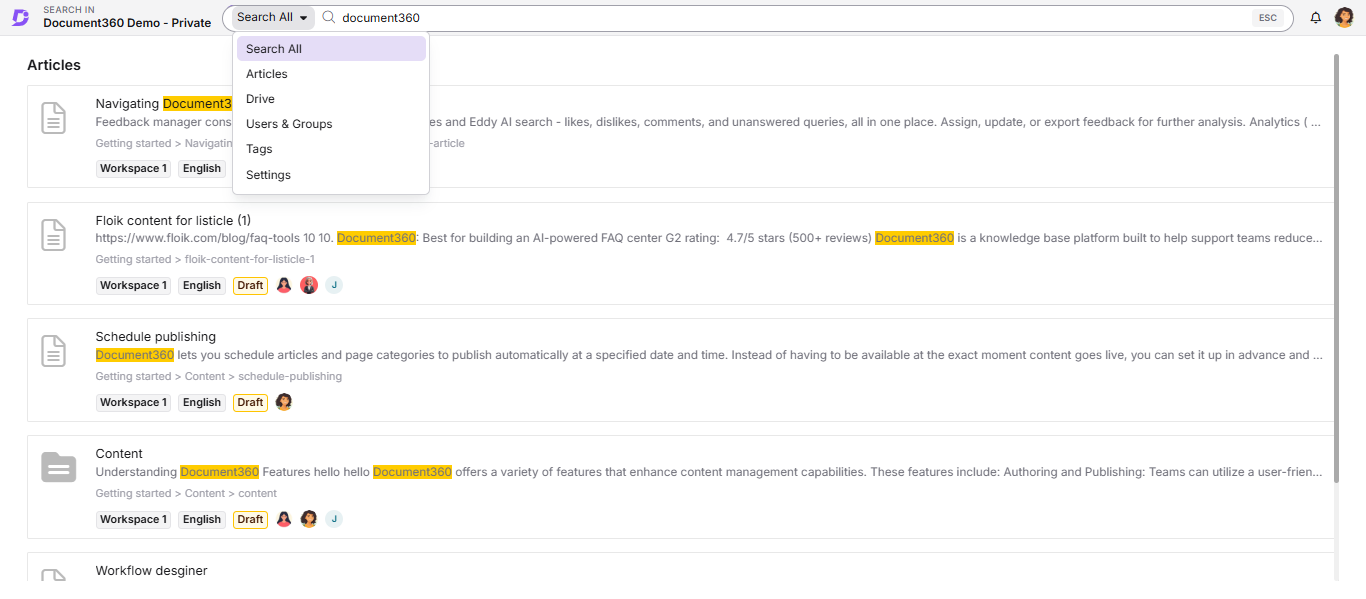
-
Type your search keyword in the search bar.
The results matching the keyword appear in List view.
NOTESwitch from List view to Grid view by clicking the grid () icon to the right of the Filter option below the navigation bar.
-
Review the file details displayed for each result:
Column Description Name File name Dependencies Number of articles or category pages using this file Updated on Date the file was last modified Updated by Team member who last updated the file Size File size Tags Tags applied to the file -
Click the file name or the eye () icon to the right to open the File details pane.
The File details pane shows the file's location, size, type, uploaded date, uploaded by, and any applied tags.
-
Click View dependencies to see every article or category page where the file is used.
Clicking a dependent article or category page opens it directly in the Editor.
Filtering search results
After running a search, use the Filter options to narrow results:
| Filter | Options | Notes |
|---|---|---|
| Status | All files, Deleted files, Starred files | Default is All files |
| Type | Images, Word, Excel, PPT, PDF, ZIP, Video, Audio, Others | Multiple types can be selected |
| Uploaded by | Team member accounts | Filter by one or more uploaders |
| Tags | Any tag applied in Drive | Use the search bar within the filter to find tags; multiple tags can be selected |
| Uploaded | 7 days, 30 days, 3 months, 1 year, Custom date range | Filters by upload date |
Once your filter selections are set, click Apply. To remove all filters and reset the search, click Clear.
Best practices
- Use specific keywords — searching by a partial file name or a unique term returns more targeted results than broad keywords.
- Check dependencies before deleting — always click View dependencies to confirm a file is not referenced in any article before removing it from Drive.
- Apply tags consistently — teams that tag files on upload benefit from faster, more precise tag-based filtering during searches.
- Use the Type filter for audits — when reviewing media assets, filter by Images or Video to isolate specific asset categories quickly.
FAQ
Can I search for deleted files using Drive - Full portal search?
Yes. In the Status filter, select Deleted files to display only files that have been deleted from the Drive.
Can I select more than one file type when filtering results?
Yes. The Type filter allows you to select multiple file types at the same time — for example, Images and PDF simultaneously.