Search visibility controls in Document360 let you decide where a published article appears: in external search engines, the knowledge base search bar, or Eddy AI assistive search. Each control is independent, so you can configure exactly which channels an article is visible in without affecting the others.
Search visibility does not restrict access to an article. An article excluded from all three search channels is still accessible to anyone with a direct link or who navigates to it through your knowledge base menus. For access control, use article visibility settings instead.
Things to know
- These controls are independent. You can exclude an article from external search while keeping it fully visible in knowledge base search and Eddy AI. Configure each control based on your audience and content sensitivity.
- Cloned articles inherit search visibility settings. If you clone an article that is excluded from Eddy AI search, the clone starts with the same exclusion applied. Review the clone's settings after cloning.
- Hidden articles are excluded by default. If an article's status is set to Hidden, it is automatically excluded from both knowledge base search and Eddy AI, regardless of the Search visibility settings. Configuring search visibility is most relevant for published articles.
Search visibility controls
| Control | What it does | Use when | Still accessible via |
|---|---|---|---|
| Exclude from external search engines | Adds a noindex directive so crawlers do not include the page in Google, Bing, or Yahoo results. |
The article contains internal or agent-facing content, or is not yet ready for public indexing. | Direct URL, knowledge base navigation. |
| Exclude from knowledge base search | Removes the article from search bar results within the knowledge base site. | The article is under review, superseded, or exists for structural reasons only. | Direct URL, knowledge base navigation. |
| Exclude from Eddy AI assistive search | Prevents Eddy AI from retrieving and citing the article when answering user questions. | The article is outdated, policy-sensitive, or written for agents rather than customers. | Direct URL, knowledge base navigation, knowledge base search. |
Exclude an article from external search engines
- Navigate to Documentation () in the left navigation bar.
- Open the article or page category.
- Click the More () icon in the article header and select GEO/SEO. The Article settings panel appears.
- Go to the AI & search optimization (GEO/SEO) tab and select the Exclude from external search engine results checkbox.
- Click Save.
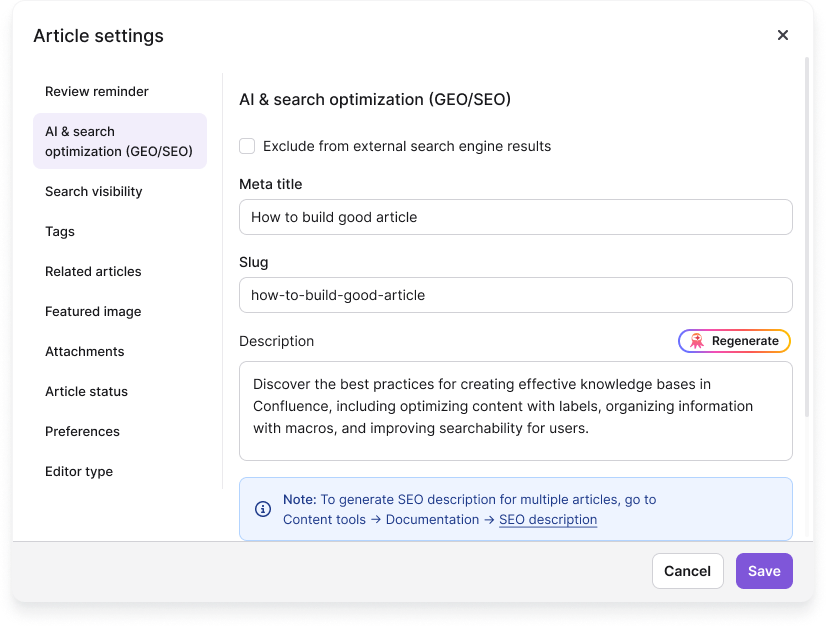
This setting is also available from the Publish confirmation dialog. Click Publish, then select GEO/SEO from the panel list on the left to exclude the article from external search engines before publishing.
Exclude an article from knowledge base search and Eddy AI assistive search
- Navigate to Documentation () in the left navigation bar.
- Open the article.
- Click the More () icon in the article header and select More article options. The Article settings panel appears.
- Go to the Search visibility tab.
- Select the options you want to apply:
- Exclude from knowledge base search removes the article from search results within the knowledge base site.
- Exclude from Eddy AI assistive search prevents Eddy AI from surfacing the article in AI-generated responses.
- Click Save.
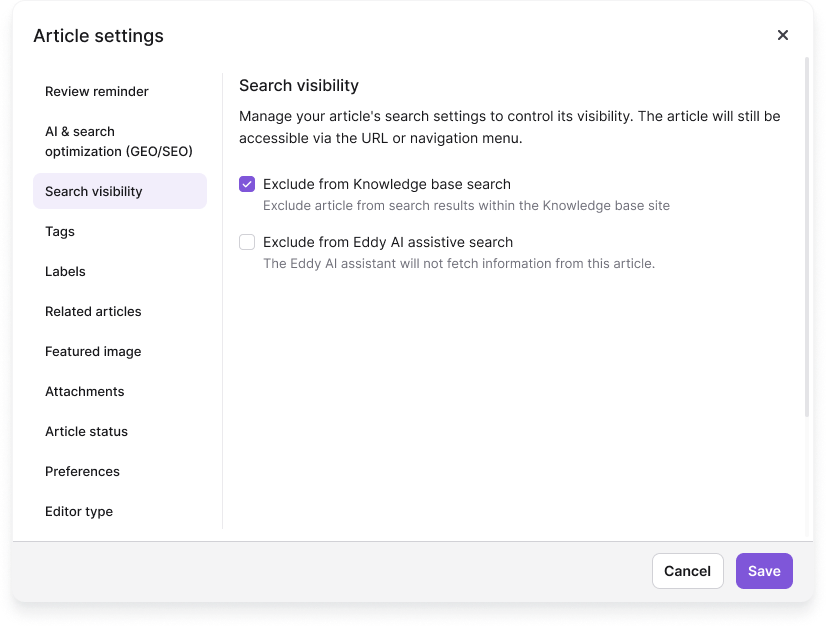
- An article excluded from knowledge base search and Eddy AI search is still accessible via its direct URL or the knowledge base navigation menu.
- These settings are also available from the Publish confirmation dialog. Click Publish, then select Search visibility from the panel list (under More) to make the same changes before publishing.
Best practices
- Review search visibility settings as part of your publishing checklist, especially for articles covering internal processes, pricing, or agent guidance.
- Exclude outdated articles from Eddy AI assistive search before they are deleted. AI confidently surfacing stale information can be more damaging than the article simply being missing.
- Use external search exclusion for soft-launched content while it is being reviewed, then re-enable indexing once the article is finalised.
- Combine search visibility with Robots.txt for site-wide control. Use Robots.txt to block entire paths from crawlers, and search visibility for granular, per-article control.
FAQ
What is the difference between search visibility and article access control?
Search visibility controls where an article appears in search results. It does not restrict who can access it. An excluded article is still readable via direct URL or navigation. Article access control, managed through visibility settings, restricts who can view the article at all. Use both together for full control over sensitive content.
Will excluding an article from Eddy AI also remove it from the knowledge base search bar?
No. The two settings are independent. Excluding an article from Eddy AI assistive search does not affect its visibility in the knowledge base search bar, and vice versa. Configure each setting separately based on your requirements.
Do hidden articles need to be manually excluded from search?
No. Hidden articles are automatically excluded from knowledge base search and Eddy AI assistive search by default. You only need to configure search visibility settings for published articles that you want to keep accessible but hidden from specific search channels.
What happens to search visibility settings when an article is cloned?
Search visibility settings are inherited by the cloned article. If the original article is excluded from Eddy AI or external search, the clone will have the same exclusions applied. Review and update the clone's settings after cloning if needed.
Can I bulk-update search visibility for multiple articles?
Currently, search visibility is configured per article. For large-scale audits, filter articles by category in the knowledge base portal to systematically review and update settings across a section of your content.