By default, Document360 generates a slug from the article title when an article is created. For example, an article titled "This is a really good content" gets the slug /this-is-really-good-content appended to your knowledge base URL.
You can change the slug at any time from the article editor.
Changing an article title does not automatically update the slug. The two are independent once the article is created.
Change the article slug
There are three ways to change an article slug.
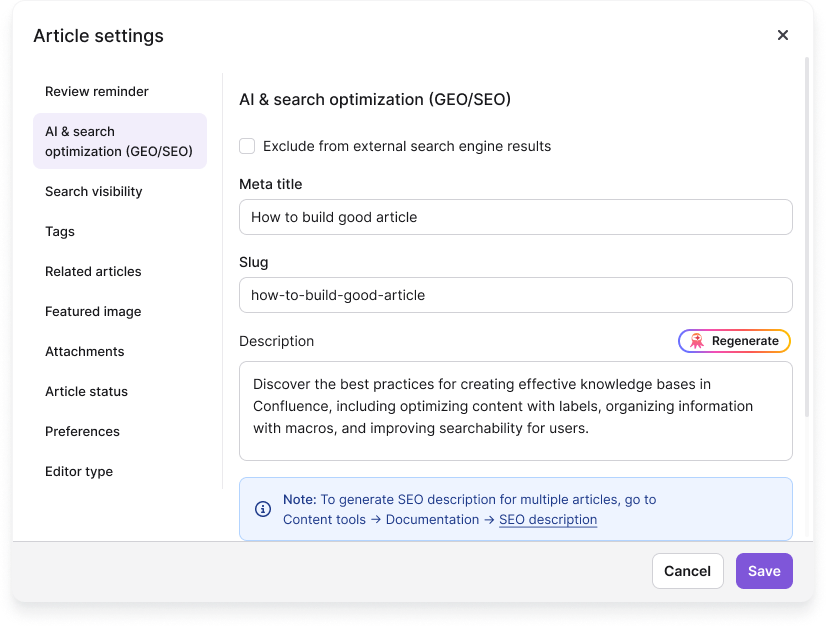
From Article settings
- Open the article in the knowledge base portal.
- Click the More () icon in the article header and select GEO/SEO. Alternatively, click More () > More article options. The Article settings panel appears.
- Go to the AI & search optimization (GEO/SEO) tab and update the Slug field.
- Click Save.
From the editor title
Markdown editor:
- Open the article in the knowledge base portal.
- Click the article title at the top of the editor. A dialog appears.
- Update the URL field and click Update.
Advanced WYSIWYG editor:
- Open the article in the knowledge base portal.
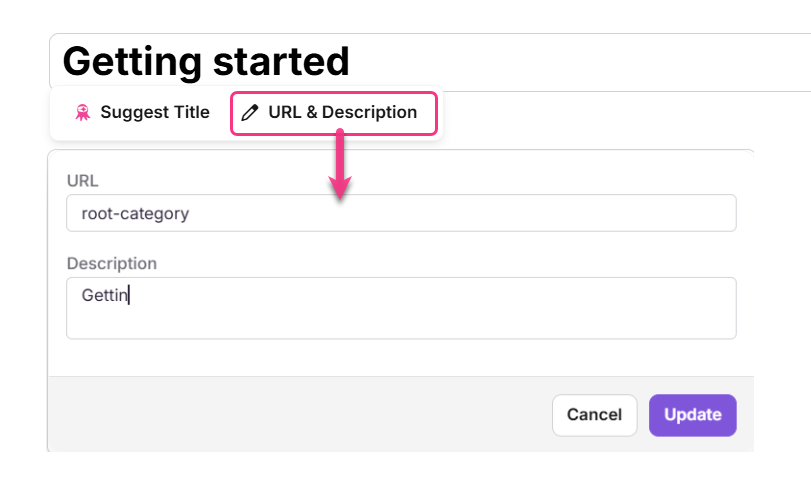
- Click the article title at the top of the content area and select URL & Description.
- Update the URL field. Optionally enter a Description.
- Click Update.
If an article is under an Index category, its description is visible when readers access that Index category on the knowledge base site.
From the Article information panel
- Open the article in the knowledge base portal.
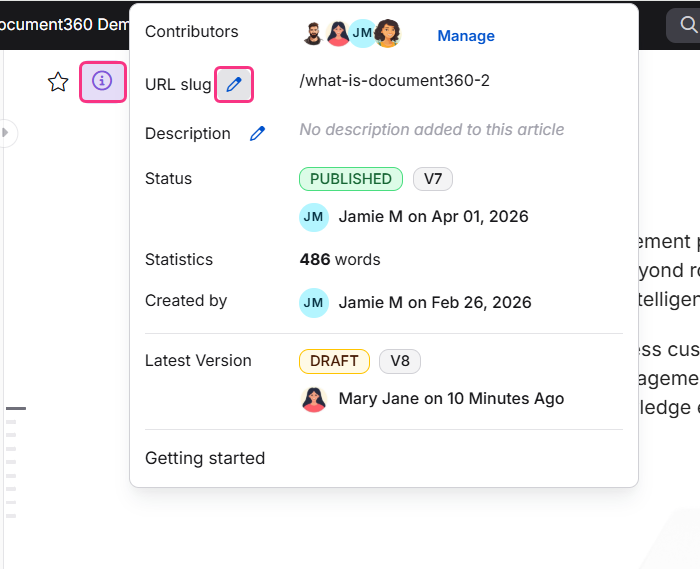
- Click the Article information () icon in the article header.
- Click the Edit () icon next to the URL slug field.
- Update the URL field. Optionally update the Description.
- Click Update.
Set a redirect rule after changing the slug
When you update a slug from the editor title or Article information panel, Document360 displays a URL change confirmation dialog. Select the Set a redirect rule for the updated slug checkbox and click Update URL to automatically create a redirect from the old slug to the new one.
Setting a redirect rule is optional but strongly recommended for published articles. Without it, any existing links to the old URL will break. To learn more, see Redirect rules →
Best practices
- Always set a redirect rule when changing the slug of a published article. Broken links affect both readers and SEO.
- Keep slugs short, lowercase, and descriptive with hyphens. Avoid numbers, special characters, or auto-generated strings where possible.
- Update the slug separately from the title if a rebrand requires clean URLs. Renaming the article alone will not update the slug.
FAQ
Does changing the article title automatically update the slug?
No. The slug and article title are independent once the article is created. Renaming an article does not change its slug. Update the slug manually from the GEO/SEO tab or Article information panel.
Is it necessary to apply a redirect rule when changing the slug?
It is optional but strongly recommended for published articles. Without a redirect rule, any existing links to the old URL will break and return a 404 error to readers.
Why do URLs with special characters such as ä, ö, or ü break when shared?
Special characters in URLs must be percent-encoded to function correctly in web links. If they are not encoded, the URL may break when shared or accessed. Always copy the URL directly from the knowledge base portal rather than from the browser address bar. The portal provides the correctly encoded version, which remains intact when shared.
Can I change an article slug to use numbers instead of the title?
Yes. Open the Article information () panel, click the Edit () icon next to the URL slug field, enter the new slug, and click Update. Set a redirect rule for the old slug to avoid broken links.
What is the default URL format for an article?
The default slug is generated from the article title when the article is created. For example, an article titled "This is a really good content" gets the slug /this-is-really-good-content, resulting in a URL such as docs.yourcompany.com/v1/docs/this-is-really-good-content.