Commento is a fast, lightweight commenting interface that can be embedded into your website. It provides a modern commenting experience for readers without the bloat of heavier comment platforms.
Integrating Commento with Document360 lets readers leave comments and discussions directly on your knowledge base articles.
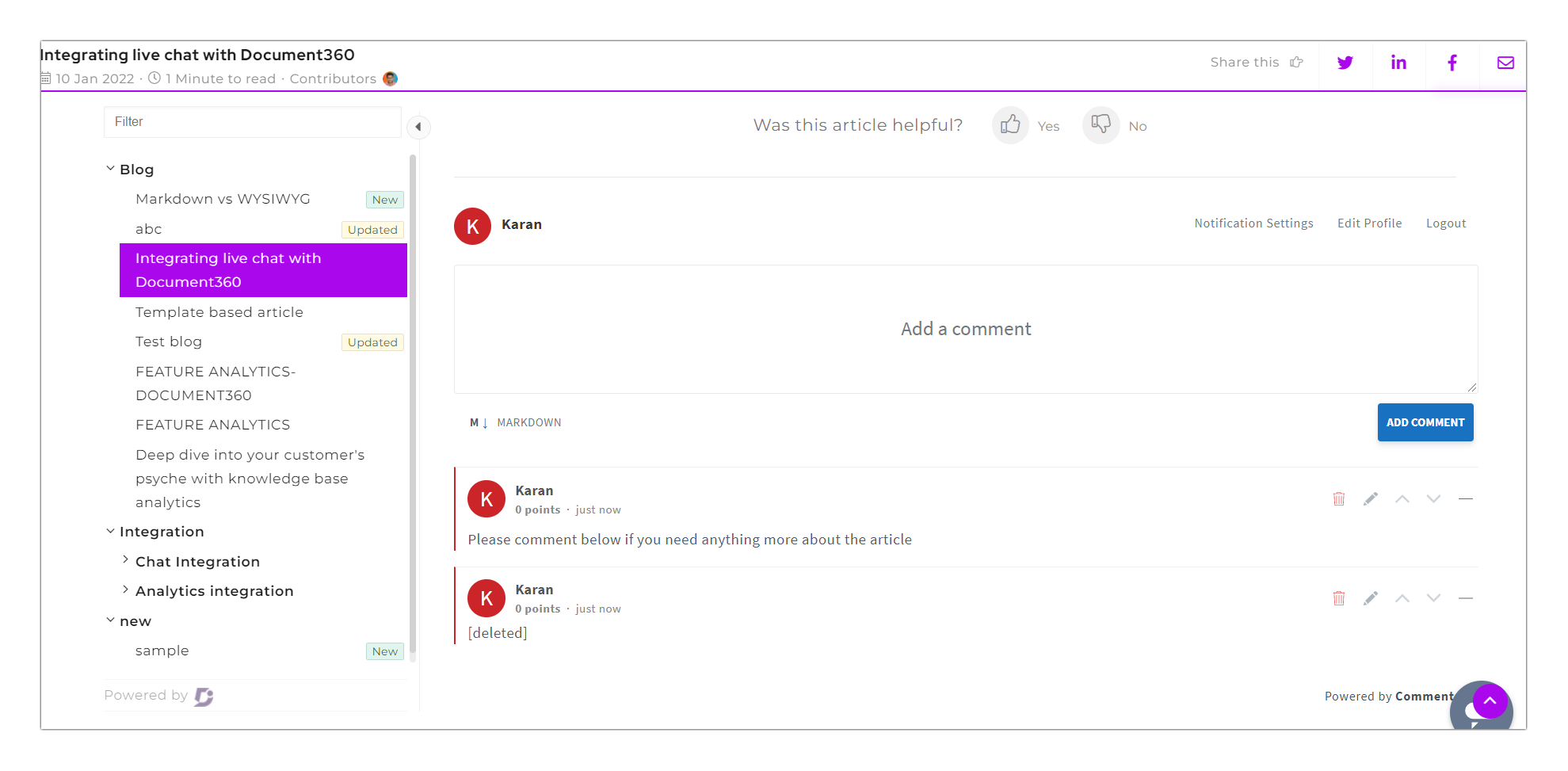
Before you begin
- You need a Commento account.
Integrate Commento with Document360
There are two ways to integrate Commento with Document360.
Native integration
- In the Document360 portal, navigate to Connections () > Integrations () in the left navigation bar.
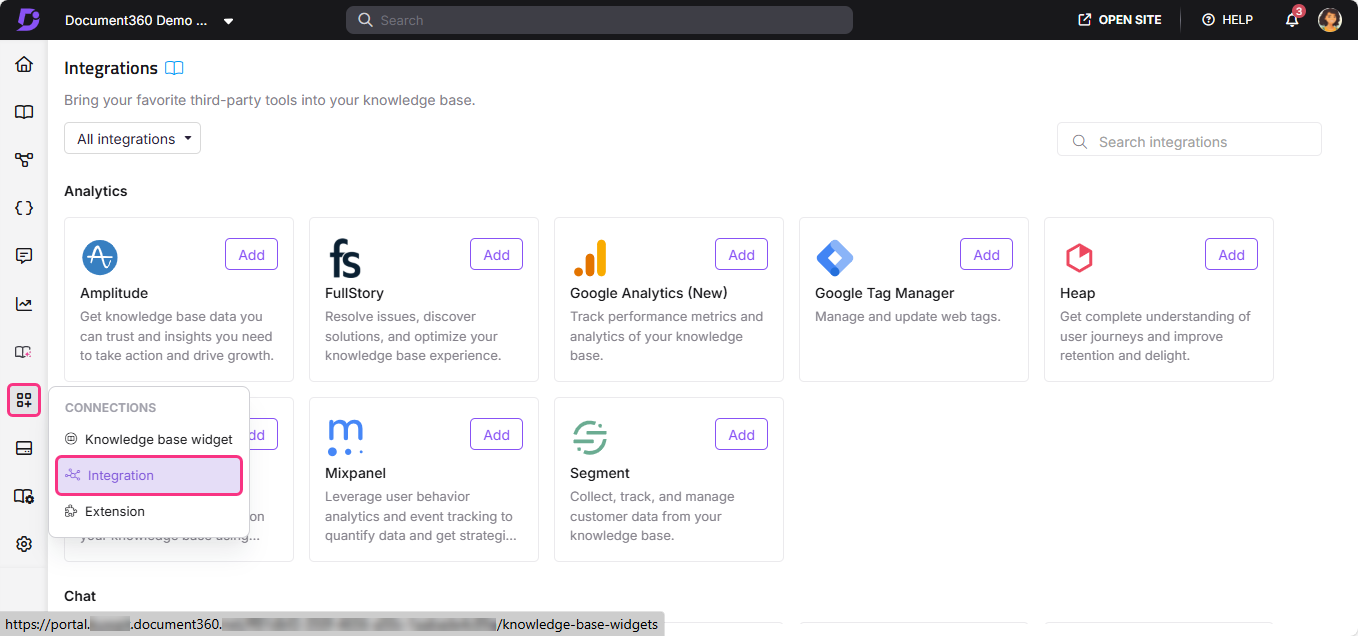
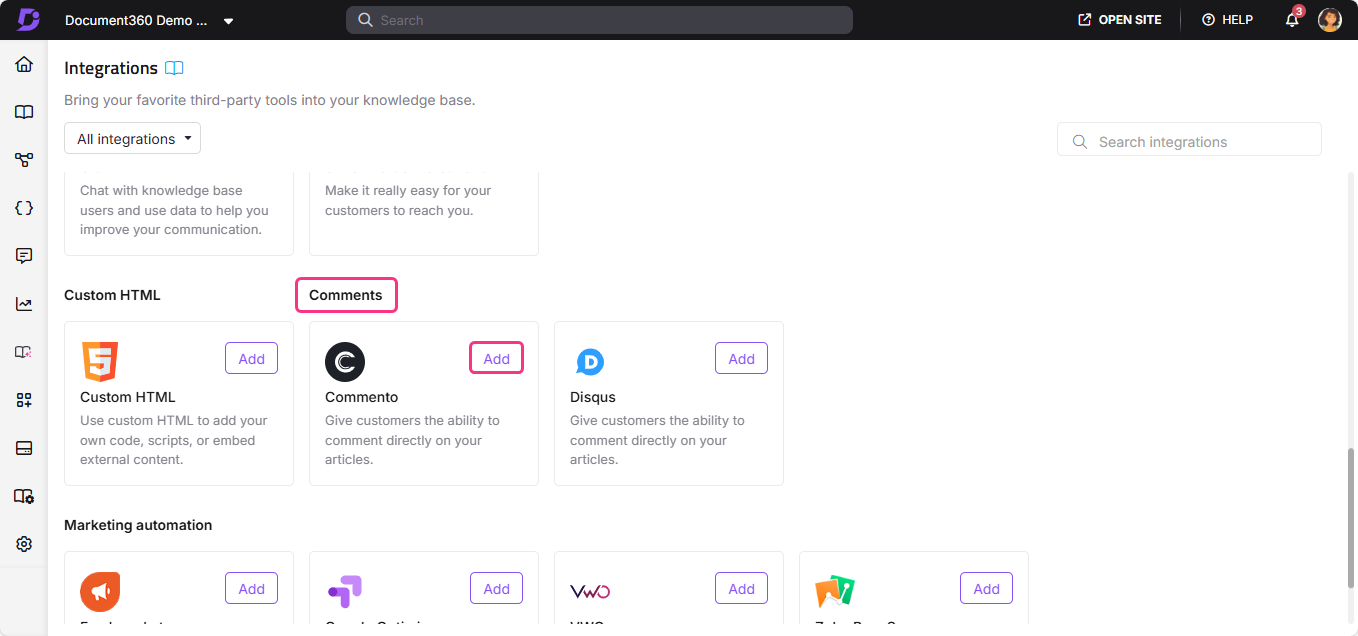
- From the Comments section, select Commento and click Add.
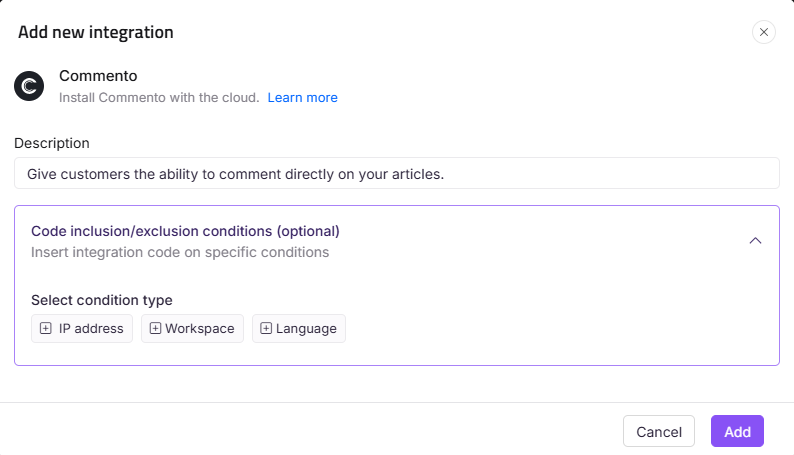
- In the Add new integration panel, enter a Description.
- Optionally, expand Code inclusion/exclusion conditions to control when the integration runs based on IP address, Workspace, or Language.
- Click Add.
After setup, open your Commento account to view Commento Analytics. You can also import existing comments from Disqus if you were previously using it.
Custom HTML snippet
Use this method to embed Commento using its Universal Snippet code via the Custom HTML integration in Document360.
- In your Commento account, open the Staging tab.
- Click Installation Guide.
- In the HTML code shown under the Universal Snippet section, replace the URL with the domain of your Document360 project.
- Copy the code snippet.
- In the Document360 portal, navigate to Connections () > Integrations () in the left navigation bar.
- Under the Custom HTML section, click Add.
- Paste the copied code into the code field.
- Under Insert code, select At the end of body (below
</body>). - Click Add.
Commento is now integrated with your Document360 knowledge base.
Best practices
- Use native integration for a simpler setup. The native integration requires no code, just a description. It also gives you access to Code inclusion/exclusion conditions directly in Document360.
- Use custom html snippet if you need more control over snippet placement. The Universal Snippet approach lets you control exactly where Commento loads on the page and is useful if you encounter issues with the native integration.
- Import existing Disqus comments after setup. If you are migrating from Disqus, use Commento's import feature to bring existing comments across so readers don't lose previous discussions.
- Use Code inclusion/exclusion conditions to enable comments on specific workspaces only. If commenting should only appear on certain workspaces or languages, configure conditions in the native integration to limit where it runs.
FAQ
What do I do when "This domain is not registered with Commento" appears on my knowledge base site?
This message appears when the Commento integration is active but the domain has not been registered in Commento. To stop the message from appearing, go to Connections () > Integrations () in the Document360 portal and turn off the Commento toggle. Then register your domain in your Commento account settings before re-enabling the integration.
What is the difference between Native integration and custom html snippet?
Native integration uses the native Commento integration in Document360, which is simpler to set up and supports Code inclusion/exclusion conditions. Custom HTML snippet uses the Commento Universal Snippet via the Custom HTML integration, giving you more control over how and where the script is embedded on the page.
Can I import comments from Disqus into Commento?
Yes. After completing the Commento integration, open your Commento account and use its import feature to bring in existing comments from Disqus. This lets you migrate previous reader discussions without losing them.
Can I limit which workspaces or languages Commento appears on?
Yes, using native integration. When adding or editing the Commento integration, expand Code inclusion/exclusion conditions and add conditions based on IP address, Workspace, or Language. See Code inclusion and exclusion conditions for full details.