Disqus is a platform that enables reader commenting and admin moderation on your Document360 articles. It provides a multilingual-supported comment plugin that automatically blends into the design of your knowledge base site, giving readers a familiar and consistent experience.
Before you begin
- You need a Disqus account.
- You need your Disqus URL. See How to find your Disqus URL below.
Access your Disqus URL
The Disqus URL is a unique code obtained from the Disqus account interface. It is required to connect Disqus with Document360.
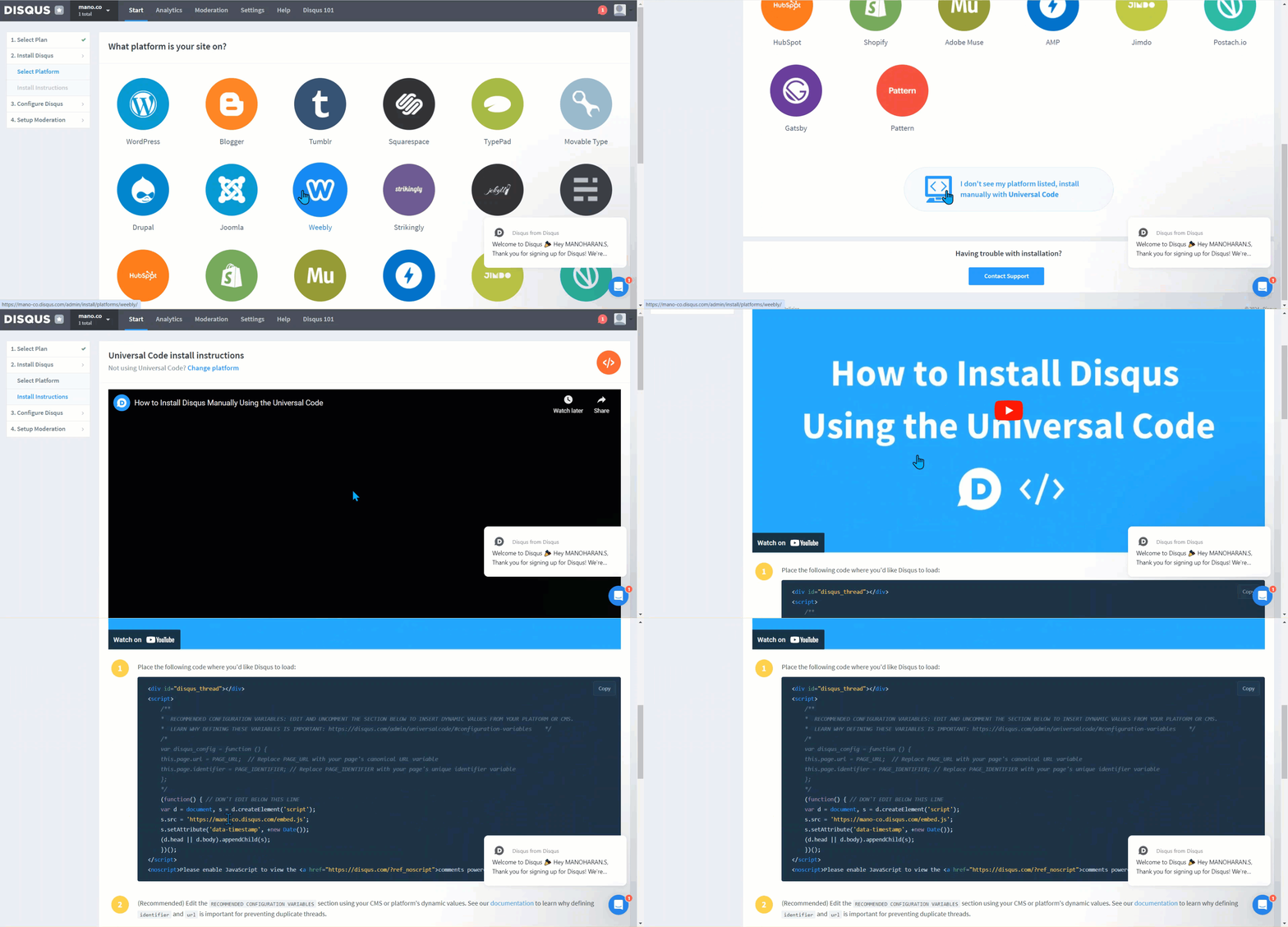
- Sign in to your Disqus account dashboard.
- Click Install Disqus, then click Select Platform.
- Scroll down and click the Install manually with Universal code button.
- In the Universal code Install Instructions panel, scroll down and copy the URL from under
s.src =in the snippet.
Integrate Disqus with Document360
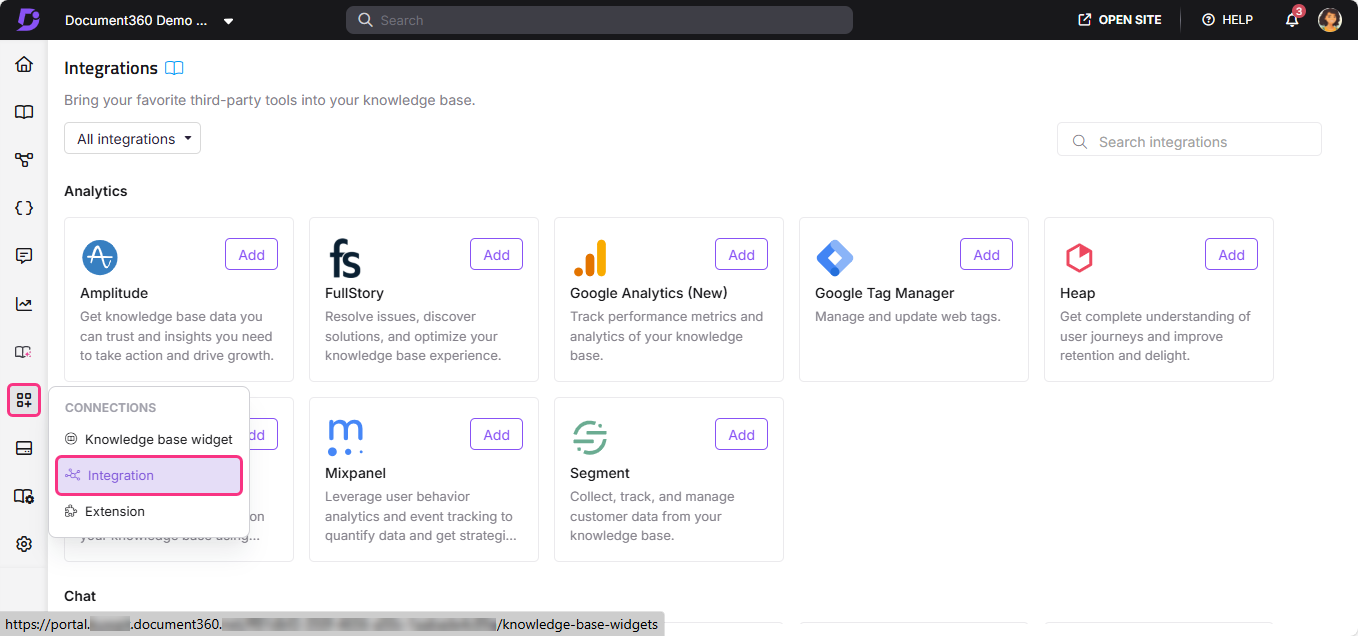
- In the Document360 portal, navigate to Connections () > Integrations () in the left navigation bar.
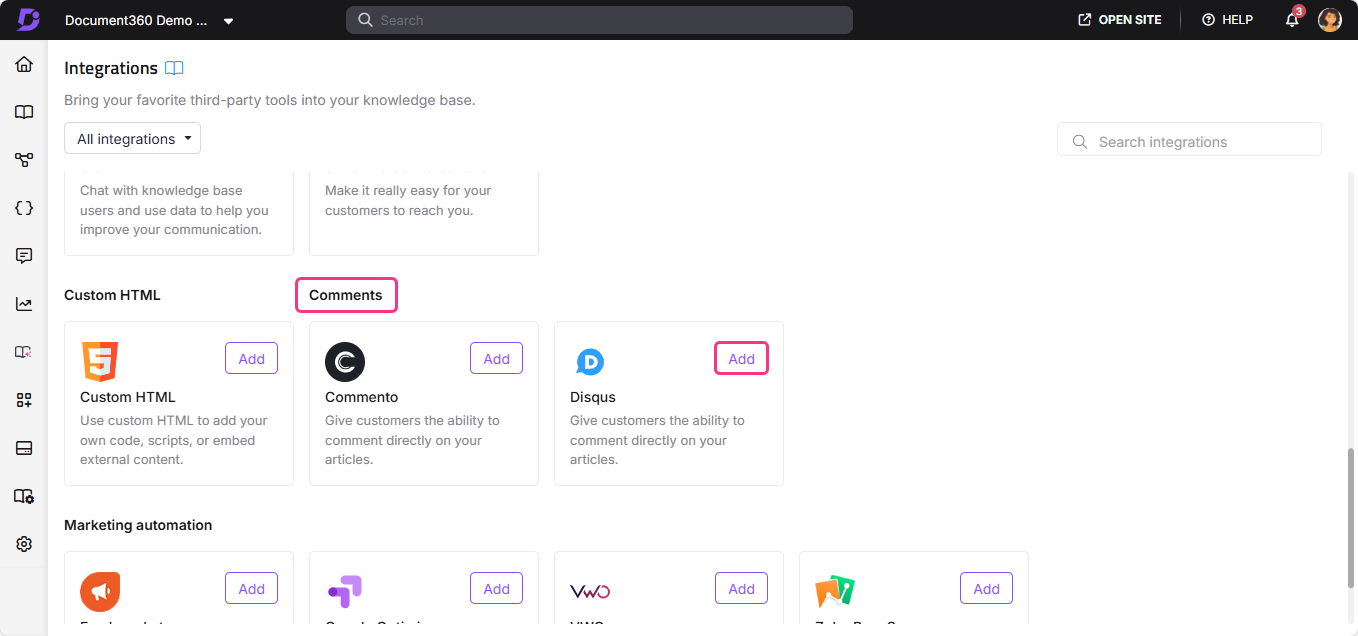
- Select Disqus from the list of integrations and click Add. The Add new integration panel appears.
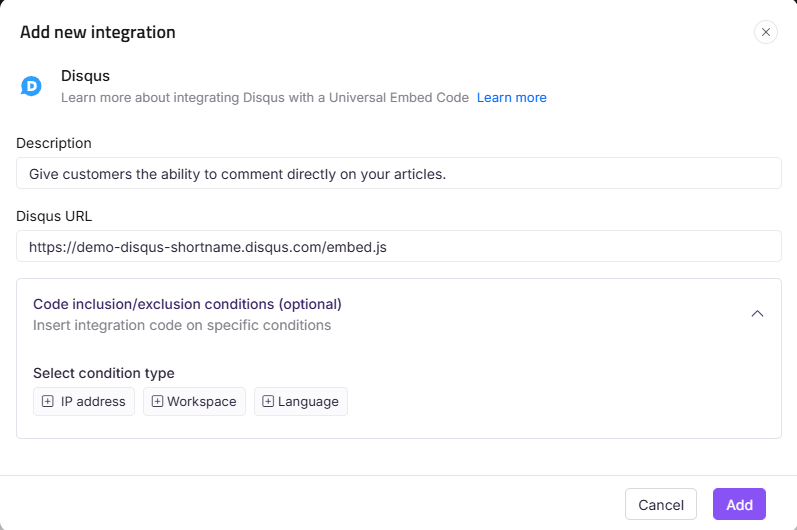
- Add a Description and enter your Disqus URL.
The Disqus URL is a unique code obtained from the Disqus account interface. It is required to connect Disqus and Document360 in the knowledge base portal.
Optionally, expand Code inclusion/exclusion conditions to control when the integration runs based on IP address, Workspace, or Language.
- Click Add.
After setup, open your Disqus account to view and moderate reader comments on your knowledge base articles.
Best practices
- Use admin moderation to keep discussions on topic. Disqus's moderation tools let you review, approve, flag, or remove comments, helping maintain a constructive discussion environment on your articles.
- Use multilingual support for global knowledge bases. Disqus supports multiple languages, making it a good fit for knowledge bases that serve readers in different regions.
- Use Code inclusion/exclusion conditions to enable comments on specific workspaces only. If commenting should only appear on certain workspaces or languages, configure conditions to limit where the integration runs.
- Review comment threads for documentation insights. Reader comments often surface questions, corrections, or gaps that aren't yet covered in your articles, making Disqus a useful source of content feedback.
FAQ
How does Disqus benefit a knowledge base site?
Disqus enables reader commenting and admin moderation on your Document360 articles. It provides a multilingual-supported comment plugin that automatically blends into the design of your knowledge base site, giving readers a familiar and consistent commenting experience.
What is the Disqus URL?
The Disqus URL is a unique identifier obtained from the Disqus account interface. You can find it by going to your Disqus dashboard, clicking Install Disqus > Select Platform, choosing Install manually with Universal code, and copying the URL value from under s.src = in the Universal code snippet.
Does Disqus support multiple languages?
Yes. Disqus includes multilingual support, making it suitable for knowledge bases that serve readers in different languages and regions. The comment plugin also blends automatically into the design of your knowledge base site.
Can I limit which workspaces or languages Disqus appears on?
Yes. When adding or editing the Disqus integration, expand Code inclusion/exclusion conditions and add conditions based on IP address, Workspace, or Language. See Code inclusion and exclusion conditions for full details.
Can I moderate reader comments after integration?
Yes. Disqus includes admin moderation tools that let you review, approve, flag, and remove comments. After completing the integration, log in to your Disqus account to manage comments on your knowledge base articles.