This article covers everything you need to manage your API references in Document360. Creating new references, keeping them in sync with your spec, and using the available actions to view, edit, publish, and organize your API documentation.
API references list
The API references list gives you a central view of all configured API references in your workspace. To access it, navigate to API documentation ({ }) in the left navigation bar and click API references in the left navigation pane.
From here you can see the name, type, and last updated date for each reference. You can also create a new API reference by clicking New API in the top right corner.
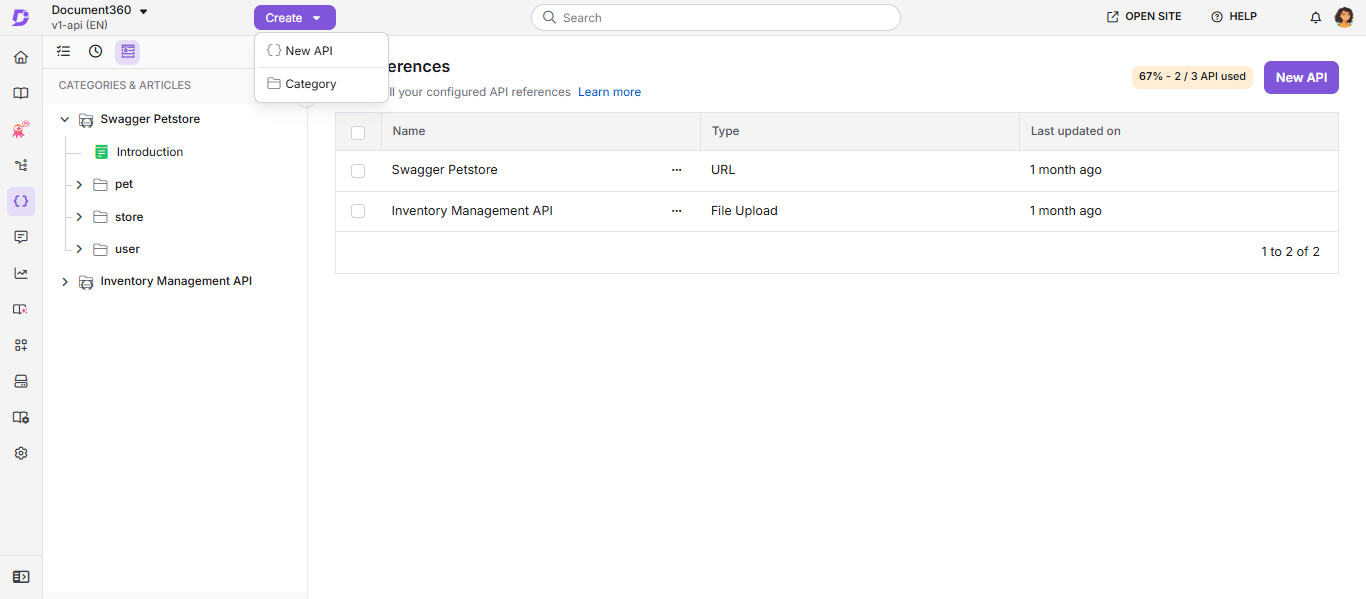
Create a new API reference
To create a new API reference, click the Create dropdown in the top navigation bar and select New API. This opens the New API reference window where you have four options:
- Upload API definition - Upload a JSON, YAML, or YML spec file directly from your device or from Document360 Drive.
- Create from URL - Fetch your spec automatically from a hosted URL.
- CI/CD Flow - Integrate with your pipeline to update documentation automatically on every spec change. Requires Node.js.
- Try sample Pet Store API file - Use Document360's sample spec file to explore the workspace before uploading your own.
Document360 supports OpenAPI 2.0, OpenAPI 3.0, OpenAPI 3.1, and Postman API specifications. Within each API workspace, you can create a maximum of 3 API references.
Upload API definition
- Select the Upload API definition radio button.
- Click Upload from my device to upload from your local storage, or Choose from Drive to select a file from Document360 Drive. You can also drag and drop your file directly into the window.
- Document360 parses the file and generates the API reference. If warnings are detected, expand the Alerts and Warnings section to review them.
- Click New API reference to proceed to the publish confirmation window.
Create from URL
- Select the Create from URL radio button and click Next.
- Enter the URL pointing to your OpenAPI specification file.
- Click New API reference. Document360 fetches and processes the spec.
CI/CD flow
The CI/CD flow lets you keep your API documentation automatically in sync with your spec. Instead of manually uploading a new spec every time your API changes, you integrate the Document360 CLI into your pipeline so documentation updates automatically on every spec change.
For full setup instructions, see the CI/CD integration article.
API reference actions
Once an API reference is created, click the More (⋯) icon next to it in the API references list to access the following actions:
| Action | What it does |
|---|---|
| Edit | Update the spec file or URL the reference was created from. |
| Resync | Regenerate the documentation from the latest version of the spec at the existing URL. |
| View API definition | Preview the raw API specification file. |
| Download original API source | Download the current version of the spec file to your local storage. |
| Publish | Publish all draft articles in the API reference to the Knowledge base site. |
| Delete | Permanently delete the API reference and all its generated content. |
| View logs | Review alerts, warnings, and errors from the most recent import or resync. |
To allow readers to download the API source file from the Knowledge base site, ensure the Show download API source toggle is turned on in the Knowledge base portal settings.
Keeping your documentation in sync
When your API changes - new endpoints added, parameters updated, responses modified, but you do not need to update your documentation manually. Regenerating your API reference pulls in all changes from your spec automatically.
Any custom content you have added to individual endpoint articles is retained when you regenerate your documentation. Only the spec-generated content is updated.
Resync from an existing URL
- In the API references list, click the More (⋯) icon next to the reference you want to update.
- Click Resync. The documentation regenerates from the latest version of the spec at the existing URL.
Update to a new URL
- Click the More (⋯) icon next to the reference.
- Click Edit.
- Enter the new URL in the URL field.
- Click Update.
Regenerate from a spec file
- Click the More (⋯) icon next to the reference.
- Click Edit.
- Upload the latest spec file in JSON, YAML, or YML format.
- Click Update.
Resync via CI/CD
If your API reference was set up with the CI/CD flow, resyncing happens automatically as part of your pipeline whenever your spec changes. You can also trigger a manual resync using the apidocs:resync command:
d360 apidocs:resync \
  --apiKey=YOUR_API_KEY \
  --userId=YOUR_USER_ID \
  --apiReferenceId=YOUR_API_REFERENCE_ID \
  --path=PATH_TO_SPEC_FILE
For full details on setting up and managing the CI/CD flow, see the CI/CD integration article.
Automatic vs manual resync
| Creation method | Automatic resync | Manual resync |
|---|---|---|
| File upload | Not available | Yes, via Edit in the portal |
| URL import | Not available | Yes, via Resync or Edit in the portal |
| CI/CD flow | Yes - runs as part of your pipeline | Yes, run the CLI command manually |
If you generated your API documentation from a URL or a file, it will not update automatically. To have documentation update automatically, integrate with the CI/CD flow.
Understanding endpoint deletion during resync
When you update your API specification file, any endpoints that are no longer present in the new spec are permanently deleted along with any custom content added to those endpoint pages.
To update your spec file safely:
- Upload the updated spec file in the Edit API reference window.
- If any endpoints are deleted, a warning is displayed. Click Show deleted endpoints to review the list of affected endpoints.
- Select the Confirm to continue checkbox to acknowledge the deletion.
- Click Update to proceed.
Deleted endpoints are moved to the Recycle bin, where they can be previewed for up to 30 days but cannot be restored.
If you are using the resync API endpoint programmatically, send ForceImport = false to preview the list of endpoints that will be deleted without proceeding. Send ForceImport = true to confirm and proceed.
Keeping documentation in draft
After uploading or resyncing a spec, you can keep the resulting documentation in draft mode rather than publishing it immediately.
- In the publish confirmation window, click Close instead of Publish. All generated articles will remain in draft mode.
- Draft articles are visible in the Categories & Articles pane in the portal but are not accessible to readers on the Knowledge base site.
- You can review, edit, and add custom content to draft articles before publishing.
Nested categories
Document360 supports up to three levels of subcategories in the API documentation workspace. Categories are created based on the tag definitions in your spec file.
To create nested categories, use the > symbol in your OpenAPI tags:
tags:
  - name: "Pets > Details"
This creates a Pets category with a Details subcategory inside it. This structure is preserved during resync.
If your spec defines more than three levels of nesting, any categories beyond the third level are placed at the third level.
Category ordering
The order in which categories appear in your documentation matches the tag order defined in your spec file. To change the category order, reorder the tags array in your spec and resync.
Category options
Right-clicking a category in the Categories & Articles pane gives you the following options:
| Option | What it does |
|---|---|
| Rename | Rename the category. |
| Article | Add a new article or sub-article inside the category. |
| Sub category | Add a subcategory inside the category. |
| Change type | Change the category type. |
| Set drive folder | Link the category to a Document360 Drive folder. |
| Edit API reference | Update the spec file or URL for the API reference. |
| Download original API source | Download the current spec file. |
| Publish | Publish all draft articles in the category. |
| Security | Configure who can access the category from the portal and the Knowledge base site. |
You can move endpoint articles between subfolders within the same API reference folder. It is not possible to move an endpoint article from one API reference folder to a different API reference folder.
Updating spec-generated content via the API
Endpoint articles generated from an API specification (OpenAPI or Swagger) are read-only through the standard content API endpoints, they cannot be retrieved or updated that way. To modify this type of content:
- Update your API definition file (OpenAPI/Swagger).
- Resync the documentation using the portal, CLI, or CI/CD flow to reflect the changes.
This keeps your endpoint reference content consistent with your API specification.
Regular knowledge base articles, such as concept pages, authentication guides, or other non-spec content, are not tied to the API specification. These can be created, updated, and managed like any other knowledge base content using the standard content API endpoints.
If you receive a 403 error while attempting to update content via the API, first confirm which type of content you're working with. If it's spec-generated content, use the resync process above rather than adjusting token permissions. If it's a non-spec article, see API tokens for guidance on reviewing and updating token permissions.
Multiple contributors can edit these non-spec articles at the same time, just like regular knowledge base articles. This does not apply to spec-generated endpoint articles, which can only be edited within their custom content blocks.
FAQ
How often is an API reference resynced automatically?
API references created from a URL or file are not resynced automatically. They must be updated manually via the portal. To enable automatic updates, integrate with the CI/CD flow.
Can I move a specific API endpoint article from one API reference folder to another?
No. You can move endpoint articles between subfolders within the same API reference folder, but not between different API reference folders.
Can an API documentation article have the same URL as a Knowledge base article?
No. API documentation articles and Knowledge base articles cannot share the same URL. However, they can exist under the same subdomain.
Can I keep generated documentation in draft mode?
Yes. After uploading a spec, click Close instead of Publish in the confirmation window. All generated articles will be saved in draft mode.
How many levels of categories are supported?
The API documentation workspace supports up to three levels of subcategories. Additional levels are collapsed to the third level.
Can I create nested folders automatically from the spec file?
Yes, using the > symbol in OpenAPI tags (e.g. Pets > Details). This creates a hierarchical structure that is preserved during resync.
Can readers access the Knowledge base site during Document360 portal downtime?
Yes. GET calls of the Customer API run independently of the Document360 portal, so readers can continue accessing the site during scheduled maintenance or portal downtime.