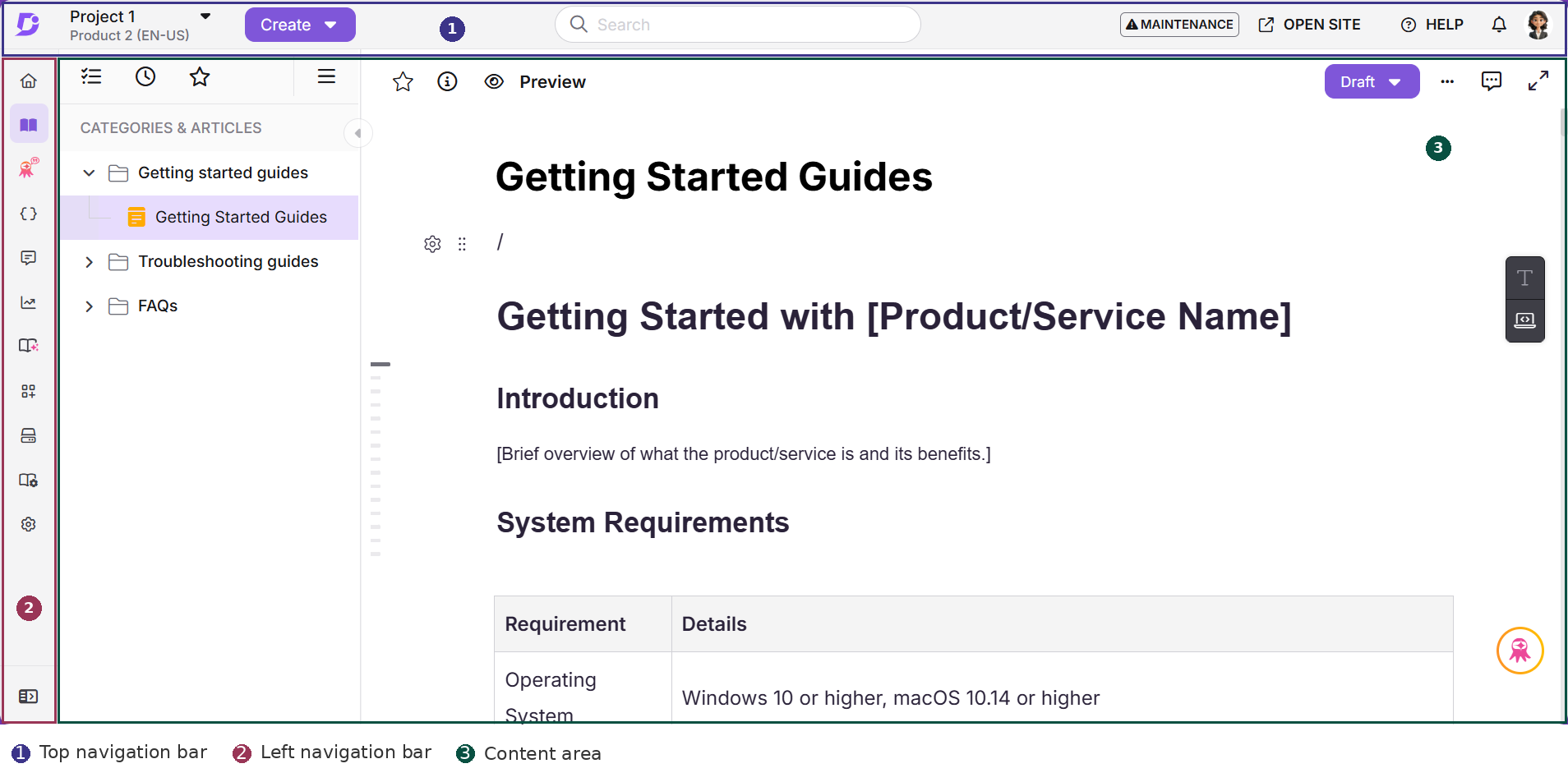
The Knowledge base portal is where you build and manage everything in Document360. What you create or configure here directly shapes the Knowledge base site which is the reader-facing version. This article walks you through the interface so you know where things are before you dive in.
The three zones
The portal is organized into three fixed zones. They're always visible, no matter which module you're in.

Top navigation bar runs across the top of every page. Use it to switch projects and workspaces, create content, search the portal, open the live site, and access help and your profile.
Left navigation bar runs along the left edge. Each icon represents a module; select one to load it in the main workspace.
Main workspace is the large area to the right where everything loads, like your article editor, dashboards, settings pages, and more.
Top navigation bar
The top bar is always visible, regardless of which module you're in. It gives you quick access to the tools and controls you need without leaving your current view.
| Control | What it does |
|---|---|
| Document360 icon | Takes you back to the Your projects dashboard. The starting point where all your projects are listed. |
| Projects | Displays the name of the project you're currently in. Select it to view all your projects and switch between them. Each project shows a visibility icon indicating whether it's Public, Private, or Mixed. |
| Workspace & language | Displays the active workspace and language. Select it to switch to a different workspace or language within the same project. A Main badge marks the primary workspace, and a Default badge marks the default language. |
| Create | Opens a dropdown with options to create a category, a blank article, an article with Eddy AI, an article from a template, or import articles. |
| Search | Opens full portal search across articles, drive files, users and groups, tags, and settings, simultaneously across all workspaces and languages. Use the dropdown to the left of the search bar to narrow results to a specific scope. |
| Maintenance banner | Appears when scheduled portal maintenance is upcoming. During maintenance, the portal is temporarily unavailable. You won't be able to access, create, or edit content. All planned maintenance is communicated in advance through this banner and via email. |
| Open site | Opens the live knowledge base site for the currently active workspace in a new tab. Use this to preview how your content appears to readers. |
| Help | Opens a menu with options to get assistance, access documentation, chat with support, raise a ticket, submit a feature request, and check system status. |
| Release updates | Shows the latest updates and feature releases in Document360. |
| My profile | Select your profile picture to access: My profile, View access and permissions, Dark theme, Change password, and Log out. |
Left navigation bar
The left navigation bar gives you access to every module in the portal. Each icon loads a different module in the main workspace.
| Module | What it does |
|---|---|
| Home | Your project dashboard. Shows an Overview, Tasks assigned to you, Recent articles, Starred items, and the Recycle bin. |
| Documentation | Create and organize categories and articles, use AI-powered tools to draft and improve content, and work with templates and content reuse features. |
AI chatbot |
Build and deploy AI chatbots trained on your content - articles, website pages, FAQs, files, and support tickets. Configure, test, and deploy from here. |
| Interactive decision trees | Build branching step-by-step interactive guides for troubleshooting, workflows, or onboarding along with texts, media, and branching logic. |
| API documentation | Upload OpenAPI (Swagger) files and endpoint articles are generated automatically. Readers can test endpoints directly using the Try it! feature. |
| Feedback manager | Consolidates reader feedback from articles and Eddy AI search. Likes, dislikes, comments, and unanswered queries, all in one place. |
| Analytics | Understand how readers interact with your knowledge base through analytics. Covers article performance, search trends, AI usage, feedback patterns, and ticket deflection. |
| Automatically scans your knowledge base for content quality issues like duplicate articles. Review scan reports and run manual scans. | |
| Connections | Configure integrations, extensions, and the knowledge base widget for your website or app. |
| Drive | Centralized storage for all files and assets used across your project - images, videos, PDFs, and more. |
Content tools |
Templates, variables, snippets, glossary, SEO descriptions, tags, find & replace, and import/export tools - all in one place. |
| Settings | Central settings hub for all project configuration - users, roles, permissions, branding, custom domain, security, and AI features. |
The portal is designed to be intuitive. Everything has a fixed place, and no matter which module you're in, the top navigation bar and left navigation bar are always there. With a clear structure and consistent layout, you can focus on building great documentation without having to think about where things are.
AI chatbot
Content tools