Os usuários são membros da equipe que fazem login no portal da base de conhecimento para criar, editar, revisar e gerenciar conteúdo. Ao contrário dos Leitores, que consomem apenas a base de conhecimento publicada, os usuários têm acesso ao portal e recebem funções que controlam o que eles podem fazer. Quando você adiciona um usuário, você especifica seu papel no projeto, no conteúdo e no nível de acesso ao conteúdo que ele recebe.
Por que adicionar usuários
Adicionar usuários é como você dá acesso à sua equipe ao portal Document360. Sem uma conta de usuário, um membro da equipe não pode fazer login para escrever artigos, revisar conteúdo, gerenciar configurações ou realizar qualquer tarefa de autoria ou administração. Você atribui a cada usuário um papel de projeto (que controla o acesso ao portal) e um papel de conteúdo (que controla o que eles podem fazer com artigos e conteúdo). Essa combinação permite que você dê a cada pessoa exatamente o nível certo de acesso — nem mais, nem menos.
Use este artigo quando precisar:
- Convide um novo membro da equipe para o portal.
- Atribua um papel específico a um escritor, editor, revisor ou administrador.
- Restringa o usuário a espaços de trabalho, idiomas ou categorias específicas.
- Adicione usuários via autenticação SSO.
Antes de começar
- Você deve ter as funções de Proprietário ou Administrador do projeto.
- Tenha os endereços de e-mail dos usuários que você quer adicionar prontos.
Como adicionar um usuário
-
Navegue até Configurações () > Usuários e segurança na barra de navegação esquerda do portal da base de conhecimento.
-
No painel de navegação à esquerda, navegue até Usuários e grupos > Usuários.
-
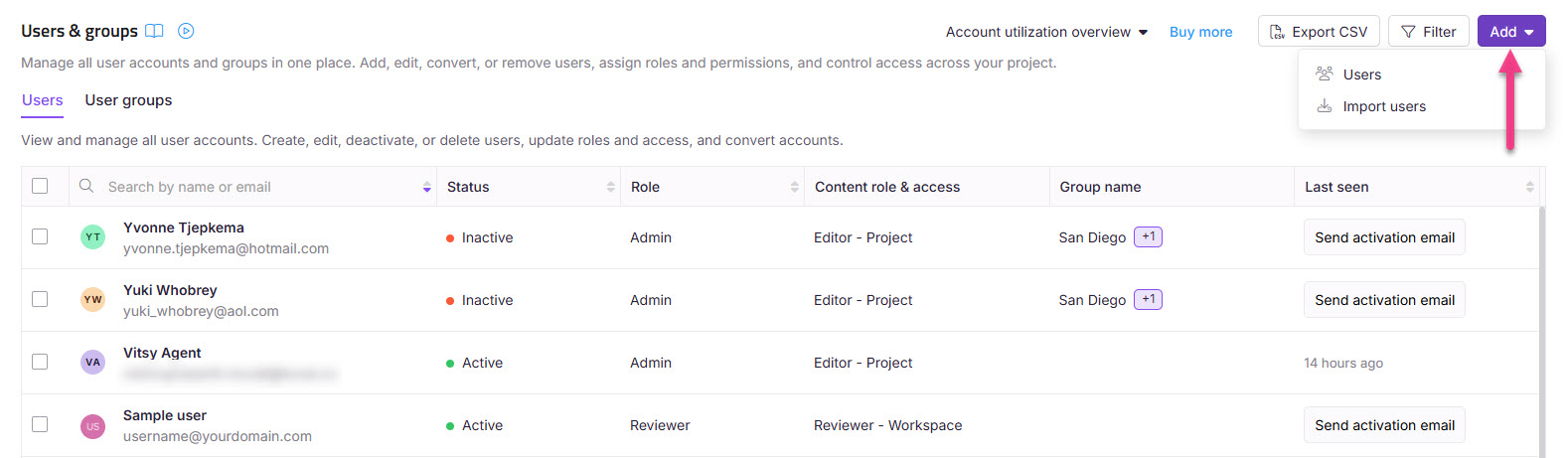
Clique em Adicionar > Usuário para abrir o diálogo de Novo Usuário .
-
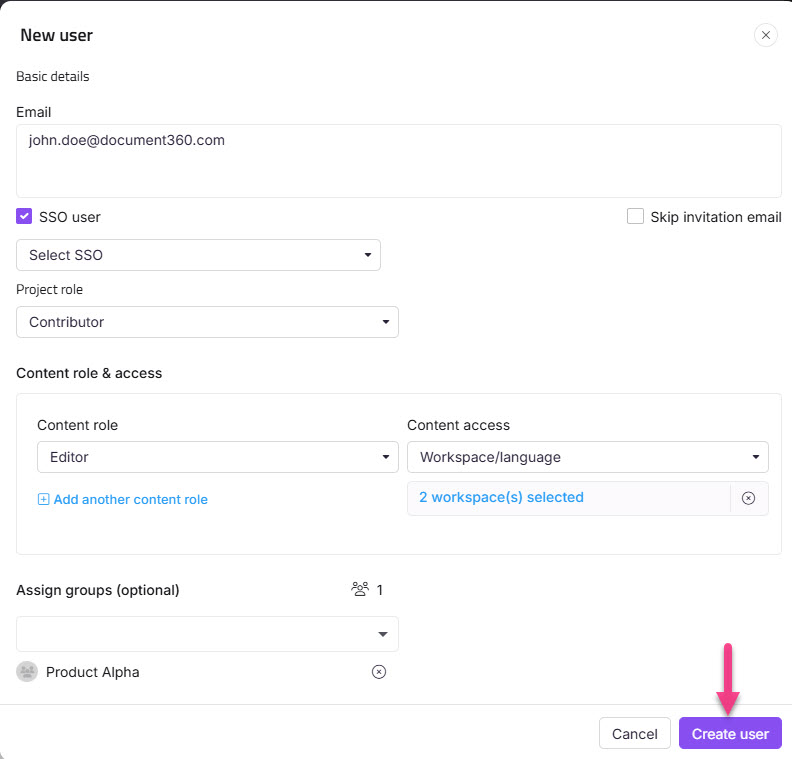
No campo E-mail , insira os endereços de e-mail dos usuários que deseja adicionar.
NOTA
Você pode adicionar até cinco endereços de e-mail ao mesmo tempo, separados por vírgulas. Para adicionar mais de cinco usuários ao mesmo tempo, use Importar usuários.
- Selecione a caixa de seleção de usuário SSO para adicionar o usuário como usuário SSO.
- Se você selecionou a caixa de seleção de usuário SSO , selecione uma configuração de SSO no menu suspenso Selecionar SSO .
- Selecione a caixa de seleção Pular o convite se não quiser que seus novos usuários recebam um e-mail de convite. Você pode compartilhar a URL do portal diretamente com os usuários para que eles possam fazer login sem convite.
- Escolha o papel desejado no Projeto para as novas contas.
NOTA
Você não pode escolher papéis individuais no portal para cada e-mail inserido no campo E-mail . Todos os endereços no campo recebem a mesma função do projeto.
- Selecione a função de conteúdo desejada para os novos usuários.
NOTA
Você pode atribuir múltiplos papéis de conteúdo para controlar o acesso selecionando Adicionar outro papel de conteúdo. Se nenhum papel de conteúdo for selecionado, o usuário recebe Nenhum por padrão.
- Escolha o nível de acesso ao conteúdo que você deseja para a vaga de conteúdo.
- Atribua grupos para os novos usuários pelo menu suspenso Assignar grupos . Este campo é opcional. Você também pode adicionar usuários sem associá-los a nenhum grupo.
- Clique em novo usuário.
Funções no projeto
O papel do projeto determina quais áreas do portal da base de conhecimento um usuário pode acessar e gerenciar. Para uma divisão detalhada das permissões por função, veja Papéis e permissões.
| Função | Descrição |
|---|---|
| Proprietário | Tem acesso total a todos os recursos, incluindo faturamento. Pode adicionar ou realocar outros Proprietários. Apenas um cargo de Proprietário pode ser atribuído por cada vez por projeto. |
| Administração | Tem acesso a todas as funcionalidades, exceto faturamento. Pode gerenciar usuários, projetos e configurações. Não é possível adicionar ou atribuir o papel de Proprietário. |
| Colaborador | Pode criar, editar e publicar artigos em rascunho e páginas de categoria. |
| Resenhista | Pode acessar o portal da base de conhecimento e acessar os artigos atribuídos a eles para análise. |
| Função personalizada | Um conjunto personalizado de permissões definido pela sua organização. Funções personalizadas são criadas e gerenciadas em Funções e permissões. |
Funções de conteúdo
O papel de conteúdo controla quais ações um usuário pode realizar em artigos e outros conteúdos dentro da base de conhecimento.
| Função | Descrição |
|---|---|
| Redator de Rascunho | Pode criar e editar artigos e páginas de categoria, mas não pode publicá-las. |
| Editor | Pode gerenciar artigos, categorias, drives, fluxos de trabalho e reutilização de conteúdo. |
| Resenhista | Pode adicionar comentários aos artigos, atualizar status de fluxo de trabalho e definir prazos para esses status. |
| Nenhum | Nenhum papel de conteúdo é atribuído. Isso pode ser atualizado posteriormente, conforme necessário. |
Níveis de acesso ao conteúdo
O nível de acesso ao conteúdo determina qual conteúdo do banco de conhecimento um usuário pode visualizar e trabalhar para seu papel de conteúdo atribuído.
| Nível de acesso | Descrição |
|---|---|
| Nenhum | O usuário não tem acesso a nenhum conteúdo da base de conhecimento. |
| Todos | O usuário tem acesso a todo o conteúdo da base de conhecimento em todos os espaços de trabalho e idiomas. |
| Espaço de Trabalho / Linguagem | Restringe o acesso a conteúdos dentro de espaços de trabalho e idiomas específicos. Os usuários só podem visualizar o conteúdo designado para suas seleções designadas. |
| Categoria | Limita o acesso a categorias específicas dentro de espaços de trabalho e idiomas designados. Os usuários só podem visualizar conteúdo dentro das categorias designadas. |
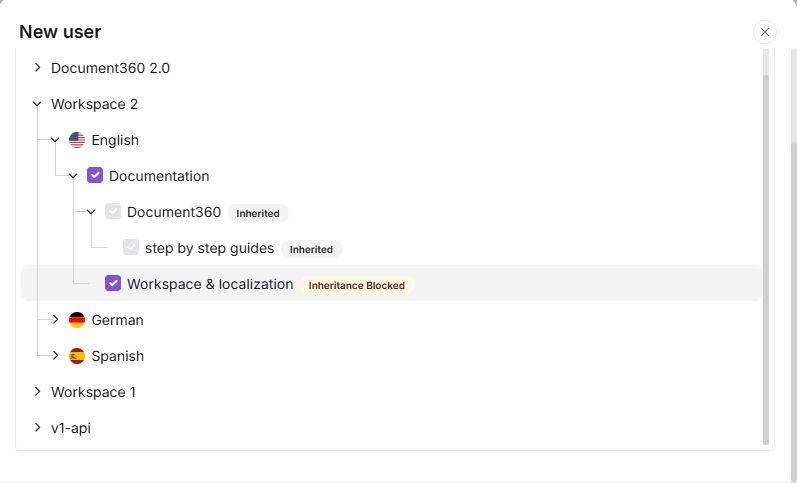
Quando você escolhe Categoria como nível de acesso ao conteúdo, você seleciona categorias específicas de uma árvore. Selecionar uma categoria pai seleciona automaticamente todas as suas categorias e subcategorias, mostradas com um selo Herdado . Se Herança em Bloco foi aplicada a uma categoria ou subcategoria específica, isso será excluído da seleção automática — ele aparece desmarcado com um selo de Herança bloqueada , e você pode selecioná-lo manualmente para conceder acesso explícito a essa categoria. A árvore exibe apenas as categorias às quais você tem acesso.
- Níveis de acesso ao conteúdo (Nenhum, Todos, Espaço de Trabalho/Linguagem e Categoria) se aplicam tanto ao portal da base de conhecimento quanto ao site publicado para o mesmo usuário. Você não pode configurar diferentes níveis de acesso ao conteúdo para cada um.
- Por exemplo, você pode combinar múltiplos papéis de conteúdo para dar a um revisor acesso apenas de visualização a uma gama mais ampla de conteúdo, sem conceder permissões de edição. Veja permissões de revisor para mais informações.
FAQ
Por que não consigo adicionar um usuário ao Document360?
Isso geralmente ocorre quando o usuário já faz parte do projeto em um papel diferente, como um Leitor (SSO Reader), Revisor ou um usuário existente. Nesses casos, você não poderá adicionar o mesmo endereço de e-mail novamente como um novo usuário.
Para resolver isso, verifique se o usuário existe em Leitores e grupos. Se ele estiver listado como Leitor, você pode convertê-lo em um usuário com o acesso desejado. Se o usuário for designado como Revisor, remova-o dessa função antes de atribuir o papel e o acesso ao conteúdo apropriados. Além disso, certifique-se de que o ID de e-mail inserido seja válido e livre de erros de digitação.
Quem pode adicionar ou excluir um usuário?
Administradores e Proprietários do projeto podem adicionar e excluir usuários. Aqueles com a permissão Gerenciar usuários também podem adicionar usuários.
Somente um Proprietário pode adicionar ou reatribuir outro Proprietário.
Administradores podem adicionar usuários, mas não podem adicionar ou atribuir o papel de Proprietário .
Posso adicionar um usuário sem enviar um e-mail de convite?
Sim. Selecione a caixa de seleção Pular o convite no diálogo de Novo usuário antes de clicar em Novo usuário. A conta é criada imediatamente, mas o usuário não receberá notificação por e-mail. Você pode compartilhar a URL do portal diretamente com eles para que possam fazer login.
O que acontece se eu tentar adicionar alguém que já é Leitor?
O Document360 não permite que existam os mesmos endereços de e-mail tanto de usuário quanto de Reader. Se você inserir um e-mail pertencente a um Reader existente, o sistema mostrará um erro. Para dar acesso ao portal dessa pessoa, converta sua conta Reader em uma conta de usuário em vez de criar uma nova entrada.
Posso adicionar mais de cinco usuários ao mesmo tempo?
A janela de diálogo Novo usuário aceita até cinco endereços de e-mail por vez. Para adicionar mais de cinco usuários em uma única operação, use Importar usuários, que permite enviar um arquivo CSV com tantos usuários quanto seu plano permitir.
Qual é a diferença entre um usuário e um Leitor?
Os usuários têm acesso ao portal da base de conhecimento e podem criar, editar ou gerenciar conteúdo dependendo de sua função. Os leitores só têm acesso ao site da base de conhecimento publicado e não podem acessar o portal. Se você precisar que alguém veja seus artigos publicados sem contribuir com conteúdo, adicione-o como Leitor em vez disso.