Create a JSON Web Token (JWT) configuration in Document360 so readers who sign in to your application can open your private knowledge base site without a separate Document360 account. You create the configuration, copy the Client ID, URLs and secret tokens your developers need, and review the project login settings. Readers then sign in through your application, which sends them to the knowledge base with a one-time sign-in code.
When to use JWT
- Your readers already have accounts in your own application, and you want them to reach the knowledge base site from there.
- You want to control reader sign-in and reader access from your application instead of creating reader accounts in Document360.
- You need separate sign-in flows for different domains or audiences. A project can have up to 5 JWT configurations.
If your organization signs in through an identity provider such as Okta or Microsoft Entra ID, use SAML or OpenID Connect instead. To compare the options, see JWT.
Before you begin
- You need the Owner or Admin project role to configure JWT in Document360.
- You need a developer who can add the sign-in route to your application's backend.
- Know the address of the sign-in endpoint your developer adds to your application (for example,
https://app.example.com/docs/auth). You enter it as the Login URL. It must start withhttps://. - Have a secure place, such as a secrets manager, ready to store the secret tokens. Document360 shows them only once.
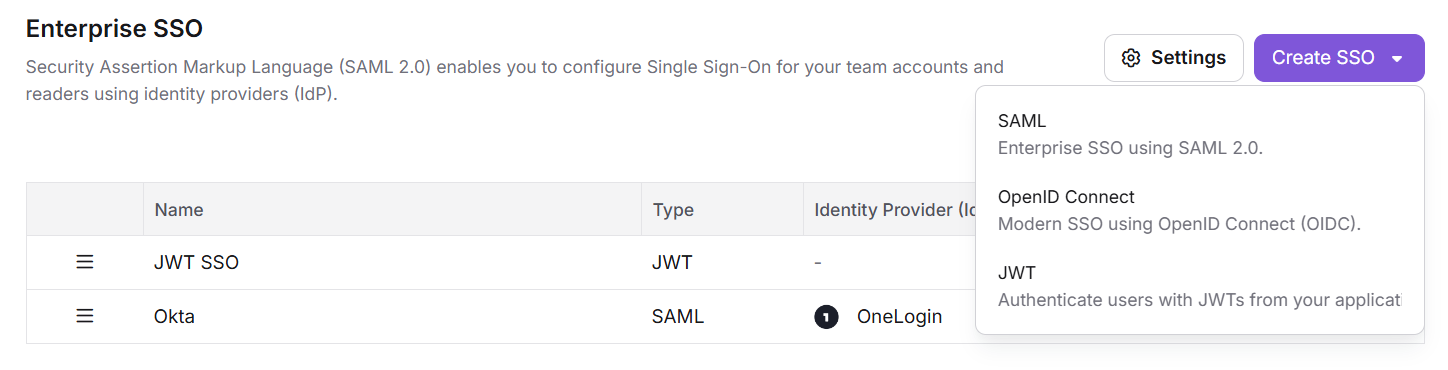
You create and manage JWT configurations at Settings () > Users & Permissions > Enterprise SSO.
If you already have a JWT configuration
If you set up JWT before October 2026, your configuration now appears in the Enterprise SSO list alongside any SAML or OpenID Connect configurations. It stays active, and readers keep signing in without interruption. From the list, you can:
- Keep using the configuration. No changes are needed.
- Click the Edit icon to update its settings.
- Click the Delete icon to remove it. See Considerations before you delete the last active configuration.
To add another JWT configuration, follow Step 1. Your existing configuration is not changed.
How to configure JWT in Document360
Complete these steps in order. Steps 1 and 2 happen in Document360. Step 3 happens in your application.
Step 1: Create a JWT configuration
-
On the Enterprise SSO page, click Create SSO.
-
Select JWT to authenticate users with JWTs from your application.
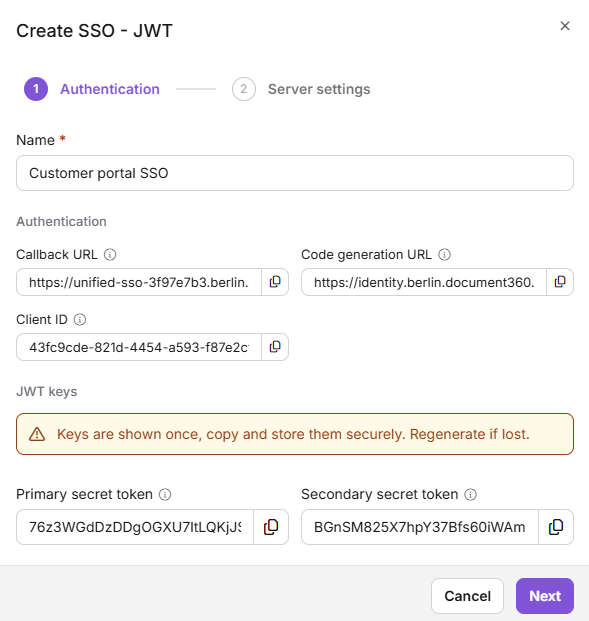
The Create SSO - JWT modal opens on the Authentication tab.
-
In Name, enter a name that identifies this configuration, for example "Customer Portal SSO". The name must be unique in the project. The name appears in the Enterprise SSO list. If you show a login button for this configuration, readers also see this name on the login page, so choose one they will recognize.
-
Copy the Authentication values with the Copy icon next to each one. These are read-only values that Document360 generates.
Field Description Callback URL The knowledge base address your application sends the reader to after it gets a sign-in code, in the form https://<your KB domain>/jwt/authorize?code=<code>. If your project uses a custom domain, the URL uses it.Code generation URL The Document360 endpoint your application's backend calls (HTTP POST, Basic authentication with the Client ID and a secret token) to get a sign-in code for the reader. Each code is valid for 5 minutes and works once. Client ID The unique identifier for this JWT configuration. Add it to your application. -
Under JWT keys, copy the Primary secret token and the Secondary secret token, and store them securely.
Token Purpose Primary secret token A client secret. Your backend sends it with the Client ID as HTTP Basic authentication when it calls the Code generation URL. Keep it on the server only. If it is exposed, regenerate it and update your application. Secondary secret token A second client secret that works at the same time as the primary one. Use it to change secrets without interrupting sign-in. See How to regenerate secret tokens.
Secret tokens appear in plain text only while this modal is open. Copy both before you close it; afterwards they are masked and can't be shown again. If you lose one, regenerate that token. Regenerating takes effect immediately and invalidates only that token, so switch your application to the other token first. Click Create within 60 minutes of opening this modal; after that, the generated values expire and you must start again.
-
Click Next.
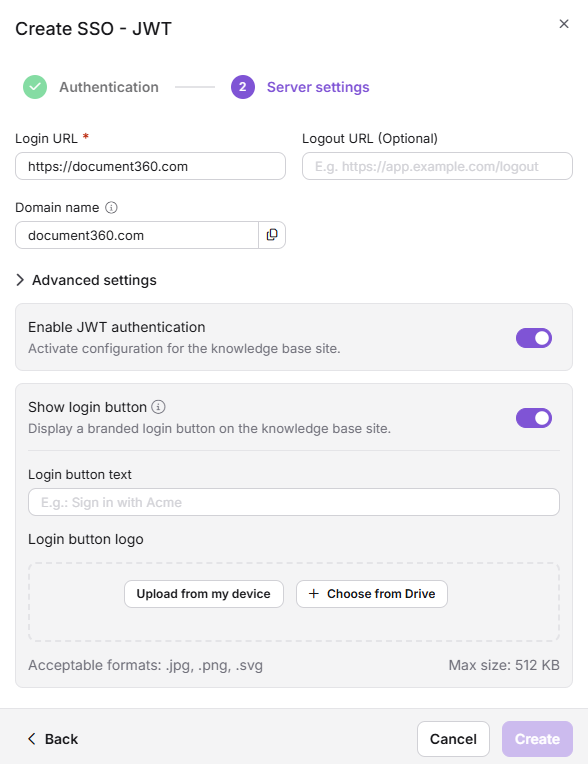
The Server settings tab opens.
-
Enter the server settings.
Field Required Description Login URL Yes The address of the sign-in endpoint in your application that Document360 sends readers to, for example https://app.example.com/docs/auth. Must start withhttps://.Logout URL No The page readers are sent to after they sign out, for example https://app.example.com/logout. Must start withhttps://. If you leave it empty, readers go to Document360's default JWT logout page.Domain name Automatic The domain of this JWT configuration, taken from the Login URL. For https://app.example.com/docs/authit isapp.example.com. When a reader types this domain on the knowledge base login page, Document360 sends them to this configuration's Login URL. Readers need it only when this configuration has no login button.The Login URL doesn't have to be your login page. Make it a route that checks whether the reader is already signed in to your application. If they are, it gets a code from the Code generation URL and sends them to the Callback URL without asking them to sign in again. If they aren't, it shows your login page first and then does the same.
The domain name follows these rules:
- Subdomains are separate entries.
portal.example.comandexample.comare different domains and can belong to different configurations. - Wildcard domains such as
*.example.comaren't supported. Each domain must be an exact value. - Each domain must be unique across the JWT configurations in the project. If another configuration already uses it, an inline error appears when you save.
- On the login page, readers type the domain only, for example
portal.example.com, with nohttps://and no path. The match is exact and ignores case. If the value starts withhttps://, has no dot, or belongs to a configuration that is turned off, readers see "Enter a valid domain name".
- Subdomains are separate entries.
-
(Optional) Expand Advanced settings and set these options:
- Enable JWT authentication (default: ON): keep it on so readers can sign in with this configuration. Turn it off to suspend the configuration without deleting its settings.
- Show login button (default: OFF): turn it on to show a login button for this configuration on the knowledge base login page, so readers don't have to enter a domain name. When it is on, enter the Login button text that tells readers where they are signing in. To add a Login button logo, click Upload from my device or Choose from Drive (JPG, PNG or SVG, up to 512 KB).
-
Click Create. The button stays inactive until every required field has a valid value.
The modal closes, and the new configuration appears in the Enterprise SSO list.
Step 2: Review the login settings
Document360 turns on Direct JWT login automatically when you create your first JWT configuration. Check that this is what you want. The login settings apply to the whole project and to every sign-in option, not to a single JWT configuration.
-
Go to Settings () > Users & Permissions > Enterprise SSO.
-
Click Settings at the top right of the page.
The Login settings dialog opens.
-
Review Direct JWT login.
- On: SAML and OpenID Connect buttons are hidden from the login page. If exactly one JWT configuration is active, readers skip the login page and go straight to its Login URL.
- Off: readers see a login page with every active sign-in option, including SSO and, unless you disable it, the Document360 email and password login. You confirm the change before it applies.
Direct JWT login can't be changed until the project has at least one JWT configuration.
-
Choose whether to turn on Disable default login page (default: OFF). When it is on, the Document360 email and password login is hidden, and readers can sign in only through your JWT or SSO configurations. Teams that control all reader access through a central identity system use this setting.
Turn on Disable default login page only after you have fully configured and tested JWT or SSO sign-in. If the external authentication is misconfigured, readers can't access the knowledge base.
- Click Close.
Your changes apply immediately.
To change where the JWT login button appears among other sign-in options on your knowledge base site, see Managing JWT configurations.
Step 3: Set up your application
Give your developers these values. They add them to your application's backend.
| Value | Where to find it |
|---|---|
| Client ID | Authentication tab of the configuration |
| Callback URL | Authentication tab of the configuration |
| Code generation URL | Authentication tab of the configuration |
| Primary secret token | JWT keys, copied when you created the configuration |
| Secondary secret token | JWT keys, copied when you created the configuration. Used during token rotation. |
Your developers then build the backend route that sends signed-in readers to the knowledge base site. See Implement JWT in your application.
Readers don't need a Document360 account. An account in your application is enough to access the knowledge base.
To check that readers can sign in, see Test your JWT configuration.
Considerations
| Limit | Details |
|---|---|
| JWT configurations per project | Up to 5, depending on your plan. Turned-off configurations count toward the limit; delete one to free a slot. |
| JWT login buttons on the login page | Up to 3 configurations can have Show login button turned on. The login page shows at most 2 buttons directly, counting SSO and JWT buttons together; the others appear under Other login options. Readers of configurations without a button sign in by entering their domain name. |
| Wildcard domains | Not supported. |
| Secret tokens | Shown only once, when you create the configuration. Regenerating a token invalidates only that token; the other one keeps working. |
| Last active configuration | If this is the only active SSO or JWT configuration and the default login page is disabled, you can't turn it off or delete it. Document360 shows this message: "This is the only active SSO or JWT configuration and the default login page is disabled, so turning it off or deleting it would lock everyone out. Enable another configuration, or turn the default login page back on, first." |
| Sign-in scope | JWT signs readers in to the knowledge base site. It doesn't sign users in to the knowledge base portal. |
Best practices
- Store the secret tokens in a secrets manager as soon as you copy them, and never put them in client-side code.
- Give each configuration a name readers recognize, especially if you show its login button.
- Test the setup with Test your JWT configuration before you turn on Disable default login page.
- Check Direct JWT login when you add SSO. Document360 turns it on with your first JWT configuration, and it hides SSO buttons. Turn it off if readers need to choose between JWT and SSO.
- Turn a configuration off instead of deleting it when you only need to pause it. Its settings are kept.
FAQ
Do readers need a Document360 account to sign in with JWT?
No. Readers sign in to your application, and an account there is enough to access the knowledge base site.
Can I use JWT together with SAML or OpenID Connect?
Yes. Click Create SSO on the Enterprise SSO page and select SAML or OpenID Connect. Your JWT configuration isn't affected. To show both on the login page, turn off Direct JWT login in Login settings. Document360 turns it on when you create your first JWT configuration, and while it is on, SAML and OpenID Connect buttons are hidden. See Managing JWT configurations for how the login page looks.
What if I lose my secret tokens?
You can't view them again. Switch your application to the other secret token, then edit the configuration and regenerate the lost token. Regenerating invalidates only that token. See Managing JWT configurations.
Why can't I turn off or delete my JWT configuration?
Document360 blocks the action when it is the only active SSO or JWT configuration and the default login page is disabled, because no one could sign in. Turn on another configuration, or turn the default login page back on, and try again.