Labels help streamline content management and organisation within the knowledge base portal. Using article labels, you can sort, filter, and categorise articles efficiently. For example, if you need to filter release notes to perform updates or review them, use the label filter in the All articles () page to locate those articles quickly.
Article labels are only available in the knowledge base portal and are supported across all plans. Labels are not supported in API endpoints.
When to use labels
- Categorise articles by content type, for example, "needs-review", "outdated", "high-priority", or "release-v3".
- Triage articles during a content audit to identify those that need updating, rewriting, or deprecating.
- Combine labels with the All articles filter to quickly surface a specific subset of articles across your entire knowledge base.
- Track articles linked to a specific product release, sprint, or project milestone.
Add labels to an article
The primary method is directly from the article editor.
- Navigate to the article in the knowledge base portal.
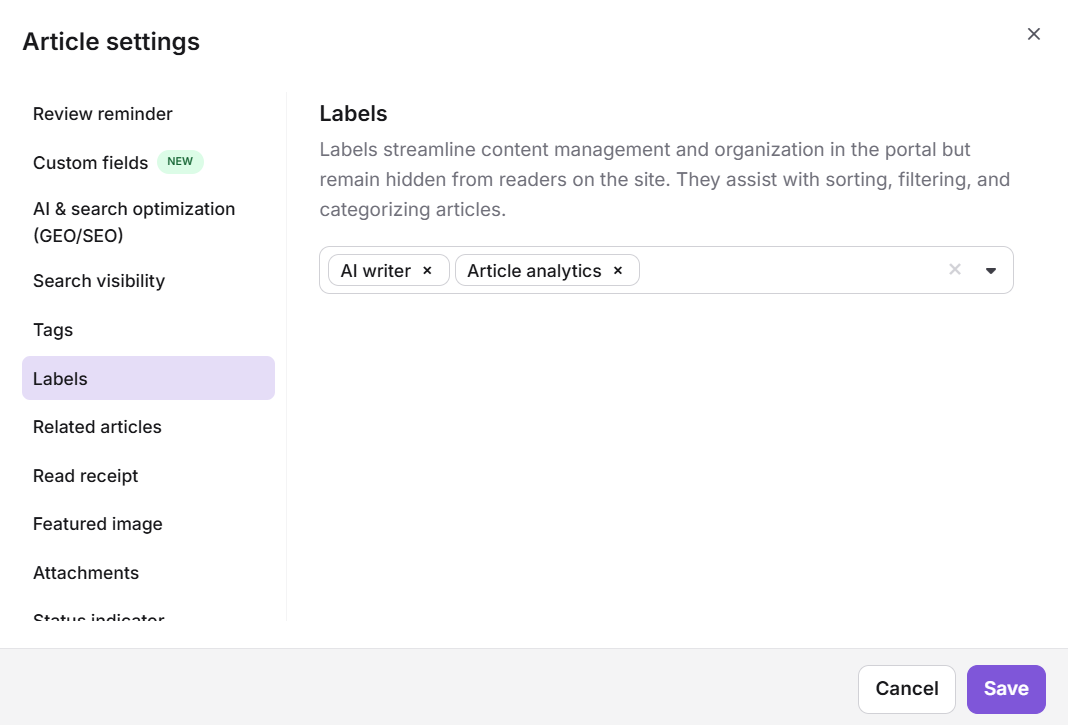
- Click the More () icon in the article header and select Labels. Alternatively, click More () > More article options and go to the Labels tab in the Article settings panel.
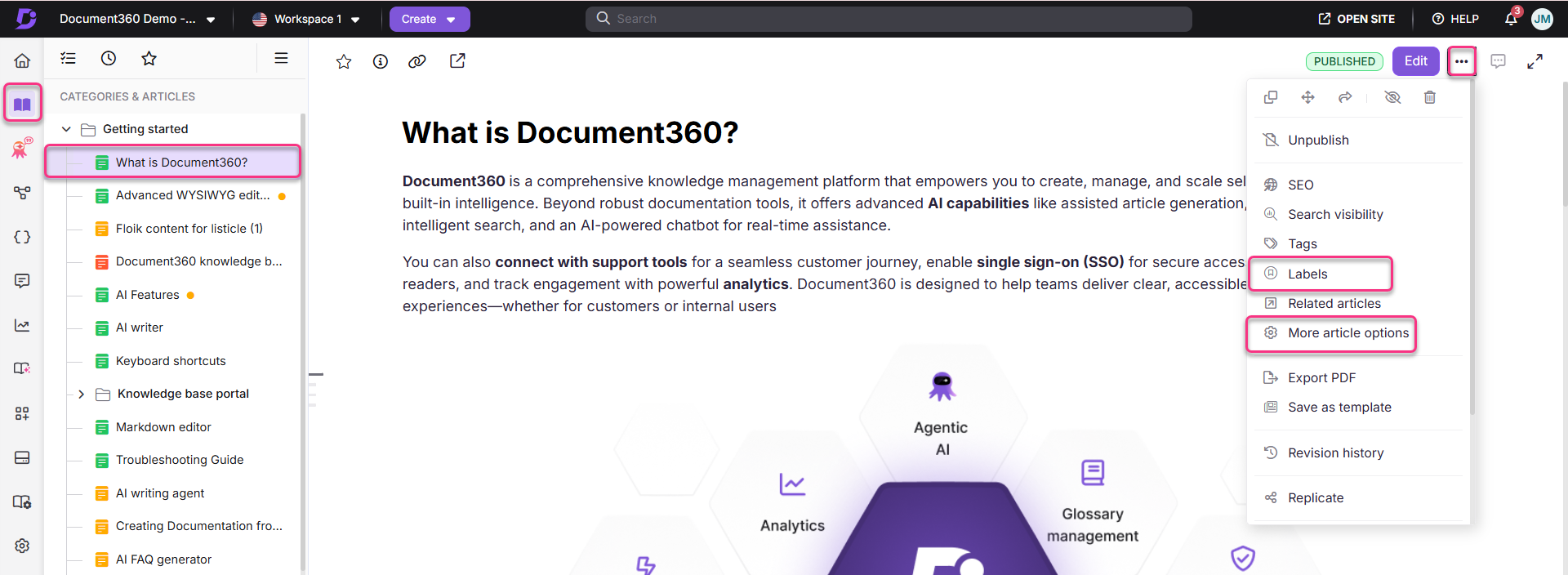
- In the Add labels panel, enter the label name and press Enter to create a new label. To add an existing label, type the name and select it from the dropdown list. You can add up to 10 labels per article.
- Click Add.
Other ways to add labels
- From the All articles page: Navigate to Documentation () > All articles (). Select the articles, click the More () icon at the top, and select Add labels. Enter the label name and click Add.
- From the Tasks page: Hover over the Home icon in the left navigation bar and click Tasks. Under the Workflow section, select the articles, click Add labels at the top, enter the label names, and click Add.
- From the Starred section: Navigate to Documentation () > Starred (). Select the articles and click Add labels at the top. To label a single article, hover over it, click More (), and select Add labels.
- From a Folder or Index category: Navigate to the category. To label a single article, hover over it, click More (), and select Add labels. To label multiple articles, select their checkboxes and click Add labels at the top.
Filter articles by label
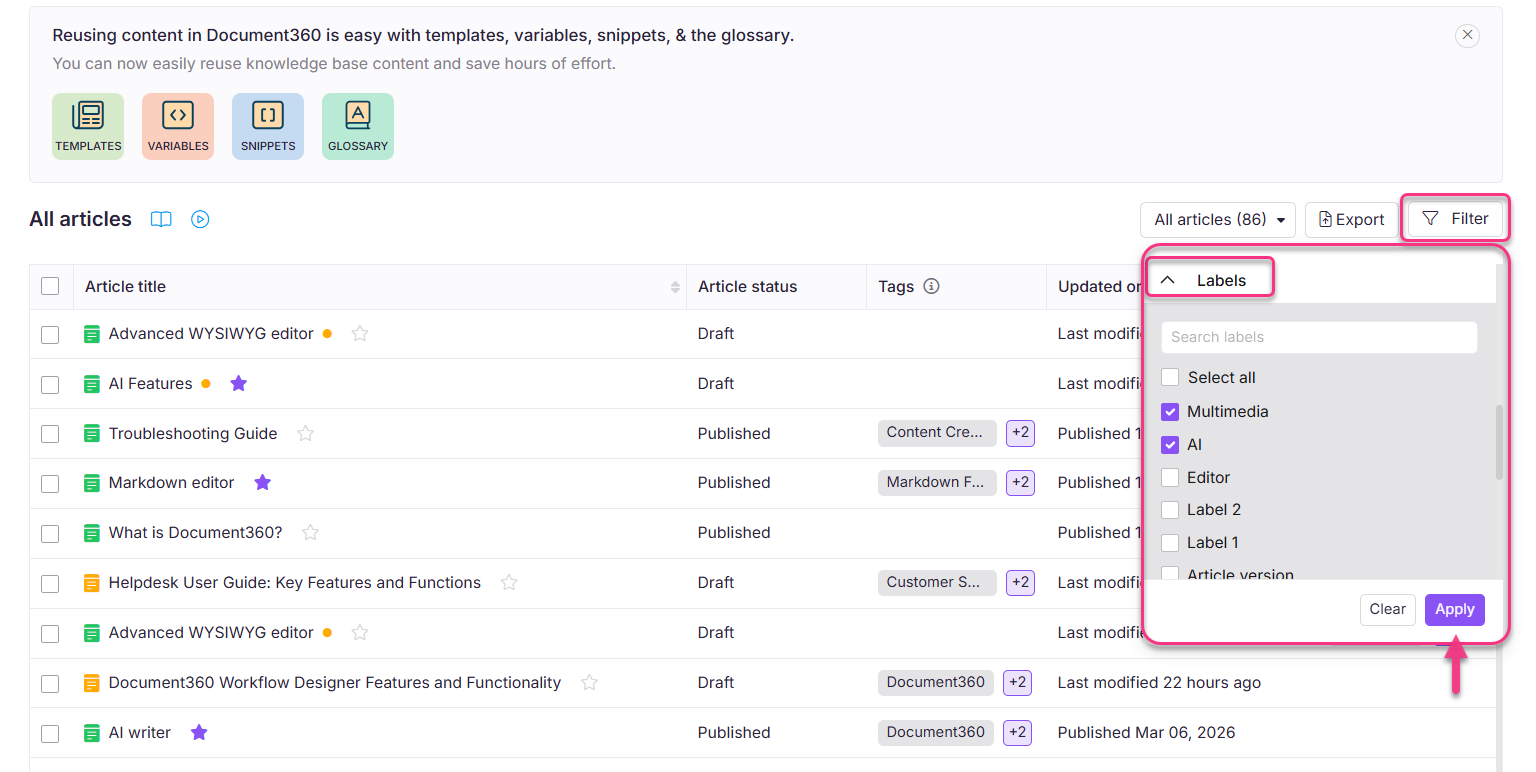
Once labels are applied, you can filter articles by label from the All articles page.
- Navigate to Documentation () > All articles ().
- Click Filter and expand the Labels section.
- Choose your labels or search for specific ones. Click Show more to view additional labels.
- Click Apply.
Remove a label from an article
Open the Add labels panel using any of the available methods. Click the X icon next to the label name to remove it from the article.
Best practices
- Use a consistent labelling convention across your team. Agree on a standard set of labels before using the feature to avoid duplicates and inconsistencies.
- Keep label names short and specific. Labels like "Q3-audit" or "needs-screenshot" are more actionable than broad labels like "review" or "update".
- Remove labels from articles once the associated task is complete. Stale labels make filtering less reliable over time.
- Use the All articles filter during content audits to surface specific subsets of articles quickly without opening each one individually.
FAQ
What is the difference between tags and labels?
Tags are reader-facing keywords visible on both the knowledge base site and portal. They help readers categorise articles, enhance navigation, and improve search results. Labels are exclusively available in the knowledge base portal for internal content organisation. Labels are not visible to readers on the knowledge base site.
How many labels can I add per article and per project?
You can add up to 10 labels per article. A project can hold up to 10,000 labels in total.
Can I use the same label across different articles?
Yes. Labels can be reused across multiple articles within the same project.
Can I search for articles using labels in the knowledge base portal?
Yes. Select Labels from the portal search dropdown to find a label and view its references across articles and page categories. You can also filter articles by labels from the All articles page using the Labels filter.
How do I delete a label permanently?
There is currently no dedicated page for managing or deleting labels globally. To remove a label, you must remove it from each article where it is applied individually using the Add labels panel.