Creating a tag adds it to your project's tag library, making it available to apply to articles, category pages, and files in Drive. You can create tags from the Manage tags page before applying them to any content, or create them on the fly while working in the editor.
When to create a tag
- Create tags from the Manage tags page when you want to build out your tag library in advance before applying tags to articles.
- Create a tag on the fly from the editor or All articles page when you need a new tag while working on specific content.
- Create tags in Drive when you want to label files alongside related articles.
Create a tag
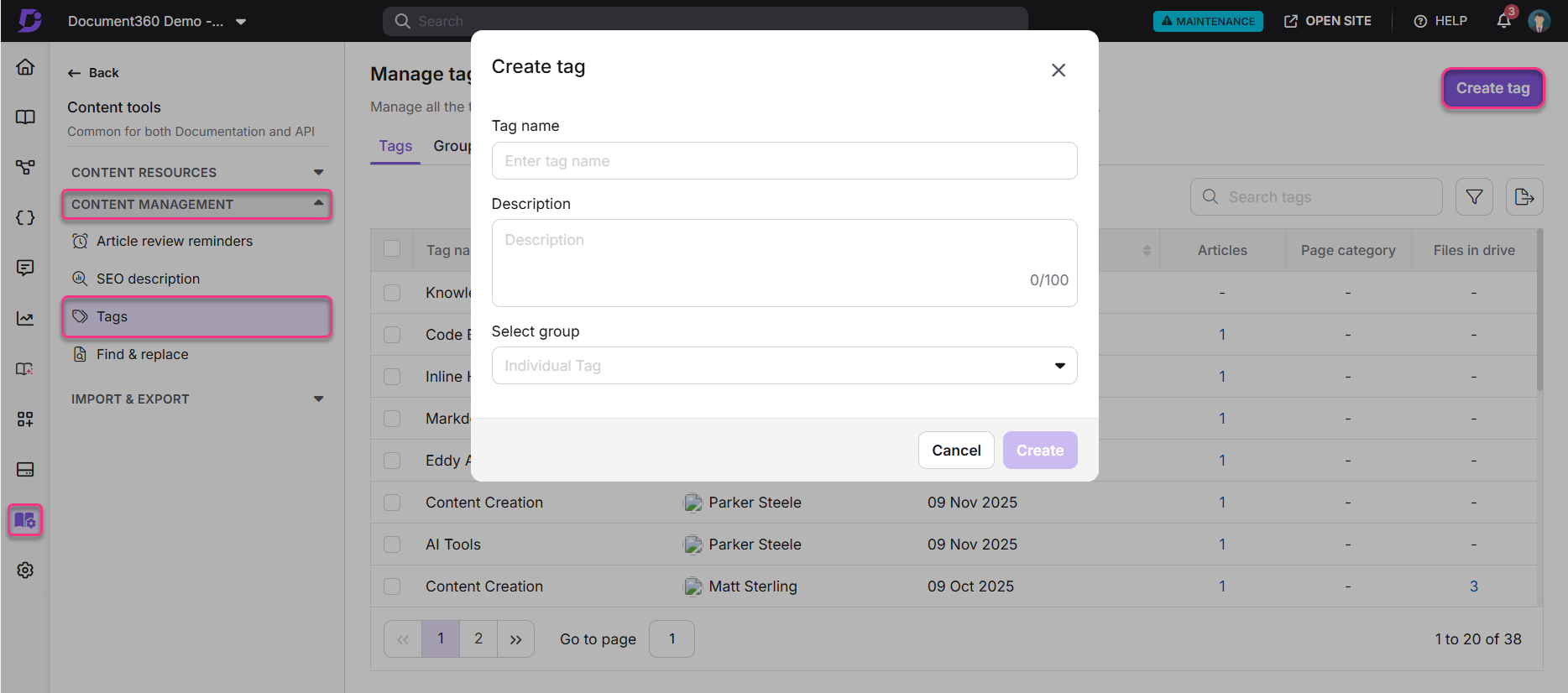
The primary method is from the Manage tags page, which gives you full control over the tag name, description, and group assignment.
- Navigate to Content tools () > Tags in the left navigation bar.
- Click Create tag at the top right of the page.
- Enter the Tag name and Description in the respective fields.
- Select a group to associate the tag with, if applicable. By default, the tag is created as an individual tag.
- Click Create.
Other ways to create a tag
- From the article editor: Open an article, click the More () icon, and select Tags. In the Tags field, type a new tag name. If it does not exist, an option to create it appears in the dropdown. Select it to create and apply the tag simultaneously. Click Save.
- From Drive: Navigate to Drive () and open the file. Click the More () icon and select Add tags or View details. In the Tags field, type a new tag name and select the create option from the dropdown. Click Update.
- From the All articles page: Navigate to Documentation () > All articles (). Select one or more articles and click Create tags from the toolbar. Type a new tag name and select the create option. Click Save.
Tag limitations
| Limitation | Detail |
|---|---|
| Project tag limit | Up to 1,000 tags per project. |
| Tag name character limit | Maximum 30 characters including spaces. |
| Tag description character limit | Maximum 100 characters including spaces. |
| Bulk import | Not supported. Tags must be created individually. |
| Tag ordering | Tags display in numerical order first, followed by alphabetical order. |
| Tag description visibility | Displayed only on the dedicated Tags page on the knowledge base site. Not shown as hover tooltips on article pages, category pages, or in the portal. |
Tag naming guidelines
Tag names support the following:
- Uppercase and lowercase characters, with multi-language support.
- Numbers.
- Spaces.
- Special characters: _ + - @ # % ^ & ! ()
Tag names cannot contain the following special characters: \ / : * ? " <> |
Best practices
- Build your core tag library from the Manage tags page before publishing articles, so tags are ready to apply consistently from the start.
- Assign tags to a group at creation time to keep your library organised as it grows.
- Use tags that describe the topic, not the article type. "Authentication" is more useful than "how-to".
- Maintain consistent naming conventions across your team. Agree on casing, hyphenation, and singular vs plural before creating tags at scale.
FAQ
Can I create a tag while adding it to an article?
Yes. When adding a tag from the article editor, type a new tag name in the Tags field. If it does not exist in the library, an option to create it appears in the dropdown. Selecting it creates the tag in your library and applies it to the article at the same time.
Can I create a tag and assign it to a group at the same time?
Yes. When creating a tag from the Manage tags page, the Create tag panel includes a group selection dropdown. Select the group before clicking Create to assign the tag immediately.
Is there a limit on how many tags I can create?
Yes. A project can hold up to 1,000 tags in total. Tags are listed on the Manage tags page with pagination for easier navigation.
Can I create tags for Drive files?
Yes. Tags can be created and applied to files stored in Drive. Tags added to Drive files are visible only in the knowledge base portal and do not appear on the knowledge base site.
Where does the tag description appear?
Tag descriptions appear only on the dedicated Tags page on the knowledge base site, displayed below the tag title. They are not shown as hover tooltips on article pages, category pages, or anywhere in the knowledge base portal.