Tag groups let you organise related tags under a shared parent label. When your tag library grows large, grouping tags by theme or category makes it easier to manage them and understand their usage across your knowledge base.
Within each group, you can see all the tags it contains and their dependencies across articles, page categories, and files in Drive.
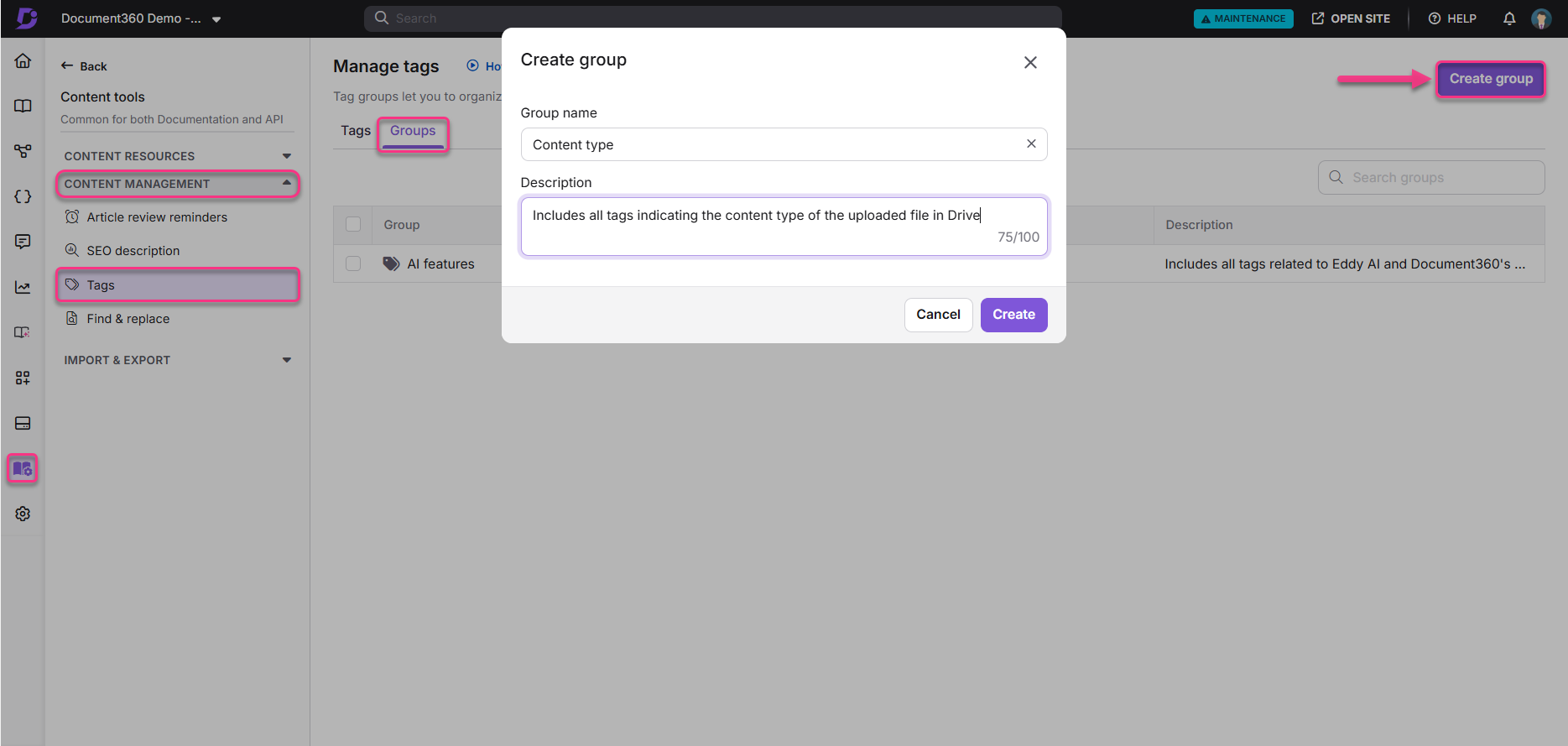
To access tag groups, navigate to Content tools () > Tags in the left navigation bar and click the Groups tab.
When to use tag groups
- Use tag groups when your tag library has grown large enough that individual tags are hard to navigate.
- Group tags by product area, content type, or team to make filtering and auditing easier.
- Assign new tags to a group at creation time to keep the library organised from the start.
Create a tag group
- Navigate to Content tools () > Tags in the left navigation bar.
- Click the Groups tab.
- Click Create group.
- Enter the Tag group name and Description.
- Click Create.
Add tags to a tag group
There are two ways to add tags to a group.
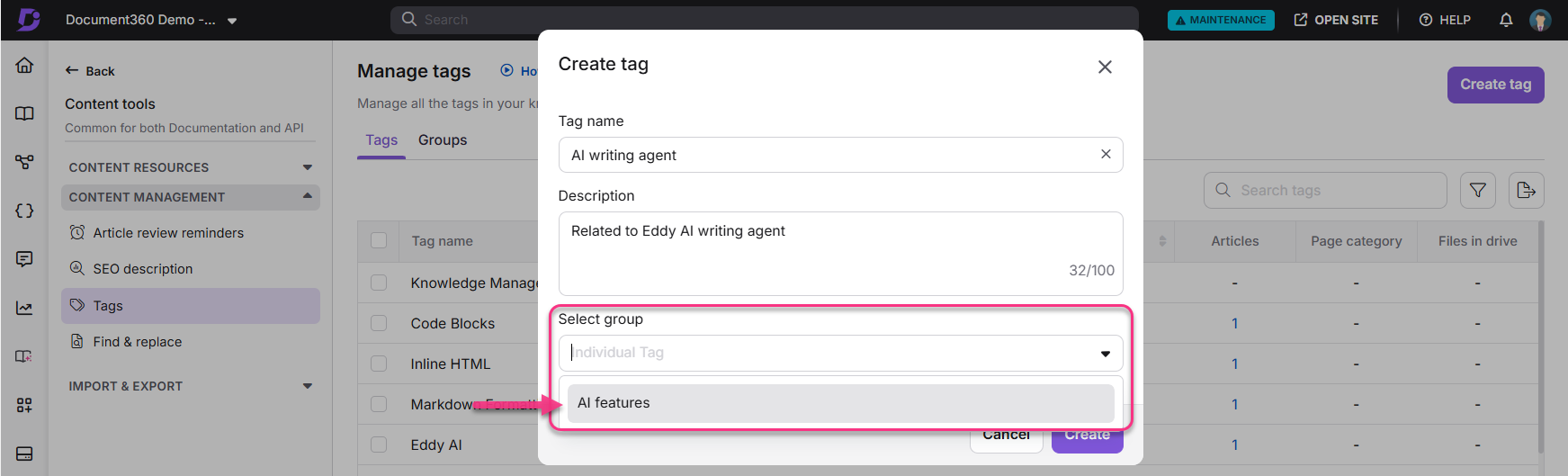
At creation time: When creating a new tag from the Manage tags page, select the group from the Select group dropdown before clicking Create. The tag is assigned to the group immediately.
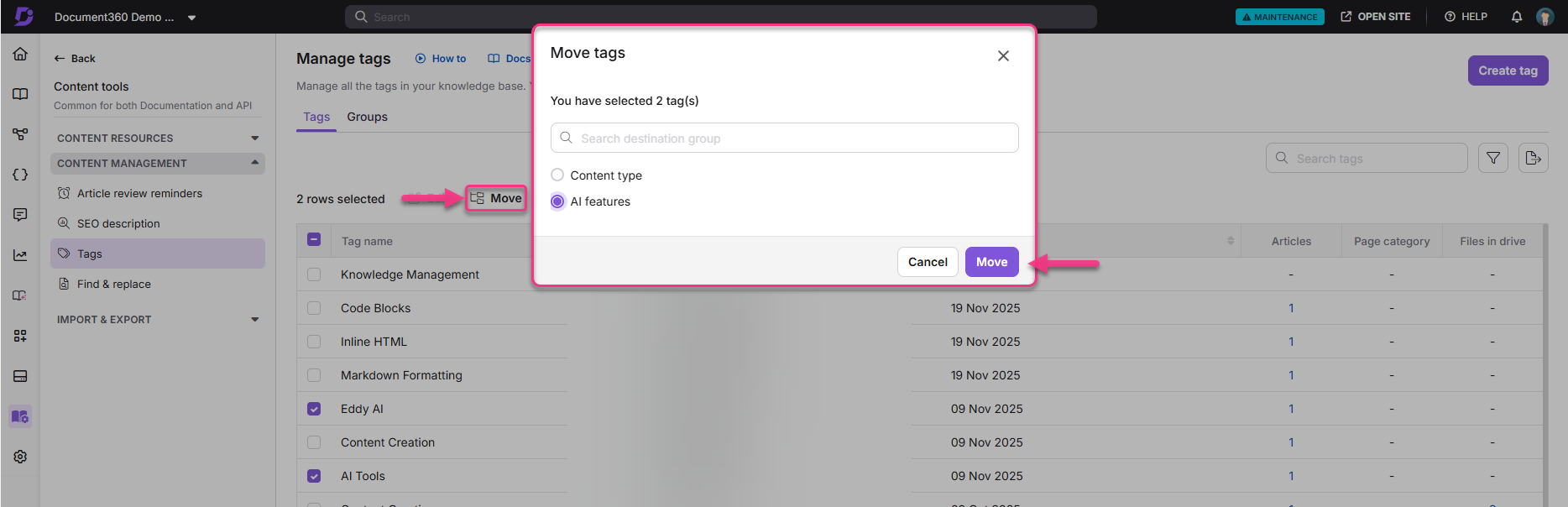
From the tag library: On the Tags tab, select the checkboxes next to the tags you want to move, click Move from the bulk actions toolbar, and select the destination group from the dropdown. Click Move.
Delete a tag group
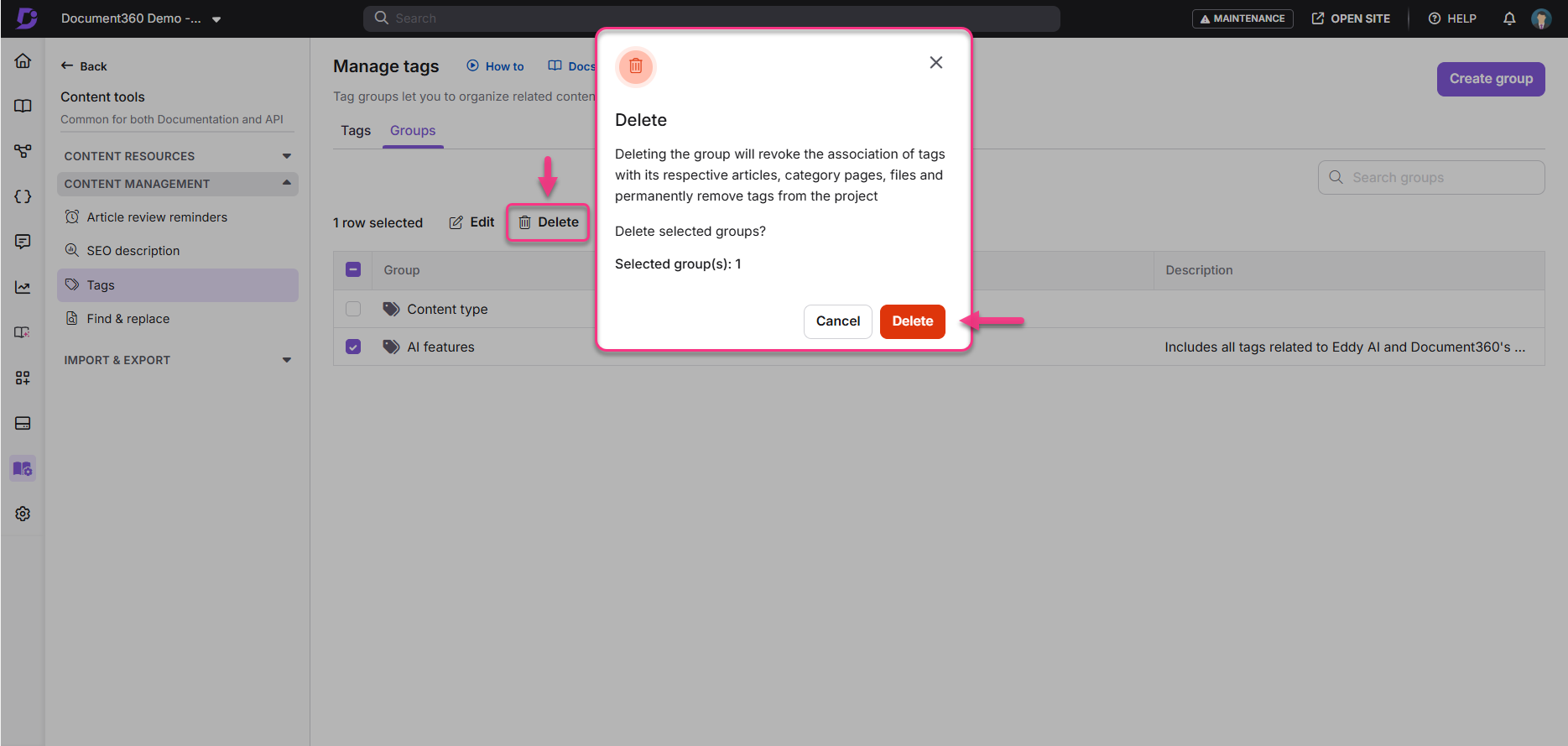
Deleting a tag group deletes all tags within the group and removes their dependencies from all associated articles, page categories, and files. This action cannot be reversed.
- Navigate to Content tools () > Tags in the left navigation bar.
- Click the Groups tab.
- Select the checkbox next to the group you want to delete.
- Click Delete from the toolbar.
- Click Yes to confirm.
Best practices
- Create tag groups before building out your tag library so new tags can be assigned to a group from the start.
- Name groups clearly and broadly enough that multiple tags can belong, for example, "Product features" or "Audience".
- If you need to dissolve a group, move its tags to other groups before deleting to preserve the tags and their dependencies.
FAQ
What happens to the tags inside a group when the group is deleted?
All tags within the group are permanently deleted along with the group. Their dependencies are removed from all associated articles, page categories, and files. This action cannot be reversed. If you want to keep the tags, move them to another group before deleting.
Can I add tags to a group after the group has been created?
Yes. You can add tags to a group at any time by selecting the tags in the tag library and clicking Move from the bulk actions toolbar. Select the destination group and click Move.
Can I rename a tag group?
Yes. On the Groups tab, select the checkbox next to the group and click the Edit () icon from the toolbar. Update the name or description and click Update.
Can a tag belong to more than one group?
No. A tag can belong to only one group at a time. Moving a tag to a new group removes it from its current group.
Can I add tag groups directly to articles?
No. Tag groups cannot be applied to articles directly. They are used to organise your tag library. Only individual tags can be added to articles and category pages.