Eddy AI Chatbot is an intelligent, AI-powered chatbot that you train on your own content and deploy independently on your website or knowledge base. Unlike the Knowledge Base widget, Eddy AI Chatbot gives you complete control over configuration, content sources, and deployment. This lets you deliver instant assistance to users without agent involvement. You can find it in the left navigation bar of the Knowledge Base portal under AI Chatbot.
When to use Eddy AI Chatbot
Use Eddy AI Chatbot when you want to:
- Reduce support workload — let the chatbot handle routine, repetitive queries so your agents can focus on complex issues.
- Improve content discoverability — surface answers from multiple content sources that users might not find by browsing alone.
- Provide 24/7 assistance — respond to user questions at any time without requiring agent availability.
- Deliver consistent answers — centralise content from knowledge base articles, FAQs, files, website pages, and support tickets into a single, unified chatbot.
Before you begin
- Each chatbot has a default 40 MB storage limit that applies across all connected sources combined. If you need more storage or additional chatbots, contact your Customer Success Manager.
- Only one chatbot or widget can be active per website domain. Launching a chatbot where a widget or another chatbot is already active prompts you to replace the existing one.
Supported source types
Eddy AI Chatbot can be trained on the following source types:
| Source | Description |
|---|---|
| Knowledge base | Your existing documentation articles |
| Website | Content from your website via Crawl Links, Sitemap, or individual Webpages |
| Text | Custom text entries written directly in the portal |
| FAQ | Question-and-answer pairs entered manually |
| File | Uploaded documents in DOC, DOCX, PDF, MD, or TXT format |
| Zendesk | Support ticket data from a connected Zendesk account |
| Freshdesk | Support ticket data from a connected Freshdesk account |
You can connect one or multiple source types to a single chatbot.
If adding content or retraining/resyncing causes you to exceed the storage limit, you will see an error message. Contact your Customer Success Manager to increase storage.
What your readers see
Once your chatbot is live, readers open it from its launcher icon and type a question. The chatbot replies with a conversational answer from your connected sources, and readers can ask follow-ups in the same conversation, with each answer building on the last. A short disclaimer reminds readers that AI answers can contain mistakes and should be verified. Readers can start over at any time using the refresh icon, which clears the conversation and its context.
Below each answer, readers can copy it or mark it helpful or unhelpful. If you have set up ticket escalation, readers can also raise a support ticket from the chatbot once they reach the configured number of questions. See Ticket escalation for how the feedback and ticket options appear to readers.
Answer citations
Every answer from your chatbot shows the sources it used, through citations. These citations appear wherever the chatbot runs, both on your live knowledge base site and in the Playground while you test.
Numbered citations appear at the end of each answer, with one citation for each source used. Hovering over a citation reveals the source it references.
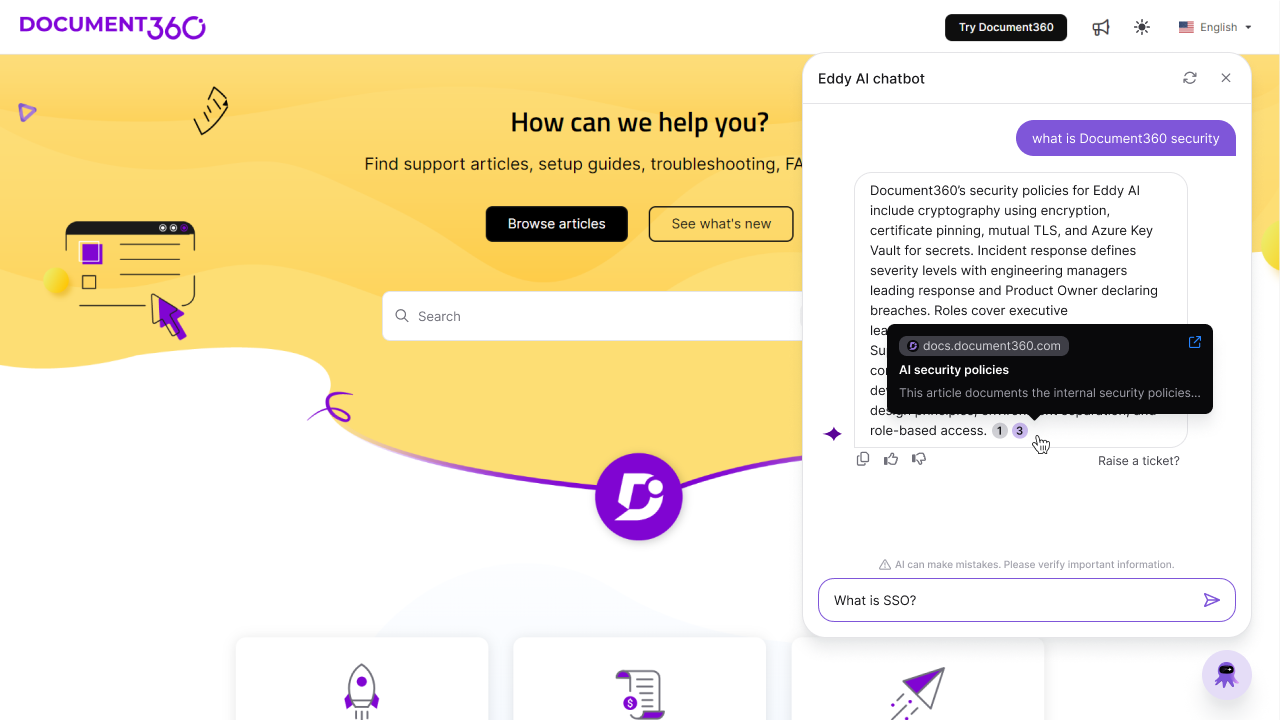
What you can do with a citation depends on the type of source:
- Citations from published website URL's and knowledge base articles show the article title with a short description. Click the citation or the URL source to open the article in a new tab.
- Citations from private sources, such as text entries, FAQs, uploaded files, or connected support tools, show only that the answer used private content. No source details are revealed.
In the Playground, you can click any citation to open its source while testing the chatbot.
Best practices
- Start with your knowledge base — if you already have documentation, add it as the first source so the chatbot has a solid, verified foundation.
- Use the Playground before publishing — test the chatbot with real user questions to verify accuracy before it goes live.
- Apply ticket filters when connecting Zendesk or Freshdesk — review ticket filters and content selection settings before integration, especially if customer tickets may contain personally identifiable information (PII). Images and non-text attachments are not ingested.
- Monitor performance in Eddy Analytics — navigate to the Eddy Analytics page and select Chatbots as the source to track user interactions and identify areas for improvement.
- Retrain after major content updates — for sources that do not sync instantly (such as Zendesk and Freshdesk), use Retrain chatbot to reflect changes immediately rather than waiting for the daily auto-sync.
FAQ
How many sources can I add to my chatbot?
You can add an unlimited number of sources, provided the total storage does not exceed your chatbot's limit (40 MB by default). Contact your Customer Success Manager to increase storage.
How often do sources sync?
Knowledge base, Text, FAQ, and File sources sync instantly when added or updated. Zendesk and Freshdesk sync daily automatically and can be manually resynced up to 2 times per day. To resync all sources at once, use Retrain chatbot (available up to 2 times per day).
Can I have multiple chatbots active on the same website?
No. Only one chatbot or widget can be active per website domain. If you try to launch another chatbot on the same domain, you will be prompted to replace the existing one.
Can I create separate chatbots for different brands or products?
Yes. You can purchase additional chatbots per project — useful when managing multiple brands, products, or websites. Each chatbot is priced individually. Contact your Customer Success Manager to set this up.
How are AI chatbot credits used?
Credits are not restricted to a single team member. Multiple users can interact with the chatbot simultaneously, and credit usage is based on overall consumption rather than per-user access. Each query submitted through the chatbot consumes 1 AI assistive search credit.
Does ticket integration ingest images or attachments?
No. When connecting Zendesk or Freshdesk, only textual ticket content is processed. Images and non-text attachments are not ingested as part of chatbot training. If customer tickets include PII, review your ticket filters and content selection settings before integration.
What is the Chatbot Key used for?
The Chatbot Key is a unique identifier used in the embed code to link your chatbot to your website. It is generated automatically when you create a chatbot. If you regenerate the key due to a security concern, the previous embed code stops working and must be replaced on your website with the updated one.
What happens to my existing chatbot configuration?
If you were using the chatbot before February, all existing configurations, sources, and content remain fully intact. New source types introduced in the January release are locked by default for existing chatbots. Contact your CSM to enable additional sources.
How do I know if my chatbot is working correctly?
Test your chatbot in the Playground before publishing. Ask various questions and review the responses to verify accuracy. You can also monitor user interactions by navigating to the Eddy Analytics page and selecting Chatbots as the source.