The Knowledge base widget lets your users search and browse your knowledge base without leaving your website or application. Instead of opening a new tab or contacting support, users get instant access to relevant articles right where they are — reducing ticket volume and improving the overall support experience.
You can configure up to 10 Knowledge base widgets in a project. However, you can configure only one Knowledge base widget per domain or website.
When to use the knowledge base widget
The widget is useful in any scenario where users need contextual help without leaving the application:
- User onboarding — New users can learn the basics, such as setting up an account, navigating the interface, and completing common tasks, all without switching context.
- Technical support — Users who encounter an error or issue can search for a solution directly within the app instead of raising a support ticket.
- Feature discovery — When you release new capabilities, users can access relevant articles through the widget to understand what changed and how to use it.
- Custom resource linking — You can add custom links in the widget to direct users to external resources such as downloadable guides, Google Sheets, or other support channels.
Before you begin
- You must have Project Owner or Admin access in Document360.
- To enable Eddy AI within the widget, ensure you have an active Eddy AI plan and access to Eddy AI settings.
Enable Eddy AI in the knowledge base widget
To activate AI-powered assistive search inside the widget, complete the following two stages.
Stage 1: Enable Eddy AI for widgets in AI settings
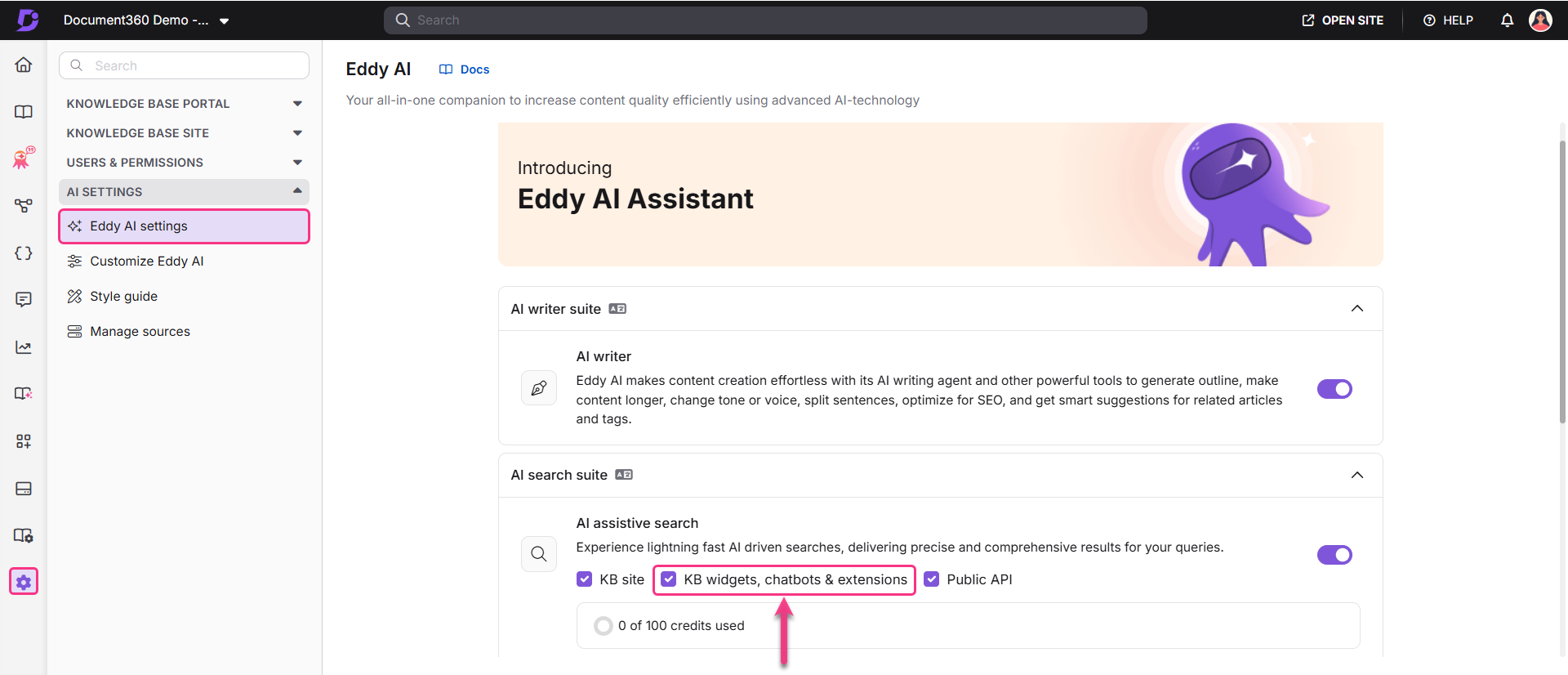
- Navigate to Settings () in the left navigation bar of the Knowledge base portal.
- In the left navigation pane, under AI settings, click Eddy AI settings.
- In the AI assistive search section, select the KB widgets, chatbots & extensions check box.
Stage 2: Enable AI assistive search in the widget
- In the left navigation bar, navigate to Connections > Knowledge base widget.
- To create a new widget, click Create widget and enter a name.
- To edit an existing widget, hover over it and click Edit ().
- In the Installation & Setup tab, under Customize the experience, enable the AI Assistive search toggle.
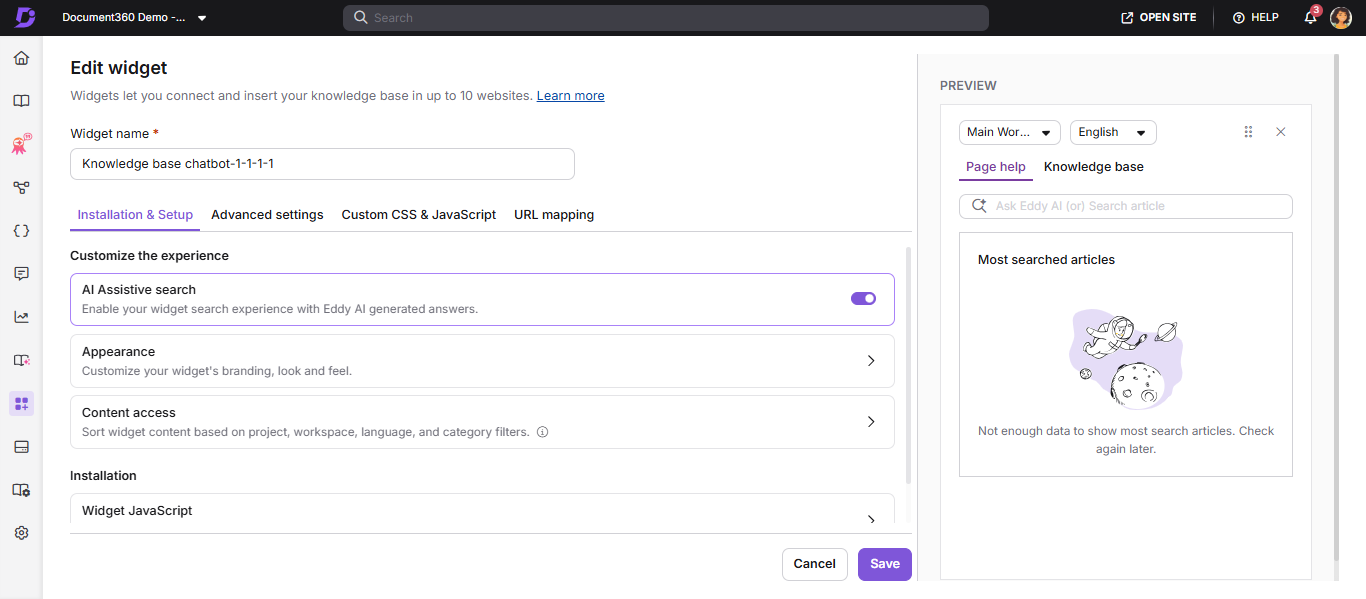
- Click Save.
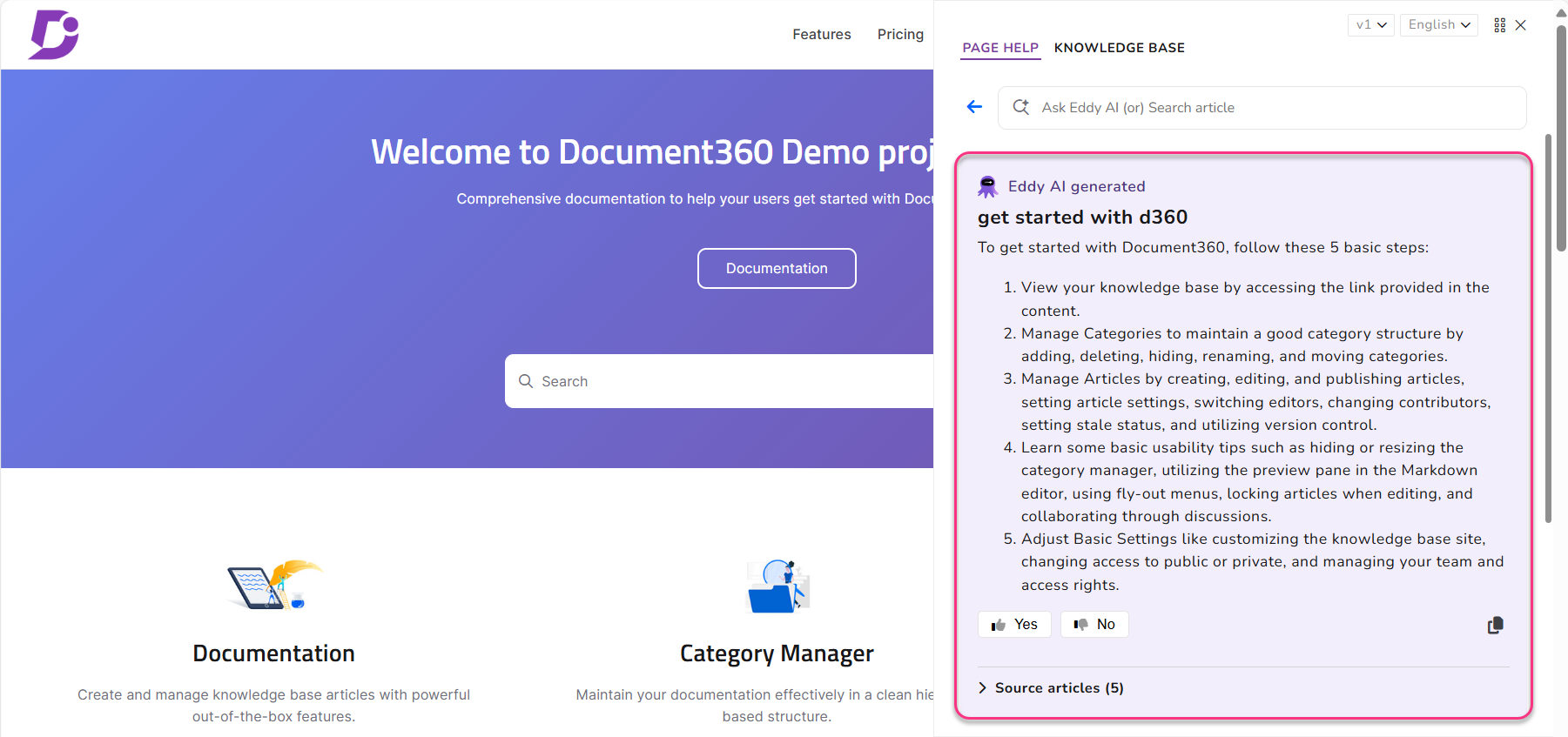
Three content levels are available when setting up the widget: Project, Workspace, and Category. When you select Category, the Workspace dropdown is not shown in the widget configuration.
What readers can do with the widget
Once the widget is live, readers can use it to:
- Search for articles — Enter a keyword to find relevant articles without leaving the current screen. Matching keywords are highlighted in the results.
- Contact support — Use custom links to add an email address or a support link, reducing the steps needed to get help.
- View suggested articles — Contextual article suggestions appear based on the page the reader is currently on, surfacing helpful content proactively.
- Access custom links — Direct readers to any external resource, such as an eBook download or a spreadsheet, using custom links added to the widget.
The widget opens in the user's default browser language. If that language is not available in the widget, the default language of the knowledge base is used instead.
Widget specifications
| Limit | Detail |
|---|---|
| Maximum widgets per project | 10 |
| Widgets per domain/website | 1 |
| Configuration cache refresh | Every 15 minutes |
| Private KB embedding | Not supported directly; use the widget with JWT for private knowledge bases |
| Supported Eddy AI languages | English (en-US, en-GB), French (fr), Spanish (es), German (de), Norwegian (no), Dutch (nl) |
Configurable widget settings
The following settings are available under the widget configuration:
- Installation & Setup — Configure the widget's appearance, content access, and AI Assistive search, and copy the widget's installation code
- Advanced settings — Configure ticket deflector, connected domains, JWT, custom links, widget security, and default URL mapping behavior
- Custom CSS & JavaScript — Apply custom styles and scripts to match your product's design and extend widget behavior
- URL mapping — Display specific articles or category lists based on the page URL
The autosave option is available when navigating between these tabs.
The widget uses a 15-minute cache. Configuration changes take effect after the cache refreshes.
Best practices
-
Use one widget per domain. Configuring more than one widget on the same domain can cause unexpected behavior.
-
Scope content access. Use the Content access settings to limit widget results to a specific workspace or category, especially when the widget is embedded in a focused product area.
-
Restrict widget to trusted domains. Add your domain to the Widget security section to prevent unauthorized use of the widget API key.
-
Use URL mapping for contextual suggestions. Map relevant articles or category lists to specific pages so users see content relevant to their current task.
-
Use JWT for private knowledge bases. If your knowledge base is private or restricted, configure JWT authentication in the widget to enable seamless single sign-on access.
FAQ
How is the knowledge base widget useful for users?
The widget helps in three main scenarios: onboarding (new users can learn the app without switching context), technical support (users search for solutions without contacting support), and feature discovery (users learn about new capabilities as they are released).
Do I need to set up the widget again when switching from a public to a private knowledge base?
No, you do not need to set up the widget again. However, users will be required to log in to view articles on the knowledge base site. To bypass the login requirement, configure the JWT (JSON Web Token) feature in the widget settings.
How do I embed a private knowledge base into another application?
Directly embedding a private knowledge base into another application is not supported. Use the knowledge base widget with JWT authentication to integrate your private knowledge base into your application.
Is it possible to configure multiple knowledge base widgets?
Yes, you can configure up to 10 knowledge base widgets in a project. However, only one widget can be configured per domain or website for optimal performance.