A knowledge base widget is a floating interactive element that you can embed on your website or product to give users instant access to your Document360 knowledge base without leaving the page. Creating a Knowledge base widget in Document360 involves adding the widget, naming it, enabling Eddy AI if required, styling it, and copying the JavaScript snippet to install it on your site. All of these steps are performed from Connections () > Knowledge base widget in the left navigation bar of the Knowledge base portal.
When to create a widget
- You need a separate widget for a different audience, product area, or environment.
- You want a test widget to safely experiment with configuration changes before affecting your live widget.
Before you begin
- You must have a Project Owner or Admin portal role.
- To use Eddy AI in the widget, enable it first in Settings > AI settings > Eddy AI settings before creating the widget.
Create a knowledge base widget
-
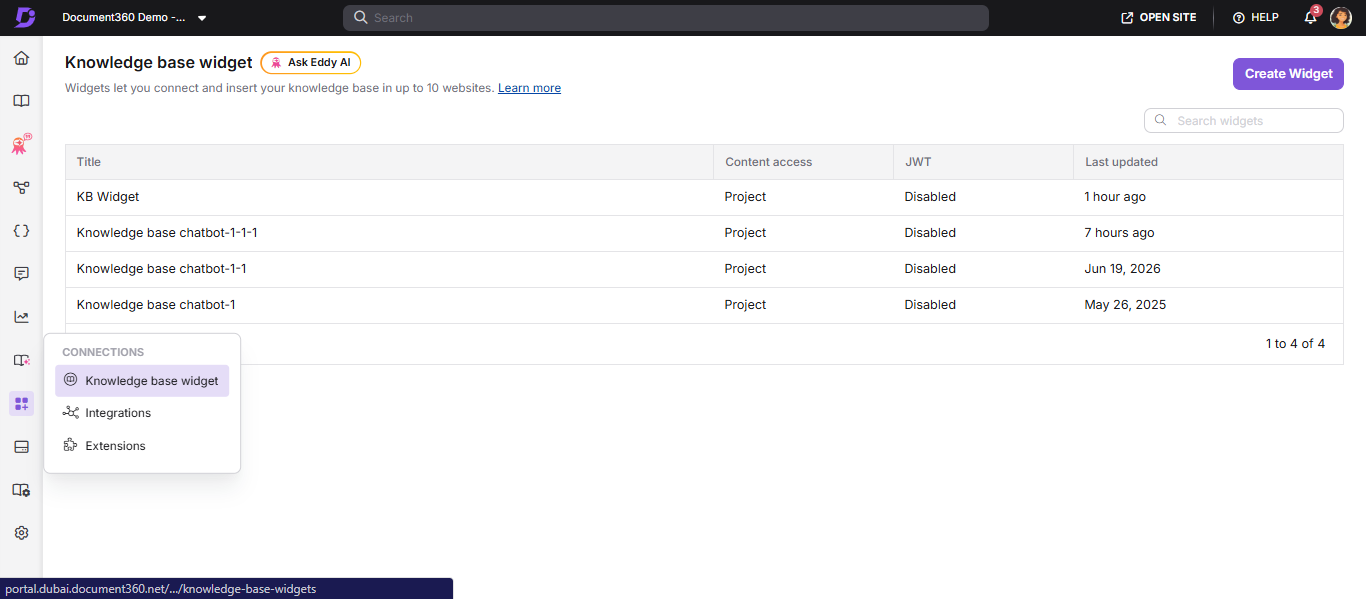
In the left navigation bar, navigate to Connections () > Knowledge base widget.
-
At the top-right corner of the page, click Create widget.
-
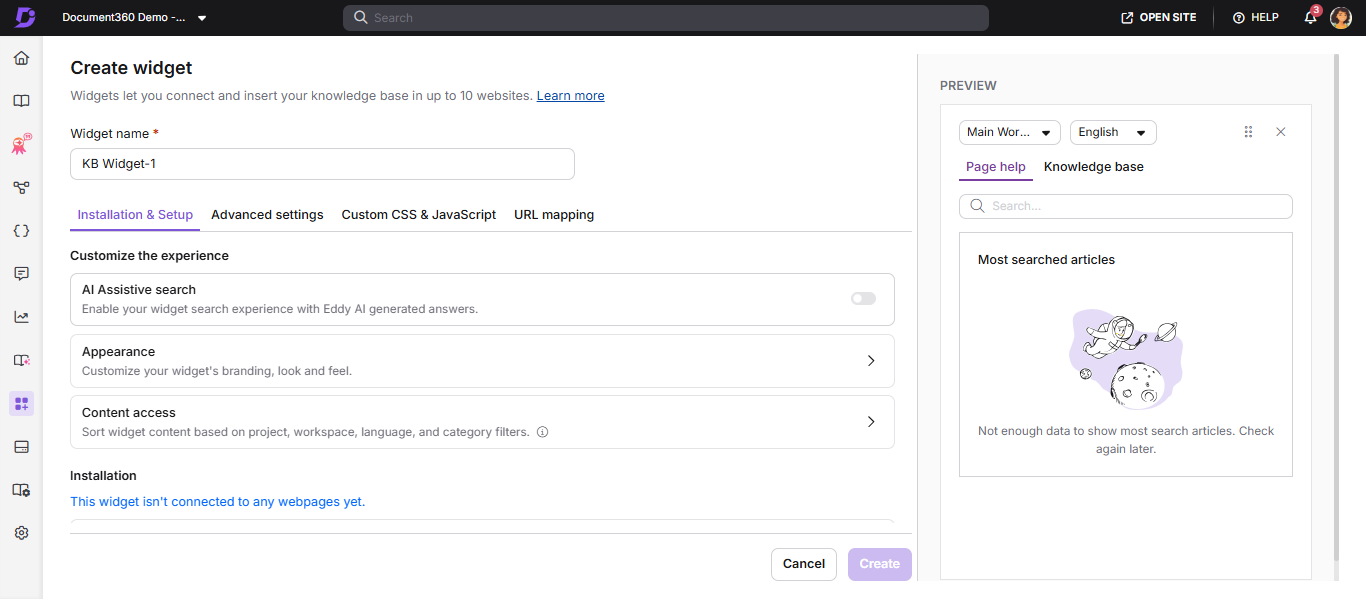
In the Widget name field, enter an appropriate name for the widget.
-
If you want Eddy AI in this widget, enable the AI Assistive search toggle in the Installation & Setup tab. Once enabled, the search field appears in the preview on the right.
-
In the Installation & Setup tab, locate the Appearance section and expand it to configure the widget's appearance:
- Click Change icon to replace the widget icon with an image or select one from the available icons.
- Click Change color to update the widget's background color.
- Select Left or Right to position the widget icon on either side of your site.
- Enter pixel values in Side spacing and Bottom spacing to adjust widget placement.
- Enter a Welcome message to display to users when they open the widget (up to 50 characters).
- Turn on Hide widget if you want to suppress the floating icon (for example, when using a custom button trigger).
- Turn on Hide most searched articles if you want to hide the trending articles section.
-
Click Create at the bottom. A confirmation message appears at the top-right of the page.
After creating the widget
Once the widget is created, it appears in the widget list. Hover over the widget to access the following options:
| Option | Description |
|---|---|
| Copy script () | Copies the widget JavaScript code for installation |
| Edit () | Update the widget's name or configuration |
| Clone () | Create a duplicate of the widget with a new name |
| Delete () | Permanently remove the widget |
You cannot change the widget type (Widget or Chatbot) using the Edit option.
Articles in this section
Follow these guides to complete the setup and configuration of your widget:
Here's the list formatted as a table:
| Article | What it covers |
|---|---|
| Connect Knowledge base widget Learn more → |
Widget JS and connected domains. |
| Configure JWT for the knowledge base widget Learn more → |
Secure access for private knowledge bases. |
| Edit, Clone, and Delete widget Learn more → |
Manage your widgets. |
| Styling and branding the knowledge base widget Learn more → |
Match your brand. |
| Content access in the knowledge base widget Learn more → |
Filter by project, workspace, or category. |
| Add custom links Learn more → |
Add support and resource links. |
| Using multiple widgets within a project Learn more → |
Manage test and production widgets. |
| Widget security Learn more → |
Domain restriction. |
| Domain restriction for the knowledge base widget Learn more → |
Trusted domain configuration. |
| Add a ticket deflector Learn more → |
Integrate a support form. |
| Customise using Custom CSS & JavaScript Learn more → |
Advanced customization. |
| URL Mapping Learn more → |
Context-aware article surfacing. |