Custom links let you add a section of clickable links inside the Knowledge base widget, pointing users to support email addresses, external resources, or any URL relevant to their workflow. Links appear in the order they were created and always open in a new browser tab.
Internal article and category links follow widget navigation rules based on workspace type, content access scope, and reader group permissions.
When to use custom links
- Add a "Contact us" link pointing to your support email for users who cannot find what they need.
- Link to external tools such as a Google Sheet, an eBook download, or a ticketing portal.
Add a custom link
-
Navigate to Connections () > Knowledge base widget in the left navigation bar.
-
Hover over the desired widget and click the Edit () icon.
-
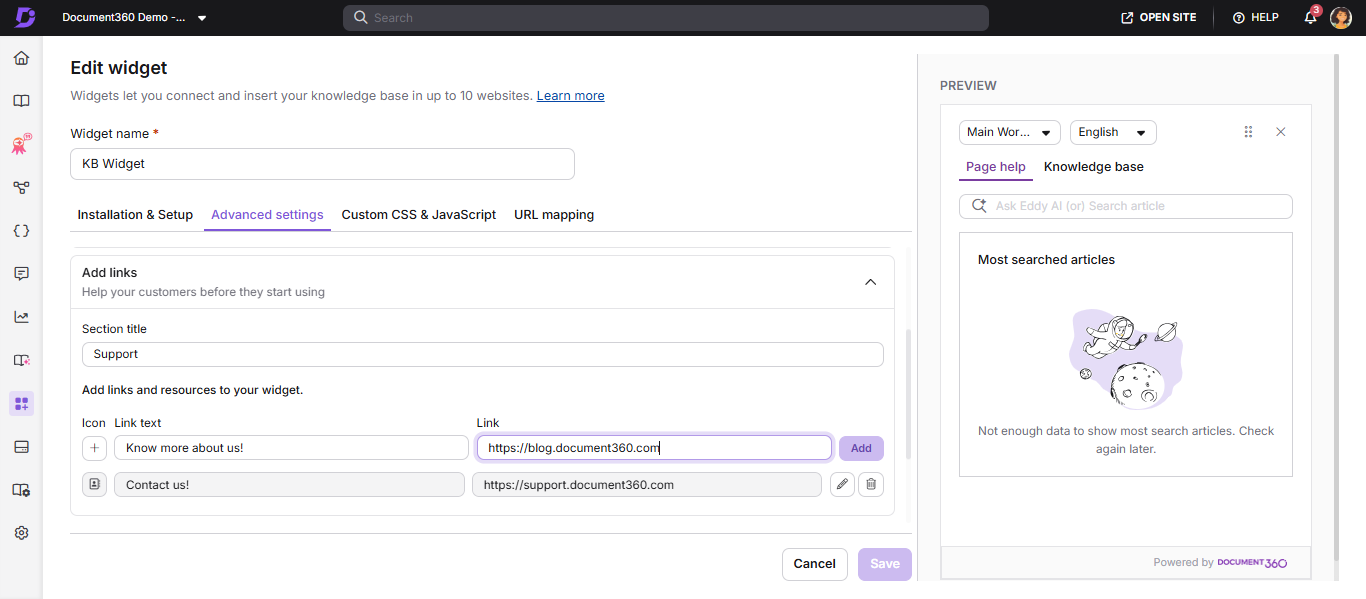
In the Advanced settings tab, expand the Add links accordion.
-
In the Section title field, enter the title for this group of links (e.g. "Resources", "Support").
-
For each link, configure:
- Icon — Choose from the available icon set
- Link text — The label displayed in the widget
- Destination link — The URL or
mailto:address
Example:
- Icon:
- Link text: Contact us
- Link:
mailto:support@document360.com
You can use mailto: in the link field. For example: mailto:<youremail@somedomain.com>
- Click Add. Repeat for additional links.
- To edit an existing link, click the Edit () icon. Click () to save or () to discard.
- To remove a link, click the Delete () icon next to it.
- Click Save to apply all changes.
Best practices
- Keep link text short and action-oriented: "Contact support", "Download guide", "Submit a ticket".
- Use icons that visually suggest the link's action — an envelope for email, a file icon for downloads.
- Limit the number of custom links to 3–5 to keep the widget uncluttered.
FAQ
Can I add custom links in the knowledge base widget?
Yes. Navigate to Connections > Knowledge base widget > Edit > Advanced settings > Add links and add your section title and links. All custom links open in a new browser tab.