Content access controls which workspaces, languages, and categories appear inside the Knowledge base widget. You can configure this even when JWT is enabled, giving you flexibility to restrict what end users see without requiring individual-level access changes. When a reader logs in, the system validates their reader group permissions against the widget-level content access filters, only the intersection of both is shown.
Content access controls apply at the project, workspace, language, or category level only. They do not provide restriction at the level of an individual reader. If you need to show different content to different individual readers, JWT authentication with reader groups is required. See Configure JWT for the knowledge base widget and JWT reader groups.
When to configure content access
- You want the widget to show only content from a specific workspace or product area.
- Your knowledge base has multiple workspaces and the widget should surface only one.
- You want to restrict visibility to specific categories for a particular widget.
- You are using JWT with reader groups and want widget scope to align with group permissions.
Configure content access
- Navigate to Connections () > Knowledge base widget in the left navigation bar.
- Hover over the desired widget and click the Edit () icon.
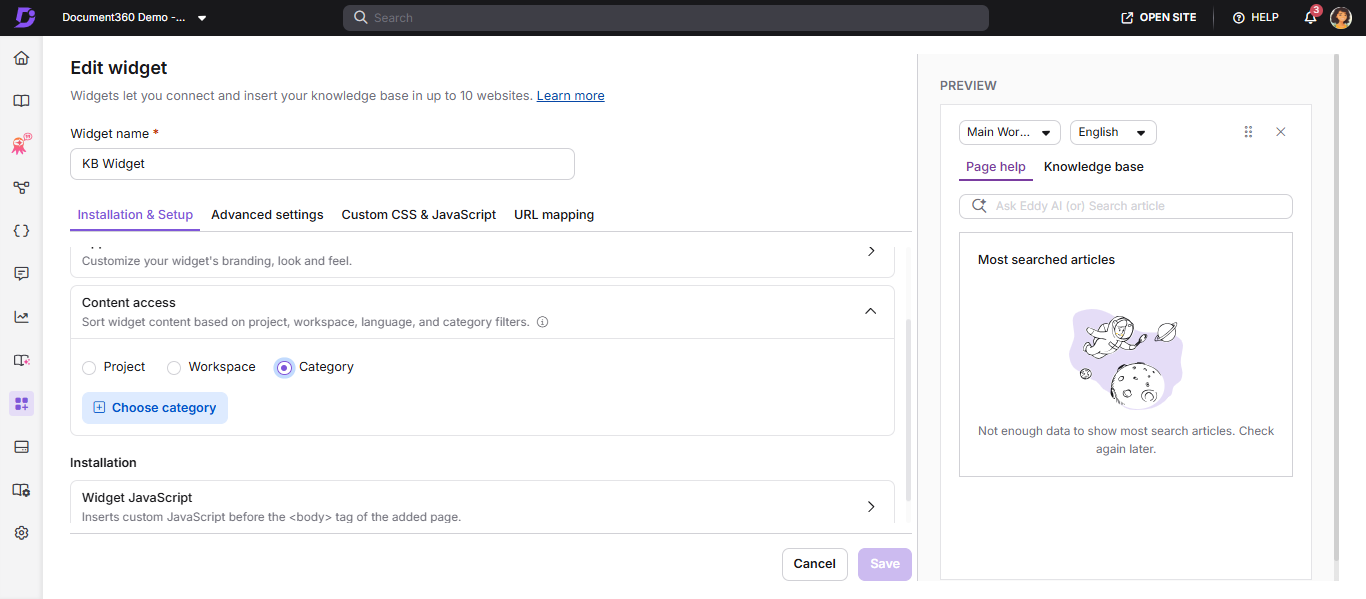
- In the Installation & Setup tab, expand the Content access section.
- Select the desired filter level:
- Project — All workspaces and languages
- Workspace — One or more specific workspaces and languages
- Category — One or more specific categories
- Choose the desired workspaces, languages, and categories to display in the widget.
- Click Done, then click Save to apply the changes.
Validating reader group content permissions
When a reader logs in, the system validates whether their reader group permissions match the widget's content access filters. Only the intersecting permissions between the widget-level settings and the reader group settings are considered for validation. This ensures that users see only the articles they are authorized for.
The same validation is applied when readers click internal links inside the widget. The widget checks the configured content access filters, workspace scope, and reader group permissions before loading the destination content. If the linked content falls outside the allowed scope, the widget displays a restricted access state instead of rendering the article.
Changes made to content access will directly impact your URL mapping. If you modify the filter settings of the widget, the existing URL mapping may be removed, leading to broken links.
You can only configure URL mappings using articles included in the current Filter widget content.
Example 1: You have set the filter widget content at the Project level and configured a URL mapping that includes a list of articles from Category A in Workspace V1. If you update the filter settings to show only Categories B and C in the same workspace, the previous URL mapping becomes invalid — because the originally mapped articles from Category A are no longer available in the widget.
Example 2: If the widget is filtered to display content only from Workspace V1, you cannot create a URL mapping for an article located in Workspace V2.
Always review and update URL mappings after changing content access settings.
Best practices
- Use Category level access only when you need tightly scoped widget content. The tradeoff is that you must manually maintain the category list as new categories are added.
- After changing content access, test the widget by navigating to each mapped URL to confirm the expected articles still appear.
FAQ
Why are some categories missing from the knowledge base widget?
This may occur if category-level access has not been properly configured for the widget. To ensure your categories are visible:
Verify that the reader has permission to view the specific categories in the knowledge base widget.
Check whether category-level access is configured. If it is, manually add the desired category in the content access section.
To add the missing category to the widget:
Navigate to Connections () > Knowledge base widget.
Hover over the desired widget and click the Edit () icon.
In the Installation & Setup tab, expand the Content access accordion.
Select Category and choose the desired category to appear in the widget.
Click Save to apply the changes.
Why does an article link open inside the widget instead of a new tab?
The knowledge base widget determines link behavior based on the destination workspace type and access eligibility.
The Open in a new tab setting configured in the editor is not supported in the widget. Internal links within the same domain always open inside the widget, regardless of the selected setting.
Articles in standard workspaces open inside the widget.
Articles in other standard workspaces also open inside the widget when they are included in the widget's content access configuration.
API documentation links always open in a new browser tab.
External domain links always open in a new browser tab.
If the destination content is restricted, the widget displays a restricted access state.
If the destination cannot be resolved, the widget displays a fallback state.
Why is an internal article link showing restricted access inside the widget?
This happens when the linked article is outside the widget's configured content access scope or the reader does not have permission through their assigned reader group.
Verify that:
The destination workspace is included in the widget configuration.
The linked category is within the allowed filter scope.
The reader has access through the assigned reader group.
If the destination content is outside the allowed scope, the widget intentionally displays a restricted access state.
Is it possible to restrict widget content for individual readers without using JWT?
No. Content access filters (Project, Workspace, or Category) restrict what the widget displays overall, and reader groups restrict what a signed-in reader can see, but neither provides restriction at the level of a single, specific reader. Reader-level content restriction in the widget requires JWT authentication with JWT reader groups. Without JWT, the narrowest available level of control is category.
Also note, for reference: JWT authentication for the Knowledge Base Site and JWT authentication for the Knowledge Base Widget are configured independently. Enabling or disabling JWT for one does not automatically affect the other.