The Knowledge base widget can behave unexpectedly when configuration settings, content access filters, API keys, or JWT authentication are not aligned correctly. Most issues — from a floating icon that won't hide, to articles opening outside the widget, to the widget failing to load altogether — have a specific setting or credential mismatch as the root cause. This guide covers the most common widget issues and the steps to resolve each one.
The widget icon is not appearing on the Knowledge base site
The floating Knowledge base widget icon is not visible on your Knowledge base site, even though the widget script is installed and the widget appears to be configured.
One common cause is the Hide widget toggle being enabled in the widget's Appearance settings. This toggle is designed to suppress the floating icon when you are using a custom button to trigger the widget. If it is enabled without a custom button trigger in place, the widget icon will not appear anywhere on the site.
Steps to resolve
- Navigate to Connections > Knowledge base widget in the left navigation bar.
- Hover over the desired widget and select the Edit icon.
- In the Installation & Setup tab, expand the Appearance accordion.
- Locate the Hide widget toggle and check whether it is turned on.
- If you are not using a custom button trigger, turn the toggle off.
- Select Save to apply the changes.
- Refresh your Knowledge base site to confirm the floating icon is now visible.
If you intend to trigger the widget using a custom button and do not want the floating icon to appear, keeping Hide widget enabled is correct. In that case, verify that your custom button implementation is in place. See Customizing the Knowledge base widget using Custom CSS/JavaScript for trigger setup guidance, and Migrating to knowledge base widget V2 if your widget has been upgraded to V2.
Widget icon is still visible after mapping to a custom button
The default floating widget icon continues to appear on your Knowledge base site even after you map the widget to a custom button. This happens because the widget script renders the floating icon by default — mapping to a button does not automatically suppress it. You need to explicitly enable the Hide widget toggle in the widget's style settings.
Steps to resolve
- Navigate to Connections > Knowledge base widget in the left navigation bar. A list of created widgets appears.
- Hover over the desired widget and select the Edit icon.
- In the Installation & Setup tab, expand the Appearance accordion.
- Locate the Hide widget toggle and turn it on.
- Select Save to apply the changes.
- Refresh your Knowledge base site to confirm the floating icon is no longer visible.
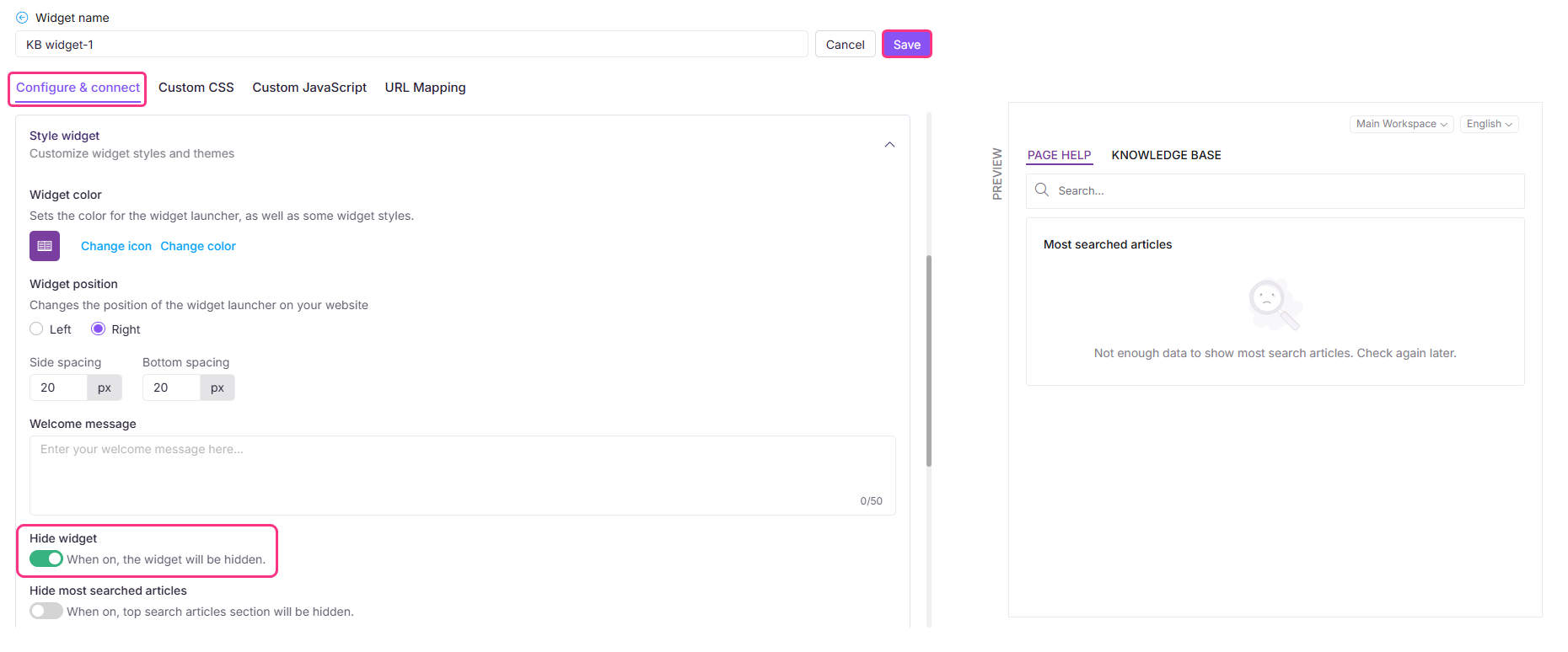
The widget icon will no longer appear on the site, but the widget will continue to function as expected when triggered via your custom button.
If you are also using URL mappings to control widget visibility, refer to Customizing the Knowledge base widget using Custom CSS/JavaScript for advanced hiding options.
"Most searched articles" section is not visible
The Most searched articles section and the mapped article list for a specific URL are not appearing in the widget. This typically occurs when the Hide most searched articles toggle is enabled in the widget style settings — enabling this option hides both the Most searched articles section and any article list mapped to a specific URL.
Steps to resolve
- Hover over the desired widget and select the Edit icon.
- In the Installation & Setup tab, expand the Appearance accordion.
- Locate the Hide most searched articles toggle and turn it off.
- Select Save to apply the changes.
- Refresh the Knowledge base site and confirm that the Most searched articles section and mapped articles list are now visible.
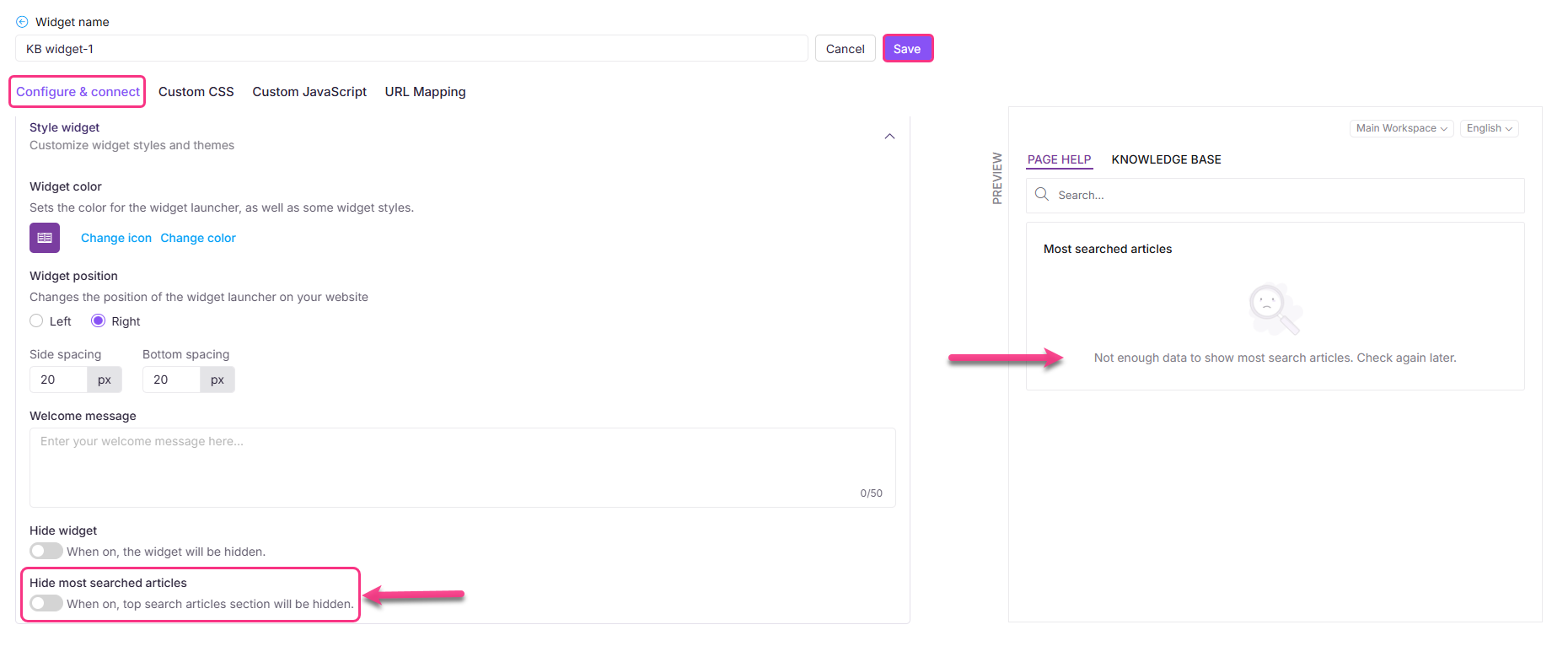
If the issue persists after disabling the toggle, double-check the article-to-URL mappings and review other display settings within the widget configuration.
Article links are redirecting to the KB website instead of opening within the widget
Article links inside the widget follow navigation behaviour based on the destination content type and the widget's content access scope. If a link opens outside the widget, the destination article's category is likely not included in the widget's content access configuration.
How link navigation works in the widget
| Scenario | Behaviour |
|---|---|
| Internal link to an article in the same standard workspace | Opens inside the widget |
| Internal link to an article in another standard workspace | Opens inside the widget when the destination workspace, language, and category are included in the widget's content access filters |
| Link to API documentation | Always opens in a new browser tab |
| Destination article restricted by reader group permissions or widget filters | Widget displays a restricted access state |
| Destination link cannot be resolved | Widget shows a fallback state — no raw error is exposed |
The widget does not honour the Open in new tab setting for same-domain links. These will always open within the widget.
Steps to resolve
If links are opening outside the widget when you expect them to open inside, add the missing category to the widget's content access configuration.
- Navigate to Connections > Knowledge base widget and select Edit.
- In the Installation & Setup tab, expand Content access.
- Select Category and add the missing category.
- Select Save.
- Test the article links in the widget to confirm they now open within it.
An article link in the widget returns a 404 error
When a reader clicks an internal article link inside the widget and receives a 404 error, the destination article's category is likely not included in the widget's content access configuration. This can occur even when the article is published and accessible on the Knowledge base site — the 404 error in this scenario reflects the widget's content scope, not a missing or deleted article.
This is distinct from the redirect scenario described above. If the category is excluded from the widget's content access filters, clicking a link to an article in that category may produce a 404 error rather than opening the article on the Knowledge base site.
Steps to resolve
- Navigate to Connections > Knowledge base widget and select Edit.
- In the Installation & Setup tab, expand Content access.
- Confirm whether Category-level access is configured.
- If it is, check that the destination article's category is included in the category list.
- If the category is missing, select Category and add it.
- Select Save.
- Test the article link in the widget to confirm the 404 error is resolved.
If your widget uses category-level content access, review the content access settings whenever new categories are added to your knowledge base. Categories added after the widget was last configured are not included automatically, and links to articles in those categories will produce a 404 error until the category is added.
Users can view articles in the widget but get an access-denied or login page when using Open Article or Open Site
This happens when users have access to content through the Knowledge Base Widget but do not have the required permissions to access the Knowledge Base Site directly. The widget and the Knowledge Base Site use separate access control mechanisms: widget access is controlled through the widget's content access settings, such as project, workspace, or category-level permissions, while site access is controlled through site authentication methods such as JWT, SSO, and Reader Group permissions. As a result, a user may be able to view content within the embedded widget but encounter an access-denied page when attempting to open the same article on the Knowledge Base Site.
Steps to verify
- Confirm whether users have been added as Readers and assigned to appropriate Reader Groups.
- Verify whether users are expected to access content only through the embedded widget or through the Knowledge Base Site as well.
- Test the behavior in an incognito or private browsing session to validate the end-user experience.
Resolution options
Option 1: Restrict users to the widget experience
If users should access documentation only through the embedded widget: keep content access configured through widget permissions, and hide the Open Article or Open Site option using Custom CSS in the widget. This prevents users from navigating to the Knowledge Base Site and encountering authentication or permission-related issues. See Customizing the Knowledge base widget using Custom CSS/JavaScript for the CSS snippet.
Option 2: allow users to access the Knowledge Base Site
If users need direct access to the Knowledge Base Site: add users as Readers, assign them to Reader Groups with the required content permissions, and ensure site-level permissions align with the content users are expected to access.
Option 3: Disable unused JWT configuration
If JWT authentication is enabled for the knowledge base site but is not actively required (for example, if readers are only meant to access content through the widget), the mismatch between widget access and site access can also be resolved by disabling or removing the unused JWT configuration. Before disabling JWT, validate internally that no other integration or reader workflow depends on it. Once confirmed, disable JWT from the site's JWT configuration settings. This aligns the site behavior with the intended access model and removes the authentication mismatch.
Additional information
JWT authentication for the Knowledge Base Site and JWT authentication for the Knowledge Base Widget are configured independently. Enabling or disabling JWT for one does not automatically affect the other.
The Workspace and Language dropdowns cannot be hidden
The Workspace and Language dropdowns are visible in the widget by default and cannot be removed through the current settings. To reduce confusion for readers, scope the widget to a single workspace using the content access filters — readers will only see content from that workspace, making the dropdowns less relevant.
Steps to reduce the impact
- Navigate to Connections > Knowledge base widget and select Edit.
- In the Installation & Setup tab, expand Content access.
- Set the workspace scope to a single workspace.
- Select Save.
The widget is not loading on my Knowledge base site
If the widget fails to load and you recently rotated or updated your API key, the widget script is likely using an outdated key.
Symptom: The widget loads, but a call to the widget settings API (GET /v1/widget/get-widget-setting) returns an HTTP 400 response with the message "Invalid widget setting id."
Likely cause: The API key in your widget installation script is outdated, incorrect, or does not match the widget it is meant to be associated with.
Steps to resolve
Update the API key in your widget installation script with the current key to restore functionality. If you are unsure which key corresponds to your widget, go to Connections > Knowledge base widget > Edit > Installation & Setup, to view the current API key for that widget.
My widget calls are failing with 401 Unauthorized (apihub.document360.io)
Symptom: The widget loads, but calls to the Document360 widget API (apihub.document360.io) return an HTTP 401 Unauthorized response.
Likely cause: The widget installation script is using a portal-level API key or API token (created from Settings > Knowledge base portal > API keys) instead of the widget's own dedicated key. These are two different credentials: a portal API key or token authenticates requests to the Document360 REST API for external integrations, while the widget's embedded script requires its own key, generated specifically for that widget.
Steps to resolve
- Navigate to Connections > Knowledge base widget.
- Hover over the widget and select Edit.
- In the Installation & Setup tab, expand the Widget JavaScript accordion to view the correct key for this widget.
- Update your widget installation script with this key, replacing any portal API key or API token that may have been used by mistake.
- Select Save, then refresh your Knowledge base site or host application to confirm the widget loads correctly.
A portal API key or API token (Settings > Knowledge base portal > API keys) is intended for external integrations with the Document360 REST API and cannot be used to authenticate the knowledge base widget.
The widget is loading on a domain I did not intend
If the widget appears on domains you did not configure, your allowlist is likely empty. An empty allowlist means no domain restrictions are applied - the widget loads everywhere.
Steps to resolve
Add your intended domains to the allowlist. This blocks all other domains from loading the widget.
Widget is missing on the login page but appears after login
The Knowledge base widget was previously visible on a login or sign-in page but is no longer rendering there. The widget continues to load correctly on other pages in the application, including pages that appear after the user has authenticated.
This scenario has several possible causes and does not always produce a console error, so a structured check is needed to identify the root cause.
Steps to diagnose
-
Confirm the regression. Establish whether the widget was previously visible on the login page and identify approximately when it stopped appearing. This distinguishes a regression from a configuration that was never in place.
-
Check the browser console on the login page. Open the login page, open Developer Tools (F12), and select the Console tab. Look for errors related to blocked scripts, Content Security Policy (CSP) violations, or failed resource loads. If the widget runs in Widget V2, also look for blocked iframe sources referencing the Document360 CDN.
-
Compare the login page domain with the application domain. The login page may be served from a different domain or subdomain than the authenticated application. Check whether the login page domain is included in the widget's allowed domain list:
- Navigate to Connections > Knowledge base widget.
- Hover over the widget and click Edit.
- Open the Advanced settings tab and expand the Widget security accordion.
- If the login page domain is not listed, add it.
Adding the parent domain covers all subdomains automatically. If the login page is on a completely separate domain (for example, login.companydomain.com where the application is on app.differentdomain.com), that separate domain must be added explicitly.
-
Verify that the widget script is included in the login page. Some application frameworks load the widget script only within authenticated layouts or components. If the script is not embedded in the login page's HTML, it will not execute there, regardless of domain or permission configuration. Confirm with your engineering team that the widget JavaScript snippet is present in the login page's HTML.
-
Check the Content Security Policy on the login page. If the login page enforces a Content Security Policy that restricts
frame-src, the widget iframe may be blocked. Ensure the appropriate Document360 CDN domain is included in theframe-srcdirective:- EU data centre:
https://cdn.document360.io - US data centre:
https://cdn.us.document360.io
If a CSP violation is the cause, the browser console displays a blocked frame source error.
- EU data centre:
For further guidance on domain restriction, see Widget security. For CSP requirements specific to Widget V2, see Migrating to knowledge base widget V2.
Custom button click has no effect (widget does not open)
A custom button that previously opened the knowledge base widget no longer responds when clicked. Clicking the button produces no visible result — the widget does not open and no error message appears on the page. The widget embed script has not been changed and the widget works correctly in other respects, such as loading on the page when triggered another way.
Why this happens
The most common cause is a Widget V2 migration. Document360 progressively migrates widgets from Widget V1 to Widget V2 across projects. If your widget was running on V1 and used a custom button that opened the widget through direct access to the widget's internal DOM — for example, using contentDocument or contentWindow to click an internal button element — that approach is no longer supported after the V2 migration. Widget V2 loads inside a cross-origin iframe, which prevents host-page scripts from accessing its internals. When the button click event fires, the script attempts the DOM access, fails silently due to browser security restrictions, and nothing happens.
Two other possible causes are:
- Missing widget embed script. The widget script is not present on the page or layout where the button is embedded. If the script was added to only part of the application, the button has nothing to call when clicked.
- CSP restriction. A Content Security Policy on the host page blocks the Widget V2 iframe from loading, which prevents the widget from opening regardless of how the trigger is called.
Steps to diagnose
- Open the page where the button is embedded and open Developer Tools (F12 on most browsers).
- Select the Console tab and check for any of the following:
SecurityErroror same-origin-related errors — this indicates your custom button script is attempting direct DOM access that is now blocked under Widget V2.- Errors referencing blocked frame sources or failed widget API requests — this indicates a CSP restriction.
- No errors at all — if the button click registers with no console output and no visible result, confirm the widget embed script is present in the page source.
- Select the Network tab, then click the button. Check whether a call to the widget API appears. If no network requests appear after clicking, the script is likely failing silently before reaching the network.
Steps to resolve
If the console shows SecurityError or same-origin errors, or the button produces no console output or network activity:
Your custom button uses a direct DOM access approach that is not compatible with Widget V2. Update your trigger to use the mw() command or the postMessage API. See Migrating to knowledge base widget V2 for the updated implementation and code samples.
If the console shows CSP blocked frame source errors:
Update your Content Security Policy to allow the Document360 widget CDN domain as a frame source:
- EU data centre:
https://cdn.document360.io - US data centre:
https://cdn.us.document360.io
See Migrating to knowledge base widget V2 for the full CSP requirements.
If the widget embed script is not present on the page:
Add the widget JavaScript snippet to the page or layout template where the custom button is embedded. The snippet is available under Connections > Knowledge base widget > Edit > Installation & Setup > Widget JavaScript.
If you are unsure whether your widget is currently running on Widget V1 or Widget V2, contact Document360 support.
Ticket deflector is not appearing in the dropdown
Only ticket deflectors with Online status appear in the widget dropdown. If yours is missing, it is likely set to Offline.
Steps to resolve
- Navigate to Settings > Ticket deflector.
- Locate the relevant ticket deflector.
- Toggle its status to Online.
- Return to the widget configuration and confirm the deflector now appears in the dropdown.
Ticket deflector tab is not showing in the widget
If the ticket deflector tab does not appear in the widget, the Show ticket deflector toggle may be disabled, or the API key in your installation script may be outdated.
Steps to resolve
- Navigate to Connections > Knowledge base widget and select Edit.
- Confirm the Show ticket deflector toggle is enabled.
- Select Save.
- If the tab still does not appear, verify that the API key in your widget installation script is current and update it if needed.
- Refresh the page and confirm the tab is now visible.
Decision Tree links in the widget return a 404
Decision Tree links are not currently supported inside the widget. They will either open in a new browser tab or return a 404 error — this is a known limitation.
Workaround
Use standard article links in your ticket deflector content instead of Decision Tree links.
Decision Tree links cannot be made to open inside the widget at this time. There is no configuration change that will resolve this — only replacing the links will prevent the 404 error.
Mailto: links in the widget open a blank page or produce an error
When a reader clicks a mailto: link within an article displayed inside the
Knowledge base widget, the browser opens a blank page or produces an error
instead of launching an email application. The issue occurs when the widget
is embedded within a host application. The same mailto: links work correctly
when tested in Document360's widget test environment or on a standalone page
outside the host application.
Why this happens
When the Knowledge base widget is embedded inside a host application, it runs
within an iframe. External protocol navigation — such as a mailto: link
opening an email client — can be blocked by the host application's security
configuration. This is not caused by the Document360 widget itself. If the
same mailto: links work correctly when the widget is tested outside the host
application, the restriction is in the embedding environment.
Common causes include:
- The host application's iframe configuration restricts external protocol
navigation such as mailto:. - The host application's Content Security Policy (CSP) prevents the browser
from handling external protocol links from within the embedded widget. - Other security controls in the host application prevent the widget from
triggering external application launches.
Steps to diagnose
- Test the widget on a standalone page. Create a simple HTML file, embed
the widget script in it, and test the same mailto: link. If the link opens
the email client correctly, the restriction is in the host application, not
the widget. This is the fastest way to confirm the source of the issue
before involving your infrastructure team. - Check the browser console when the link fails. Open Developer Tools
(F12 on most browsers) and check the Console tab for errors referencing
blocked navigation, Content Security Policy violations, or iframe-related
restrictions. - Confirm with your engineering or infrastructure team whether the iframe
embedding the widget carries any restrictions that could prevent external
protocol navigation, or whether the application's CSP or other security
controls restrict it.
Steps to resolve
- Review the iframe configuration for the page where the widget is embedded.
Check whether any iframe-level attributes restrict external protocol
navigation. Work with your engineering team to identify and adjust the
relevant configuration. - Review your host application's Content Security Policy. If a CSP is in
place, check whether it permits the browser to handle external protocol
links such as mailto: from within the embedded widget iframe. Work with
your infrastructure team to update the policy if needed. - Test the mailto: links in the widget after each configuration change to
confirm the issue is resolved.
These restrictions are part of the host application's own security
configuration and cannot be modified from within Document360. Work with your
internal infrastructure or engineering team to investigate and adjust the
relevant host-environment settings.
JWT authentication issues
The JWT client secret is configured at the project level and shared across all widgets in the project that have JWT authentication enabled. Regenerating the client secret from any widget, including a test or non-production widget, immediately invalidates the previous secret for all other JWT-enabled widgets in the same project. Any backend service not updated with the new secret will begin returning authentication errors and the widgets it serves will stop loading.
All other widget settings (embed code, content access, Custom CSS, Custom JavaScript, URL mappings) are specific to each widget and do not affect other widgets. The JWT client secret is the only exception.
If you maintain separate production and test widgets within the same project, treat client secret regeneration as a project-wide operation. Update every backend service that serves a JWT-enabled widget immediately after regenerating.
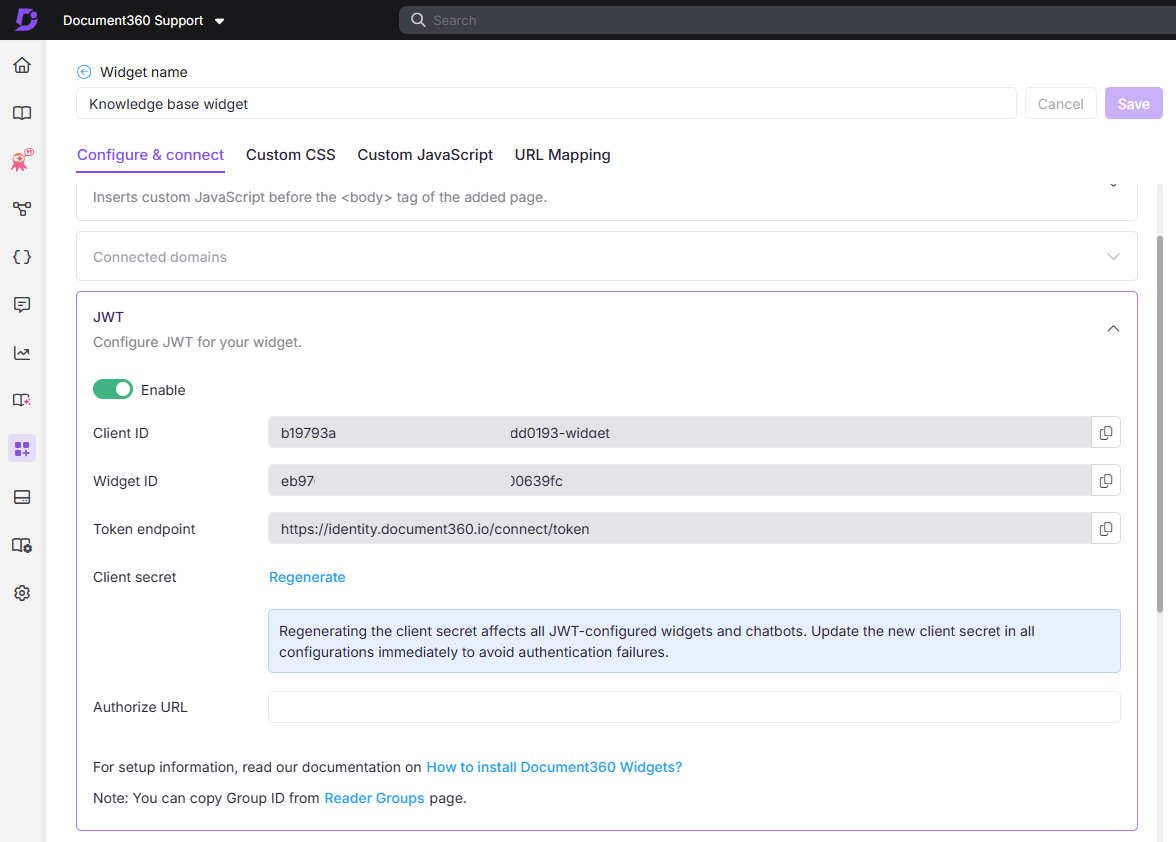
Document360 displays the client secret only once, at the moment it is generated. It cannot be retrieved again after you close or navigate away from the page. If the secret was not saved at generation, regenerate it and update all backend services with the new value before closing the page.
Known limitation
Client secret regeneration events are not currently captured in Team Auditing. If your widget stops authenticating and no team members recall making a change, audit logs will not identify who regenerated the secret or when. Regenerate the client secret, update all backend services, and verify the widget loads correctly.
If a Postman request or the live widget fails to return a valid token, use the table below to identify the cause and resolution.
| Symptom | Likely cause | What to do |
|---|---|---|
Response status is 401 Unauthorized |
Incorrect Client ID or Client Secret in the request | Verify the credentials in the JWT section of the widget configuration. If you recently regenerated the secret, update it everywhere it is used. |
Response status is 400 Bad Request |
Malformed payload or missing required fields | Confirm that all required fields — username, readerGroupIds, widgetId, and projectId — are present and correctly formatted. |
| Widget loads but displays no content | No valid reader group IDs in the token payload | Confirm that the readerGroupIds values match existing reader group IDs in your Document360 project. At least one valid group ID is required. |
| The widget displays "Authentication failed against Auth URL - widget will not mount" but JWT credentials appear correct | One or more trusted domains are configured in Widget security settings, but the testing domain (such as localhost or a local development environment) is not included. When trusted domains are configured, the widget only loads on those domains. | 1. Navigate to Connections > Knowledge base widget. 2. Hover over the widget and select Edit. 3. In Advanced settings, expand Widget security. 4. Check the trusted domains list. Remove all trusted domains to allow unrestricted access, or add your testing domain. 5. Click Save, reload the page, and retest the widget. |
| Token is generated but the widget shows an error | Authorize URL mismatch | Ensure the Authorize URL in the portal matches the exact URL of the webpage where the widget is embedded. |
An HTTP 500 from the authentication endpoint means the backend service is using an outdated client secret. The widget will not load at all until the secret is updated in the backend - updating the portal configuration alone is not sufficient.
Custom script for switching to the Knowledge Base tab stopped working after migrating to Widget V2
Why this happens
Widget V1 rendered both the Page Help and Knowledge Base sections in the page at the same time, and simply hid or showed each one using CSS classes. A custom script could toggle those classes to switch tabs.
Widget V2 is built differently. It only loads the content of whichever tab is currently active; the other tab's content is not present in the page until you switch to it. A script that looks for both sections and toggles their classes will find nothing to act on, since the inactive tab's elements no longer exist in the page. There is currently no dedicated postMessage or mw() command for switching tabs directly; supported commands are limited to show, hide, and toggle for opening and closing the widget.
Steps to resolve
- Update your script to click the Knowledge Base tab element directly, instead of toggling CSS classes on the Page Help and Knowledge Base sections.
- See "Keep the Knowledge Base tab active if the widget switches to Page Help" in Customizing the Knowledge base widget using Custom CSS/JavaScript for a ready-to-use script.
- Paste the updated script into the Custom CSS & JavaScript tab of your widget settings and save.
Contributor names are still visible in the widget after turning off Show article contributors
Contributor names may still appear in the Knowledge Base widget even after the Show article contributors toggle is turned off in Article settings. This is expected because the setting applies only to the knowledge base site, not the widget.
Steps to resolve
- Navigate to Connections > Knowledge base widget in the left navigation bar.
- Hover over the affected widget and select the Edit icon.
- Open the Custom CSS & JavaScript tab and go to the CSS section.
- Paste the following snippet and click Save.
.category-view__names {
    display: none !important;
}
- Allow up to 15 minutes for the change to take effect due to caching.
- Open an incognito window and check the widget to confirm that contributor names are hidden.
If contributor names are still visible after the cache has cleared, replace the snippet with this alternative:
.category-view__contributors {
    display: none !important;
}
For step-by-step instructions on adding Custom CSS to the widget, see Customizing the Knowledge base widget using Custom CSS/JavaScript.
FAQ
Select Save in the widget configuration, then do a hard refresh of your page (Ctrl+Shift+R on Windows or Cmd+Shift+R on Mac). Some changes require the page cache to clear before they take effect.
Feedback icon (like/dislike) stays active after a hard refresh
After a reader clicks Like or Dislike on an article inside the widget, the icon can remain visually active even after a hard refresh (Ctrl+Shift+R on Windows, Cmd+Shift+R on Mac). This happens because the reaction state is stored in the reader's browser rather than pulled fresh from the server on every load. A hard refresh reloads the page but does not clear this stored state; only clearing the browser's cache and site data does.
If the feedback panel was closed or cancelled without clicking Submit, the reaction itself was never recorded in the Feedback manager; only the local visual icon state persists. See Liking or disliking an article for how feedback submission and this browser-stored state work.
I rotated my API key. Do I need to update it in more than one place?
Yes. If you use the API key in multiple widget installation scripts, ticket deflectors, or chatbot configurations, update each one individually. A single outdated reference will stop that surface from loading.
Can I hide the Workspace and Language dropdowns entirely?
No. These dropdowns cannot be removed from the widget UI. Scoping the widget to a single workspace via content access filters is the recommended way to reduce their visibility and relevance for readers.
The widget loads but shows restricted access for some articles. Why?
The destination article is either outside the widget's content access scope or restricted to a reader group that the current user does not belong to. Review the content access filters and reader group configuration in the widget settings.
Decision Tree links work on my KB site but not inside the widget. Is this a bug?
No. Decision Tree links are not currently supported inside the widget — this is a known limitation. They will open in a new tab or return a 404. Replace them with standard article links as a workaround.
Can the widget API key change on its own, or without any action on my part?
No. The widget API key is stable and does not change automatically. It changes only when one of the following actions is taken:
- You manually regenerate it from the widget settings.
- JWT authentication is enabled on the widget and then later disabled. When JWT is disabled, a new API token is automatically generated and replaces the previous one.
All other widget actions - including renaming the widget, saving configuration changes, and modifying appearance or content access settings - do not affect the key.
If you believe your key has changed unexpectedly, check whether JWT authentication was recently toggled on or off. You can verify the current key at any time from Connections > Knowledge base widget > Edit > Installation & Setup > Widget JavaScript.
If you use the same API key in multiple installation scripts, ticket deflectors, or chatbot configurations, update each one individually after any key change.