
Document360 version 12.11.3 is now live, introducing the unified editor and Content ambiguity check, along with enhancements to article publishing, URL mapping management, API rate limit visibility, and JWT sign-in routing. These updates make it easier to create consistent content, identify conflicting information, streamline publishing, and manage your knowledge base.
Features and enhancements
Unified editor for all your content needs
Category: Editor | Feature
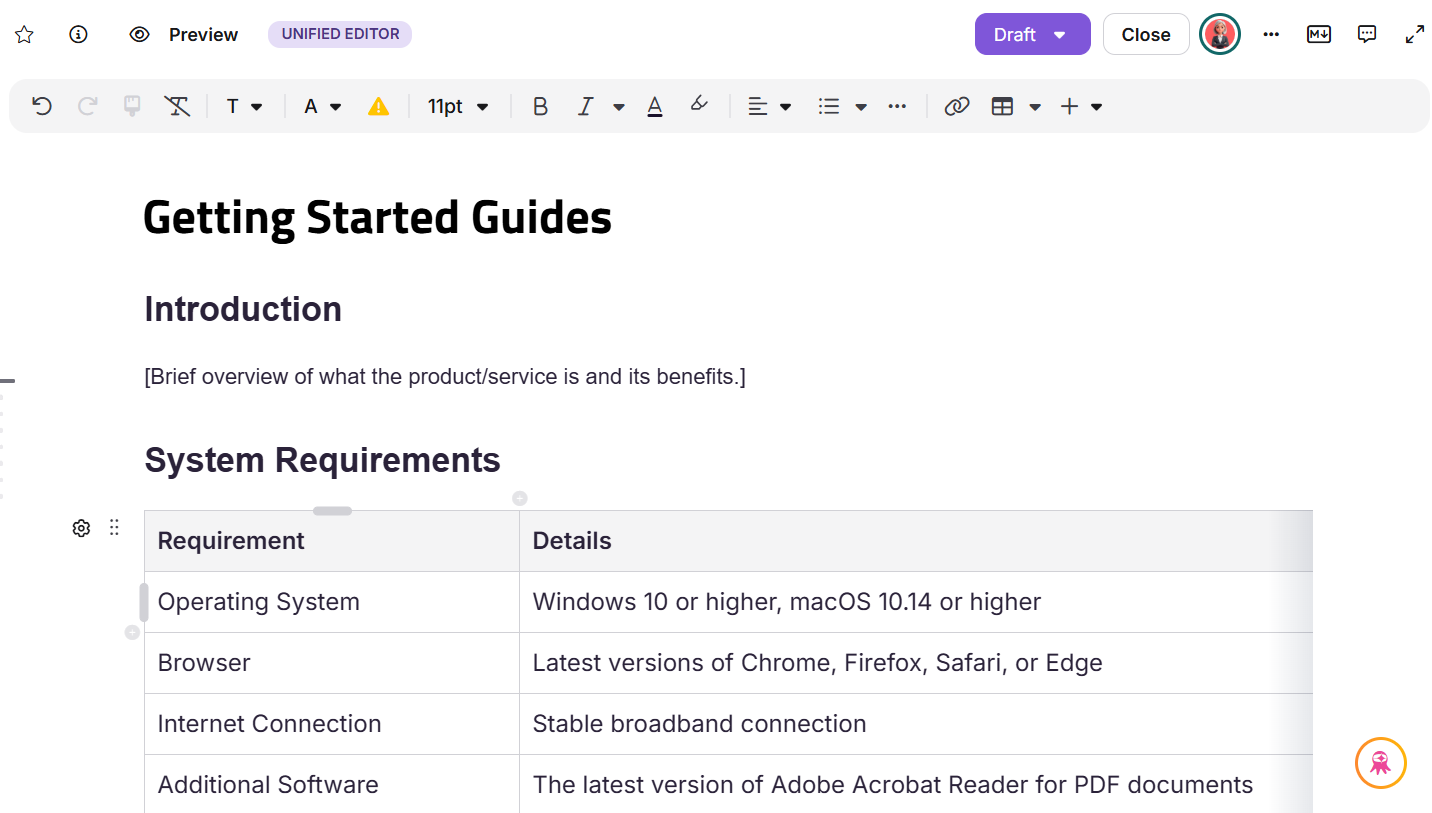
Editing content in Document360 is now simpler and more flexible. Markdown and HTML editing come together in a single, unified editor, so instead of choosing an editor type when you create an article, you work in one place and switch between Markdown and Block views whenever you like, with your content always staying in sync across both.
Behind it is one shared content format, so your articles stay consistent however they're created or edited, across the editor, the API, and Eddy AI. The editor also moves from a floating toolbar to a fixed top bar with a refreshed interface. It's rolling out in phases and is currently available for newly created projects, so if you don't see it yet, it will reach your project soon.
For more information, read the article on Unified editor.
Find conflicting information across articles
Category: Knowledge pulse | Feature
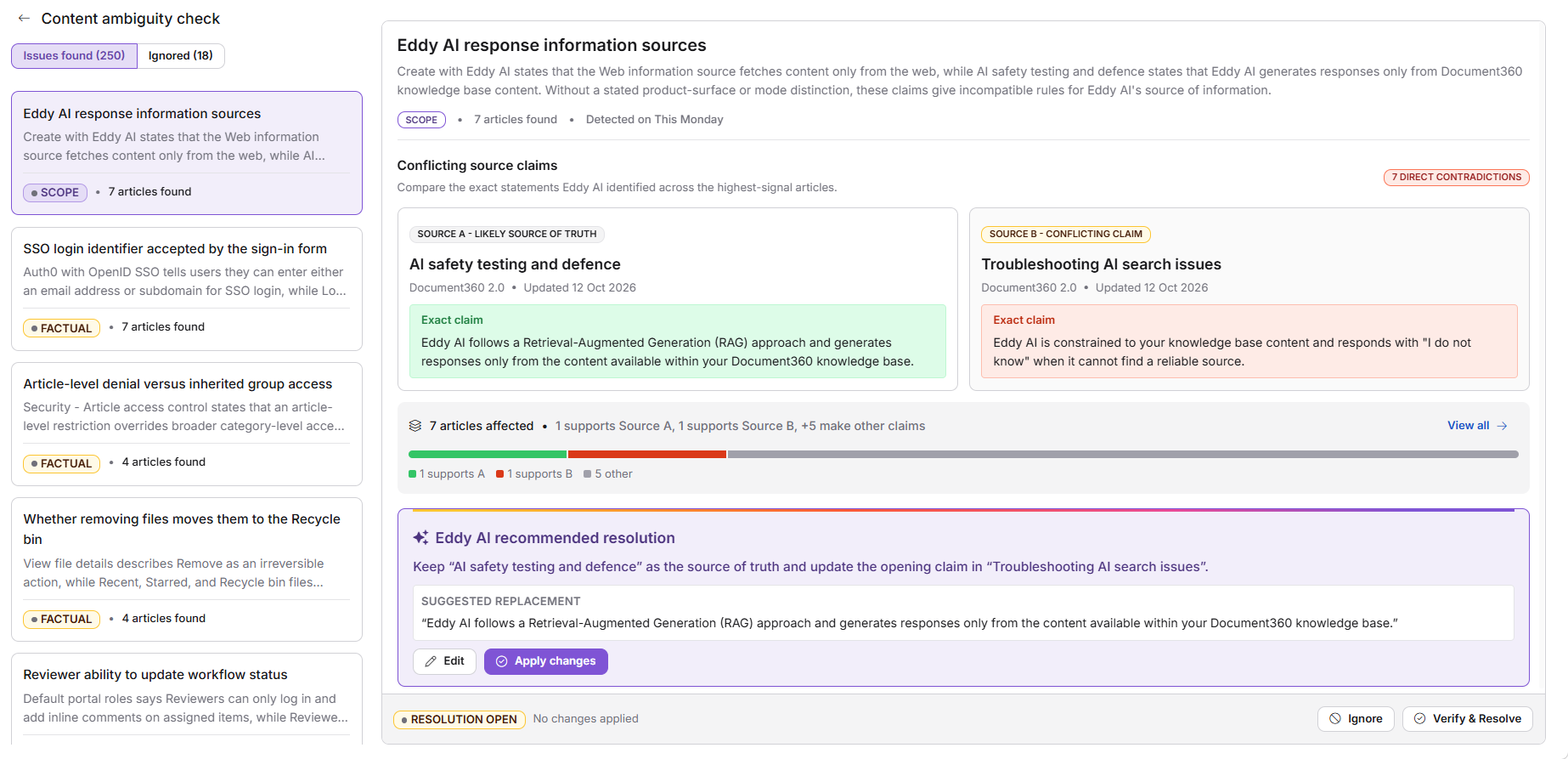
Conflicting information across articles can mislead readers and cause Eddy AI to return incorrect answers. The new Content ambiguity check in Knowledge pulse helps you identify contradictions across your knowledge base without manually reviewing articles against one another.
The check identifies five types of ambiguity: factual, temporal, scope, implied, and regional/geo. Each finding includes the conflicting claims, the supporting articles, and the article identified as the likely source of truth. You can choose which ambiguity types to check, scan the entire project or a selected workspace, and ignore findings that aren't actual conflicts. One manual scan is available per month. You can use these findings to resolve inconsistencies before they affect readers or AI-generated answers.
For more information, see Content ambiguity check.
Find and prioritize URL mappings in the Knowledge base widget
Category: Widget | Enhancement
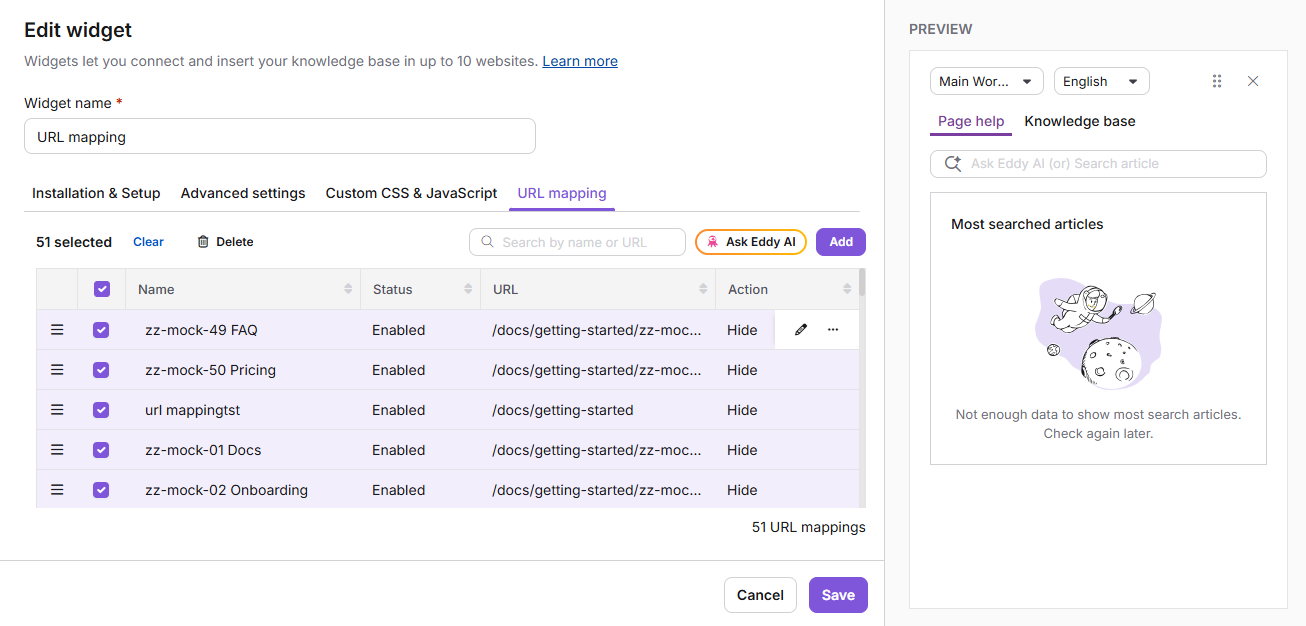
Previously, finding a specific URL mapping meant scrolling through the entire list, and there was no way to change the order in which mappings were applied. You can now search, sort, reorder and bulk delete a widget’s URL mappings for easier management and better control over mapping priority. Search by mapping name or URL, and sort by name, status, URL, or action.
For more information, read the article on URL Mapping.
Publish articles in one click with quick publish
Category: Article management | Enhancement
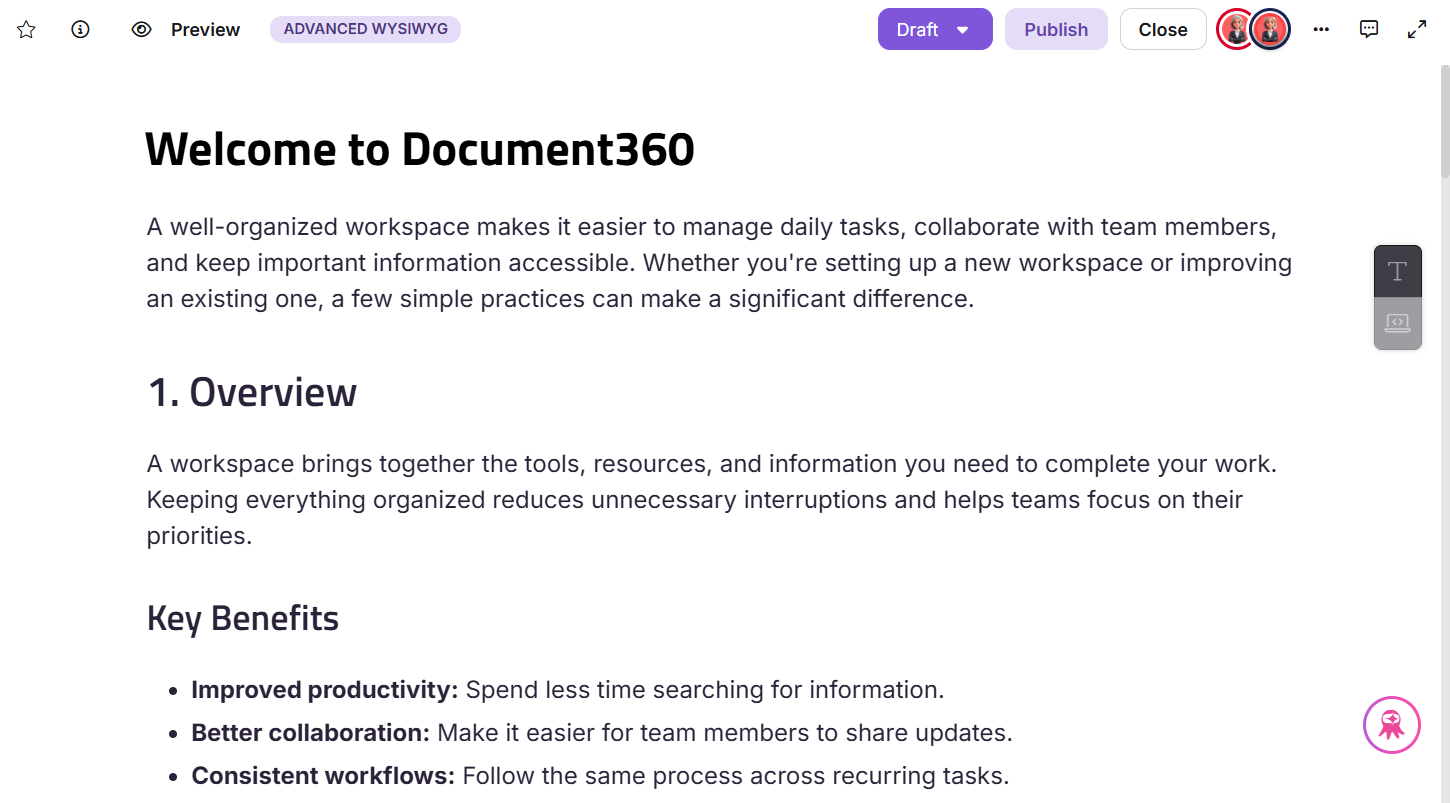
For teams with shorter workflows, you can now give writers a dedicated Publish button in the editor, allowing them to publish articles in one click.
Enable the Enable quick publish setting on the Publish status in the Workflow designer to add the Publish button next to the workflow dropdown. Quick publish is disabled by default and follows the same rules as publishing from the dropdown. Publish permissions, read-only statuses, and mandatory comments still apply. The final status is now named Publish by default. You can rename it to match your team's terminology.
For more information, read the article on Workflow designer.
See your API rate limits in the Knowledge base portal
Category: API documentation | Enhancement
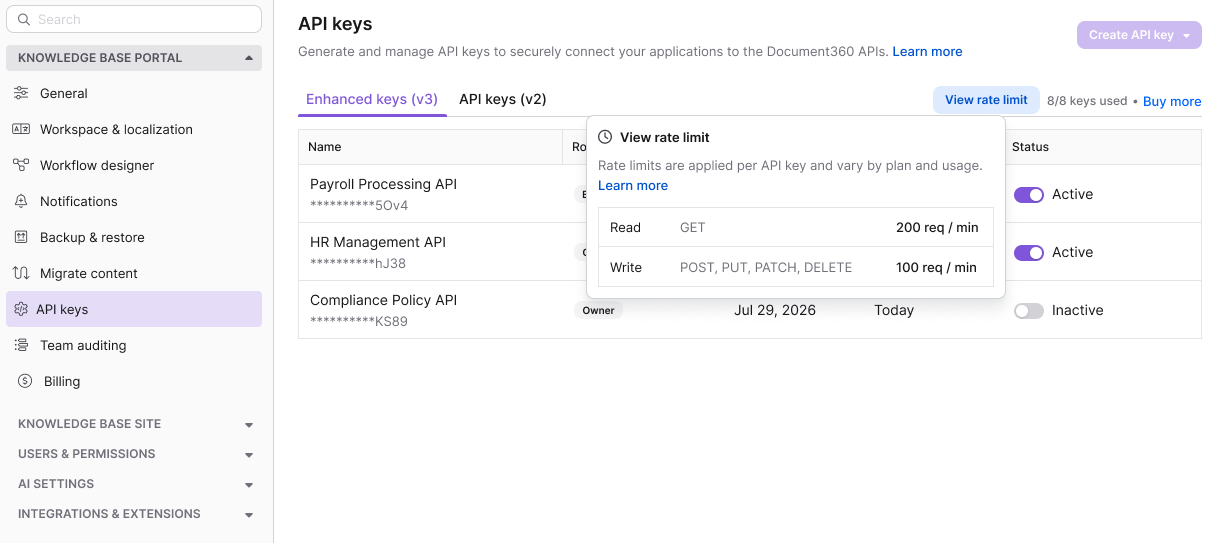
Developers previously had no easy way to check the API rate limits applicable to their project. They had to make API calls and inspect response headers to find out the read and write limits, making it difficult to plan integrations and understand usage constraints upfront.
You can now view the project level rate limits directly on the API keys page. API keys (v2) and API keys (v3) share the same read and write limits. This makes it easier to understand your API usage limits, plan integrations, and manage your API key quota without having to inspect individual API responses.
For more information, read the article on API keys.
Route readers to the right JWT sign-in by referrer domain
Category: SSO | Enhancement
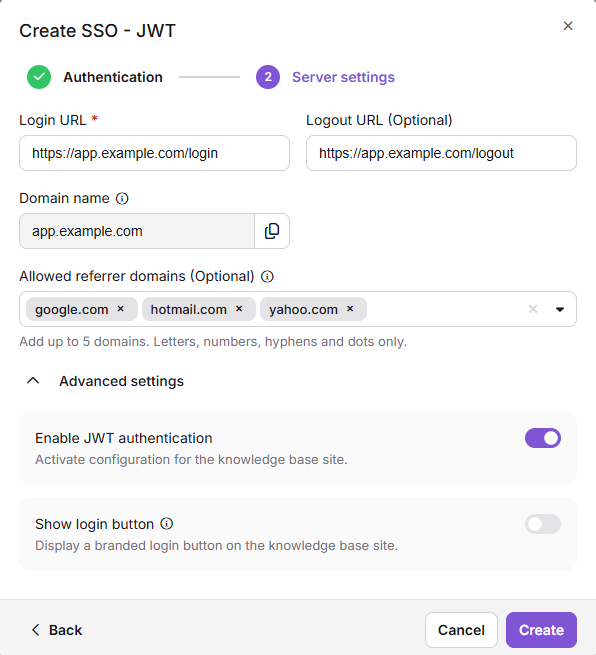
Projects with multiple JWT configurations often serve readers who come from different applications or domains. Previously, these readers landed on a provider selection page and had to choose the correct sign-in themselves. Now Document360 can send them straight to the right login page based on the domain they come from.
Each JWT configuration now has an Allowed referrer domains field where you can add up to five referrer domains that belong to that configuration. When a reader arrives from a listed domain, they skip provider selection, are redirected to the corresponding sign-in provider, and go directly to the knowledge base after authentication. Readers from unlisted domains see the provider selection page as before. Your existing sign-in flow doesn’t change.
For more information, read the article on Configure JWT in Document360.
Other updates
- The Analytics pages now have an improved UI with updated charts and consistent components across all tabs.
- Minor security updates, bug fixes, and performance improvements have also been implemented across the Knowledge base portal and Knowledge base site.